Absence & Coverage
 Overview
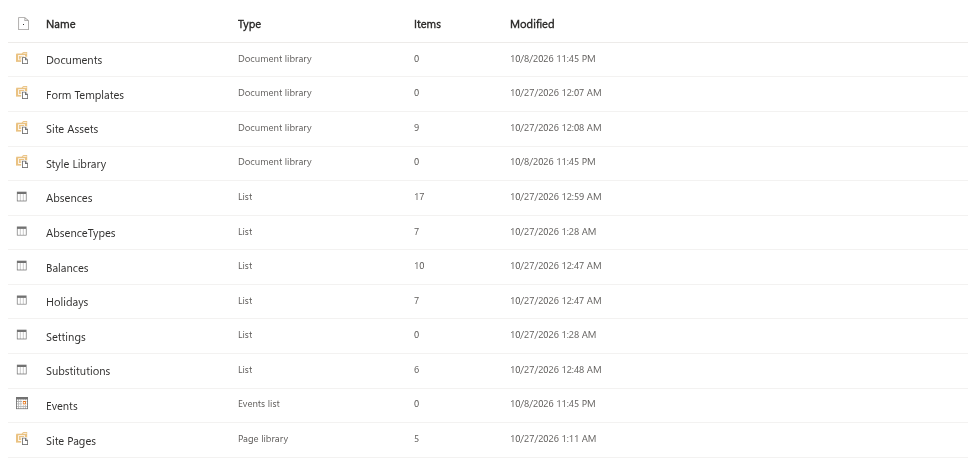
Vitextra Absence & Coverage keeps all data in ordinary SharePoint lists on the product site, so an administrator can open any of them and edit an item. For some lists this is exactly how the product is meant to be maintained. For the Absences and Substitutions lists it is not: these hold the requests and the cover arrangements of your employees, and the web parts write them in a way that the standard list view does not reproduce. This article answers the questions administrators ask most often.
Why shouldn't I change a date in the list view?
The date columns of the product lists, such as StartDate and EndDate, are date-only columns. When a web part saves a date, it writes it as local noon of the chosen day. Noon is far enough from midnight that the stored day stays the same when SharePoint converts the value between time zones.
A date that you type into the list view is saved with a different time of day. For viewers in other time zones such a value may be displayed one day off — for example, a vacation that starts on Monday shows up in the Team Absence Calendar of a colleague abroad as starting on Sunday. As a precaution, always change dates through the web parts.
❗ Important
The list view is a different tool for a different job. Several values of a request are calculated by the web part when it is saved and are not recalculated when you edit a field in the list.
What else is not recalculated?
A request is more than its dates. When it is created, the web part also stores:
| Value | Where it is kept | What happens if you edit the dates in the list |
|---|---|---|
| Number of working days | WorkingDays | Not recalculated; balances and the calendar still use the old number |
| Title of the item (person and type) | Title | Not updated |
| Name of the absence type | TypeName | A copy of the type title made at request time; not updated when the type is renamed |
| Substitutions of the request | Substitutions list, AbsenceId | Dates of the substitution remain as they were |
The web parts also match requests by the text column EmployeeEmail, not by the person column Employee. Changing the person in the list therefore does not move the request to another employee's list.
Which lists can I edit directly?
There is no separate administration web part in this version, so the lookup lists are edited in the list itself.
| List | Edit in the list view? | Notes |
|---|---|---|
AbsenceTypes | Yes | Add types, change colour, approval, allowance. See KB10352. How to Add and Configure Absence Types |
Balances | Yes | One row per person, type and year. See KB10353. How to Set Yearly Entitlements and Carry-Over Days |
Holidays | Yes | One row per day. See KB10354. How to Add Public Holidays |
Settings | Yes | Keys WorkDays, FallbackApprover, AllowNegativeBalance. See KB10355. How to Set the Working Week |
Absences | No — use the web parts | Requests, with calculated values |
Substitutions | No — use the web parts | Cover arrangements, linked to requests by AbsenceId |
What should I avoid?
- Do not rename internal columns or change their type. The web parts read the lists by internal name; a column that no longer has its original name cannot be read.
- Do not delete or add items in
AbsencesandSubstitutions. A deleted request leaves substitutions that still refer to it, and an item added by hand lacks the calculated values. - Do not set the status of a request by hand (except as a last resort, described below). Cancelling in the web part also cancels the substitutions of the request; the same change in the list does not.
- Do not alter the keys in
Settings. They are matched exactly, including the letter case.
📝 Note
After adding or changing holidays, open the Team Absence Calendar and check that each public holiday is shaded on the intended day. Holiday dates are also date-only values.
How do I correct a mistaken request?
The safe way is to cancel the request and submit a new one. Cancelled requests do not count in the balance and do not block the new dates.
- Open My Absences and find the request in My requests.
- Select Cancel request. There is no confirmation dialog: the status changes to Cancelled immediately, the days are released and substitutions of the request are cancelled.
- Select New request and enter the correct data, including the substitute.

The Cancel request action is available for requests whose end date has not passed yet. After that the web part offers no way to change the request.
What can an administrator do for a past request?
If a request that has already ended must be corrected, an administrator may change its AbsenceStatus to Cancelled in the list and the employee then enters a correct request. Change only that one column. Afterwards open the Substitutions web part and check that no cover tied to the old request remains active; the absent person can cancel it there.
💡 Tip
For the day-to-day work, ask employees and managers to use the web parts only, and keep edit rights to the lookup lists with the people who maintain them. More about the lists is in KB10351. Absence & Coverage Lists: What Is Stored Where.