Overview
Several Vitextra web parts read data that lives outside the SharePoint site: user profiles and the manager hierarchy in Microsoft Entra ID, presence in Microsoft Teams, calendars, tasks in Planner and To Do, files in OneDrive. SharePoint Framework (SPFx) solutions reach this data through Microsoft Graph, and a tenant administrator has to allow it once.
The mechanism is the same for every SPFx solution: the solution package declares the permissions it needs, SharePoint turns the declaration into permission requests when the package is deployed to the App Catalog, and the requests wait on the API access page of the SharePoint admin center until an administrator approves or rejects them.
This article explains which Vitextra products request permissions and why, how to approve the requests, how to review and revoke them later, and what you see in the web parts when a permission is missing. It is written for SharePoint and Global Administrators who install Vitextra products, and for security officers who review such requests.
📝 Note
The article covers the API access requests of SPFx solutions only. Installing the package itself is described in KB10035. How to Install a Vitextra Product in SharePoint Online.
What is requested and why
All permissions requested by Vitextra products are delegated permissions: they work only in the context of the signed-in user and never give a web part access beyond what that user already has in Microsoft 365. A web part that lists colleagues shows exactly the people and attributes the user could look up in Outlook or Teams; a web part that shows tasks shows the tasks of the user who opened the page.
The table lists the permissions declared by the current versions of the products that use Microsoft Graph.
| Product | API | Permissions | Used for |
|---|---|---|---|
| Employee Directory | Microsoft Graph | User.Read.All, Directory.Read.All, People.Read, Presence.Read.All, Calendars.Read | Reading user profiles, departments and managers; relevant people; Teams presence; the free/busy status for the availability indicator |
| Employee Details | Microsoft Graph | User.Read.All, User.ReadWrite, People.Read.All, Presence.Read.All, Files.Read.All, Sites.Read.All, Calendars.Read.Shared | Reading profiles; letting a user edit his or her own profile fields; relevant people; presence; documents and sites the person recently worked with (Microsoft Graph insights); the free/busy status of colleagues for working hours and availability |
| Organizational Chart | Microsoft Graph | User.Read.All, Directory.Read.All, Presence.Read.All | Building the reporting hierarchy from the Manager attribute; department and job title; Teams presence |
| Absence & Coverage | Microsoft Graph | User.Read.All | Resolving employees, their managers and direct reports for requests, approvals and substitutions |
| My Tasks | Microsoft Graph | User.Read, User.ReadBasic.All, Tasks.ReadWrite | Tasks from Planner, To Do and flagged e-mail; names of task authors |
| My Tasks | Azure DevOps | user_impersonation | The Azure DevOps source and the Azure DevOps Query web part |
| Password Vault | Microsoft Graph | Files.ReadWrite.AppFolder | Storing the encrypted vault in the application folder of the user's OneDrive |
Products that work only with the current site — Announcements Carousel, List Filter Online, QR Code Generator, Questions & Answers, Quick Poll, RSS Reader, Smart Search and Smart Tiles — request no API permissions. Nothing appears for them on the API access page.
📝 Note
A permission name such as Tasks.ReadWrite or User.ReadWrite is the name of the Microsoft Graph scope, which may be broader than what the product does with it. My Tasks only reads tasks; Employee Details writes only the profile fields of the signed-in user. The product-specific articles explain each permission in detail: KB10235. Microsoft Graph Permissions Required by Organizational Chart, KB10303. My Tasks: Required Permissions, Privacy and Security.
Where the requests come from
A permission request is created when the .sppkg package is deployed to the tenant App Catalog. The requests belong to the package, not to the individual web parts, so a solution that contains two web parts shows one set of requests, and a permission that is needed only by an optional feature (the Azure DevOps source of My Tasks, for example) is requested together with the others.
Two points are important for governance:
- Approval is tenant-wide. SharePoint grants the permission to a single Microsoft Entra ID application that it uses for all SPFx solutions — SharePoint Online Web Client Extensibility (earlier: SharePoint Online Client Extensibility Web Application Principal). Once User.Read.All has been approved for Employee Directory, the same grant is used by Organizational Chart and by any other SPFx solution in the tenant that requests it. This is how the SharePoint Framework works, not a Vitextra design decision.
- Deployment does not depend on approval. A Vitextra product can be deployed, added to sites and placed on pages while its requests are still pending or even rejected. Only the features that depend on the missing permission fail.
Prerequisites
- The Vitextra package is uploaded to the tenant App Catalog and deployed (Enable app).
- You are signed in with an account that has the SharePoint Administrator or Global Administrator role. Site collection administrators and App Catalog owners cannot approve API access.
❗ Important
The API access page shows the requests of packages deployed to the tenant App Catalog. If you prefer to deploy Vitextra products from a site collection app catalog, deploy the package to the tenant App Catalog first and approve the requests there; the approved permissions are tenant-wide and are then available to the copy in the site collection app catalog as well.
Approving the requests
1. Open the Microsoft 365 admin center and go to the SharePoint admin center.
2. In the left navigation, expand Advanced and select API access.
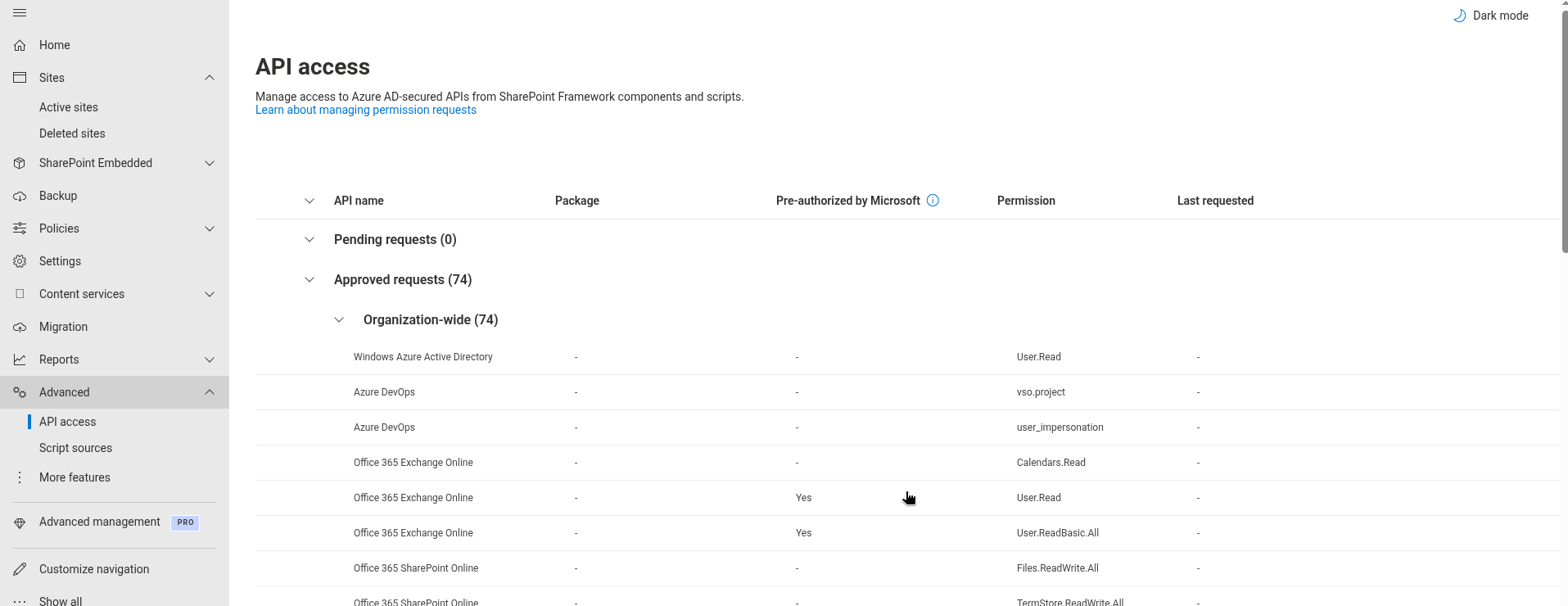
3. On the Pending requests tab, find the requests of the Vitextra package. Each row shows the package name (for example Vitextra Employee Directory), the API (Microsoft Graph or Azure DevOps) and the permission.
4. Select a request and click Approve. Read the description in the panel and confirm with Approve.
5. Repeat for every request of the package. A permission that has already been approved for another solution does not appear again: SharePoint reuses the existing grant.
6. Switch to the Approved requests tab and check that all permissions of the package are listed.
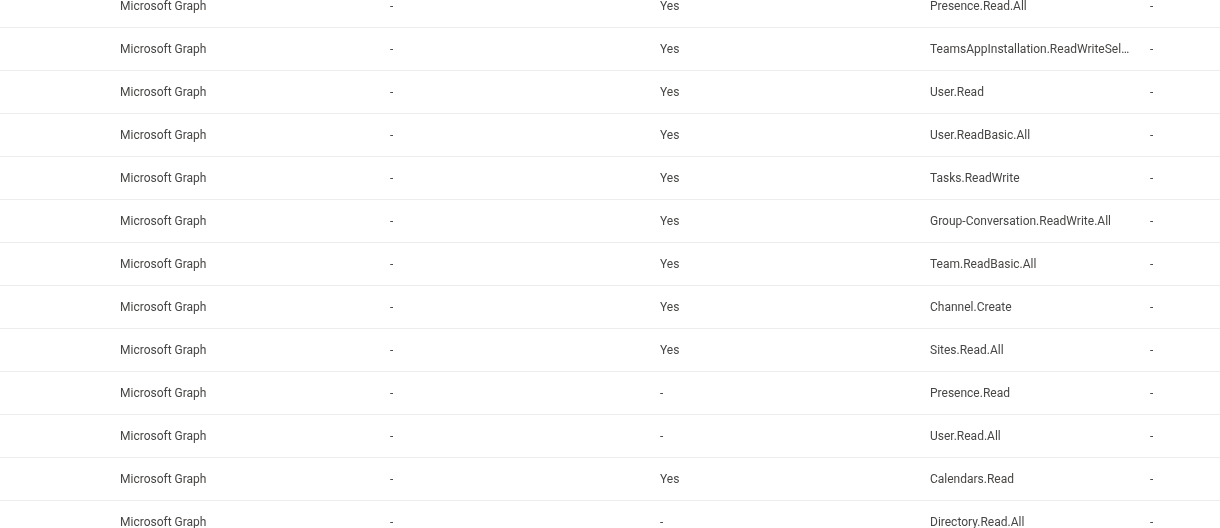
Users do not see a consent prompt: after the approval the web parts work for everybody in the tenant. The grant usually takes effect within a few minutes; if a web part still reports a missing permission, reload the page or sign out and in again to get a new token.
💡 Tip
You can approve the requests in one go with the SharePoint Online Management Shell: Get-SPOTenantServicePrincipalPermissionRequests lists the pending requests, and Approve-SPOTenantServicePrincipalPermissionRequest -RequestId <id> approves one of them. This is convenient when you roll out several Vitextra products at once.
Approving only part of the permissions
You may approve some requests and reject others. The web part keeps working, and only the dependent feature is affected:
- Presence.Read.All rejected — Employee Directory, Employee Details and Organizational Chart show people without the Teams presence indicator.
- Calendars.Read / Calendars.Read.Shared rejected — the availability and working-hours information is not shown.
- Files.Read.All / Sites.Read.All rejected — Employee Details does not show recent files and sites.
- user_impersonation (Azure DevOps) rejected — the Azure DevOps source of My Tasks and the Azure DevOps Query web part cannot sign in to Azure DevOps.
Rejecting the core permission of a product (User.Read.All for the people-centric products, Tasks.ReadWrite for My Tasks, Files.ReadWrite.AppFolder for Password Vault) leaves the web part without data.
What users see when a permission is missing
| Symptom | Likely cause |
|---|---|
| The web part shows an error about access being denied, insufficient privileges or a missing consent | The core permission is pending or rejected |
| Employees are listed, but the colored presence dot is missing | Presence.Read.All is not approved |
| The organizational chart is empty or shows only the current user | User.Read.All or Directory.Read.All is not approved |
| My Tasks shows nothing for Planner, To Do and Outlook, while the SharePoint source works | Tasks.ReadWrite is not approved |
| Everything worked, and after an update one feature stopped | The new version requests an additional permission that is still pending |
Open the API access page and compare the Pending requests and Approved requests tabs with the table at the beginning of this article.
Updates and new permissions
When you upload a new version of a package (see KB10050. How to Update a Vitextra SPFx Solution in SharePoint Online), the permissions that were approved earlier stay approved. If the new version declares a permission that the previous one did not, the new request appears on the Pending requests tab and has to be approved in the same way. Vitextra lists such changes in the release notes of the product.
Reviewing and revoking permissions
Because the grants are shared by all SPFx solutions, removing a Vitextra product does not revoke the permissions it requested. To revoke a permission:
- Open API access and switch to the Approved requests tab.
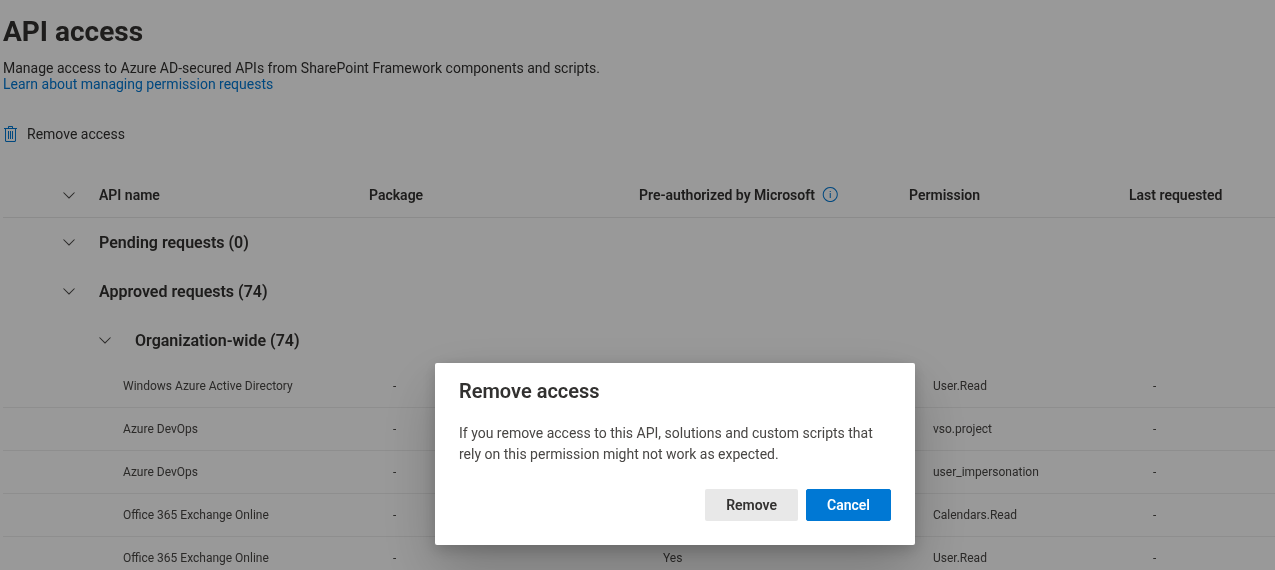
- Select the permission and click Remove.
- Confirm.
❗ Important
Before you remove a permission, check whether another solution in the tenant depends on it — your own SPFx web parts, products of other vendors and Microsoft's own pre-authorized permissions appear on the same tab. Removing a permission that another solution uses breaks that solution immediately.
A rejected request can be approved later: rejected requests stay on the Pending requests tab until the package is removed from the App Catalog. If a request has disappeared, redeploying the package in the App Catalog recreates it.
Security notes for reviewers
- Every call to Microsoft Graph is made from the browser of the signed-in user with a token issued for that user. Vitextra web parts have no application (app-only) permissions and no service account.
- Microsoft Graph applies the user's own permissions on top of the delegated scope: a user who is hidden from the address book, or a tenant that restricts the People API, is reflected in the web parts in the same way as in Outlook.
- No directory data, task data or files are sent to Vitextra. The only requests to Vitextra services are the license check and usage telemetry with technical identifiers; see KB10363. Where Vitextra Products Store Your Data: Privacy, Data Residency and GDPR.