RSS Reader
 Introduction
This article walks through the setup of the RSS Reader web part: from adding it to a page to the first published news stream, with every option of the property pane explained. What the web part is and how it loads feeds is described in KB10366. RSS Reader. Solution Overview.
Prerequisites
- The RSS Reader package is deployed in the App Catalog of your tenant (see KB10035. How to Install a Vitextra Product in SharePoint Online). The web part requests no API permissions, so nothing has to be approved.
- You can edit the page: Edit permission on the site or the page.
- The addresses of the feeds you want to show. A feed address usually ends with
.xml,/rssor/feed; most websites link it with the RSS icon or list it in the page footer.
Step 1. Add the web part to a page
- Open the page and click Edit.
- Hover over the place where the web part should go and click the + icon.
- Type RSS in the search box and select RSS Reader (it is listed in the Other group of the toolbox).
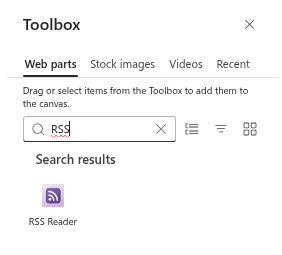
The web part appears with a set of sample feeds (technology and science news) so that you can see the layouts immediately. Replace them with your own feeds in the next step.
Click the Web Part Title placeholder at the top of the web part and type a title, for example Industry news. The title is optional.
Click the pencil icon (Edit web part) to open the property pane.
Step 2. Add your feeds
The Newsfeed group holds the list of feeds.
- Under Sources, click Configure. The Sources panel opens with a table of the current feeds.
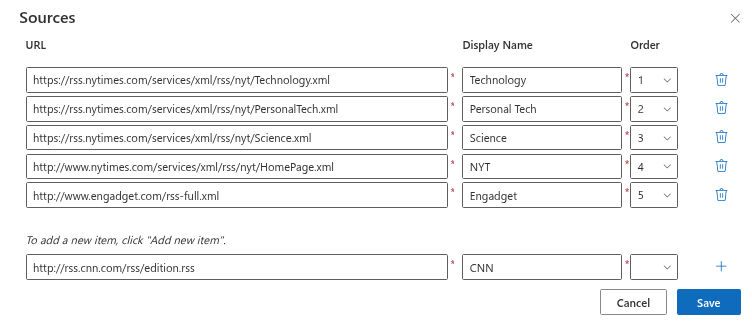
- Remove the sample feeds you do not need with the Delete Row icon at the end of each row.
- In the empty row at the bottom, enter the feed address in URL and a short name in Display Name — this name becomes the tab of the source above the items. Click the + (Add new item) icon. Both fields are required.
- Repeat for every feed. Use the Order drop-down of a row to change the position of a source in the tab row and in the By source sorting.
- Click Save. The panel closes and the web part loads the new feeds.
❗ Important
Enter the address of the feed, not of the website's home page. A website address returns HTML, which the feed service cannot parse, and the source is left out of the web part without an error message. The feed must also be reachable from the internet — a feed that is available only inside your network cannot be shown.
💡 Tip
Keep display names short — they are shown as tabs in one row. Two or three words such as Reuters Tech or FDA work better than the full title of the publication.
Step 3. Choose the layout and the elements
The Appearance group defines how the items look.
| Option | Values | Effect |
|---|---|---|
| Layout | Compact, Newsletter, Cards | Compact: titles with a one-line description and the date, for narrow columns. Newsletter (default): image on the left, title, description, categories, date and author. Cards: tiles with a large image on top. |
| Items Shown | 1–40 | The maximum number of items displayed after filtering. |
| Image | Show / Hide | Shows or hides the images of the items in the Newsletter and Cards layouts. |
| Filters | Show / Hide | Shows the row of source tabs (All plus one tab per feed) above the items. |
| Category | Show / Hide | Shows the category tags of each item in the Newsletter layout; clicking a tag filters the stream. |
| Search box | Show / Hide | Shows a search box that filters the loaded items by title, description, author and source. |
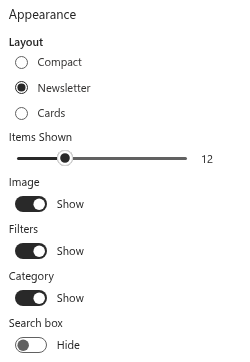
Choose Compact for a one-third column and Cards for a full-width section; Newsletter fits both.
Step 4. Sorting and automatic refresh
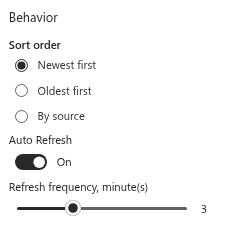
The Behavior group controls the order of the items and how often they are reloaded.
- Sort order — Newest first (default), Oldest first or By source. With By source, the items are grouped by feed in the order of the sources, newest first within each feed.
- Auto Refresh — when on, the web part reloads the feeds in the background while the page is open.
- Refresh frequency, minute(s) — the interval of the automatic refresh, from 1 to 7 minutes. The slider is available only when Auto Refresh is on.
📝 Note
The refresh is silent: the items are replaced without the loading placeholders, and if a refresh fails, the web part keeps showing the items it already has. Loaded items are also cached in the browser session for up to 30 minutes, so that the page opens instantly on the next visit.
Step 5. Publish the page
Close the property pane and click Republish (or Publish). Readers see the title, the source tabs and the items; they can switch sources, click tags, search and open articles in a new tab. Nothing they do changes the configuration of the web part.

Microsoft Teams: tabs and the personal app
RSS Reader can be used in Microsoft Teams after the administrator has published it from the App Catalog with Add to Teams.
Channel tab. Add the RSS Reader app as a tab to a channel. The tab has its own configuration, made in the same property pane as on a SharePoint page.
Personal app. Employees open RSS Reader from the left rail of Teams. The personal app has no property pane for the user; instead it uses a default configuration saved by the administrator:
- Configure the web part on any SharePoint page as it should appear in Teams (sources, layout, options).
- In the property pane, expand the Personal app (Microsoft Teams) group and click Save Settings. The message Saved successfully. confirms that the configuration is stored for your tenant.
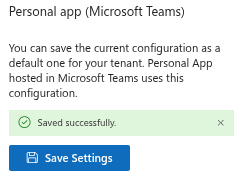
The saved configuration — the feeds, layout and options, not the web part title — is stored by the Vitextra service for your tenant and is read by the personal app only; channel tabs are not affected. Saving again overwrites the previous configuration.
Messages and what they mean
| Message | Cause | What to do |
|---|---|---|
| There are no items to show | No sources are configured | Add at least one feed in Sources |
| No items found. | The feeds loaded, but the selected source, category or search text matches nothing — or the configured feeds returned no items | Clear the filters; check the feed addresses |
| Sorry, something went wrong. Please refresh the page and try again. | The feed service could not be reached and nothing is cached — usually vitextra.com is blocked on the network | Allow access to vitextra.com; reload the page |
| A source is missing from the tab row | Its feed could not be downloaded or parsed (wrong address, website instead of feed, feed not reachable from the internet) | Open the feed address in a browser and check that it returns XML; correct the address in Sources |
| The license message instead of the items | The trial has ended or no license is assigned | See KB10365. Why Does a Vitextra Web Part Show "We Hope You Enjoyed Your Free Trial"? License Messages and Fixes |