RSS Reader
 Overview
RSS Reader turns any number of feeds into one list of items. This article explains the mechanics behind that list for editors and administrators: what a source is and which feed formats work, how the items of several feeds are merged and sorted, how often they are refreshed, and how the browser cache makes the web part appear instantly. The settings themselves are in the Newsfeed and Behavior groups of the property pane; the configuration steps are in KB10367. How to Add and Configure the RSS Reader Web Part.
Sources
A source is a feed with three attributes, edited in the Sources panel of the Newsfeed group:
| Field | Meaning |
|---|---|
| URL | The address of the feed — the XML document, not the website. Required. |
| Display Name | The name of the source as readers see it: on its tab in the source row and in the By source grouping. Required. |
| Order | The position of the source among the others (1, 2, 3…). Determines the order of the tabs and of the groups in the By source sort order. |
There is no limit on the number of sources, but every source is downloaded on every load and every refresh, so a list of a dozen busy feeds takes longer to appear and produces more items than the Items Shown limit can display. Three to six sources per web part is a practical range; split larger sets across several web parts or pages.
The addresses of the sources are stored in the properties of the web part, inside the page. In Microsoft Teams, the personal app uses the set of sources saved by the administrator with Save Settings; a channel tab has its own set.
Supported feed formats and elements
The feeds are downloaded and parsed by the Vitextra feed service, which returns the items in a normalized form (see How feeds are loaded below). The service handles the common syndication formats — RSS and Atom — and reads the extensions that publishers use for richer items:
| Element of an item | Where it comes from |
|---|---|
| Title and link | The item title and link of RSS or Atom |
| Description | The item description or summary, with HTML markup removed |
| Publication date | The publication date of the item; items without a valid date have no date shown |
| Image | Media RSS media:content or media:thumbnail, iTunes artwork, or the first image in the description HTML (one-pixel tracking images are skipped) |
| Author | Dublin Core dc:creator, the author element of the feed, or Media RSS media:credit — in this order |
| Categories | The category elements of the item |
A feed that offers none of the extensions still works: the web part shows the title, the description and the date.
How feeds are loaded
A script running in the browser cannot download a feed from another website unless that website allows cross-origin requests, which feed publishers almost never do. RSS Reader therefore sends the list of source addresses to the Vitextra feed service, which downloads the feeds from the internet, parses them and returns the channels and items to the browser. The user's browser never connects to the publishers' servers for the feed itself — only for the images of the items, which are loaded directly from the publisher.
Two consequences follow for administrators:
- a feed must be reachable from the internet: a feed on an intranet server or behind a VPN cannot be shown;
- the browsers of the users need access to
vitextra.com; the request carries the source addresses and the same technical identifiers as the license check of every Vitextra web part (see KB10374. Privacy and Security in RSS Reader: How Feeds Are Loaded and What Is Sent).
Sources that cannot be loaded
If one of the sources cannot be downloaded or parsed — the address is wrong, the server is down, the document is a web page rather than a feed, the XML is broken — the feed service marks it as unavailable and returns the others. The web part then:
- leaves the unavailable source out of the merged list,
- hides its tab in the source row,
- shows no error — the other feeds are displayed as usual.
The source reappears automatically on the next load when the feed is available again. Because the omission is silent, an editor who has mistyped an address will not see a warning; the only sign is a missing tab. Open the address in a browser to check it: a working feed shows XML (or a formatted feed page), a wrong one shows a website or an error. If all sources fail, the web part shows No items found.; if the feed service itself cannot be reached, it shows Sorry, something went wrong. Please refresh the page and try again. — see KB10373. Why Doesn't My RSS Feed Load? Troubleshooting RSS Reader.
Merging and sorting
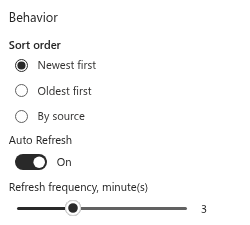
The items of all sources are merged into one list and then sorted according to the Sort order option of the Behavior group:
| Sort order | Result |
|---|---|
| Newest first (default) | All items of all sources by publication date, latest at the top |
| Oldest first | The same list reversed — earliest first, for chronologies and archives |
| By source | The items grouped by source in the Order of the sources; newest first inside each group |
With Newest first, a very active source can push the others off the list: if one feed publishes twenty items a day and another two a week, the top of the list is the busy feed. Three ways to keep the balance: use By source, raise Items Shown, or turn the Filters switch on so that readers can select the quiet source on its tab.
Dates are compared as real timestamps. Items whose feed gives no valid publication date are treated as the oldest: they come last with Newest first and first with Oldest first, and the web part shows no date for them.
The reader's selections — a source tab, category tags, the search text — are applied after sorting, and the Items Shown limit is applied last, so the web part shows the first N items of the filtered, sorted list.
Automatic refresh
With Auto Refresh on, the web part reloads the feeds every Refresh frequency minutes (1–7) for as long as the page is open. The refresh is silent: the loading placeholders are not shown, the list is replaced in place, and the reader's current source tab, category chips and search text are kept. If a refresh fails — the network is down, the feed service is unavailable — the web part keeps showing the items it already has and tries again at the next interval.
Switch auto refresh off for pages that people open briefly, and on for pages that stay open for a long time: a news board on a screen in the lobby, a dashboard that an operations team keeps open all day. The interval applies per web part; two RSS Readers on one page refresh independently.
📝 Note
Each refresh is a request to the feed service, and the service downloads every source for it. A one-minute interval on a page that a hundred people keep open means six thousand feed requests an hour. Use the shortest interval only where the freshness is worth it, and three to five minutes elsewhere.
The browser cache
After every successful load, the web part stores the received items in the session storage of the browser, keyed by the set of source addresses. When the same page is opened again in the same browser tab session, the web part shows the cached items immediately and requests fresh ones in the background; the list is updated as soon as they arrive. The cache is used for at most 30 minutes, after which the items are loaded normally.
What this means in practice:
- the first visit to a page in a browser session shows placeholders for a second or two; later visits show content at once;
- the cache belongs to the browser tab session and disappears when the tab is closed — nothing is kept on the device beyond that;
- a change of the sources invalidates the cache, because the key is built from the addresses;
- if a refresh fails, the cached items remain on screen and the error message is shown only when there is nothing to show at all.
The cache contains the feed items as received from the feed service — titles, descriptions, links, image addresses — and no personal data. On a shared computer it is cleared together with the other site data of the browser session.