RSS Reader
 Introduction
Many teams follow their industry news in Microsoft Teams rather than on the intranet. RSS Reader ships as a Teams application, so the same aggregated feeds can live where the team works: as a tab in a channel — a project team's news wall with its own sources — or as a personal app in the left rail, with one configuration for everybody in the organization.
This article covers the three steps: making the app available in Teams, adding it as a channel tab or a personal app, and saving the configuration that the personal app uses. It assumes that the RSS Reader package has already been deployed to the App Catalog of your tenant (see KB10035. How to Install a Vitextra Product in SharePoint Online).
📝 Note
RSS Reader in Teams is the same SharePoint Framework web part that runs on SharePoint pages. It needs no API permissions, and one license per tenant covers SharePoint and Teams alike.
Prerequisites
- To publish the app to Teams you need to manage the SharePoint App Catalog — typically the SharePoint Administrator role.
- To add the published app as a personal app no special permissions are needed, as long as your Teams administrator allows custom apps built for your organization.
- To add a channel tab you need to be a member of the team; team owners may restrict who can add tabs.
- To save the default configuration of the personal app you need to edit a SharePoint page that contains the web part.
Step 1. Make the app available in Teams
- Open the Microsoft 365 admin center, go to the SharePoint admin center, select More features and click Open under Apps.
- On the Manage apps page, select the Vitextra RSS Reader package and click Add to Teams. (In the classic Apps for SharePoint library the same command is Sync to Teams on the FILES tab of the ribbon.)
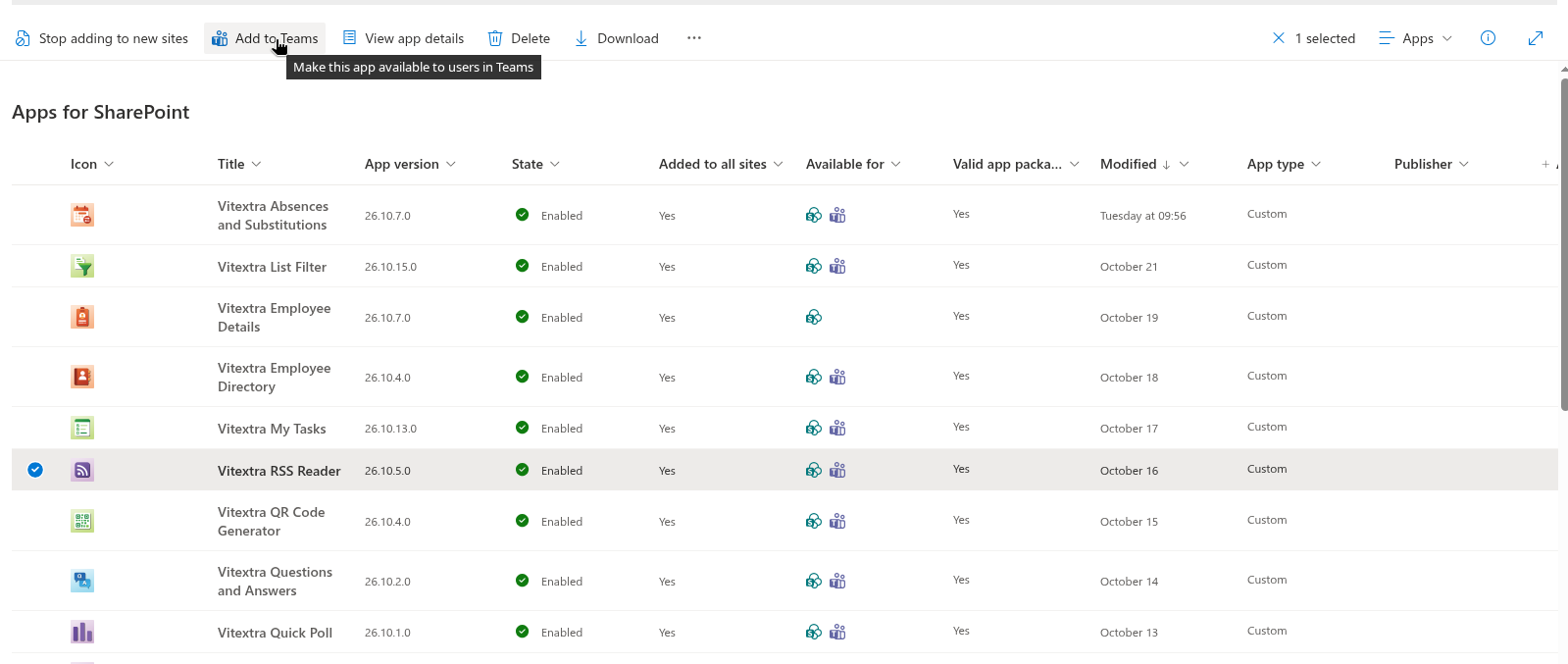
The app is published to your organization's Teams app store under the name RSS (Vitextra RSS Reader). It remains linked to the SharePoint package: a new version installed in the App Catalog is used in Teams as well, see KB10050. How to Update a Vitextra SPFx Solution in SharePoint Online.
📝 Note
Alternatively, a Teams administrator can upload the Teams app package manually in the Teams admin center under Teams apps → Manage apps → Upload new app. The package is the TeamsSPFxApp.zip file included with the product. Add to Teams is the simpler route and is recommended.
Step 2. Add RSS Reader as a channel tab
A channel tab has its own sources and settings, independent of other channels and of the personal app — the right choice for a team that follows a specific set of feeds.
- Open the team and the channel, and click + in the tab bar.
- Find RSS in the list of apps (use the search box) and select it.
- Click Add (or Save). The tab opens together with the property pane of the web part.
- In the Newsfeed group, click Configure and enter the feeds of the team; set the layout and the other options in the Appearance and Behavior groups; close the property pane. The options are the same as on a SharePoint page and are described in KB10367. How to Add and Configure the RSS Reader Web Part.
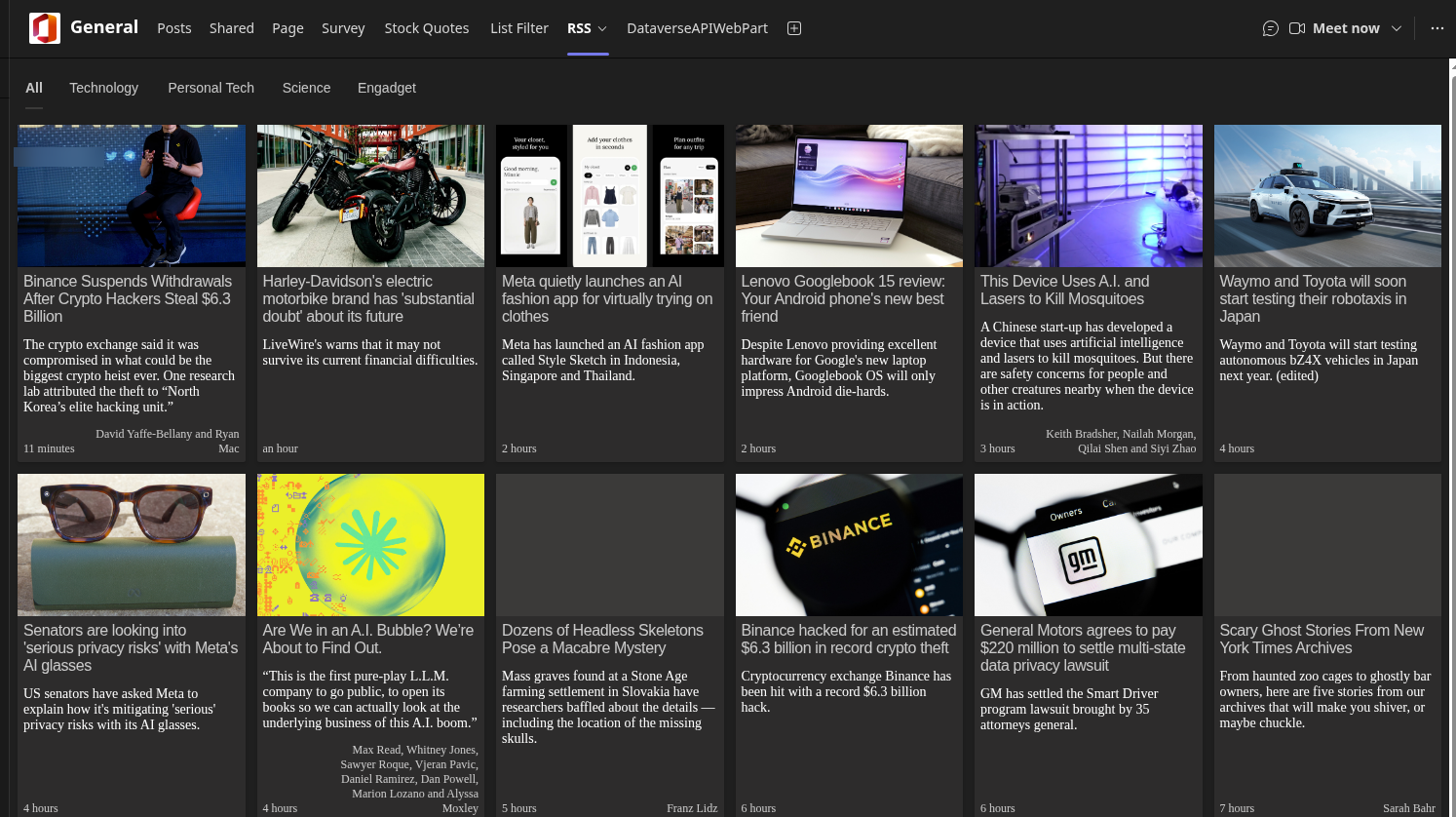
A team owner can change the settings later with Settings in the tab's menu. The tab's sources are stored with the tab; they are not affected by Save Settings (see step 4).
Step 3. Add RSS Reader as a personal app
- In Microsoft Teams, click Apps in the left rail.
- Select Built for your org — this is where apps published from your own App Catalog appear.
- Find the RSS tile published by Vitextra and open it.
- Click Add (not Add to a team).
The app appears in the left rail and shows the feeds configured by the administrator (step 4). The personal app has no property pane: users read, switch sources, filter and search, but cannot change the feeds.
💡 Tip
Adding the app this way pins it only for the person who clicked Add. To put RSS Reader into the left rail of everybody, or of a group of users, a Teams administrator adds it to an app setup policy in the Teams admin center (Teams apps → Setup policies → Pinned apps).
Step 4. Save the configuration for the personal app
The personal app reads a default configuration that an administrator saves once for the tenant. Until it is saved, the personal app shows the sample feeds of the web part.
- Open any SharePoint page that contains an RSS Reader web part in edit mode (or add the web part to a test page), and configure it exactly as the personal app should look: the feeds, their names and order, the layout, the switches, the sort order and the refresh.
- Open the property pane, expand the Personal app (Microsoft Teams) group and click Save Settings.
- Wait for the message Saved successfully.
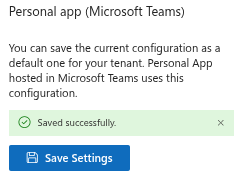
What is saved: the sources, the layout, the Items Shown value, the Image, Filters, Category and Search box switches, the sort order and the auto refresh settings — everything except the web part title. The configuration is stored by the Vitextra service for your tenant and product, so it does not depend on the page you used to save it; you can remove the web part from the test page afterwards. Saving again overwrites the previous configuration, and the personal app picks the change up the next time a user opens it.
❗ Important
Save Settings affects the personal app only. Channel tabs keep their own sources, and SharePoint pages are never changed by it. Conversely, editing the web part on a page does not change the personal app until you click Save Settings again.
If the feeds do not appear in Teams
- The app is missing from Built for your org — the package has not been added to Teams (step 1), or your Teams administrator blocks custom apps. Check Teams apps → Manage apps in the Teams admin center: the app RSS must be present and allowed.
- The personal app shows the sample feeds — no configuration has been saved yet; perform step 4.
- The personal app shows old feeds after you changed the page — Save Settings was not clicked after the change; the personal app does not read the page.
- A channel tab is empty — open Settings in the tab's menu and check that at least one source is configured in Sources.
- Sorry, something went wrong… — the Teams client could not reach the Vitextra feed service; make sure
vitextra.comis reachable from the users' network (see KB10373. Why Doesn't My RSS Feed Load? Troubleshooting RSS Reader). - The license message instead of the items — the trial has ended or no license is assigned to the tenant; see KB10365. Why Does a Vitextra Web Part Show "We Hope You Enjoyed Your Free Trial"? License Messages and Fixes.
Theme and mobile
RSS Reader follows the light and dark themes of the Teams client, and the layout adapts to the width of the tab: the Cards layout shows fewer columns in a narrow window and one column in the Teams mobile app. Articles open in the browser of the device.