Questions & Answers
 Introduction
A page of your intranet — Frequently Asked Questions, IT Help Center, HR Policies — shows a list of questions that open into answers when you click them. That is the Questions and Answers web part. This guide explains everything a reader can do with it. You need nothing beyond access to the page; which blocks and buttons are available is decided by the page editor, so your page may show a subset of what is described here.
Reading answers
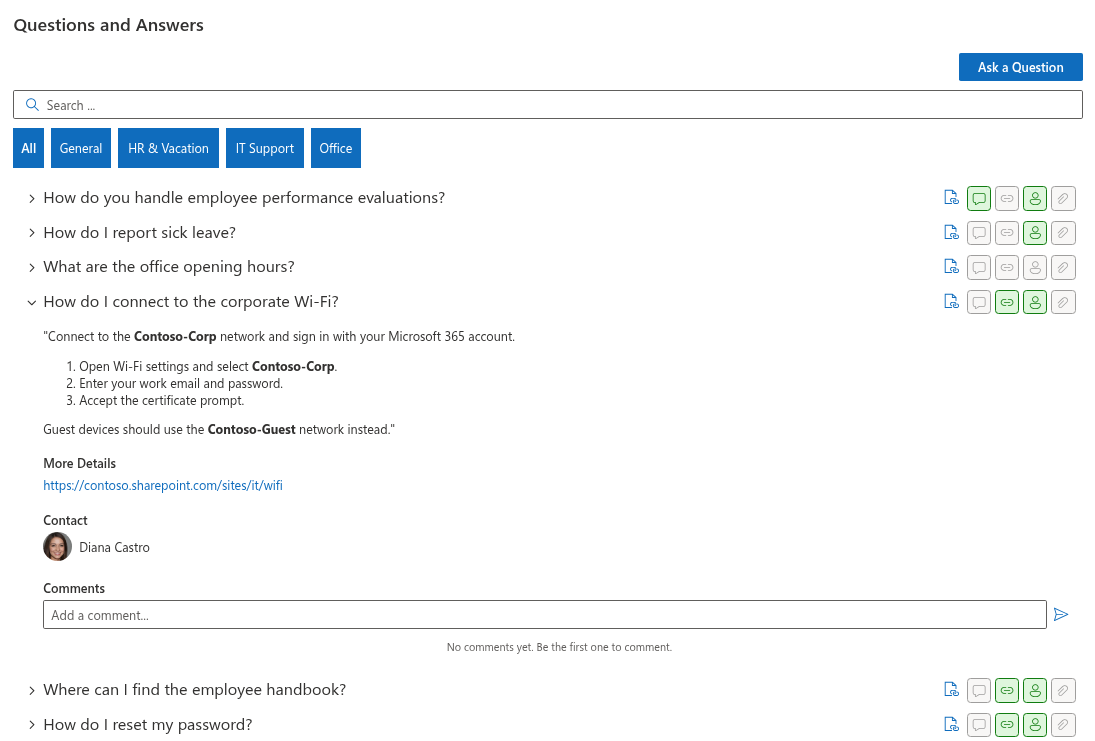
Questions are listed as collapsible rows. Click a question to expand its answer; click again to collapse it. Several questions can be open at the same time. Depending on the page, all questions start collapsed (the usual setting) or expanded.
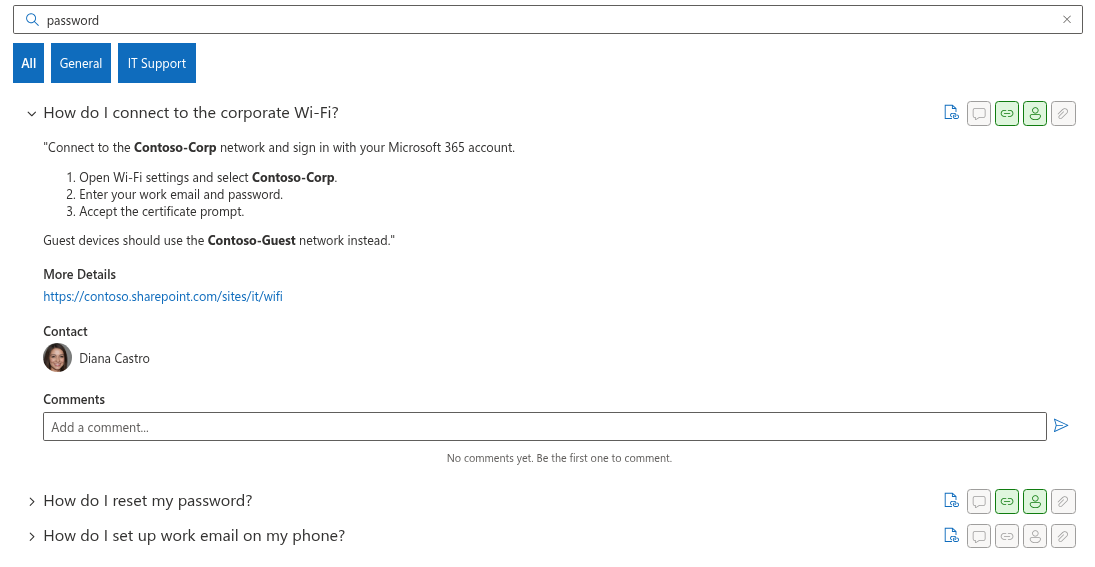
Four small badges at the right of each question header tell you what the answer contains before you open it: a paper clip for attachments, a link icon for a detail link, a person icon for a contact and a speech bubble for comments. A grey badge means the block is empty for this question.
The answer itself may contain formatted text — lists, bold phrases, headings and links — and, below it, up to five extra blocks:
| Block | What you can do |
|---|---|
| Video | Watch a video right in the answer (YouTube and Vimeo play in an embedded player; video files play in the browser). |
| Attachments | Open or download the files attached to the question — forms, instructions, templates. Click a file card to open it. |
| More Details | Follow a link to a fuller resource: a policy page, a manual, an article. |
| Contact | See who is responsible for the topic. Hover over the name to open the Microsoft 365 profile card with the e-mail, phone and chat buttons. |
| Comments | Read what colleagues added and leave your own comment (see below). |
Searching
Type a word or phrase into the Search … box above the list and press Enter. The web part searches the question text, the answer text and the contact's name across the whole knowledge base — including questions on pages you have not loaded yet — and shows the matches. The search is not case-sensitive, works with any language and ignores how the question was phrased: searching for vacation finds a question titled How many days off do I get? if the answer mentions vacation.
If nothing matches, the web part says so and offers to clear the search. Click the ✖ in the search box (or Clear search) to return to the full list.
Browsing by category
Many knowledge bases are organized in categories — General, IT support, Vacations & sick leave. You see them in one of two ways, or both:
- Section headers — the questions are grouped under a heading per category.
- Category tabs — a row of tabs above the list: All and one tab per category. Click a tab to see the questions of that category only; click All to go back.
The tabs show the categories of the questions that are currently loaded. On a long knowledge base with paged loading (see below), a tab may appear only after more questions have been loaded.
Loading more questions
Large knowledge bases are loaded in portions. When there are more questions than shown, a Show more button appears at the bottom of the list; click it to load the next portion. Searching always covers the entire knowledge base, so you do not need to click Show more before searching.
Commenting
If the Comments block is shown, you can discuss a question with colleagues: type in Add a comment… and click the send button. Your name and photo appear next to the comment. The comments are the standard SharePoint list comments of the question, so they are also visible in the list itself; a colleague who was mentioned with @ in the list is shown in the web part as a live profile card. Long discussions are folded after five comments; Show more reveals the rest. The number in the header — Comments (7) — tells you how many there are.

📝 Note
Comments are visible to everybody who can read the page. Use them to add a tip or ask for clarification; a correction of the answer itself is best sent to the contact person, who can edit the knowledge base.
Sharing a link to a question
Instead of explaining where to find an answer, send it. Hover over the question header and click the Copy Link button; the address of the page with this question is copied to the clipboard. Whoever opens the link sees the page with that question expanded, highlighted and scrolled into view. This works for colleagues in chat and e-mail, and for support staff who answer the same question for the tenth time.
Asking a question
If the knowledge base does not have your answer and you see an Ask a Question button above the list, click it, type your question in the dialog and click Send. A confirmation Your request has been accepted. appears. Your question is not published immediately: it goes to the editors of the knowledge base, who write the answer and publish it. Your name is recorded with the question, so they can contact you if something needs clarifying.
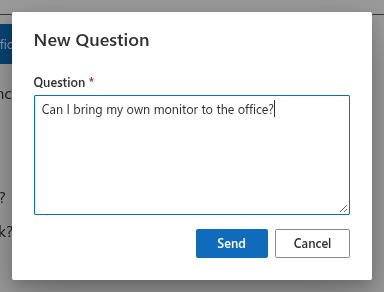
If you do not see the button, the page either does not accept questions, or you do not have the permission to add items to the underlying list — ask the page owner.
In Microsoft Teams
The same knowledge base may be pinned as a tab in a Teams channel. Everything above works the same way there; links to attachments, videos and detail pages open in your browser.