Questions & Answers
 Overview
A knowledge base is only as good as the speed at which people find the right entry. Questions and Answers offers two mechanisms for that: a search box that queries the whole list on the server, and paged loading that keeps a page with hundreds of questions fast. This article describes both for editors and administrators — what exactly is searched, how the pages are fetched, how the two interact with categories and sorting, and what to consider when the list grows. The settings are in the Behavior and Appearance groups of the property pane; the steps are in KB10218. How to Add and Configure the Questions and Answers Web Part.
The search box
The search box is shown when Enable search box is on in the Behavior group (it is on by default). A reader types a term and presses Enter; the web part sends a query to the SharePoint list and shows the matching published questions.
| Aspect | Behaviour |
|---|---|
| Columns searched | Question (the title), Answer and Contact (the name of the contact person) |
| Match | Contains — the term may appear anywhere in the text; the search is not case-sensitive |
| Scope | The whole list, not only the questions already loaded on the page |
| Several words | The words are searched as one phrase, in the order typed |
| Special characters and languages | Quotes, ampersands, angle brackets and non-Latin scripts are handled correctly; the term is escaped before it is sent |
| Unpublished questions | Never returned, even to editors |
| Result limit | Up to 5,000 matching questions in one response |
The query is run by SharePoint on the server (a CAML Contains condition on the three columns), so it does not depend on the SharePoint search index: a question published a minute ago is found immediately, and the list being excluded from search crawling (which is the case for lists created by the web part) does not matter.
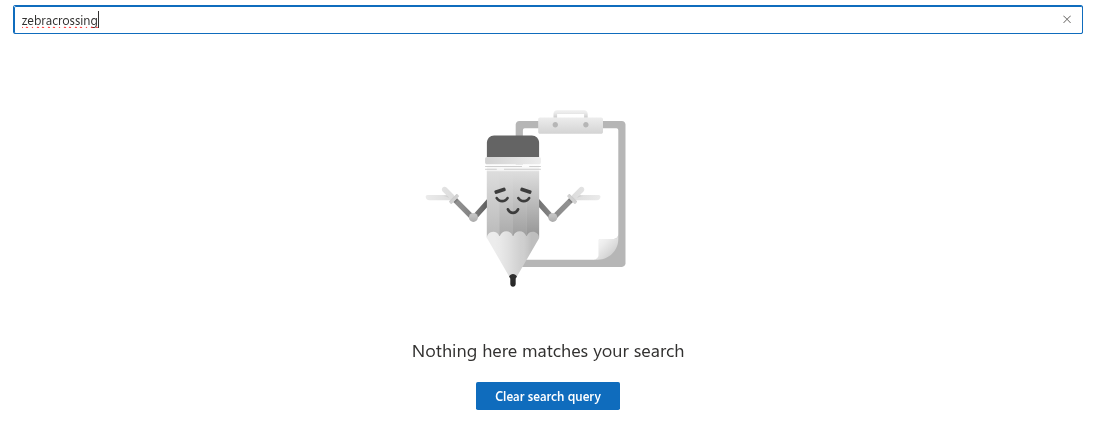
While the query runs, the web part shows Searching …. When nothing matches, it shows Nothing here matches your search with a Clear search query action that restores the full list; the ✖ in the search box does the same.
What the search does not cover: attachments and their content, comments, the detail link and the video address, and the category name. A reader looking for a category uses the category tabs instead.
💡 Tip
Because the Answer text is searched, a short answer that repeats the key terms of the question — and the words people actually use for the topic — is found more often than a terse one. Add synonyms to the answer where it reads naturally ("holiday, vacation, annual leave").
Paged loading
Page Size in the Appearance group controls how many questions are loaded at a time: All, 10, 20, 50 or 100. New web parts start with 20; web parts configured before the option existed keep All.
With a page size set, the web part loads the first portion in the configured sort order and shows a Show more button under the list as long as more questions exist. Each click loads the next portion and appends it; the button disappears after the last one. While a portion is loading, a spinner replaces the button.

Three properties of the paging are worth knowing:
- Sorting is done on the server. The Sort by column (Name, Question Order or Created) and the direction are part of the query, so the order is consistent across pages: the questions on page two always follow those on page one.
- The pages are SharePoint pages. The web part uses the list's own paging, so a page size of 100 is fetched as efficiently as a list view of 100 items.
- A deep link loads its question. When a page is opened with
?questionId=Nand the question is not in the first portion, the web part fetches that single question and shows it highlighted, together with the first portion.
With All, the web part requests the whole list in one query, with a ceiling of 5,000 questions.
How search, categories and paging interact
- Search ignores paging. A search queries the whole list and shows all matches (up to 5,000) in one portion; Show more is hidden while a search is active. Clearing the search returns to the paged list.
- The category tabs reflect the loaded questions. The Category Filter row offers the categories of the questions that are currently loaded. With paging, a category whose first question is on a later page appears only after Show more has loaded it. For a knowledge base where the tabs matter more than the loading speed, use All or a large page size, or sort by Name so that categories are mixed across pages.
- Grouping applies within the loaded portion. With Group By → Category, the loaded questions are grouped under headers; the next portion is merged into the same groups.
- Search results respect the category tab. When a category is selected and a search is run, the matching questions of that category are shown; if the selected category has no match, the filter falls back to All.
Large lists
SharePoint Online applies the list view threshold of 5,000 items to queries. Questions and Answers filters every query on Published = Yes and sorts on the chosen column, so the following holds:
- Up to a few thousand questions, everything works with any Page Size.
- Above the threshold, a query on a non-indexed column can be refused by SharePoint. If the knowledge base approaches 5,000 items, add indexes to the Published, Order and Created columns in the list settings, and prefer a page size over All.
- The 5,000 ceiling of the All mode and of search results is a hard limit of a single query; a knowledge base of that size is better split into several lists and web parts (one per department, say) than kept in one.
In practice, knowledge bases of 50 to 500 questions are the norm; a page size of 20 to 50 with the search box on gives the best balance between a fast first paint and a browsable list.