Questions & Answers
 Overview
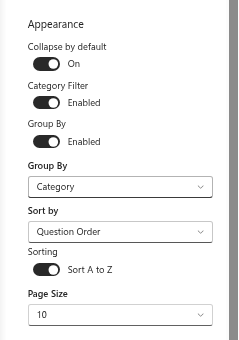
Ten questions can be a flat list; fifty need structure. Questions and Answers gives editors four tools for it: categories assigned to each question, grouping of the list by category, a category filter for readers, and sorting with a controllable order. A fifth setting, Collapse by default, decides whether readers see a compact index or the answers themselves. This article shows how to use each one and how to combine them. The settings live in the Appearance group of the property pane.
Step 1. Define the categories
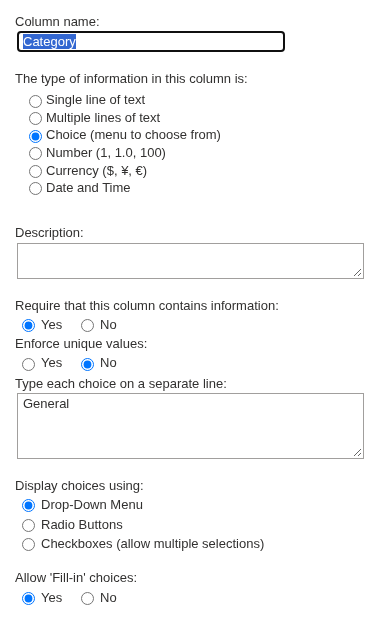
Categories are the values of the Category column of the questions list. The list created by the web part has a single choice, General, and allows typing new values (fill-in choices), so editors can add a category simply by typing it in the item form. For a tidy knowledge base, define the set deliberately:
- Open the list (property pane → Data Source → Open List) and go to List settings → Columns → Category.
- Enter one category per line in Type each choice on a separate line — for example General, Accounts & passwords, Hardware, Software, Vacations & sick leave.
- Keep Allow 'Fill-in' choices on if editors should be able to add categories on the fly, or turn it off to enforce the list.
The web part shows categories alphabetically, both as group headers and as filter tabs. To force an order, prefix the names with a number (1. Getting started, 2. Accounts) — the prefix is shown.
📝 Note
Category is a required column in the list created by the web part, so every question has one. A question submitted with Ask a Question gets the default value of the column (General unless you change the default); the editor reassigns it when publishing.
Step 2. Group the list by category
With Group By switched on and Category selected in the drop-down below it, the questions are shown under a header per category, in alphabetical order of the categories. Within each group the questions follow the Sort by setting.
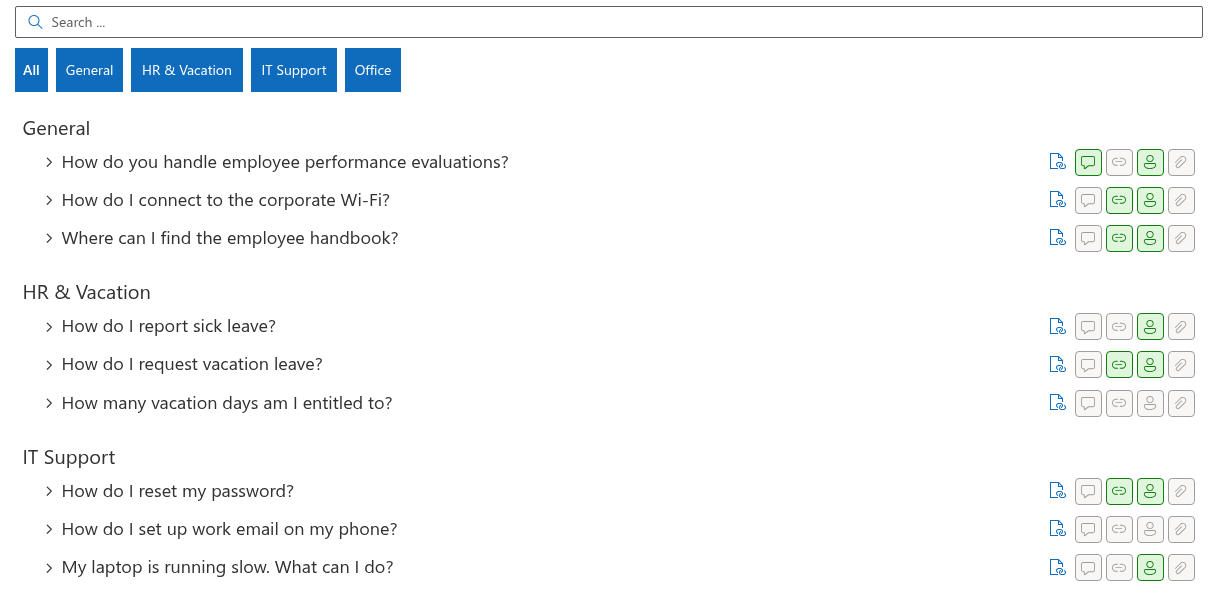
Grouping suits knowledge bases of up to a few dozen questions where readers scroll: the headers act as a table of contents. With paged loading, the groups are built from the questions that are loaded; the next portion is merged into them.
Step 3. Turn on the category filter
Category Filter adds a row of tabs above the list: All and one tab per category found among the loaded questions. A reader clicks a tab to see one category only. The row appears only when at least two categories exist; with a single category there is nothing to filter.
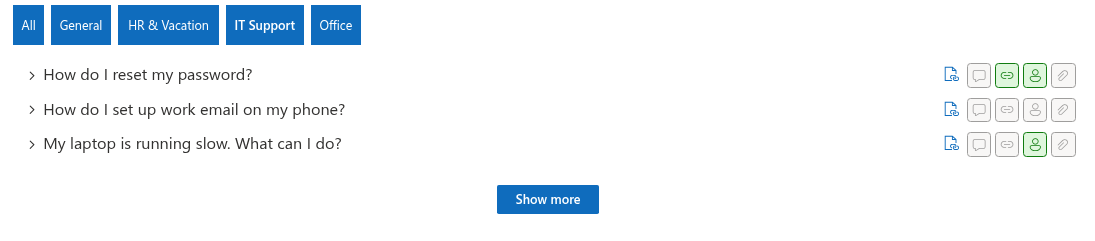
The filter works together with grouping (a single group remains), sorting and search (matches of the selected category are shown; if none, the filter falls back to All). It suits knowledge bases where a reader usually wants one topic — a help center with IT, HR and Facilities sections on one page.
Grouping and the filter can be combined, but one of them is usually enough: headers for a page that is read top to bottom, tabs for a page that is consulted for one topic.
Step 4. Choose the order
Sort by offers three columns, and Sorting switches between Sort A to Z and Sort Z to A:
| Sort by | Order | Use it for |
|---|---|---|
| Question Order | The number in the Order column of each question, smallest first (A to Z) | Hand-arranged lists: the most important or most common questions first |
| Name | The question text alphabetically | Glossaries and reference lists that people scan by keyword |
| Created | The date the question was added; Z to A puts the newest first | Knowledge bases that grow continuously, with new answers highlighted at the top |
| (None) | The order in which SharePoint returns the items (by ID) | Rarely useful; prefer one of the above |
The sort is applied on the server, so it stays consistent across paged loads, and inside groups when grouping is on. New web parts sort by Question Order, A to Z.
To arrange questions by hand, set Sort by → Question Order, open the list in grid view and fill the Order column with numbers — tens (10, 20, 30…) leave room for later insertions. Questions without a number are sorted before the numbered ones in A-to-Z order.
Step 5. Collapsed or expanded
Collapse by default (on for new web parts) shows only the question headers; readers expand what they need. Turn it off to show every answer open — appropriate for a short list of three to five policies that people should read in full, or for a single-question web part used as a notice.
A question opened through a deep link (?questionId=N) is always expanded, whatever the setting.
Recommended combinations
| Knowledge base | Recommended settings |
|---|---|
| Up to 15 questions, one topic | No grouping, no filter; Sort by → Question Order; collapsed |
| 15–60 questions, several topics, read by scrolling | Group By → Category; Sort by → Question Order within groups; collapsed; Page Size → All or 50 |
| 60+ questions, readers come for one topic | Category Filter on, grouping off; Sort by → Name; collapsed; Page Size → 20; search box on |
| A living FAQ with frequent additions | Sort by → Created, Z to A; Category Filter on; search box on |
Whatever the structure, keep the search box on: readers who do not know your categories still find answers by the words in them (see KB10378. Searching the Knowledge Base and Paged Loading in Questions and Answers).