Questions & Answers
Overview
Two features turn a static FAQ into something people use together. Comments let readers add to an answer — a tip, a correction, a follow-up question — right under it. Deep links let anybody point a colleague to one specific answer with a single address. This article describes both in detail: where the data lives, who can do what, and how the behaviour is controlled.
Comments
What readers see
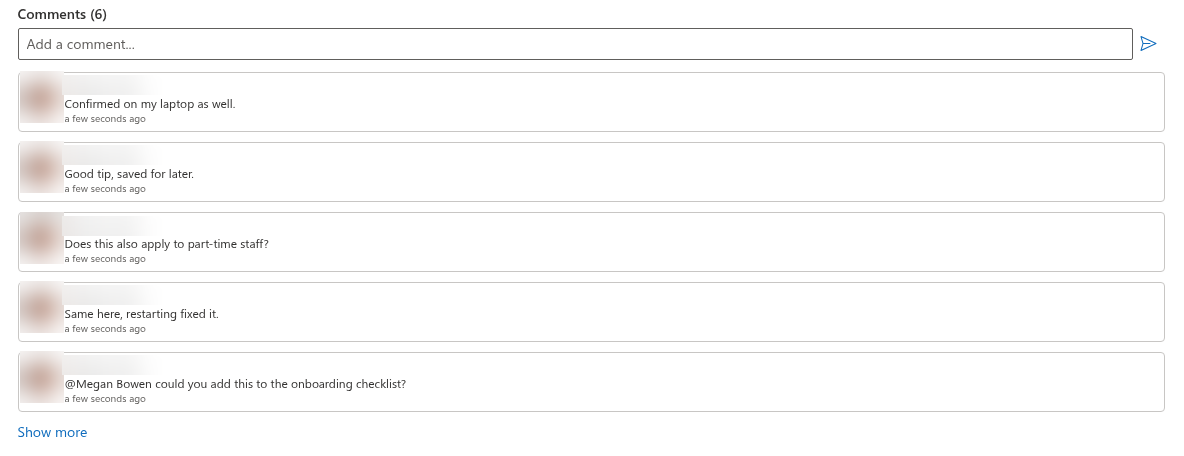
With Show Comments switched to Show in the Show/Hide group, every expanded question ends with a Comments block: a text box Add a comment… with a send button, and the existing comments below it with the author's photo, name, text and relative time. The header shows the number of comments — Comments (4) — and the speech-bubble badge in the question header is colored when at least one comment exists.
Up to five comments are shown; when there are more, a Show more link reveals the rest. Without comments, the block says No comments yet. Be the first one to comment.
Where comments are stored
The comments are the standard SharePoint list comments of the question's list item — the same comments you see when you open the item in the list and expand the comments pane. Nothing is stored outside the list. Consequences:
- comments written in the web part appear in the list, and comments written in the list appear in the web part;
- they follow the retention, eDiscovery and audit settings of the site like any other list content;
- Microsoft 365 sends the usual notifications for list comments (for example, to a mentioned person);
- deleting a question deletes its comments.
@Mentions
A comment that mentions a colleague with @ — written in the comments pane of the SharePoint list — is shown in the web part with the name as a live profile card: hovering over it opens the Microsoft 365 card with contact details and the chat and call buttons. The comment box of the web part itself is a plain text box; to mention somebody, write the comment in the list, where SharePoint offers the people picker when you type @.
Who can comment
Comments follow the SharePoint permissions of the list. Everybody who can open the list sees the comments; to add a comment, a user needs the right to contribute to the list — in practice the Contribute or Edit permission level, the same as for Ask a Question. A reader with view-only access sees the comments and the input box, but SharePoint rejects the comment. A comment can be deleted by its author and by users who manage the list; editing a comment is not possible in SharePoint.
Turning comments off
Two levels:
- For the web part — set Show Comments to Hide in Show/Hide. The block and the badge disappear from the page; the comments stay in the list.
- For the list — open the list, Settings → List settings → Advanced settings → Comments → No. Commenting is then impossible everywhere, in the list and in every web part connected to it; the web part shows the existing comments but no input box.
📝 Note
Comments are for discussion, not for maintaining the answer. When a comment points out that an answer is wrong, the editor updates the Answer column — readers who skim the answer do not read the comments.
Deep links
The Copy Link button
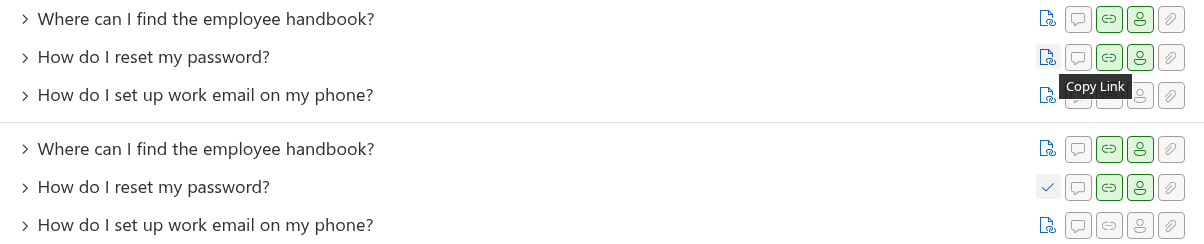
With Copy Link enabled in the Behavior group, every question header shows a link button on hover. Clicking it writes the address of the current page with the parameter ?questionId=<ID> to the clipboard, where <ID> is the ID of the list item; the icon turns into a check mark for two seconds to confirm.
The address looks like https://contoso.sharepoint.com/sites/intranet/SitePages/FAQ.aspx?questionId=42. It can be pasted into chat, e-mail, a ticket or another page.
What happens when a link is opened
When the page is opened with ?questionId=N:
- the web part loads the list as usual (the first page, if paged loading is on);
- if question N is not among the loaded questions, it fetches that question separately and adds it to the list in the configured sort position;
- the question is expanded, regardless of Collapse by default;
- the page scrolls to it and the question is highlighted for a moment.
If the question does not exist, is unpublished or belongs to another list, nothing happens: the page shows the knowledge base normally. A deep link therefore never reveals an unpublished question.
The links are independent of the page's other features: a page with the category filter or search box opens the linked question just the same, and a page with several Questions and Answers web parts highlights the question in the web part whose list contains that ID.
Where deep links help
- Support and service desk — answer a ticket with the link to the ready answer instead of retyping it; the user lands on exactly the right place and sees the whole knowledge base around it.
- Onboarding checklists — link each step of a checklist to the relevant question.
- Announcements and news — "The travel policy has changed, see the updated answer here."
- Teams — paste the link in a channel; it opens in the browser with the question expanded.
A link remains valid as long as the question keeps its ID — editing the answer does not change the link; deleting the question and re-creating it does.