Questions & Answers
Overview
This article lists every setting of the Questions and Answers web part with its effect and default value, in the order of the property pane. Use it as a lookup; the walk-through for a first setup is KB10218. How to Add and Configure the Questions and Answers Web Part.
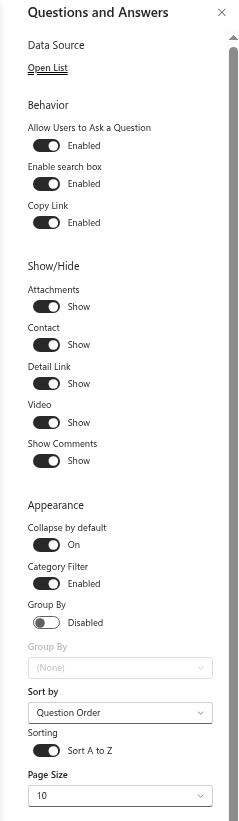
To open the property pane, edit the page, select the web part and click the pencil (Edit web part). The pane has five groups: Data Source, Behavior, Show/Hide, Appearance and About. The settings apply to the web part instance; two web parts on different pages connected to the same list can be configured differently.
The Not Configured screen
A web part without a connected list shows the Not Configured screen in place of the content, with the text The web part needs a list to store the data. Please type in the list name to create a new one or select the existing list. and two choices:
| Choice | Fields | Effect |
|---|---|---|
| New List | List name, Create | Creates a custom list with that name on the current site, adds the required columns and connects the web part. Requires permission to create lists. |
| Existing List | List drop-down, Save | Lists the non-hidden lists of the current site that have all required columns; connects the selected one. |
Readers who open a published page with an unconfigured web part see Not Configured and The web part still needs to be configured. Please open the page in edit mode and provide the necessary information.
Required columns
A list is offered under Existing List only when it has columns with these internal names: Category, Answer, Link, VideoUrl, Contact, Order. The web part additionally reads Title (the question), Published, Created, Author, Attachments and the comment fields, which every list created by the web part has. The list created with New List gets:
| Column | Type | Notes |
|---|---|---|
| Title (shown as Question) | Single line of text | Required by SharePoint |
| Answer | Multiple lines of text | Rendered as Markdown by the web part |
| Category | Choice, required, fill-in allowed | One default choice, General |
| Link | Hyperlink | Shown as More Details |
| VideoUrl | Hyperlink | Embedded player or link |
| Contact | Person, single | Live profile card |
| Order | Number | Used by Sort by → Question Order |
| Published | Yes/No, default No | Only Yes items are shown |
The list is created with attachments enabled, commenting enabled, grid editing disabled and excluded from search crawling (NoCrawl). All of these can be changed later in the list settings.
Data Source
Shown once a list is connected.
| Setting | Effect |
|---|---|
| Open List | A link that opens the connected list in a new tab. |
To connect a different list, remove the web part and add it again, or add a second web part; the connection cannot be changed in the pane.
Behavior
| Setting | Values | Default | Effect |
|---|---|---|---|
| Allow Users to Ask a Question | Enabled / Disabled | Enabled | Shows the Ask a Question button to users who have the Add Items permission on the list. Submitted questions are created unpublished. See KB10220. Letting Employees Ask Questions. |
| Enable search box | Enabled / Disabled | Enabled | Shows the search box; the search covers the question, the answer and the contact name of all published items. See KB10378. Searching the Knowledge Base and Paged Loading in Questions and Answers. |
| Copy Link | Enabled / Disabled | Enabled | Shows the copy-link button in question headers; the copied address opens the page with the question expanded and highlighted (?questionId=N). See KB10381. Comments, @Mentions and Deep Links in Questions and Answers. |
Show/Hide
Each switch shows or hides one block of the expanded answer for all questions; a shown block appears only on questions that have content for it.
| Setting | Values | Default | Block |
|---|---|---|---|
| Attachments | Show / Hide | Show | The files attached to the list item, as cards |
| Contact | Show / Hide | Show | The person from the Contact column with a live profile card |
| Detail Link | Show / Hide | Show | The address from the Link column under More Details |
| Video | Show / Hide | Show | The address from the VideoUrl column as an embedded player or a link |
| Show Comments | Show / Hide | Show | The SharePoint list comments of the item, with the input box |
The blocks are described in KB10380. Rich Answers in Questions and Answers: Markdown, Video, Attachments, Detail Links and Contacts.
Appearance
| Setting | Values | Default | Effect |
|---|---|---|---|
| Collapse by default | On / Off | On | On: questions start collapsed (headers only). Off: all answers start expanded. A deep-linked question is always expanded. |
| Category Filter | Enabled / Disabled | Disabled | Shows the row of tabs All + one per category of the loaded questions; shown only when at least two categories exist. |
| Group By | Enabled / Disabled | Disabled | Groups the questions under a header per value of the column selected below. |
| Group By (column) | (None) / Category | (None) | The grouping column; enabled only when the switch above is on. Category is the only option. |
| Sort by | (None) / Name / Question Order / Created | Question Order | The column that orders the questions, on the server and inside groups. Name is the question text, Question Order the Order column, Created the creation date. |
| Sorting | Sort A to Z / Sort Z to A | Sort A to Z | The direction; disabled when Sort by is (None). For Created, Z to A means newest first. |
| Page Size | All / 10 / 20 / 50 / 100 | 20 (All for web parts configured before the option existed) | How many questions are loaded per request; with a number, a Show more button loads the next portion. All loads up to 5,000 questions at once. |
The combinations that suit different knowledge bases are discussed in KB10379. Organizing Questions: Categories, Grouping, Category Filter, Sorting and Collapsing.
About
| Field | Meaning |
|---|---|
| Product name | A link to the product page on vitextra.com |
| Version | The installed version of the package; a note and a Download link appear when a newer version is available |
| Status | The license status: Trial version (with the remaining days), Active, Expired or Suspended |
| Tenant | The ID of your Microsoft 365 tenant, needed to assign a license |
Licensing is described in KB10206. Vitextra Licensing and Account: How to Buy and Activate a License; the meaning of the statuses in KB10364. What Happens When Your Vitextra Trial or Subscription Expires.
Settings outside the property pane
| Where | Setting | Effect |
|---|---|---|
| On the web part, in edit mode | Web Part Title | The heading above the list; empty by default |
| Section settings of the page | Background, full width | The web part follows the section's theme variant and supports full-width sections |
| List settings → Columns → Category | The choices | The categories offered to editors and shown as groups and tabs |
| List settings → Advanced settings → Comments | Yes / No | Enables or disables commenting for the list as a whole |
| List settings → Advanced settings → Attachments | Enabled / Disabled | Whether files can be attached to questions |
| List permissions | Permission levels | Who can read, ask (Add Items) and publish (Edit Items); see KB10384. Permissions, Data Storage and Privacy in Questions and Answers |