Questions & Answers
The scenario
The internal communications team wants one Help Center page on the intranet that answers the questions employees keep sending to HR, IT and Facilities: how to request leave, how to reset a password, where to park, how to book a room. The answers exist — in e-mails, in a shared Excel sheet, in three departments' heads. The goal is a page that employees find themselves, that each department maintains for its own topics, and that grows with the questions people actually ask.
This article walks through building it with Questions and Answers in six steps, from planning to the review routine. Each step links to the detailed article.
Step 1. Plan the categories and the owners
Before touching SharePoint, write a one-page plan:
- Categories — one per department or topic, five to eight at most: Accounts & passwords, Hardware & software, Vacations & sick leave, Payroll & benefits, Office & facilities, Travel & expenses. Readers choose categories by their problem, so name them by the problem, not by the department.
- An owner per category — the person whose name goes into the Contact column and who publishes the questions of that category. Owners agree to review their questions twice a year.
- The first 20–30 questions — collected from the support mailbox, the service desk's top tickets and the HR inbox, in an Excel sheet with the columns Question, Answer, Category, Contact, Link.
💡 Tip
Write every question the way an employee would type it into a search box — How do I reset my password? rather than Password reset procedure — and put the words people use into the answer. The search of the web part covers the question and the answer text, so those words decide whether the entry is found. See KB10378. Searching the Knowledge Base and Paged Loading in Questions and Answers.
Step 2. Create the page and the list
- On the intranet site (a communication site or the HR hub), create a page Help Center and add the Questions and Answers web part to a one-column section.
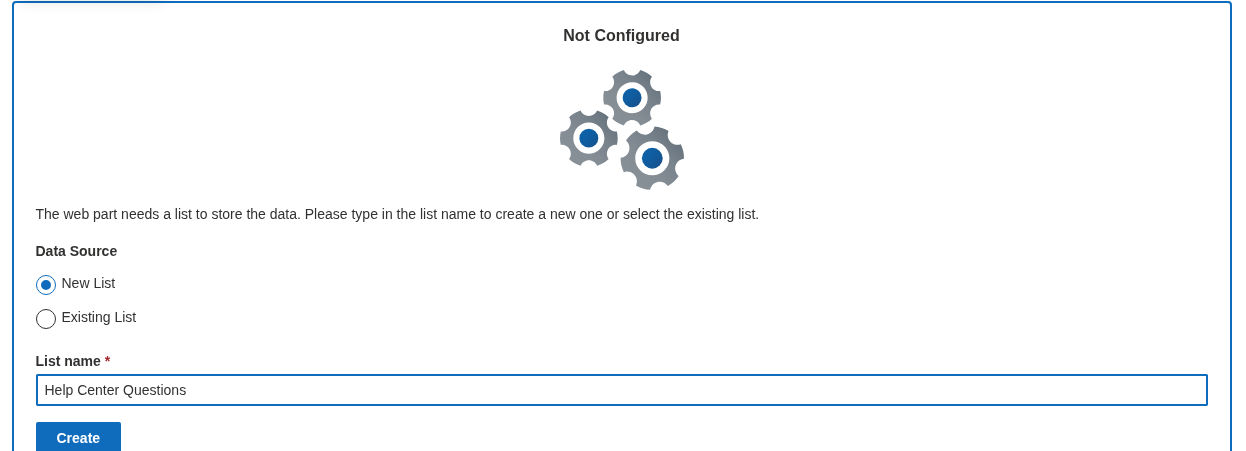
- On the web part's configuration screen choose New List, name it Help Center Questions and click Create. The list with the required columns is created and connected.
- Give the web part a title in edit mode — Help Center — and publish the page.
Details: KB10218. How to Add and Configure the Questions and Answers Web Part.
- Open the list (property pane → Data Source → Open List), go to List settings → Columns → Category and enter the planned categories one per line; turn Allow 'Fill-in' choices off so that owners pick from the list.
Step 3. Load the first questions
The quickest way from the Excel sheet to the list is the grid:
- In the list, click Edit in grid view (enable grid editing first in List settings → Advanced settings → Quick property editing if the command is missing — the list created by the web part has it off).
- Copy the Question column of the sheet and paste it into Title; repeat for Answer, Category and Link. Paste Contact as e-mail addresses — the grid resolves them to people.
- Fill Order with 10, 20, 30… in the order the questions should appear within a category.
- Leave Published as No for now; exit the grid.
Then let each owner review their category in the list, format the answers with Markdown (lists for steps, bold for deadlines, a link to the policy under Link), attach forms where needed, and set Published = Yes question by question. Markdown and the answer blocks are described in KB10380. Rich Answers in Questions and Answers: Markdown, Video, Attachments, Detail Links and Contacts.
❗ Important
Type the Markdown as plain text; the formatting toolbar of the item form stores HTML, which the web part does not render. To avoid the toolbar altogether, set the Answer column to plain text in the column settings.
Step 4. Set the permissions
The page is for everybody; the publishing is for the owners.
- In List settings → Permissions for this list, stop inheriting permissions.
- Give Everyone except external users (or the intranet visitors group) Contribute — this lets every employee use Ask a Question and comment.
- Create a group Help Center Editors with the category owners and give it Edit.
- In Advanced settings → Item-level Permissions, set Create and Edit access to Create items and edit items that were created by the user, so that employees can submit but not change or publish other items.
Now every submission arrives unpublished, visible only to the editors in the list. The permission model is explained in KB10384. Permissions, Data Storage and Privacy in Questions and Answers and the asking flow in KB10220. Letting Employees Ask Questions.
- Create a list view To publish filtered on Published = No, and set a list alert (or a Power Automate flow on When an item is created) that mails the editors when a question comes in.
Step 5. Configure the web part
Open the property pane and set, for a help center of 30–150 questions:
| Group | Setting | Value |
|---|---|---|
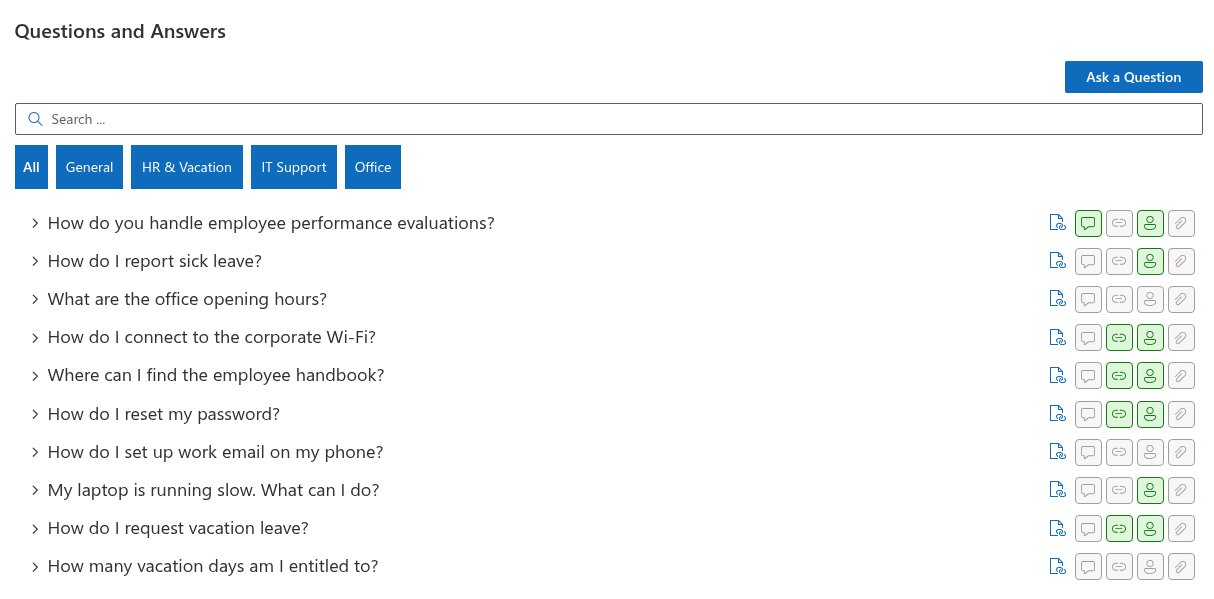
| Behavior | Allow Users to Ask a Question | Enabled |
| Behavior | Enable search box | Enabled |
| Behavior | Copy Link | Enabled |
| Show/Hide | Attachments, Contact, Detail Link, Show Comments | Show |
| Show/Hide | Video | Show if any owner records videos; otherwise Hide |
| Appearance | Collapse by default | On |
| Appearance | Category Filter | Enabled |
| Appearance | Group By | Disabled (the tabs do the structuring) |
| Appearance | Sort by / Sorting | Question Order / Sort A to Z |
| Appearance | Page Size | 50 |
Republish the page. The reasoning behind these choices is in KB10379. Organizing Questions: Categories, Grouping, Category Filter, Sorting and Collapsing.
Step 6. Bring it to Teams and promote it
- Pin the page in the Help channel of the company team with a SharePoint tab, or add the web part as a QnA channel tab connected to the same list on the site of that team if the help center lives there; see KB10383. How to Add Questions and Answers to Microsoft Teams.
- Ask the service desk to answer recurring tickets with a Copy Link of the matching question instead of a typed reply; the first weeks of links are the best promotion, and every link opens the page with the answer expanded (KB10381. Comments, @Mentions and Deep Links in Questions and Answers).
- Add a Smart Tiles tile or a quick link Help Center on the intranet home page, and a news post announcing it with three example questions.
Keeping it alive
An FAQ dies when its answers go stale. Three routines keep it alive with little effort:
- Weekly — an editor checks the To publish view, answers or forwards the new questions and publishes them. A question nobody can answer is a hint for a new category or a new owner.
- Quarterly — each owner opens the list filtered on their category, sorted by Modified, and re-reads the answers older than six months: still correct, link still valid, contact still in that role.
- Yearly — export the list to Excel, look at the comments (they show where answers are unclear) and at the service desk statistics (which questions are still asked by e-mail), and prune questions nobody needs.
With versioning enabled in the list settings (Versioning settings → Create a version each time you edit an item), the list keeps the history of every answer, so an owner can see who changed what and restore an earlier version when needed.