Discussions
What is Discussions
Vitextra Discussions is a discussion board and question-and-answer forum that lives inside your SharePoint site. It brings a forum to modern pages, where the classic SharePoint Discussion Board list has never been available: the classic template is hidden, works only on classic pages and is no longer developed. Discussions puts a modern board on any page of a team or communication site and opens the same board as a tab in Microsoft Teams.
The product is built on the SharePoint Framework (SPFx). Every board, topic, reply, like and subscription is stored in ordinary SharePoint lists on your own site. Nothing is sent to external services, and access is governed by the permissions of the site: people who can read the site read the board, people who can contribute post in it, and site owners moderate it.
Discussions is built around three ideas:
- The board inherits everything from the site — permissions, guests, retention and compliance policies, search scope and the cloud it runs in. There is no separate user directory, no separate role model and no separate storage.
- Real threads, not a chat — replies can be nested without a depth limit, questions get a best answer, and topics can be pinned, featured and locked by moderators.
- A path from the classic board — a built-in importer copies topics, replies, best answers, likes and attachments from a classic Discussion Board list and rebuilds the reply hierarchy.
Two web parts
The solution contains two web parts.
| Web part | What it shows | Where it runs |
|---|---|---|
| Discussions | One board: the topic list with views, categories, search and paging; the topic with its reply tree; the new-topic form; the moderation queue and the classic-board importer for site owners. | SharePoint page, SharePoint full-page app, Microsoft Teams channel tab, Teams personal app |
| Discussions Activity | The latest topics across all boards of the site (or of one board) with links to the board page. | SharePoint page, Microsoft Teams channel tab |
Both web parts are added from the web part toolbox in the Communication and collaboration group, support section backgrounds and site themes, and follow the font of the site. The Discussions web part also supports the full-bleed layout of a section.
Boards, topics and replies
A board is the unit you place on a page: IT Help Desk, HR Questions, Course 101. A site can have as many boards as you need, and every board has its own mode:
- Discussions only — every topic is a discussion; the Unanswered and Answered views are hidden.
- Questions and answers only — every topic is a question that can receive a best answer.
- Discussions and questions — the author chooses the type when starting a topic. This is the default mode.
A board can also carry a list of categories (one per line) that authors pick from, and a switch that requires moderator approval of new posts.
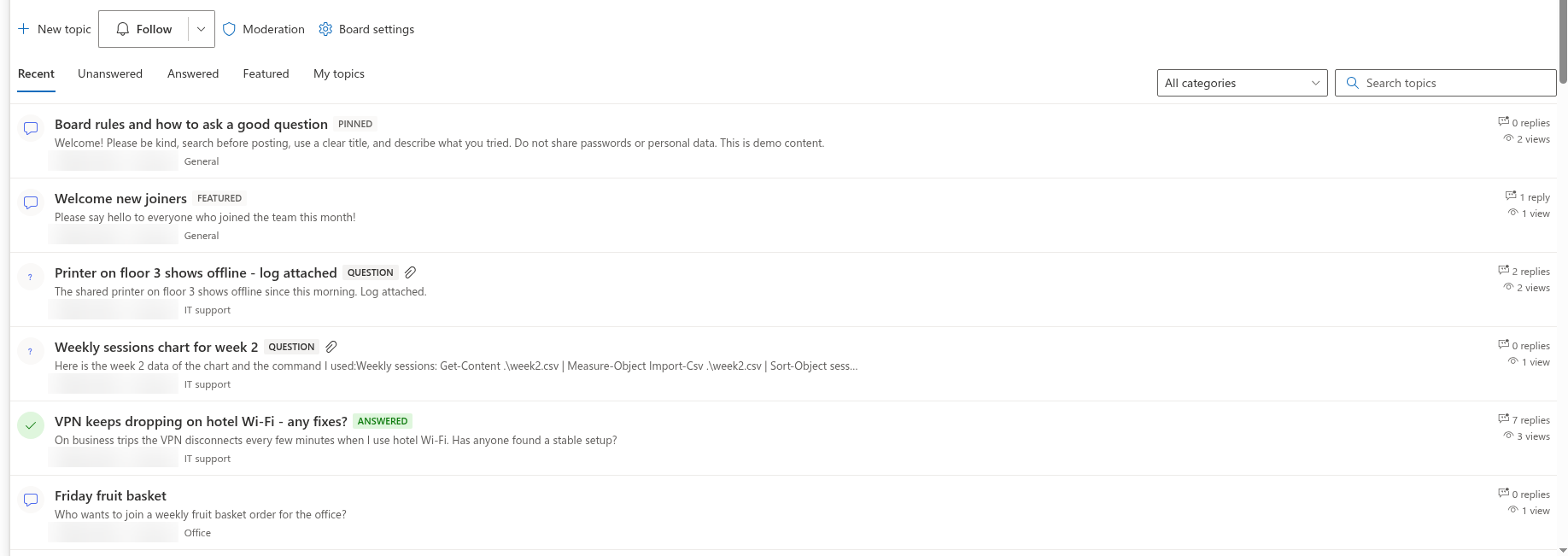
A topic has a title, a rich-text body, an optional category and a type — Discussion or Question. Readers see the author, the last activity, the number of replies and the number of views. Replies form a tree: you can reply to the topic or to any reply, and the thread is shown nested. Topics and replies can be liked, edited by their authors, and reported to moderators.
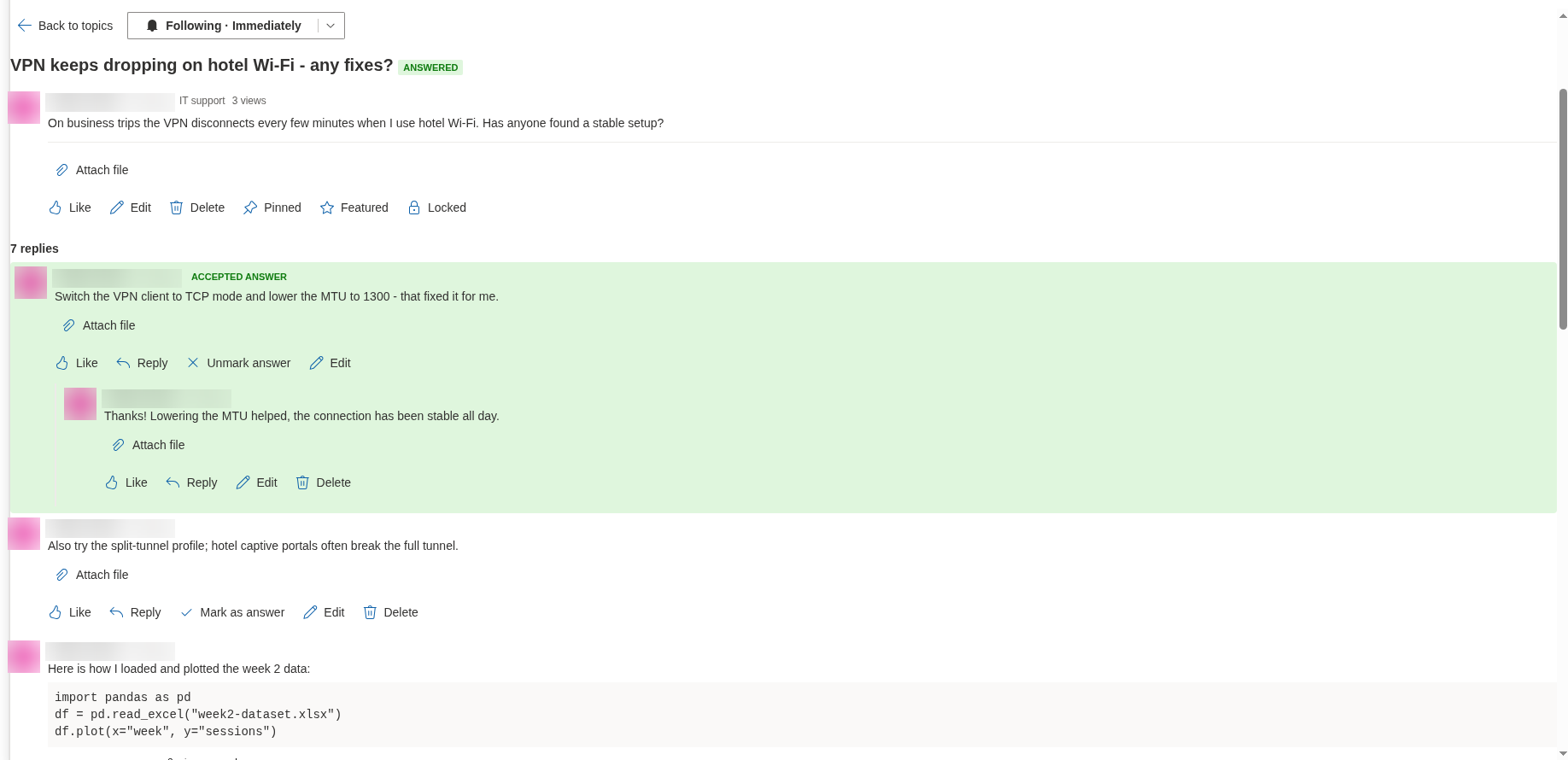
In a question topic, the author of the question or a moderator clicks Mark as answer on the best reply. The reply is shown at the top as the Accepted answer, the topic moves from the Unanswered view to the Answered view, and the mark can be removed with Unmark answer.
Finding topics: views, categories and search
The topic list offers five views — Recent, Unanswered, Answered, Featured and My topics — and the page editor chooses which one opens by default. Pinned topics stay on top of every view; other topics are ordered by last activity. A category drop-down filters the list, and the search box searches topic titles on the server. Topics are loaded in pages of 5 to 100, with a Load more button for the next page.
Every topic has its own address: the web part adds ?topic=ID to the page URL when a topic is opened, so the link can be copied from the browser and shared. The Discussions Activity web part uses the same links to open a topic on the board page.
Writing: rich text, images, attachments and mentions
Topics and replies are written in a rich text editor with bold, italic, underline and strikethrough, bulleted and numbered lists, quotes, code blocks, links and inline images. Images are pasted, dropped or inserted from a file and uploaded to the Discussions Assets library of the site; a single image may be up to 10 MB. Every post passes through an allow-list sanitizer before it is stored and before it is rendered.
Files can be attached to a topic or a reply before posting or later; they are stored as list item attachments. Typing @ opens a people picker with the users of the site; the mention is shown as a link in the post and recorded in the Mentions column for notifications.
Following and notifications
A Follow button on the board and on every topic creates a subscription with one of three frequencies: Immediately, Daily digest or Weekly digest. Authors follow their own topics automatically. Subscriptions are stored in the Discussions Subscriptions list.
📝 Note
The web part keeps the subscriptions and the mentions but does not send email itself. Delivery is done by a Power Automate flow that reads the subscriptions list and the topics and posts lists; the contract for that flow is described in KB10414. How Notifications Work in Discussions: Subscriptions, Mentions and Power Automate. No Microsoft Graph permission such as Mail.Send is requested.
Moderation
Users with the Manage Lists permission on the site — site owners by default — are moderators. They can pin, feature and lock topics, edit and delete other people's posts, and open the Moderation screen, which lists topics and replies waiting for approval and topics and replies that members have reported, with Approve, Reject, Dismiss reports and Delete actions.
When a board has Require approval of new posts switched on, topics and replies from members are created with the Pending status. Members see approved items and their own; moderators see everything, including pending and rejected items.
Importing a classic Discussion Board
Site owners can open Import classic board from the web part in edit mode, pick a classic Discussion Board list on this or another site of the tenant, review a dry-run summary and import topics, replies, best answers, likes and attachments into the current board. The reply hierarchy is rebuilt; replies that lost their parent in a flattened board become top-level replies of their topic. Imported items keep a legacy id, so the import can be run again without duplicates. See KB10417. How to Import a Classic SharePoint Discussion Board into Discussions.
Where the data lives
On first use the Discussions web part creates five site-level lists: Discussions Boards, Discussions Topics, Discussions Posts, Discussions Subscriptions and the document library Discussions Assets. All boards of the site share these lists. The web part recognises the lists by fixed column ids, so they can be renamed; all custom columns start with the Vtx prefix. Versioning is enabled on every list, and the lists are visible in Site contents, so retention, eDiscovery and sensitivity labels of the site apply to them as to any other list.
❗ Important
Creating the lists requires the Manage Lists permission on the site, which site owners have. Members without that permission can use a board after a site owner has created it, but cannot set up the first board on a site. Nothing is stored outside your tenant, and no Microsoft Graph API permissions have to be approved — see KB10411. Where Discussions Stores Your Data: Lists, Columns and Privacy and KB10413. API Permissions and Admin Consent for Discussions.
Permissions in short
| Site permission | What the user can do in a board |
|---|---|
| Read (visitors, read-only guests) | Open boards, read topics and replies, use views, categories and search |
| Add items — Contribute or Edit (members, guests with member rights) | Everything above plus start topics, reply, like, follow, attach files, report posts, edit and delete their own posts |
| Manage Lists (site owners) | Everything above plus approve and reject, pin, feature and lock, edit and delete any post, create boards and run the importer |
Details are in KB10408. Permissions in Discussions: Who Can Read, Post and Moderate.