Discussions
Overview
This article explains how to place the Vitextra Discussions web part on a modern SharePoint Online page, create or select a board on first run, and tune the web part in its property pane. It assumes the Discussions package has already been deployed to the App Catalog of your tenant and, if you use a tenant App Catalog, that the app has been added to the site.
💡 Tip
If the web part is not yet available on your site, deploy it first — see KB10035. How to Install a Vitextra Product in SharePoint Online and KB10361. Tenant App Catalog vs. Site Collection App Catalog: Where to Deploy Vitextra Apps. Discussions requests no Microsoft Graph API permissions, so there is nothing to approve in the SharePoint admin center.
Prerequisites
- To edit the page you need to be able to edit pages on the site — a member or an owner.
- To create the first board on a site you need the Manage Lists permission, because the web part creates its lists at that moment. Site owners have it; members with Edit rights do not.
- Once the lists and a board exist, any page editor can add the web part to another page and select the existing board.
Adding the web part to a page
- Open the page where you want the board and switch it to edit mode with Edit in the top-right corner.
- Hover over the area where the web part should go and click the round + (Add a new web part) button.
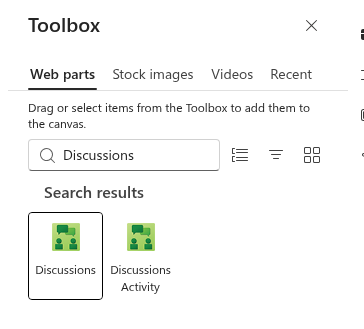
- In the toolbox, start typing Discussions and select the Discussions web part from the Communication and collaboration group. Do not confuse it with Discussions Activity, the feed of recent topics.
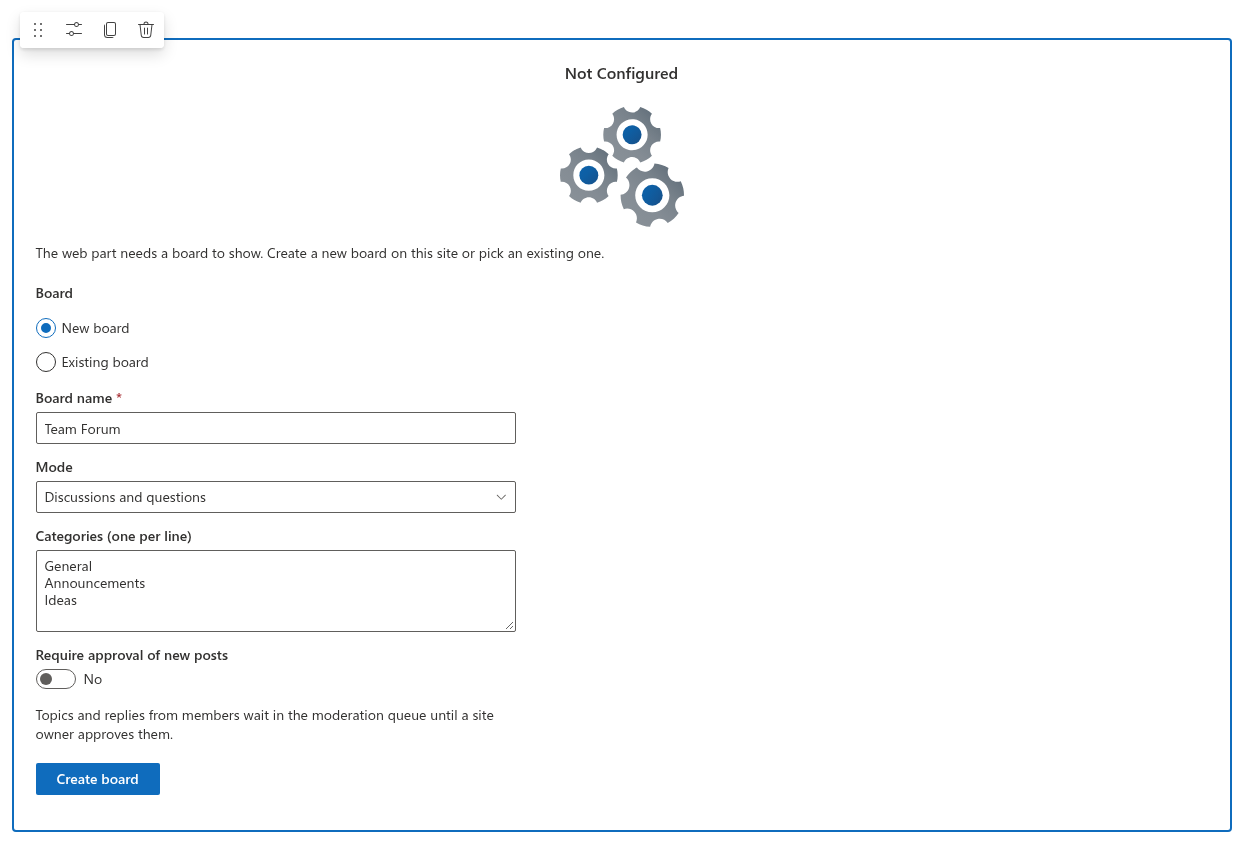
The web part is added to the page and, because it is not yet linked to a board, shows the Not Configured screen.
First run: create or select a board
The Not Configured screen explains that the web part needs a board to show and offers two options under Board:
- New board — fill in the Board name, pick the Mode (Discussions and questions, Discussions only or Questions and answers only), optionally list the Categories (one per line), decide whether to Require approval of new posts, and click Create board. The board is created and the web part switches to it immediately.
- Existing board — select a board that was created earlier on this site from the Board drop-down and click Use board. This option is preselected when the site already has boards; when it has none, only New board is available.
The board settings — mode, categories and approval — are explained in KB10392. Creating Your First Board: Modes, Categories and Approval.
❗ Important
If the site has no Discussions lists yet and you do not have the Manage Lists permission, the web part shows You do not have permission to create lists on this site. Ask the site owner to set up the board. Ask a site owner to create the first board; afterwards you can link the web part to it with Existing board.
What is created on the site
When the first board is created, the web part provisions five site-level lists and links them to the web part: Discussions Boards, Discussions Topics, Discussions Posts, Discussions Subscriptions and the document library Discussions Assets (inline images). The lists are created with the names of the user interface language of the person who creates them, with versioning enabled, and appear in Site contents. All boards of the site share the same lists, so a second board does not create new ones.
The web part recognises the lists by the ids of their marker columns rather than by name, so you may rename them later. If the site already has lists created by an earlier version of Discussions without the subscriptions list or the assets library, the web part completes them: when a moderator (a user with the Manage Lists permission) opens a page whose web part was configured before those lists existed, the missing lists and columns are created automatically — edit mode is not required. Board setup does the same: Create board and Use board always bring the lists up to date for a user with Manage Lists, so columns introduced by later versions are added too. Other users only look up the existing lists.
On a page that is only being viewed and has no board selected, visitors see a short message asking an editor to open the page in edit mode and complete the setup.
Configuring the web part
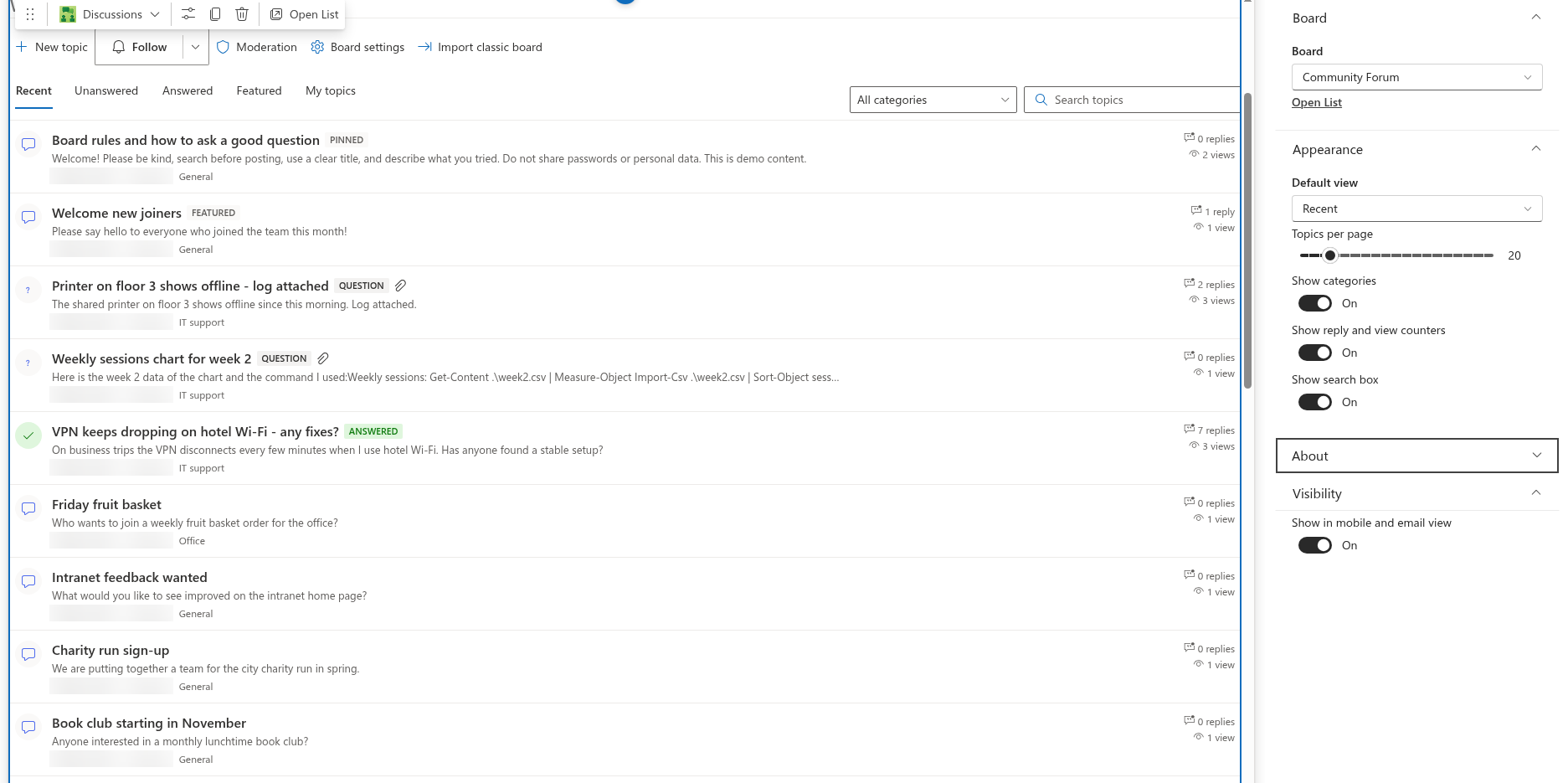
Select the web part and click the pencil (Edit web part) icon to open the property pane. The settings are organized into three groups.
Board
- Board — the board shown by this web part. The drop-down lists every board of the site, so one page can show IT Help Desk and another HR Questions while both use the same lists.
- Open List — opens the Discussions Topics list in a new tab. The same command is available in the toolbar of the web part in edit mode.
Appearance
- Default view — the view that opens first: Recent, Unanswered, Answered, Featured or My topics. The default is Recent. For a Q&A board it is common to open Unanswered so that experts see open questions first. On a board in the Discussions only mode the Unanswered and Answered views are hidden.
- Topics per page — how many topics are loaded at once, from 5 to 100 in steps of 5 (default 20). A Load more button fetches the next page.
- Show categories — shows the category drop-down above the list and the category of each topic (on by default). The drop-down appears only when the board has categories.
- Show reply and view counters — shows the number of replies and views next to each topic (on by default).
- Show search box — shows the search box that searches topic titles (on by default).
About
Shows the license status, product version and tenant information, and offers the trial and activation actions. See KB10434. Discussions Licensing: Trial, Activation and Plans.
Changing the board itself
The property pane selects which board is shown; it does not change the board itself. Moderators — users with the Manage Lists permission, usually site owners — change the board in the web part: click Board settings in the command bar above the list of topics (next to New topic and Moderation). The Board settings panel contains Board name (required), Description, Mode, Categories (one per line) and Require approval of new posts. Click Save to apply the changes at once, or Cancel to close the panel without saving. The page does not have to be in edit mode.
📝 Note
The settings of a board are stored as an item of the Discussions Boards list. The Board settings panel is the usual way to change them; editing the item directly in the list still works as an alternative. What each setting means is explained in KB10392. Creating Your First Board: Modes, Categories and Approval; the full list of settings is in KB10425. Discussions Web Part Settings Reference.
Editing the web part title
As with standard SharePoint web parts, Discussions has an editable title above the board. Click the Web Part Title area while the page is in edit mode and type your heading — for example, IT Help Desk or Ask the HR team.
When you are done, Publish (or Republish) the page. Members of the site then see the New topic button and can start the first topic; site owners also see Moderation and Board settings, and in edit mode Import classic board.