Discussions
Introduction
A team that lives in Microsoft Teams wants its forum next to its conversations. Discussions ships as a Teams application and can be pinned as a tab in a channel: the same topic list with views, categories and search, the same threaded replies, best answers, subscriptions and moderation as on a SharePoint page, with the content stored in the lists of the team's own SharePoint site.
This article covers publishing the app to Teams, adding the tab and configuring it, and the points that differ from a SharePoint page. It assumes that the package has already been deployed to the App Catalog of your tenant (see KB10035. How to Install a Vitextra Product in SharePoint Online).
📝 Note
The Teams package contains the Discussions web part as a channel tab and as a personal app entry, and the Discussions Activity web part as a channel tab. One license per tenant covers SharePoint pages and Teams tabs alike, and no Microsoft Graph API permissions are requested.
Prerequisites
- To publish the app to Teams you need to manage the SharePoint App Catalog — typically the SharePoint Administrator role.
- To add a channel tab you need to be a member of the team; team owners may restrict who can add tabs.
- To create the first board of the team you need the Manage Lists permission on the team's SharePoint site, which team owners have. Once the lists exist, any member can add a tab and select an existing board.
Step 1. Make the app available in Teams
- Open the Microsoft 365 admin center, go to the SharePoint admin center, select More features and click Open under Apps.
- On the Manage apps page, select the Vitextra Discussions package and click Add to Teams. (In the classic Apps for SharePoint library the same command is Sync to Teams on the FILES tab of the ribbon.)
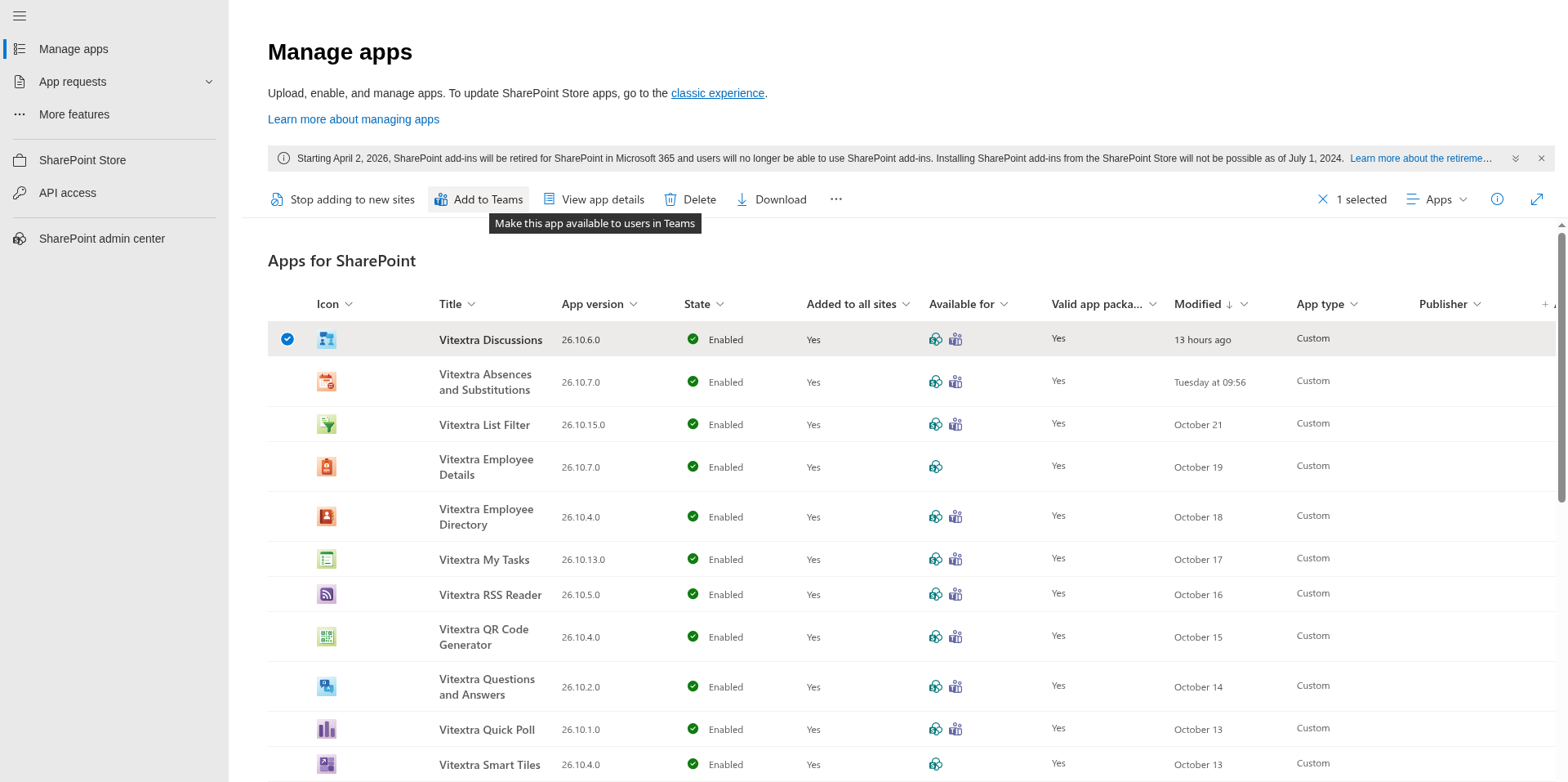
The app is published to your organization's Teams app store under the name Discussions (Vitextra Discussions). It stays linked to the SharePoint package: a new version installed in the App Catalog is used in Teams as well (see KB10050. How to Update a Vitextra SPFx Solution in SharePoint Online).
📝 Note
Alternatively, a Teams administrator can upload the Teams app package manually in the Teams admin center under Teams apps → Manage apps → Upload new app; the package is the TeamsSPFxApp.zip file included with the product. Add to Teams is the simpler route.
Step 2. Add the tab to a channel
- Open the team and the channel, and click + in the tab bar.
- Find Discussions in the list of apps (use the search box) and select it.
- Click Add (or Save). The tab opens with the Not Configured screen of the web part and its property pane.
- Create or select a board — see the next step — and the tab shows the board.
Rename the tab (Rename in the tab's menu) to something like Help desk or Q&A; the default name is the app name.
Step 3. Choose the board
A Teams tab runs in the context of the SharePoint site of the team, and the Not Configured screen works with the lists of that site:
- New board — type a Board name, pick the Mode, list the Categories (one per line), set Require approval of new posts and click Create board. If the team has no Discussions lists yet, they are created on the team site at this moment (Discussions Boards, Discussions Topics, Discussions Posts, Discussions Subscriptions and the Discussions Assets library) and appear in the Site contents of the team site. The options are explained in KB10392. Creating Your First Board: Modes, Categories and Approval.
- Existing board — select a board that already exists on the team site, for example one created for a page of the same site, and click Use board. The tab and the page then show the same topics.
A board of another site — a company-wide help desk on the intranet, say — cannot be selected in the tab, because the web part works with the lists of the site it runs on. To show such a board to a team, add a Website tab in Teams with the address of the intranet page, or pin the page with the SharePoint tab app.
Step 4. Configure the tab
With the board selected, open the property pane whenever you need it: in the tab's menu choose Settings. The options are the same as on a SharePoint page — the Board drop-down and the Open List link, and under Appearance the Default view, Topics per page, Show categories, Show reply and view counters and Show search box settings — and are described in KB10391. How to Add and Configure the Discussions Web Part. The tab keeps its own settings, independent of any web part on a page that shows the same board.
What is different in Teams
- Permissions come from the team. Team owners are owners of the SharePoint site and therefore moderators: they post without approval, see the Moderation button and can pin, feature and lock topics. Team members have Edit rights on the site and can start topics, reply, like, follow and report. Guests of the team take part with their guest permissions. Details are in KB10408. Permissions in Discussions: Who Can Read, Post and Moderate.
- Deep links. On a SharePoint page the web part adds
?topic=IDto the page address when a topic is opened. Inside a Teams tab the page address is not visible, so to share a topic with a colleague use the SharePoint page that shows the same board, or Copy link to tab from the tab's menu to point to the tab itself. Links from the Discussions Activity web part open the configured Board page URL in the browser. See KB10407. Sharing a Link to a Topic in Discussions (Deep Links). - Importing a classic board. The Import classic board command of moderators appears only in edit mode. On a SharePoint page that is the page edit mode; for a tab it is available while the tab Settings are open.
- Personal app. The Teams package also registers Discussions as a personal app. A personal tab has no board selection step, so the web part cannot be pointed at a board of a team from there; use channel tabs for boards.
- Attachments and images open in the browser or in the file viewer of Teams, depending on the type. Inline images are stored in the Discussions Assets library of the team site.
- Theme. The tab follows the light and dark themes of the Teams client; the layout adapts to the width of the Teams window and to the Teams mobile app.
❗ Important
Removing the tab from a channel does not delete anything: the boards, topics and replies stay in the lists of the team site and can be shown again by a new tab or a page. Deleting the team deletes its SharePoint site and, with it, the boards. Keep this in mind for teams with an expiration policy.
If the tab is empty or shows a message
| What you see | What to do |
|---|---|
| Not Configured / The web part still needs to be configured | Open Settings in the tab's menu and create or select a board (step 3). |
| You do not have permission to create lists on this site | The team site has no Discussions lists yet and you are not a team owner. Ask an owner to create the first board. |
| The selected board was not found | The board item was deleted from the Discussions Boards list or the tab was copied to another team. Open Settings and pick another board. |
| No topics yet. Start the first one. | The board is empty, or all topics are waiting for approval and you are not a moderator. |
| The New topic button is missing | The user has no Add items permission on the team site — a visitor or a read-only guest. |
| The app is missing from the + dialog | The package was not added to Teams (step 1), or the Teams administrator blocks custom apps; check Teams apps → Manage apps in the Teams admin center. |
| The license message | The trial has ended or no license is assigned to the tenant; see KB10365. Why Does a Vitextra Web Part Show "We Hope You Enjoyed Your Free Trial"? License Messages and Fixes. |
More cases are in KB10429. Troubleshooting Discussions: Not Configured, Board Not Found and Permission Errors.