Discussions
Overview
The same questions reach the IT help desk and the HR team again and again: "How do I connect to the VPN?", "When is the deadline for the vacation request?", "Which laptop can I order?". A question-and-answer forum on the intranet turns those one-to-one e-mails into answers that everybody can find. This article walks through building such a forum with Discussions: a board in Q&A mode, categories that match the way people ask, the Unanswered view as the default so that nothing is left behind, experts who follow the board, and a block on the home page that shows the latest questions.
The scenario below uses an IT help desk; an HR forum, a finance desk or a facilities board is built in exactly the same way.
📝 Note
Before you start, the Vitextra Discussions package must be deployed in the tenant (see KB10035. How to Install a Vitextra Product in SharePoint Online), and the person creating the board needs the Manage Lists permission on the site — site owners have it. The product requests no API permissions, so no admin consent is involved.
Step 1. Plan the board
Decide three things before you open the page editor:
- One board per audience. A board is a self-contained forum with its own mode, categories and moderation setting. Give the IT help desk its own board and HR another one; several boards can share one site, each on its own page.
- Categories that match the questions. Categories are the filter people use to narrow the list and the hint they get when posting. For an IT help desk a good first set is Accounts and passwords, Laptops and hardware, Software, VPN and remote work, Microsoft 365. Keep the list short; it can be changed later.
- Who answers and who moderates. Everybody with Add items on the site (the Contribute and Edit levels) can ask, reply, like, follow and report. Users with Manage Lists — typically the site owners — are moderators: they approve posts, pin and lock topics and mark any answer as the best one. The experts should be at least site members; the people who keep the board tidy should be site owners.
Step 2. Create the board in Q&A mode
- Open the intranet page where the forum should live, switch it to edit mode and add the Discussions web part (group Communication and collaboration).
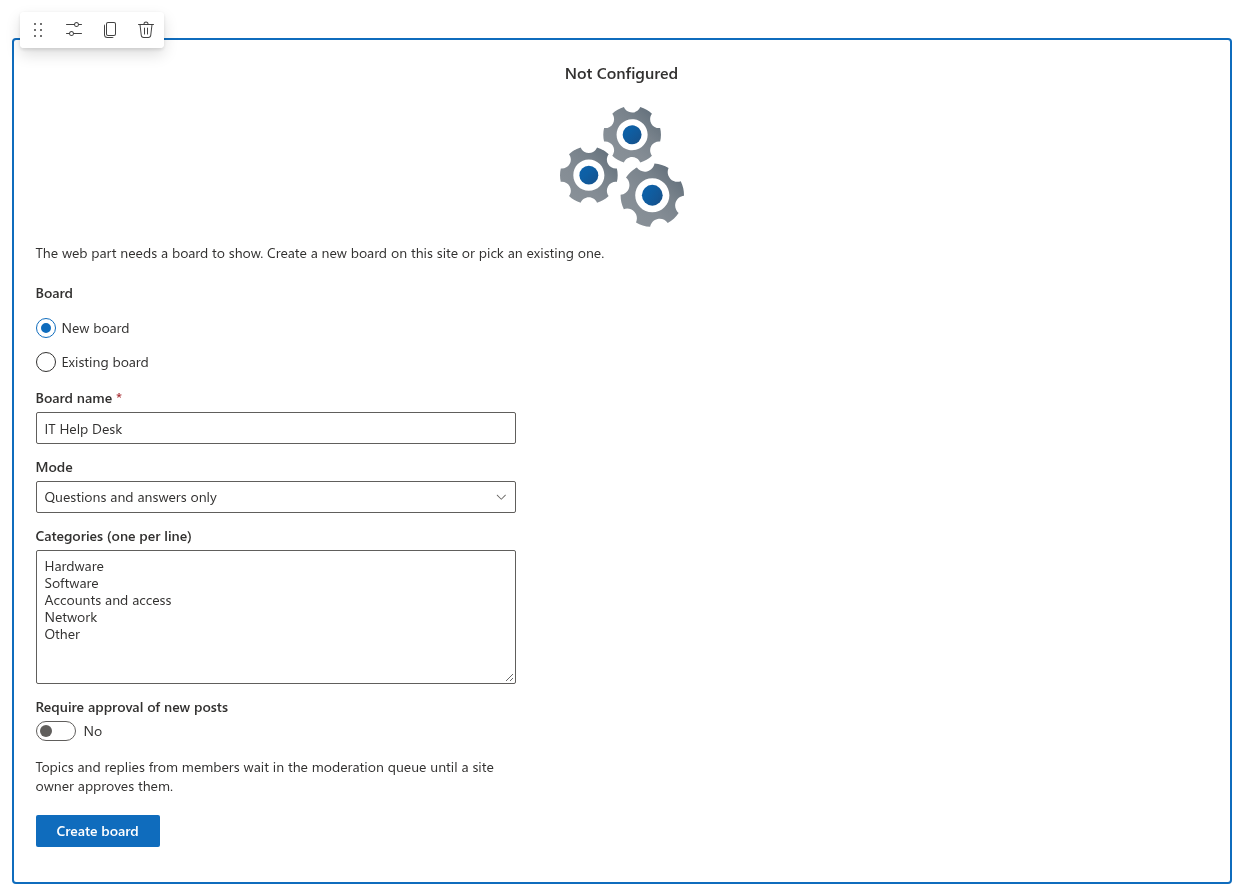
- The web part shows the Not Configured placeholder with the board setup form. Under Board, keep New board selected.
- Enter the Board name, for example IT Help Desk.
- In Mode, choose Questions and answers only. In this mode every new topic is a question, and the Unanswered and Answered views are available.
- In Categories (one per line), type the categories from your plan, one per line.
- Leave Require approval of new posts at No for a help desk: questions should appear immediately. Switch it to Yes if your organization wants a moderator to see every post before it goes live.
- Click Create board. The web part creates the site lists on first use — Discussions Boards, Discussions Topics, Discussions Posts, Discussions Subscriptions and the Discussions Assets library — and opens the empty board.
The details of every option are in KB10392. Creating Your First Board: Modes, Categories and Approval.
Step 3. Make unanswered questions the default view
A help desk forum works when open questions are the first thing an expert sees. Open the property pane of the web part (the pencil icon) and, in the Appearance group:
- set Default view to Unanswered — the list opens with the questions that have no accepted answer yet; visitors can still switch to Recent, Answered, Featured or My topics;
- set Topics per page to a value that fits the page (the default is 20; more are loaded with Load more);
- keep Show categories, Show reply and view counters and Show search box switched on, so people can filter by category, see which questions are busy and search topic titles.
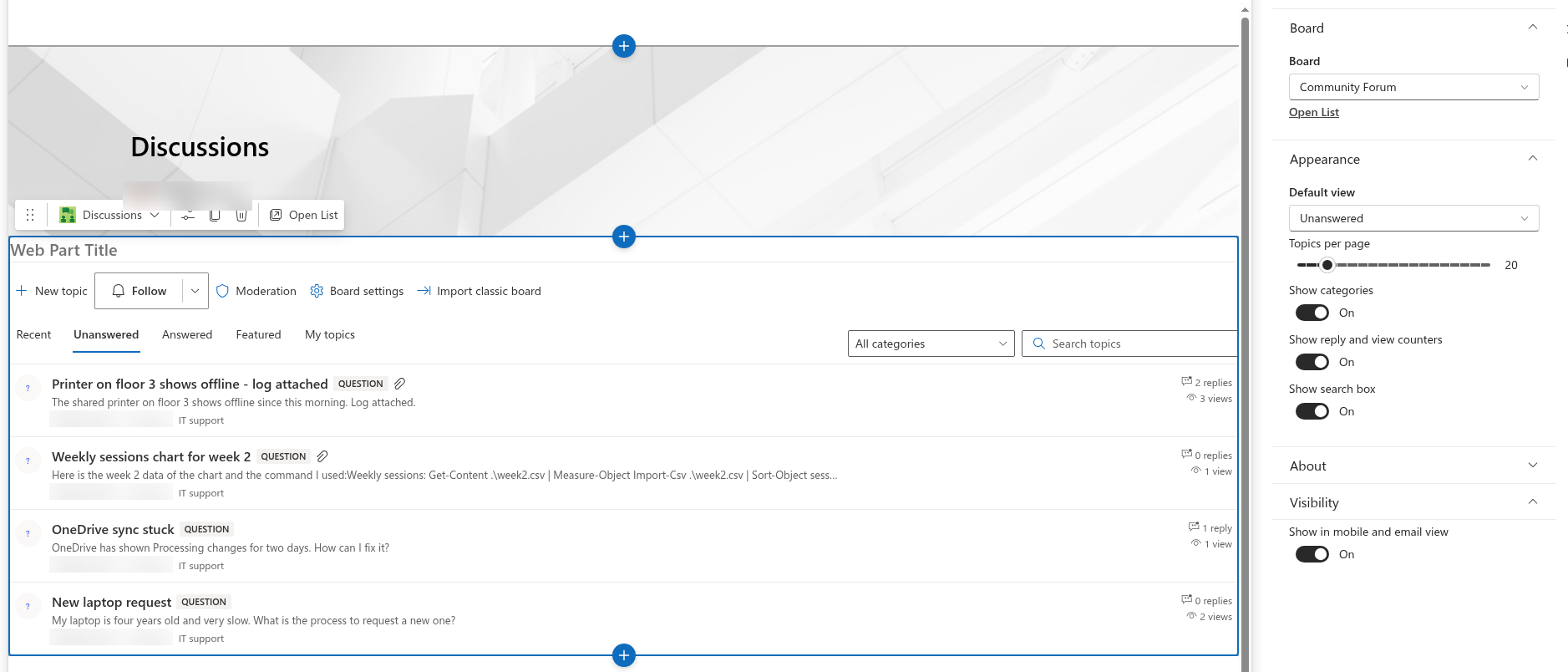
Publish the page. Every setting of the web part is described in KB10422. Views, Paging, Search and Counters: Display Settings of the Discussions Web Part.
Step 4. Ask the experts to follow the board
Experts should not have to open the page to learn about a new question. Each of them opens the board and clicks Follow in the command bar. The button follows the board with the Immediately frequency; the drop-down part of the button switches to Daily digest or Weekly digest or offers Unfollow. The button then reads Following · Immediately.
Two more rules work in your favor:
- the person who asks a question follows it automatically, so they learn when an answer arrives;
- an expert can be pulled into a specific question with an @mention in a reply.
❗ Important
The web part keeps the subscriptions and the mentions in the site lists; the e-mails themselves are sent by a Power Automate flow that a site owner sets up on top of those lists. The contract for that flow — which events, which recipients, which frequency — is described in KB10414. How Notifications Work in Discussions: Subscriptions, Mentions and Power Automate. Until the flow is in place, following a board records the subscription but does not send mail.
Step 5. Answer and mark the best answer
An expert opens the question, writes the answer in the reply editor — with formatting, links, screenshots pasted into the text and attached files where needed — and clicks Post. If the answer solves the question, the author of the question or any moderator clicks Mark as answer under the reply. From that moment:
- the reply carries the Accepted answer badge and is shown at the top of the thread, whatever its date;
- the question gets the Answered badge, leaves the Unanswered view and appears in Answered; the state follows the accepted answer, so it survives locking the question, and deleting the accepted reply returns the question to Unanswered;
- the mark can be removed with Unmark answer, and a different reply can be accepted instead — a question has one accepted answer at a time.
Only top-level replies can be accepted; a reply to a reply is a comment on that answer, not an answer of its own. How this looks for the person asking is described in KB10400. Marking the Best Answer in Q&A Topics.
💡 Tip
Agree with the experts that they mark the answer when the author does not come back to do it. Moderators can accept any reply, and a question that stays in Unanswered although it has been solved sends the wrong signal to the next person who looks for help.
Step 6. Show the latest questions on the home page
The forum should be visible where employees already go. Add the Discussions Activity web part to the intranet home page and, in its property pane:
- under Board, pick the help desk board, or leave All boards to mix the latest topics of every board on the site;
- in Board page URL, enter the address of the page with the Discussions web part — the titles then link to the topic (
?topic=ID) on that page; - in the Appearance group, set Maximum items (five by default) and keep Show board name on when several boards are shown.
Each topic is shown with the board name, the author, the time of the last activity, the number of replies and the Answered badge for solved questions. While there are no topics, the web part hides itself in read mode. See KB10415. Showing Recent Discussions on Any Page with the Discussions Activity Web Part.
Keeping the forum healthy
A few moderator habits keep a help desk board useful as it grows:
- Pin the evergreen answers. Open a question that everybody asks — "How do I reset my password?" — and click Pinned; pinned topics stay at the top of every view. Click Featured to add it to the Featured view that works as a curated FAQ.
- Lock what is settled. When a question is answered and the thread starts drifting, click Locked: the topic remains readable, but new replies are not accepted. A locked question keeps its Answered badge and its place in the Answered view; Mark as answer and Unmark answer are hidden while the topic is locked, so unlock it first if the answer has to change. See KB10410. Pinning, Featuring and Locking Topics.
- Watch the moderation queue. The Moderation button opens the queue with the posts that wait for approval (if approval is on), the posts that members have reported and the posts that were rejected. Approve, reject, dismiss the reports or delete — see KB10409. Moderating a Board: Approval Queue, Rejecting and Dismissing Reports.
- Adjust the categories. Click Board settings in the command bar of the board — the button is shown to moderators — and change Categories (one per line); Save applies the change immediately. The board name, the description, the mode and the approval setting are changed in the same panel. Topics that already use a renamed category keep the old name; the author or a moderator moves such a topic with Edit in the topic view — see KB10423. Organizing Topics with Categories.
- Share links to answers. Every topic has an address with
?topic=ID; a help desk agent can answer an e-mail with a link to the ready answer.