Discussions
What you see on the board
Discussions is a discussion board and Q&A forum that lives on a SharePoint page or in a Microsoft Teams tab. A board is a list of topics; each topic has a thread of replies. You open the board like any other page of your intranet, and everything you post is stored in lists of that same SharePoint site, protected by the site's permissions — nothing leaves your Microsoft 365 tenant (see KB10363. Where Vitextra Products Store Your Data: Privacy, Data Residency and GDPR).
The board opens on the topic list. Every row shows the topic title, a short excerpt of its text, the author, when it was last active and, if the page owner enabled them, the category and the replies and views counters. Topics that a moderator pinned stay at the top; all others are ordered by their last activity, newest first. An icon at the left tells the type of the topic at a glance: a speech bubble for a discussion, a question mark for an open question and a check mark for a question with an accepted answer.
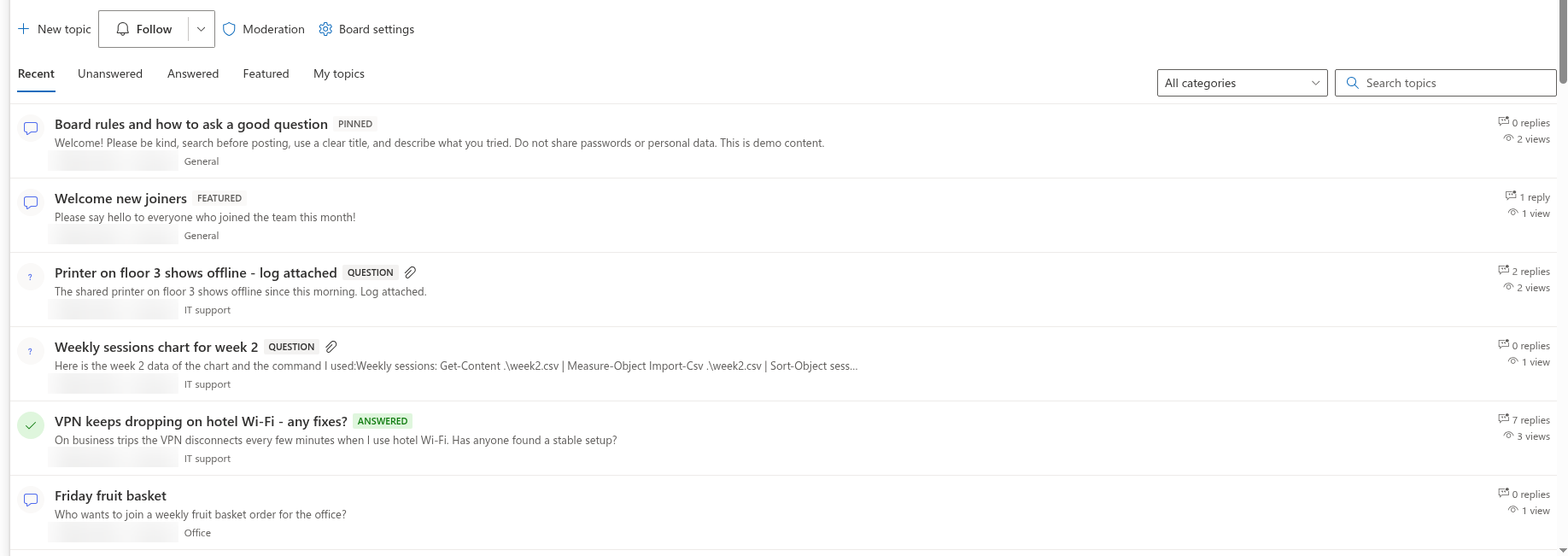
Small badges next to a title explain its state:
| Badge | Meaning |
|---|---|
| Pinned | A moderator keeps the topic at the top of the list. |
| Featured | The topic is highlighted by a moderator and appears in the Featured view. |
| Question | A question that has no accepted answer yet. |
| Answered | A question whose author or a moderator marked the best answer. |
| Locked | The topic is closed for new replies. |
| Awaiting approval | Your topic is waiting for a moderator (shown only to you and to moderators). |
A paperclip icon means that the topic has attachments.
Views: Recent, Unanswered, Answered, Featured and My topics
The tabs above the list switch between the views of the board:
- Recent — every topic, ordered by last activity.
- Unanswered — questions that have no accepted answer yet. This is the place to look when you want to help.
- Answered — topics with an accepted answer; useful as a ready knowledge base.
- Featured — topics a moderator has highlighted.
- My topics — the topics you started.
The page owner decides which view opens first. On a board that is set up for discussions only, the Unanswered and Answered tabs are not shown, because such a board has no questions to answer.
Long boards load in pages. When more topics exist than fit on one page, a Load more button appears under the list and fetches the next page without leaving the view.
Filtering by category and searching
If the board has categories, a dropdown next to the view tabs lets you narrow the list to one category; All categories brings the full list back. The Search topics box searches the titles of topics: type a word or a phrase and press Enter, and clear the box to return to the unfiltered list. Views, the category filter and the search work together, so you can, for example, list only unanswered questions in the IT support category whose title contains VPN.
When no topic matches the current filter or search, the board says Nothing found.; an empty board with no topics at all shows No topics yet. Start the first one.
📝 Note
Search looks only at topic titles, not at the text of topics or replies. Give your topics descriptive titles so that colleagues can find them later.
Opening and reading a topic
Click a topic to open it. The topic page shows the author, when the topic was posted (hover over the time to see the exact date), its category and the number of views, then the text, attachments and the thread of replies below it. The Back to topics button returns you to the list.
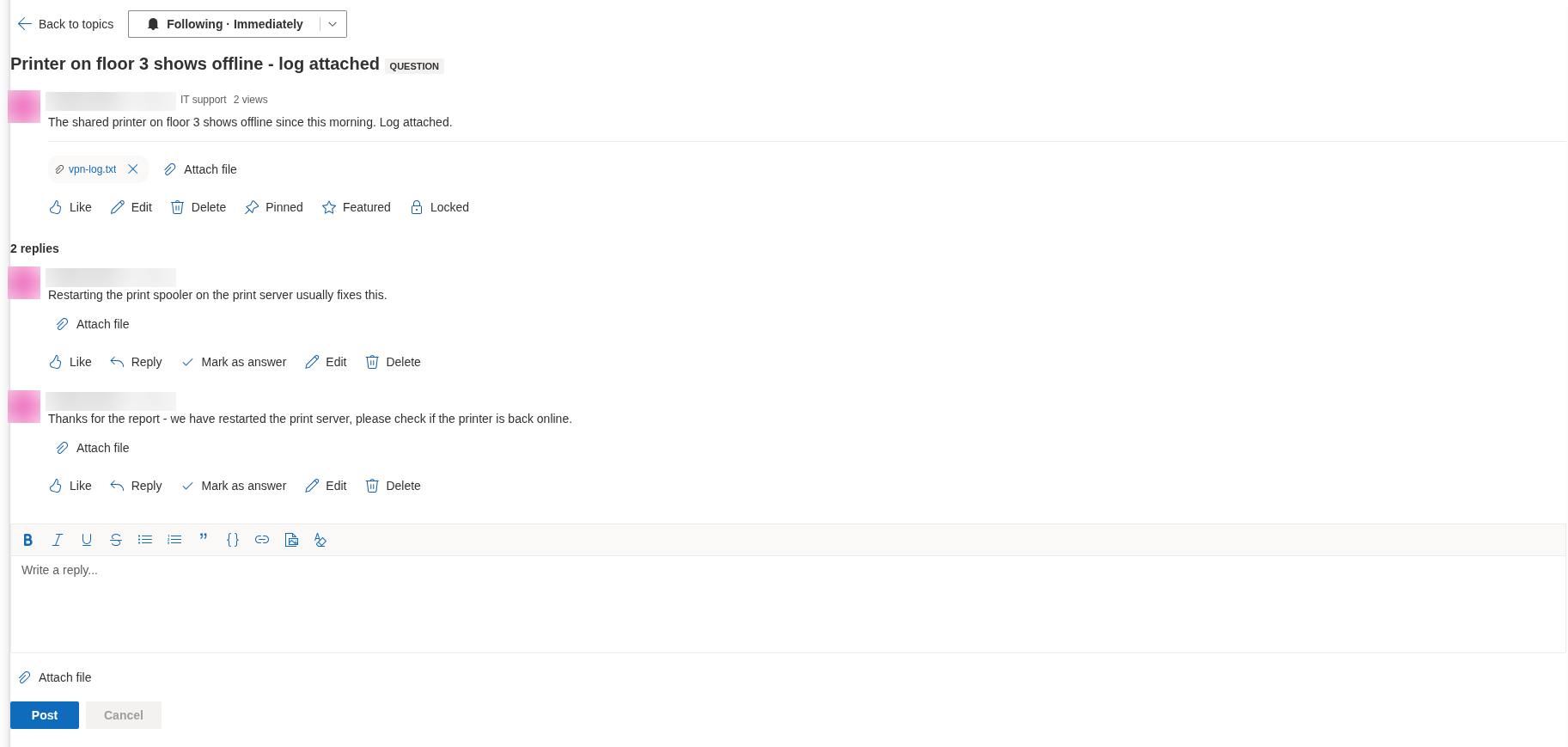
While a topic is open, the page address contains the topic number (?topic=ID). Copy the address from the browser and send it to a colleague: the link opens the board with that topic already open. In Microsoft Teams the same link opens the board tab. A link to a topic that is still awaiting approval or was rejected works only for its author and for moderators; anybody else sees the message This topic is not available. It may be awaiting approval or may have been removed. and the Back to topics button. Attachments are shown as small chips under the text; click a chip to download the file.
Replies are shown as a tree: a reply to a reply is indented under the message it answers, and there is no limit to the depth. Within one level the oldest reply comes first. In a question topic the accepted answer is placed at the top of the thread and carries the Accepted answer badge.
Starting a topic
Click New topic in the command bar above the list. Enter a Topic title (required), pick the type (Discussion or Question) when the board allows both, choose a Category if the board has any, write the text in the editor, attach files if needed and click Post. The new topic opens immediately and you are automatically subscribed to it. As the author you can later Edit your topic — its title, category and text — as long as it is not locked, and Delete it together with all its replies; the board asks for confirmation before deleting. The form and the differences between discussions and questions are described in KB10398. Starting a Topic: Discussions and Questions.
Replying and liking
To answer the topic itself, write in the editor at the bottom of the thread and click Post. To answer a specific message, click Reply under it: an inline editor labelled Reply to [name] opens and your reply is nested under that message. The editor supports formatting, links, images, code blocks, attachments and @mentions.
You can Edit your own replies at any time and Delete them as long as nobody has replied to them; the board asks you to confirm the deletion. The details are in KB10399. Replying in Threads: Reply, Edit and Delete.
Like marks a topic or a reply you found useful; the number of likes is shown next to the button, and clicking again removes your like. If you asked a question and one of the replies solved it, mark it with Mark as answer — see KB10400. Marking the Best Answer in Q&A Topics. If you see a post that breaks the rules, click Report to flag it to the moderators; a post can be reported once per person.
❗ Important
On a board where a site owner enabled approval of new posts, your topics and replies are shown with the Awaiting approval badge and the message Thank you. Your post will be visible after a moderator approves it. Until a moderator approves them, only you and the moderators can see them.
Following a board or topic
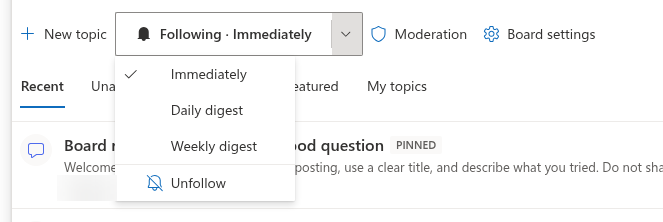
The Follow button appears in the command bar of the board and at the top of every topic. One click subscribes you with the Immediately frequency; the arrow next to the button opens a menu where you choose Immediately, Daily digest or Weekly digest, or Unfollow. While you are subscribed the button reads Following with the chosen frequency. Following a board covers new topics on that board; following a topic covers new replies in it. You follow the topics you start automatically.
💡 Tip
The board records your subscription; the e-mail itself is sent by a Power Automate flow that your site owner sets up. If you follow a topic but receive no mail, ask the owner whether the flow is in place. See KB10404. Following Boards and Topics: Subscriptions and Digest Frequency.
What you can do depends on your permissions
Discussions does not have its own user accounts or roles: it uses the permissions you already have on the SharePoint site.
| You have | You can |
|---|---|
| Read on the site (visitor) | Browse the views, filter and search, open topics, download attachments, follow deep links. The Like, Reply and Follow buttons are not available. |
| Add items (member with Contribute or Edit) | Everything above, plus start topics, reply, like, follow, report posts, edit and delete your own topics and replies (a reply only while it has no replies), and attach files. |
| Manage Lists (site owner, moderator) | Everything above, plus approve, reject, pin, feature and lock topics, edit and delete other people's topics and replies, open the Moderation queue and change the board's settings in the Board settings panel. |
Guests invited to the site take part with the same rules. If a button described in this article is missing for you, your permission level on the site is the reason — see KB10408. Permissions in Discussions: Who Can Read, Post and Moderate.