Discussions
Before you start
A topic is the starting message of a thread on a Discussions board: a discussion you want to open or a question you want answered. To start one you need the Add items permission on the SharePoint site that hosts the board — members with the Contribute or Edit permission level have it. Visitors with read-only access can read the board but do not see the New topic button; if that is your case, ask the site owner.
Before posting a question, take a moment to search the board: the Search topics box and the Answered view often show that somebody has already asked the same thing (see KB10397. Discussions: A Quick Guide for End Users).
Opening the New topic form
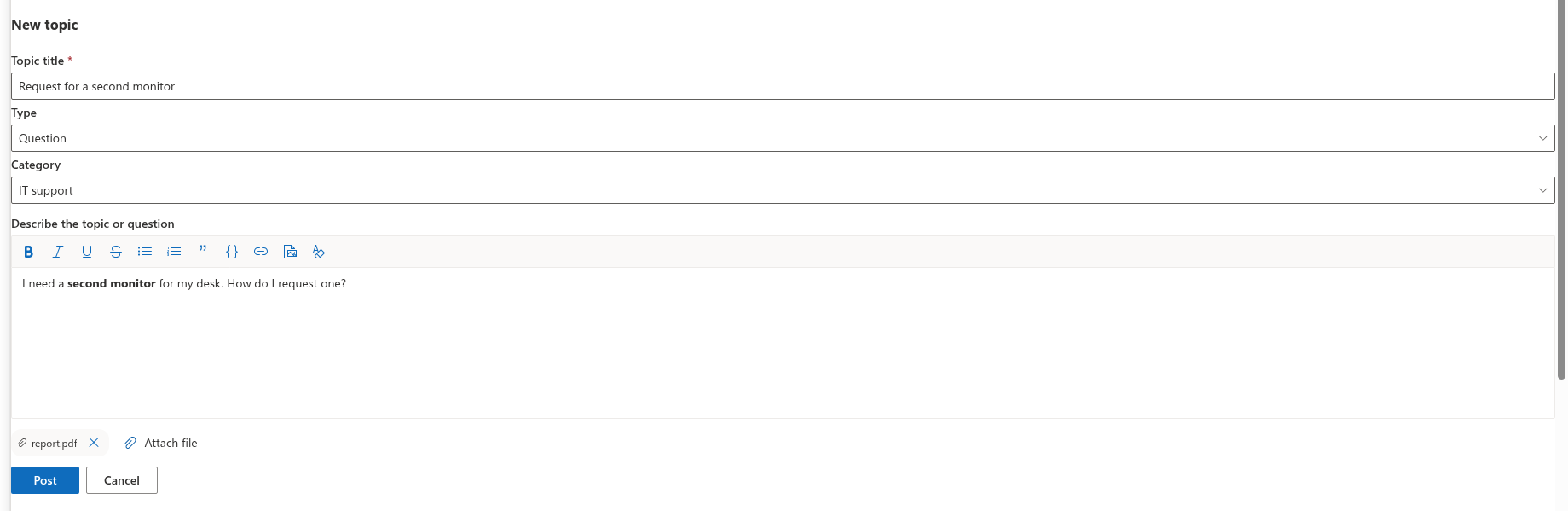
Click New topic in the command bar above the topic list. The list is replaced by the New topic form; the cursor is already in the title field. Cancel closes the form and returns you to the list without saving anything.
Filling in the form
| Field | What to enter |
|---|---|
| Topic title | Required, up to 255 characters. This is what colleagues see in the list and what the board's search looks at, so make it specific: VPN drops every 30 minutes on Windows 11 works better than VPN problem. If you leave it empty, the form shows This field is required when you click Post. |
| Type | Shown only on boards that allow both discussions and questions. Choose Discussion or Question (see the next section). |
| Category | Shown only when the board has categories. Pick the one that fits, or leave No category. Readers can filter the list by category, so a correct category helps the right people find your topic. |
| Text | The editor with the placeholder Describe the topic or question. It is optional, but a topic without text is rarely useful. |
| Attachments | Click Attach file to pick one or more files; each appears as a chip that you can remove before posting. |
The text editor is the same one used for replies. Its toolbar offers bold, italic, underline and strikethrough, bulleted and numbered lists, a quote block, a code block, links, images and a Clear formatting button. Paste or drop an image into the text to add it inline (up to 10 MB per image), and type @ followed by a name to mention a colleague. These features are described in KB10401. Formatting Posts: The Rich Text Editor, Images and Code Blocks, KB10402. Attaching Files to Topics and Replies and KB10403. Using @Mentions in Discussions.
Discussion or question?
The type decides how the board treats the thread:
| Discussion | Question | |
|---|---|---|
| Purpose | An open conversation: an announcement to comment on, an idea, a request for opinions. | A problem that needs one answer. |
| Icon in the list | Speech bubble | Question mark, which turns into a check mark once an answer is accepted |
| Badges | None by default | Question until an answer is accepted, then Answered |
| Best answer | Not available | The author or a moderator can mark one reply as the Accepted answer; it is pinned to the top of the thread. |
| Views | Recent, Featured, My topics | Also listed in Unanswered until an answer is accepted, and in Answered afterwards |
Which types are available depends on the board's mode, set by the site owner:
- Discussions only — every topic is a discussion; the Type field is hidden.
- Questions and answers only — every topic is a question; the field is hidden.
- Discussions and questions — you choose. The field is preset to Discussion, so remember to switch it to Question when you expect an answer; otherwise your topic will not appear in the Unanswered view and nobody will be able to mark the best answer.
📝 Note
Edit on a posted topic lets you change its title, category and text, but not its type. If you picked the wrong one, ask a moderator — they can correct the Type column of the topic in the Discussions Topics list.
Posting the topic
Click Post. The board creates the topic, uploads the attached files one by one and opens the new topic for you. From this moment:
- the topic appears in the Recent view (and in Unanswered if it is a question) with the state Open;
- the page address contains the topic number (
?topic=ID), so you can copy it from the browser and share it; - you are subscribed to your own topic with the Immediately frequency, so a notification about new replies can reach you once your site owner has set up the notification flow — see KB10404. Following Boards and Topics: Subscriptions and Digest Frequency;
- people you mentioned are recorded with the topic for the same notification flow.
If one of the attachments fails to upload (for example, a blocked file type), the topic itself is still created; the board shows the error and you can attach the file again from the opened topic with Attach file. The topic, its attachments and the images in its text are all stored on the SharePoint site that hosts the board — see KB10363. Where Vitextra Products Store Your Data: Privacy, Data Residency and GDPR.
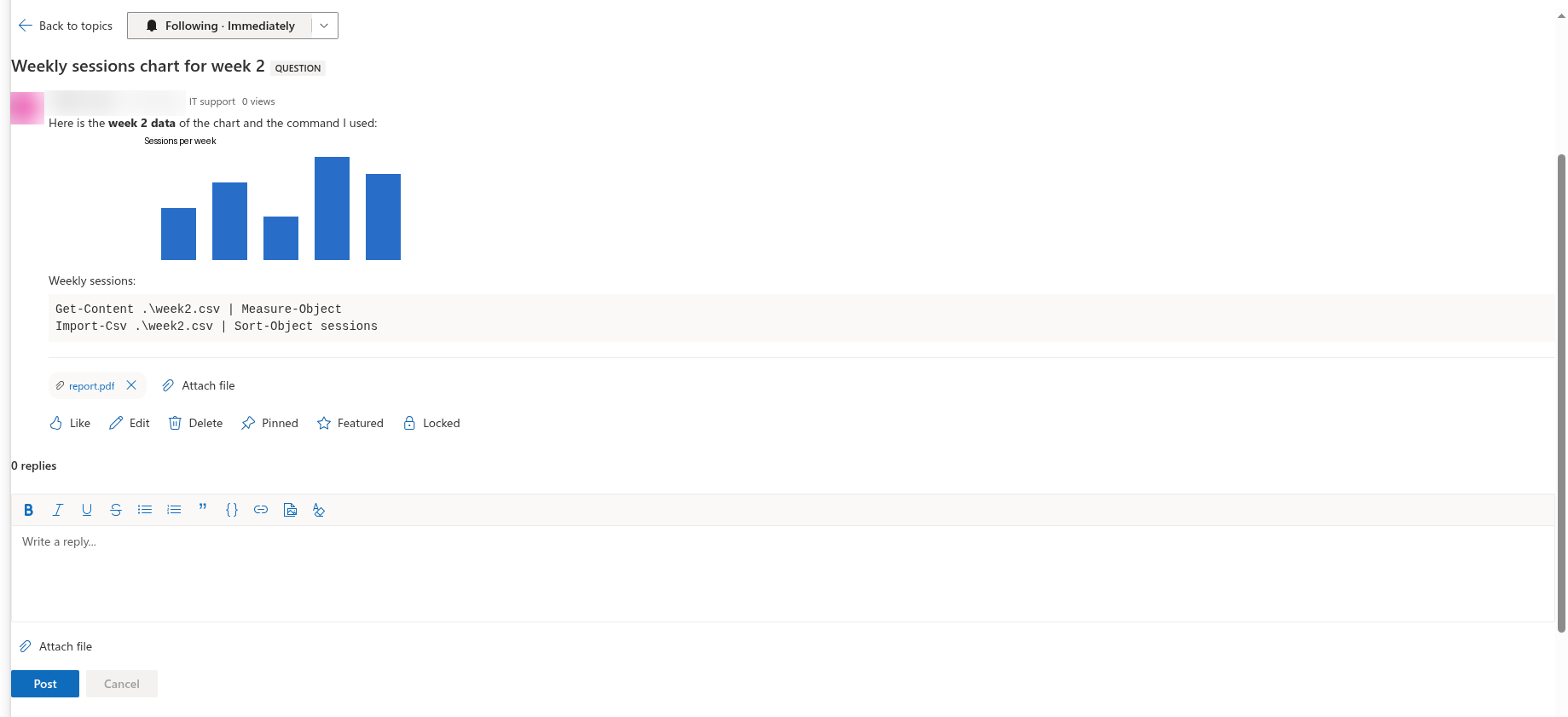
When the board requires approval
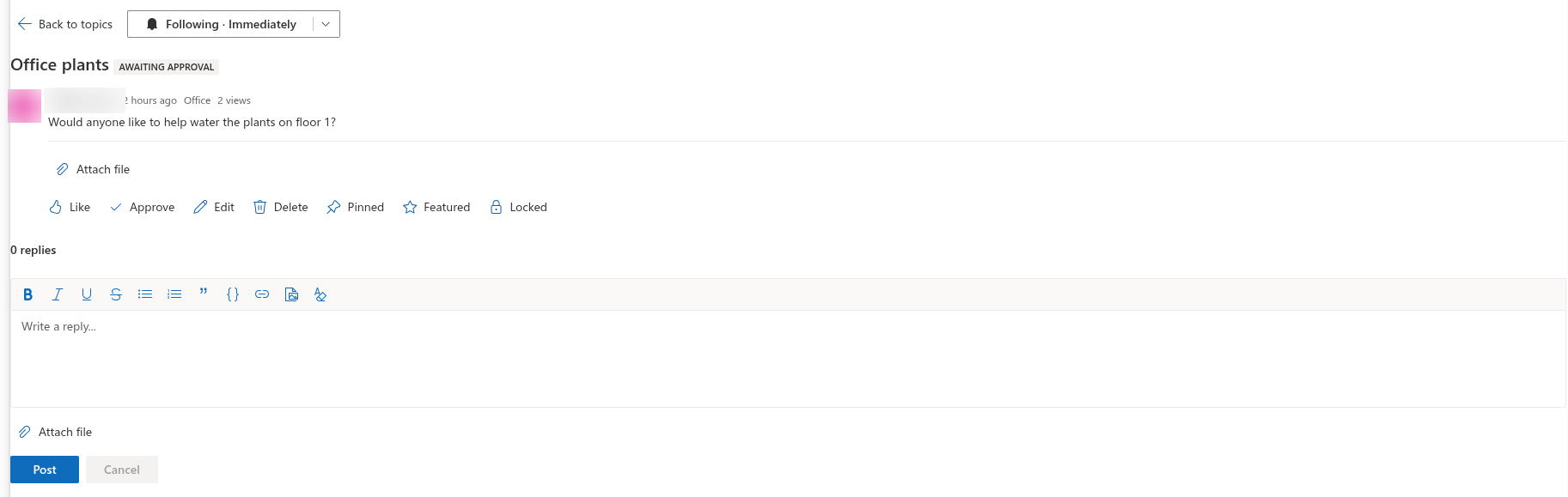
A site owner can switch on Require approval of new posts for a board. On such a board a topic posted by a member does not go live at once:
- The topic opens with the Awaiting approval badge and the message Thank you. Your post will be visible after a moderator approves it.
- Only you and the moderators can see it; other members do not find it in any view, and the reply editor is not shown to members until the topic is approved — only moderators can reply to a topic that is still waiting.
- A moderator approves or rejects it in the Moderation queue. An approved topic becomes visible to everyone; a rejected topic stays visible only to you, marked Rejected in the list, and a moderator can still approve it later from the Rejected topics section of the queue.
Topics posted by moderators themselves are approved immediately. How moderators process the queue is described in KB10409. Moderating a Board: Approval Queue, Rejecting and Dismissing Reports; the visibility rules are summarised in KB10430. Why a Post Is Not Visible: Approval, Rejection and Visibility Rules.
After posting: editing and deleting your topic
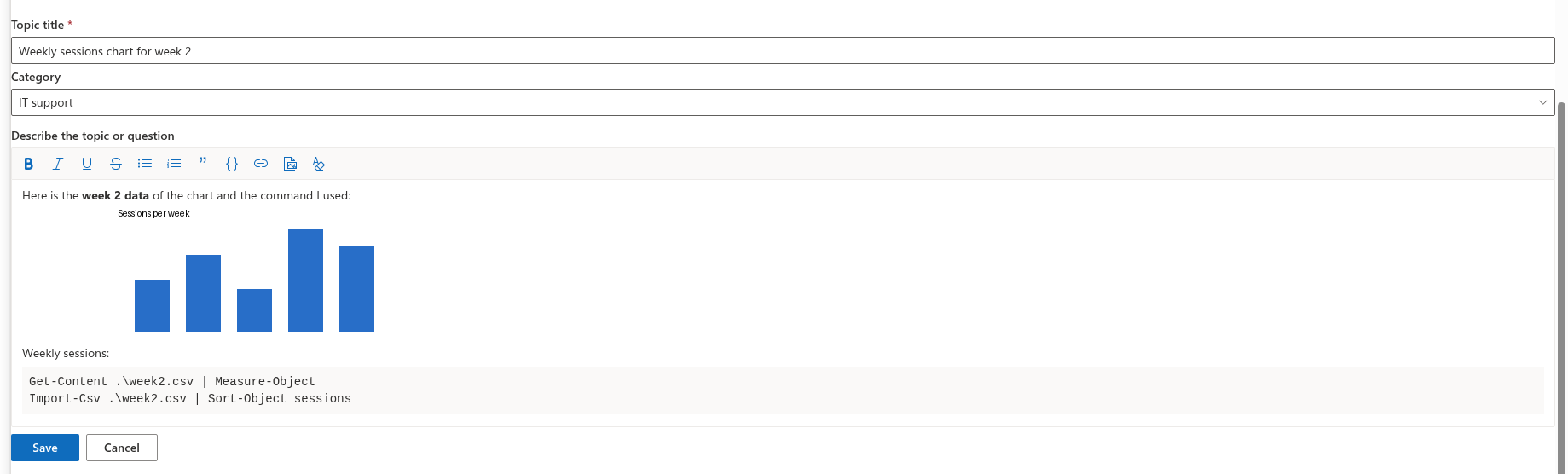
As the author you can change your topic after posting: open it and click Edit under the text. The title, the Category (on boards that have categories) and the text open for editing in place, in the same editor as the form; click Save to apply the changes or Cancel to keep the original. Mentions you add or remove are updated together with the text. Edit is hidden while a moderator has locked the topic; moderators can edit any topic at any time. Attachments are managed outside the editor: Attach file under the text adds files and the cross next to a file name removes them.
Delete under the text removes the topic together with all its replies and the images inserted in their text; the board first asks Delete this topic together with all its replies? This cannot be undone. Moderators see Delete on every topic.
❗ Important
Deleting a topic removes the whole thread, including replies written by other people. The deleted items go to the site recycle bin, from where a site owner can restore them; the board itself has no undo.
Moderators can pin your topic to the top of the list, feature it, lock it when the conversation is over, and in Q&A topics they can mark the best answer on your behalf. You can like your own topic, follow or unfollow it, and — if it is a question — mark the reply that solved it with Mark as answer (see KB10400. Marking the Best Answer in Q&A Topics).
💡 Tip
Boards are often organised by category, and the first topics set the tone. If your board is new, read KB10392. Creating Your First Board: Modes, Categories and Approval to see which mode and categories the owner can configure, and KB10423. Organizing Topics with Categories for how categories are used.