Discussions
How threads work
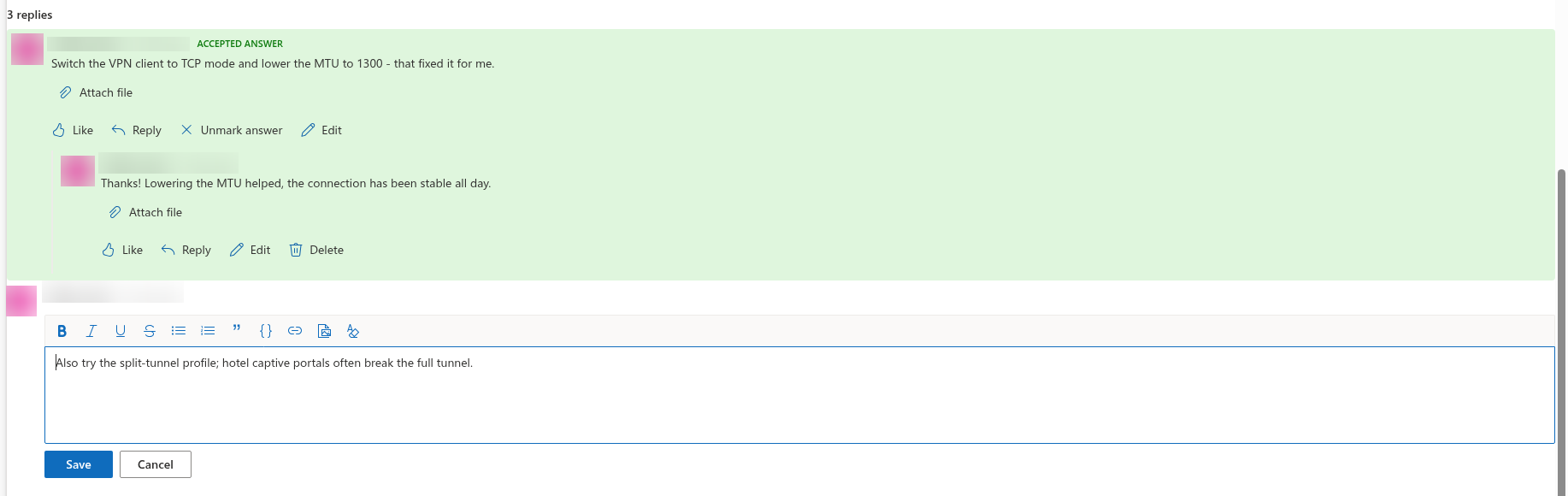
Every topic on a Discussions board is followed by a thread: a tree of replies. A reply can answer the topic itself or any other reply, and the board keeps the full hierarchy — a reply to a reply is indented under the message it answers, and there is no limit to the nesting depth. Within each level the oldest message comes first, so a conversation reads from top to bottom in the order it happened. In a question topic the accepted answer is the exception: it is moved to the top of the thread together with its own nested replies (see KB10400. Marking the Best Answer in Q&A Topics).
The whole thread is loaded when you open a topic; there are no hidden replies "after the first 20" as on the classic SharePoint discussion board. The heading above the thread shows the number of replies.
Replying, liking, editing and deleting require the Add items permission on the site (members with Contribute or Edit). Visitors with read-only access see the thread but no editor and no Reply buttons.
Replying to the topic
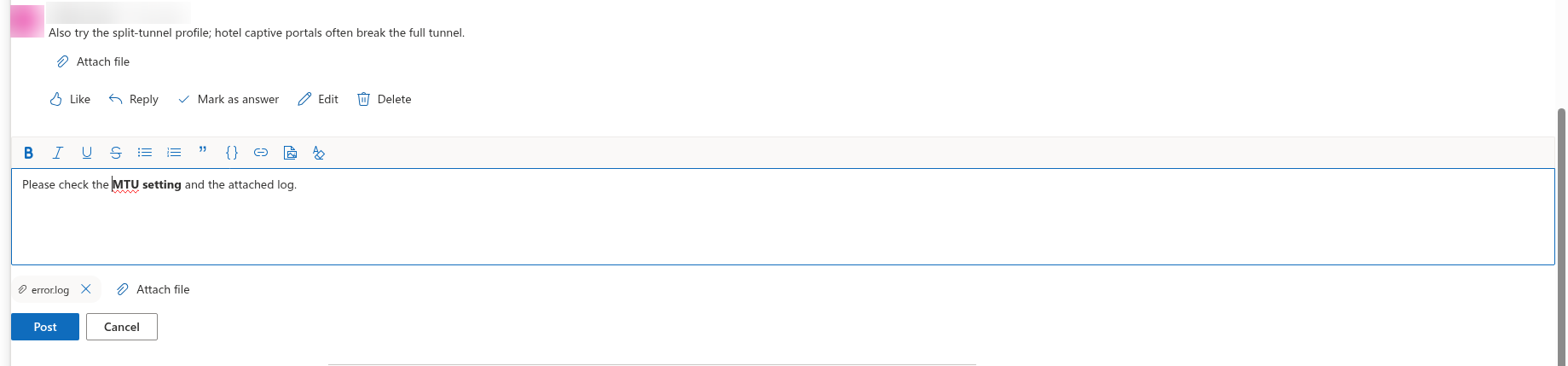
The editor at the bottom of the thread, with the placeholder Write a reply..., adds a top-level reply — an answer to the topic itself.
- Open the topic and scroll to the editor under the last reply.
- Write your reply. The toolbar gives you bold, italic, underline, strikethrough, lists, a quote block, a code block, links and images; paste or drop an image to add it inline, and type
@to mention a colleague (KB10401. Formatting Posts: The Rich Text Editor, Images and Code Blocks, KB10403. Using @Mentions in Discussions). - Click Attach file to add files; each file appears as a chip that you can remove before posting.
- Click Post. The button stays disabled until the reply contains some text.
Cancel clears the editor and the pending files. After posting, the editor is emptied and your reply appears at the end of the top level; the replies counter and the last-activity time of the topic are updated.
Replying to a reply
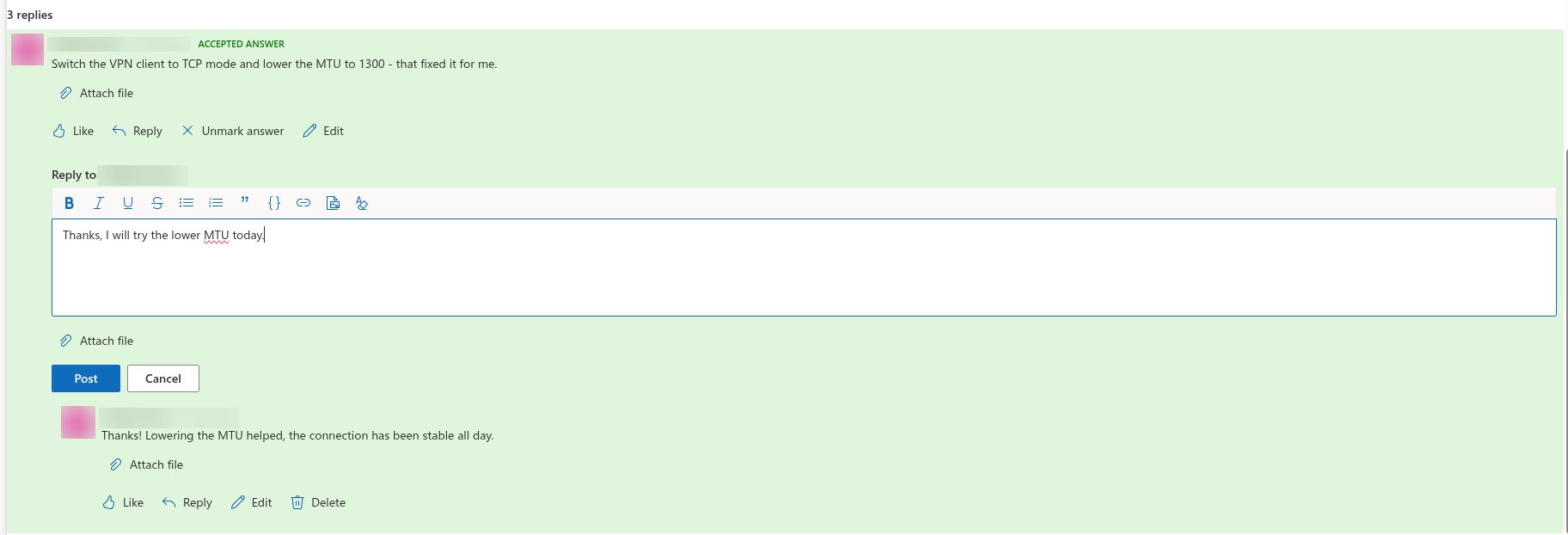
To answer a specific message rather than the topic, click Reply under that message. An inline editor opens right below it, labelled Reply to [name] so you always see whom you are answering. Write the text, attach files if needed and click Post — the button stays disabled while the editor is empty; Cancel closes the inline editor. The new reply is nested one level deeper than the message you answered.
Nesting keeps parallel conversations apart: three people answering the same question each get their own sub-thread, and follow-up questions stay next to the message they refer to. If you want to address the whole topic again, use the editor at the bottom rather than Reply under a message.
📝 Note
To quote part of a message in your reply, copy the text, paste it into the editor and apply Quote from the toolbar. The board does not insert the quoted message automatically.
Editing a reply
Click Edit under one of your replies. The text is replaced by the editor with the current content; change it and click Save (disabled while the editor is empty), or click Cancel to keep the original. Mentions you add or remove while editing are updated together with the text. The reply keeps its place in the thread, its likes and its date.
Attachments are managed outside the editor: under your reply, Attach file adds files and the cross next to a file name removes it (see KB10402. Attaching Files to Topics and Replies).
Moderators — users with the Manage Lists permission — see Edit under every reply and can correct other people's posts.
📝 Note
The board does not show an "edited" marker. The Discussions Posts list keeps versions of every reply, so a site owner can open the version history of an item if the earlier text is needed.
Deleting a reply
Delete is shown under your own replies (and under every reply for moderators) only while the reply has no replies under it. A message that others have already answered cannot be deleted, because the answers would lose their context; edit it instead, or ask a moderator to remove the whole branch starting from the deepest replies. The rule also holds for moderators: an attempt to delete such a reply from the Moderation queue is refused with This reply has replies of its own and cannot be deleted. Delete the nested replies first.
❗ Important
Delete first asks Delete this reply? This cannot be undone.; after you confirm, the reply is removed from the thread together with the images inserted in its text, and the replies counter of the topic is decreased. If the reply was the accepted answer of a question, the question becomes unanswered again. Like everything on the board, a reply is an item in a list of your own site, so the deleted item goes to the site's Recycle Bin, from where a site owner can restore it (see KB10363. Where Vitextra Products Store Your Data: Privacy, Data Residency and GDPR).
Likes and reports
Like under a reply counts as a vote for it; the number of likes is shown next to the button, and a second click withdraws your like. You can like your own replies as well. Likes do not change the order of the thread.
Report is shown under replies written by other people. One click flags the reply to the moderators and the button changes to Reported; every person can report a message once. Moderators review reported posts in the Moderation queue — see KB10406. Reporting Inappropriate Posts in Discussions and KB10405. Likes, Views and Reply Counters in Discussions.
Locked topics and pending replies
Locked topics. When a moderator locks a topic, it gets the Locked badge and the message This topic is locked. New replies are not accepted. replaces the editor. The Reply buttons disappear from the thread. Existing replies remain readable; Like, Edit and Delete stay available for them. Mark as answer is hidden while the topic is locked.
Boards that require approval. If the site owner enabled approval of new posts, a reply from a member is created with the Awaiting approval badge and the message Thank you. Your post will be visible after a moderator approves it. Only you and the moderators see it; it does not count in the replies counter until a moderator approves it in the Moderation queue, and nobody can reply to it while it waits. Replies by moderators are approved at once. If a moderator rejects your reply, it stays in the thread for you with the Rejected badge; other members do not see it. If you cannot find a reply you posted earlier, see KB10430. Why a Post Is Not Visible: Approval, Rejection and Visibility Rules.
Topics awaiting approval. A topic that is itself waiting for approval shows no reply editor to members: the thread opens once the topic is approved. Moderators can reply to a pending topic straight away.
💡 Tip
To be notified when somebody replies in a thread you care about, click Follow at the top of the topic and pick a frequency; you follow your own topics automatically. See KB10404. Following Boards and Topics: Subscriptions and Digest Frequency.