Discussions
What the best answer does
On a Discussions board, a topic of the type Question can have one accepted answer — the reply that actually solved the problem. Marking it does three things at once:
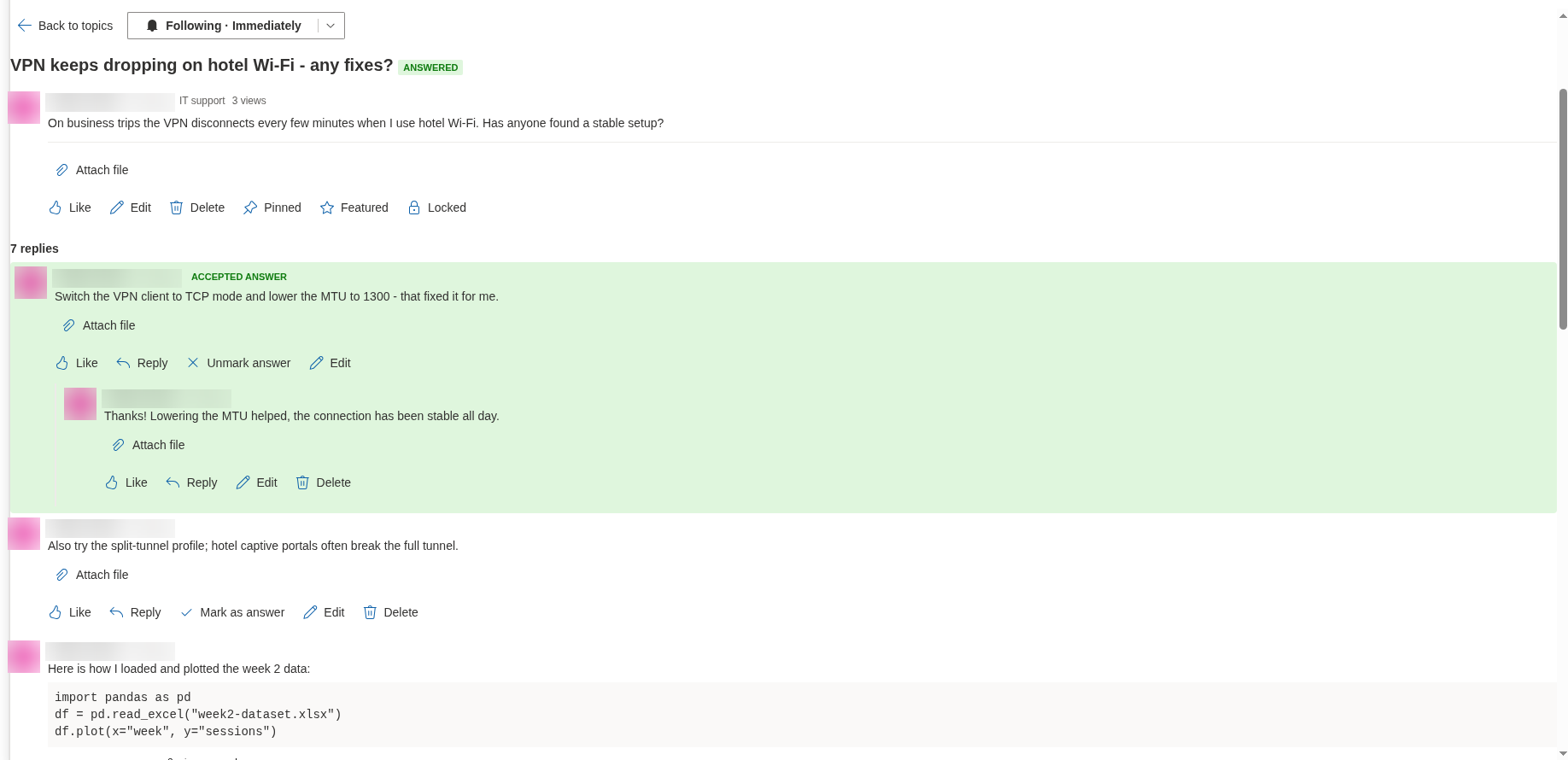
- the reply gets the Accepted answer badge and is moved to the top of the thread, above all other replies, together with the replies nested under it, so the next person with the same question sees the solution first;
- the question changes its state from Open to Answered: the Question badge is replaced by Answered, and the question-mark icon in the topic list becomes a check mark;
- the topic leaves the Unanswered view and appears in the Answered view, which turns the board into a searchable knowledge base over time.
Discussion topics have no best answer: they are conversations, not questions, and the Mark as answer button is never shown in them. Which topics are questions is decided when the topic is created — see KB10398. Starting a Topic: Discussions and Questions.
Who can mark an answer
The Mark as answer button is shown to two kinds of users:
| User | Why |
|---|---|
| The author of the question | You asked, so you know which reply solved it. |
| A moderator — a user with the Manage Lists permission on the site | Moderators can close questions whose authors never came back, or correct a wrong mark. |
Other members see the badge and the pinned answer but not the button. In addition, the button appears only under top-level replies — replies written directly to the question, not nested under another reply — not under replies that are still awaiting moderator approval, and not while the topic is locked (see below). If the best explanation sits deep in a sub-thread, ask its author to repeat it as a top-level reply, or summarise it yourself and mark the summary.
📝 Note
Unlike the classic SharePoint discussion board, where only the author could mark the best reply, Discussions lets moderators do it as well, and the button is placed directly in the action row of the reply rather than in a hidden menu.
Marking the answer
- Open the question. Replies that can be marked show Mark as answer in their action row, next to Like and Reply.
- Click Mark as answer under the reply that solved the question.
- The reply moves to the top of the thread with the Accepted answer badge, the heading of the topic shows Answered, and the button under the reply changes to Unmark answer.

A question has one accepted answer. If you click Mark as answer under a different reply, the mark moves: the previous answer loses its badge and returns to its chronological place, and the new one is pinned to the top.
The mark is stored with the question and the reply in the board's lists on your own SharePoint site (see KB10363. Where Vitextra Products Store Your Data: Privacy, Data Residency and GDPR), so it is visible to everybody who opens the topic, on the SharePoint page and in Microsoft Teams alike. Where the site owner has set up the notification flow, the author of the accepted reply and the followers of the topic are notified that an answer was accepted — see KB10414. How Notifications Work in Discussions: Subscriptions, Mentions and Power Automate.
Changing or removing the mark
Click Unmark answer under the accepted reply. The badge is removed, the reply goes back to its place in the thread, the topic returns to the Open state with the Question badge and reappears in the Unanswered view. To replace the answer you do not need to unmark first — marking another reply does both steps.
❗ Important
Deleting the accepted reply removes the mark automatically. When its author or a moderator deletes the reply (after confirming the prompt Delete this reply? This cannot be undone.), the question loses the Answered badge, returns to the Open state and reappears in the Unanswered view; a locked question stays locked. Nobody has to unmark first — but check that the thread still contains a usable solution before deleting, and mark another reply if it does.
❗ Important
A locked question keeps its accepted answer: the Answered badge, the check-mark icon in the topic list and the place in the Answered view stay while the topic is locked, because the state is derived from the accepted answer, not from the lock. While the topic is locked, Mark as answer and Unmark answer are hidden for everybody, moderators included. To change the answer of a locked question, a moderator unlocks it (see KB10410. Pinning, Featuring and Locking Topics), marks the right reply and locks it again.
The Answered and Unanswered views
The two views of the topic list are driven by whether the question has an accepted answer:
| View | Contains |
|---|---|
| Unanswered | Questions without an accepted answer. A question with ten replies but no accepted answer is still unanswered, and so is a question that a moderator locked without marking an answer. |
| Answered | Questions with an accepted answer — open or locked. |
Discussion topics appear in neither view. Site owners often set Unanswered as the default view of a help-desk board so that the experts see the open questions first; the setting is described in KB10422. Views, Paging, Search and Counters: Display Settings of the Discussions Web Part.
💡 Tip
A board where questions get marked is far more useful than one where they do not: colleagues find solutions in the Answered view instead of asking again. If you asked a question, come back and mark the reply that helped; if you moderate a board, review the Unanswered view from time to time and mark answers on behalf of authors who have moved on. Scenarios for such a board are described in KB10395. How to Build an Internal Q&A Forum for Your Intranet with Discussions.