Discussions
Overview
Every topic and every reply in Discussions is written in the same lightweight rich text editor. It offers the formatting a forum needs — emphasis, lists, quotes, code blocks, links and inline images — and nothing that would turn a thread into a page-layout exercise. The text is stored as HTML in the Body column of the Discussions Topics and Discussions Posts lists on your site and is passed through an allow-list sanitizer both when it is saved and when it is displayed, so a post can never carry scripts, styles or embedded frames.
This article describes the toolbar, the keyboard shortcuts, links, quotes and code blocks, the three ways to insert an image, and what the sanitizer keeps and removes.
Where the editor appears
- In the New topic form, as the field Describe the topic or question below the title. The body of a topic is optional; only the title is required.
- At the bottom of a topic, as the reply box with the placeholder Write a reply.... The Post button stays disabled while the box is empty and becomes active once it contains text or an image.
- Under any reply after you click Reply; the editor is then labelled Reply to followed by the author's name, and its Post button is disabled while the editor is empty.
- When you click Edit on a reply you wrote (moderators can edit any reply). The existing text is loaded into the editor and Save stores the new version; Save is disabled while the editor is empty.
- When you click Edit on a topic. The author can edit a topic while it is not locked; moderators can edit any topic. The title, the category (when the board has categories) and the body are changed in place, the body in this same editor, and Save or Cancel finishes the edit.
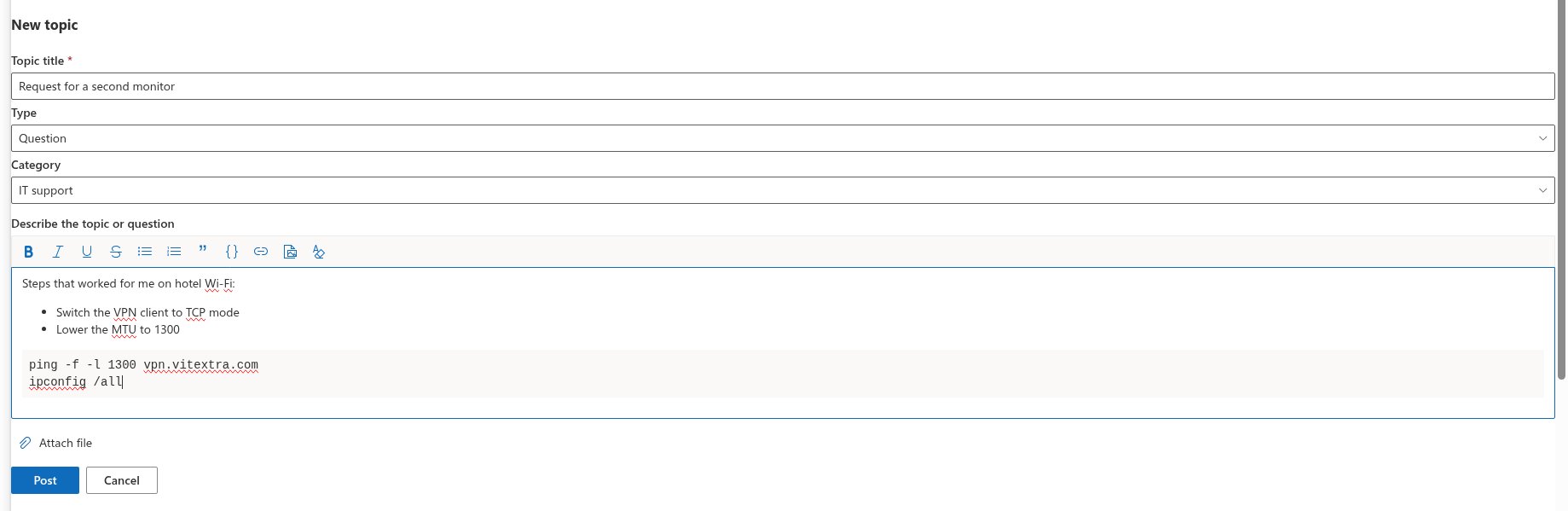
The toolbar
The toolbar above the editing area has eleven buttons. Hover over a button to see its name and, where available, its shortcut.
| Button | What it does |
|---|---|
| Bold (Ctrl+B) | Makes the selected text bold |
| Italic (Ctrl+I) | Makes the selected text italic |
| Underline (Ctrl+U) | Underlines the selected text |
| Strikethrough | Strikes the selected text through |
| Bulleted list | Turns the current paragraph(s) into a bulleted list, or back into text |
| Numbered list | Turns the current paragraph(s) into a numbered list, or back into text |
| Quote | Formats the current paragraph as a quotation with a coloured left border |
| Code block | Formats the current paragraph as a preformatted, monospaced block |
| Link (Ctrl+K) | Opens the Link address box to add a hyperlink |
| Insert image | Opens the file picker to upload one or more images |
| Clear formatting | Removes inline formatting from the selection and turns the block back into a plain paragraph |
The toolbar buttons do not take the focus away from the text, so you can click a button and keep typing. While an image is uploading, a small spinner appears at the end of the toolbar.
Keyboard shortcuts
| Keys | Action |
|---|---|
| Ctrl+B / Cmd+B | Bold |
| Ctrl+I / Cmd+I | Italic |
| Ctrl+U / Cmd+U | Underline |
| Ctrl+K / Cmd+K | Open the Link address box |
| Enter in the Link address box | Insert the link |
| Esc | Close the link box or the @mention suggestions |
Other combinations — for example Ctrl+Z to undo or Ctrl+Shift+V to paste without formatting — are handled by the browser as in any editable field.
Links
- Select the text that should become the link (optional) and click Link (Ctrl+K).
- Type or paste the address into Link address and click Insert or press Enter.
If text was selected, it becomes the link. If nothing was selected, the address itself is inserted as the link text. An address typed without a protocol (vitextra.com/support) is saved as https://vitextra.com/support. The editor accepts http:, https:, mailto: and site-relative (/sites/...) addresses, and every link is written with rel="noopener noreferrer".

Quotes and code blocks
Quote turns the paragraph the cursor is in into a block quotation. It is shown with a coloured bar on the left and slightly muted text — convenient for quoting the message you are replying to or an excerpt from a document.
Code block turns the paragraph into a preformatted block: a monospaced font (Consolas on Windows), a shaded background and preserved spaces and line breaks. Long lines wrap instead of producing a horizontal scrollbar, so the block stays readable on a phone. Use it for PowerShell, scripts, configuration fragments, log excerpts or anything where indentation matters.
To leave a quote or a code block, place the cursor in it and click Clear formatting, which returns the block to a normal paragraph; or press Enter twice at the end of the block, as in most editors.
📝 Note
There is no syntax highlighting and no language selector: a code block is plain monospaced text. The editor has no buttons for headings, text colour, font size or tables, either — see What the sanitizer keeps for what happens to such formatting when it is pasted in.
Images
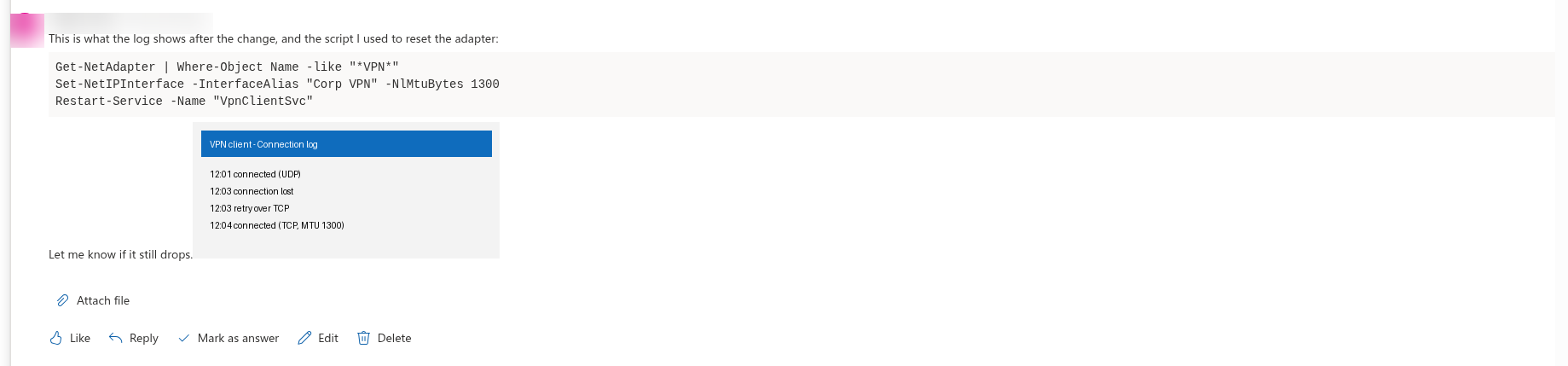
You can place an image anywhere in the text in three ways:
- Insert image on the toolbar — opens the file picker; you can select several images at once.
- Paste — copy a screenshot or an image from another application and press Ctrl+V in the editor.
- Drag and drop — drop one or more image files from your computer onto the editing area.
Each image is uploaded to the Discussions Assets document library of the site, into a folder named after the current year (2026, 2027, …), under a unique file name that starts with a time-based prefix so that two users uploading screenshot.png never overwrite each other. The editor then inserts the image at the cursor with the original file name as its alternative text. Images are displayed at their natural size, scaled down to the width of the post when they are wider.
❗ Important
The size limit for an inline image is 10 MB. A larger file is rejected and nothing is inserted: a red message bar with the reason — The image is larger than 10 MB. — appears above the editor and can be dismissed with its close button. If an upload fails for another reason, the same bar shows the error returned by SharePoint, or the general message Sorry, something went wrong. Please refresh the page and try again. When you select several images and one of them fails, the images before it stay in the text and the rest are not uploaded. Only image files are accepted by the picker, by paste and by drop; to share a PDF, a spreadsheet or an archive, use an attachment instead — see KB10402. Attaching Files to Topics and Replies.
A few more details that are useful to know:
- Images cannot be resized in the editor. Crop or scale the picture before uploading if it should appear smaller.
- Images in a post are visible to everyone who can read the
Discussions Assetslibrary; by default it inherits the permissions of the site, like the other Discussions lists. - Deleting a reply or a topic also removes the images it used from the
Discussions Assetslibrary; deleting a topic deletes its replies and their images as well. The cleanup is best-effort and touches only files of that library, and an image that you remove from a post while editing it stays in the library, so a site owner can still clean the library up at any time. - The library is created together with the other lists. If a board was created by an earlier preview build, a moderator (a user with the Manage Lists permission) adds the missing lists by opening the page that hosts the web part, in edit mode or not; until then the image button reports an error. See KB10431. Images or Attachments Fail to Upload.
Pasting from other applications
When you paste formatted content — from Word, Outlook, a web page, Teams — the editor keeps the structure that the sanitizer allows (paragraphs, bold and italic, lists, links, tables, headings) and silently drops the rest: fonts, colours, sizes, alignment, inline styles and classes. Pictures that come with the pasted HTML as external links keep their addresses; pictures pasted as files are uploaded as described above. Pasting plain text inserts it as plain text.
What the sanitizer keeps
The same allow-list is applied when a post is saved and when it is rendered, so content written through the list form or imported from a classic board is cleaned as well.
| Kept | |
|---|---|
| Block elements | p, div, br, hr, blockquote, pre, h1–h4, ul, ol, li, table, thead, tbody, tr, th, td |
| Inline elements | span, b, strong, i, em, u, s, strike, del, code |
| Links | a with href, title, target, rel and data-mention-id (used by @mentions) |
| Images | img with src, alt, title, width, height |
| Allowed addresses | http:, https:, mailto:, tel:, site-relative (/) and in-page (#) addresses; for images also inline data:image/png, jpeg, gif and webp |
Everything else is removed:
script,style,iframe,object,embed,svg,math,templateandnoscriptare removed together with their content, as are HTML comments.- Any other tag (for example
font,video,form,input) is removed but its text is kept. - All attributes not listed above —
style,class,id,onclickand the other event handlers — are dropped. - A link or image whose address uses another scheme (
javascript:,data:for links,file:) loses that attribute.
Every surviving a tag receives rel="noopener noreferrer". Because style is never kept, text colour, background colour, font family, font size and alignment do not survive, whether typed through a browser extension or pasted from a document — this is by design, so that posts look consistent and follow the theme of the site.
💡 Tip
Tables have no toolbar button, but a table pasted from Excel or Word keeps its rows and cells (without borders and colours). For anything longer than a few rows, attach the file instead and describe the key figures in the text. For the full set of lists and columns behind the board, see KB10426. Discussions Lists and Columns Reference.