Discussions
Overview
Three switches let a moderator shape a board without touching its content. Pinned keeps a topic at the top of the list — house rules, a schedule, the link to the knowledge base. Featured marks a topic as worth reading and collects it in the Featured view. Locked closes a topic for new replies while keeping it readable — a question that has been answered conclusively, a thread that has drifted off topic.
All three are available to users with the Manage Lists permission on the site (see KB10408. Permissions in Discussions: Who Can Read, Post and Moderate) and are set from the topic view of Discussions.
Where the switches are
1. Open the topic from the list.
2. Under the topic body, next to Like, Edit and Delete, a moderator sees three further buttons: Pinned, Featured and Locked. Each click toggles the flag on or off; the change is saved immediately, and the matching badge appears in or disappears from the topic heading.
3. Click Back to topics. The list reloads with the new order and badges.
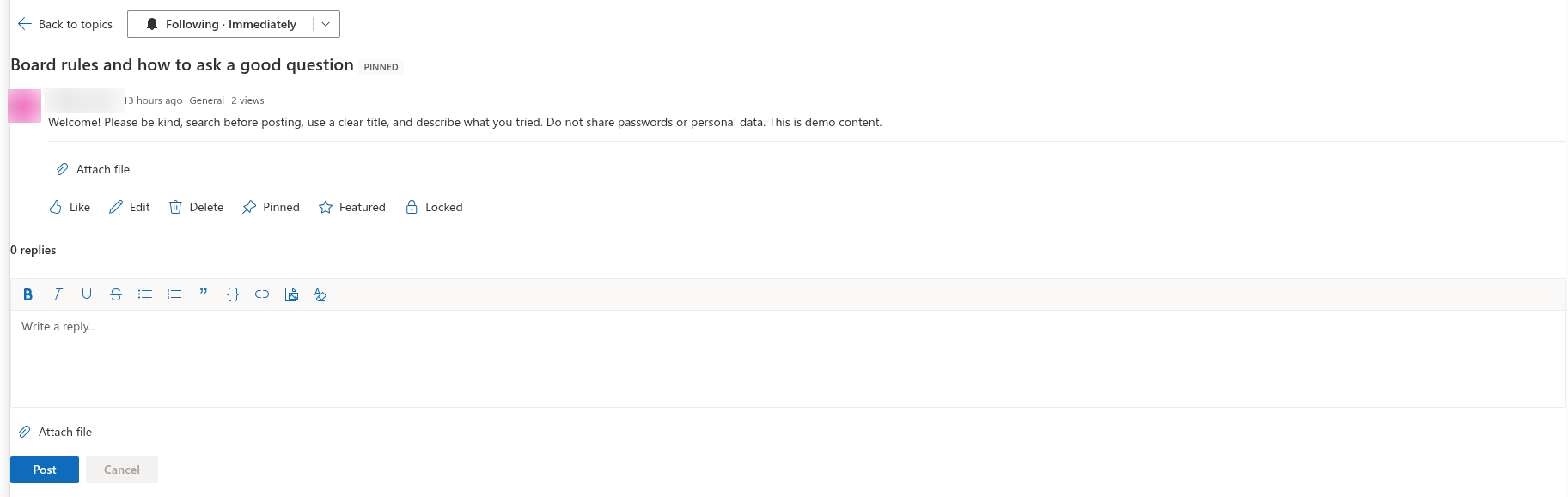
The buttons do not change their label to show the current state — only the icon of Locked switches between a lock and an unlock symbol; look at the badges in the heading — Pinned, Featured, Locked — to see which flags are set. The same badges are shown in the topic list for every user.
Pinned topics
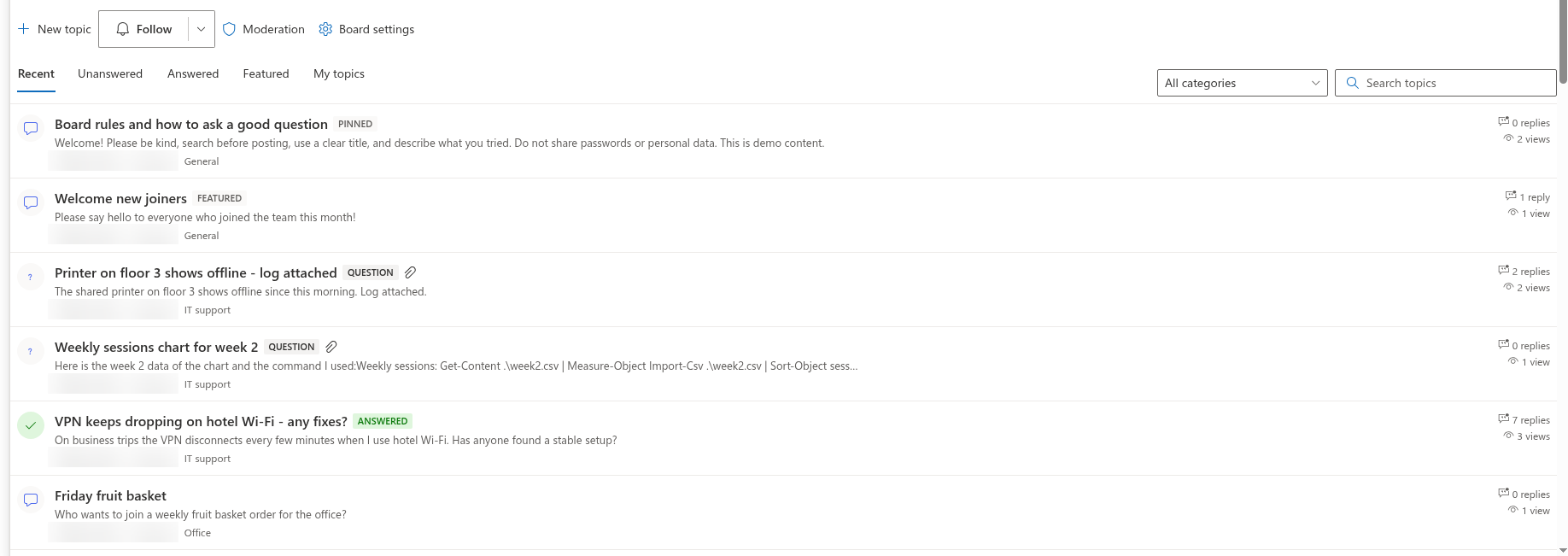
A pinned topic is placed before all other topics in every view of the board — Recent, Unanswered, Answered, Featured and My topics — and within the results of the category filter and the search. Several pinned topics are ordered among themselves by last activity, newest first, like the rest of the list. Pinning does not change the topic itself: replies, likes and the Answered status work as usual.
📝 Note
Pinning affects the topic list of the board only. The Discussions Activity web part orders topics by last activity and ignores the flag; see KB10415. Showing Recent Discussions on Any Page with the Discussions Activity Web Part.
Featured topics
A featured topic gets the Featured badge and is included in the Featured view of the topic list, which shows featured topics only. Featuring does not change the order of the other views. Use it to curate a reading list for newcomers: the best answered questions, the threads that explain a process, the announcements that matter.
If a board is meant to open on that list, set Default view to Featured in the Appearance group of the property pane; users can still switch to the other views. The display settings are described in KB10422. Views, Paging, Search and Counters: Display Settings of the Discussions Web Part.
Locked topics
Locking sets the topic's Status to Locked. The topic shows the Locked badge and the message This topic is locked. New replies are not accepted. at the end of the thread. In a locked topic:
- the reply box under the thread and the Reply button on every reply are hidden for everybody, moderators included;
- Like, Report, Follow and the deep link keep working, and the topic remains in search and in the views;
- authors can still Edit and Delete their own replies, and moderators any reply; the author can no longer edit the locked topic itself (moderators can), while Delete on the topic stays available to the author and to moderators;
- Mark as answer and Unmark answer are hidden for everybody, so the accepted answer stays as it is until the topic is unlocked.
To reopen the topic, click Locked again. The status returns to Answered if the topic has an accepted answer, and to Open otherwise.
❗ Important
The accepted answer is independent of the lock. The Answered badge, the check-mark icon in the list and the place in the Answered view are derived from the accepted answer, not from the Status column, so a locked question keeps all of them, and a locked question without an accepted answer stays in the Unanswered view. In the Discussions Topics list a locked topic has the Status Locked whether it is answered or not; the answer itself is recorded in the Accepted post column.
The same flags in the list
The three switches are columns of the Discussions Topics list: Pinned (Yes/No), Featured (Yes/No) and Status (Open, Answered, Locked). A site owner can change them there as well — for example to pin or lock many topics at once with Edit in grid view — and the web part picks the change up on the next load. Status controls the lock only: the answered state comes from the Accepted post column, so an answered topic shows Answered and stays in the Answered view whichever of Open, Answered or Locked you set. For consistency, give an answered topic Answered back when you unlock it in the list, not Open. The full column reference is in KB10426. Discussions Lists and Columns Reference.
💡 Tip
A pinned and locked topic is the usual way to publish board rules: it stays first in every view and collects no replies. For a question-and-answer board, feature the topics with the best accepted answers and make Featured the default view, so that the first screen is a curated FAQ and the live stream of new questions is one click away.