Discussions
Overview
The Discussions package contains two web parts. Discussions is the board itself; Discussions Activity is a compact list of the latest topics that you place on any other page of the same site — the home page of a team site, a department landing page or a Teams tab — so that people see what is being discussed without opening the board. Each title links to the topic on the board page. This article explains what the web part shows and how to configure it.
What the web part shows
The web part reads the Discussions Topics list of the current site and shows the most recently active topics, newest activity first. A topic moves to the top when it is created and whenever a reply is posted, because the web part sorts by the Last activity column of the topic. For every topic you see:
- an icon for the type — a question mark for a Question, a speech bubble for a Discussion;
- the title, as a link when a board page is configured;
- the Answered badge for questions with an accepted answer;
- the board name (optional), the author, the time of the last activity ("3 hours ago") and the number of replies.
Only topics with the approval status Approved are listed. Topics that wait for moderation or were rejected never appear here, not even for moderators or for their own authors; they are visible in the moderation queue of the board instead. Pinned and featured topics are not treated specially — the order is purely by activity.
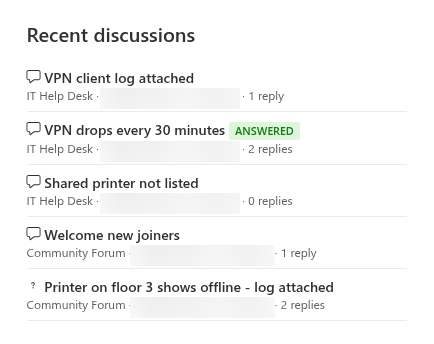
The default title is Recent discussions; click it in edit mode to type your own, as with any Vitextra web part.
Adding the web part
- Open the page in edit mode and click + in the section where the list should appear.
- Find Discussions Activity in the Communication and collaboration group (or type activity into the search box) and add it.
- If the site already has a board, the latest topics appear immediately with the default settings: all boards, five items, board names shown.
- Open the property pane with the pencil icon to adjust the settings described below, then republish the page.
The web part needs the Discussions lists on the same site as the page. If the site has no board yet, the web part shows the message The web part needs a board to show. Create a new board on this site or pick an existing one. in edit mode; create the board with the Discussions web part first (see KB10391. How to Add and Configure the Discussions Web Part). The web part does not need the Discussions web part to be on the same page.
Settings
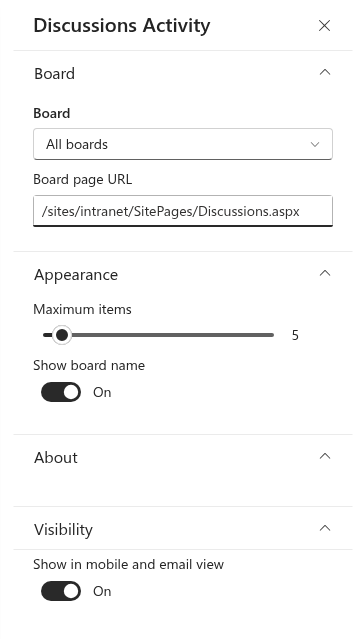
The property pane has three groups.
| Group | Setting | Description | Default |
|---|---|---|---|
| Board | Board | All boards shows the latest topics across every board on the site; selecting a board restricts the list to that board. The drop-down lists the boards found in Discussions Boards | All boards |
| Board | Board page URL | The address of the page that hosts the Discussions web part. When set, the titles become links that open the topic on that page | Empty |
| Appearance | Maximum items | How many topics to show, from 1 to 50 | 5 |
| Appearance | Show board name | Shows the name of the board in front of the author in the meta line; useful with All boards | On |
| About | License information | The status of the Vitextra license, as in every Vitextra web part | — |
Linking to the topics
The web part does not know on which page the board is shown — the same board can be placed on several pages — so you tell it with Board page URL. Enter the address of the page that hosts the Discussions web part, either site-relative (/sites/intranet/SitePages/Discussions.aspx) or absolute. The web part appends ?topic={Id} to it (or &topic={Id} if the address already contains a query string), and the Discussions web part on that page opens the topic directly. This is the same deep link that users copy from the browser; see KB10407. Sharing a Link to a Topic in Discussions (Deep Links).
💡 Tip
Always fill in Board page URL. Without it the titles are plain text and the readers have no way to get from the list to the conversation. If the web part shows All boards and the boards live on different pages, point the address to the page whose Discussions web part can switch between them, or add one Discussions Activity web part per board, each with its own page address.
When there is nothing to show
In read mode the web part hides itself completely — including its title and the space it would take — when the site has no Discussions lists or no approved topic matches the selected board. The page therefore looks clean on a new site, and the list appears by itself as soon as the first topic is posted. In edit mode the web part stays visible so that you can find and configure it: it shows the board setup message when the lists are missing, or No topics yet. Start the first one. when the board is empty.
📝 Note
The web part shows topics of the current site only. A hub or a page on another site cannot aggregate boards from several sites in this version; place one Discussions Activity web part on each site that has a board.
In Microsoft Teams
Discussions Activity can be added as a tab in a Teams channel, in the same way as the Discussions web part (see KB10393. How to Add Discussions to Microsoft Teams). The tab reads the lists of the SharePoint site connected to the team. Use an absolute address in Board page URL so that the links resolve from the Teams client; a link opens the SharePoint page with the board.