Discussions
Overview
Discussions is a SharePoint Framework web part, so it goes wherever modern SharePoint pages and Microsoft Teams tabs go — including the phone. There is no separate mobile app and nothing to install on the device: the same web part, with the same data in the lists of your site, renders in the SharePoint mobile app, in the browser of the phone and in Teams mobile, and lays itself out for a narrow screen. This article describes what works on a phone, how posting differs from the desktop and what still needs a desktop browser.
Where Discussions runs on a phone
| Host | Discussions web part | Discussions Activity web part |
|---|---|---|
| SharePoint mobile app (iOS, Android) — modern pages of the site | Yes, on any modern page that hosts the web part | Yes |
| Browser of the phone — the SharePoint page or the full-page app | Yes | Yes |
| Microsoft Teams mobile — tab in a channel | Yes | Yes |
| Microsoft Teams mobile — personal app | Yes, the app is registered as a personal tab called Discussions | No |
The web part is registered for the SharePoint web part, full-page app, Teams tab and Teams personal app hosts; the Activity web part for the SharePoint web part and Teams tab hosts. It is not available on classic pages. The complete list of clouds, browsers and hosts is in KB10428. Supported Environments: Clouds, Browsers and Hosts; adding the board to Teams is described in KB10393. How to Add Discussions to Microsoft Teams.
How the layout adapts
The web part has no fixed widths: its blocks are laid out with flexible rows that wrap when the screen is narrow.
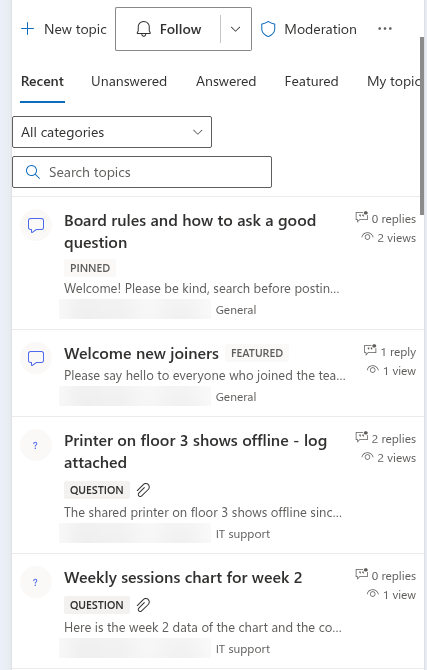
- Toolbar. The view tabs — Recent, Unanswered, Answered, Featured, My topics — take the first row; the category drop-down and the Search topics box wrap to the next rows.
- Topic list. Each row keeps the type icon, the title with its badges (Pinned, Featured, Question, Answered, Locked), a one-line excerpt and the author, time and category; the N replies and N views counters stay in a narrow column on the right.
- Topic page. The Back to topics and Follow buttons and the title wrap above the text; the row of action buttons under a post (Like, Reply, Report and, for moderators, more) wraps to as many rows as needed.
- Reply thread. Nested replies are indented by a thin left border at each level. Deep threads get narrower on a phone; turn the device sideways to read long nested branches.
- Images and text. Inline images shrink to the width of the screen; long words and links break instead of overflowing.
- Theme, font and direction. The web part uses the colours and the font of the site or of the Teams theme, including the dark theme in Teams, and renders right-to-left for Arabic and Hebrew sites. See KB10424. Theming: How Discussions Follows Your Site Theme and Fonts.
Reading and navigating
Everything a reader does on the desktop works by touch: switch views with the tabs, filter by category, search by title, open a topic by tapping its row, load the next page with Load more and go back with Back to topics. Links to topics (?topic=ID) open the topic directly, also when the page is opened from a notification email on the phone; see KB10407. Sharing a Link to a Topic in Discussions (Deep Links). Attachments open or download with the viewer of the phone.
Posting from a phone
Members with the Add items permission can start topics and reply from a phone. The New topic form and the reply editor are the same as on the desktop, with a few differences that come from the device:
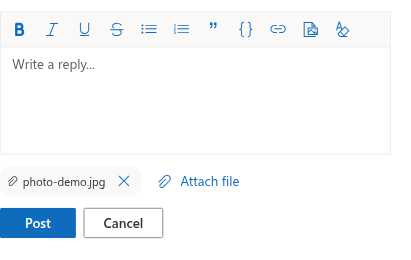
- Formatting. The toolbar of the rich text editor — bold, italic, underline, strikethrough, bulleted and numbered lists, quote, code block, link, image, clear formatting — works by tapping. The keyboard shortcuts (Ctrl+B, Ctrl+I, Ctrl+U, Ctrl+K) need a hardware keyboard.
- Photos. Tap Insert image on the toolbar: the phone offers to take a photo with the camera or to pick one from the photo library. The image is uploaded to the Discussions Assets library of the site and inserted in the text; the limit is 10 MB per image. Pasting an image from the clipboard and dragging a file onto the editor are desktop features.
- Attachments. Tap Attach file under the editor to pick files from the phone — the camera, the photo library or the files app, depending on the device — before posting; after posting, the author and the moderators can add or remove attachments on the post. See KB10402. Attaching Files to Topics and Replies.
- Mentions. Type
@followed by the first letters of a name; a list of matching people appears under the text — tap a person to insert the mention. See KB10403. Using @Mentions in Discussions. - Links. Tap Link on the toolbar, enter the address in the Link address field and tap Insert.
📝 Note
The editor is a lightweight rich text editor built on the browser's own editing surface; the on-screen keyboard of the phone handles typing, and autocorrect and dictation work as in any text field. Tables and resizing of images are not available in the editor in this version, on any device.
Moderating on the go
Moderators (users with the Manage Lists permission) have the Moderation button in the command bar of the board on a phone as well: approving, rejecting and deleting pending posts and dismissing reports work from the queue by touch. On a topic page, Pinned, Featured and Locked are available in the row of buttons under the topic, and Mark as answer under the replies of a question. See KB10409. Moderating a Board: Approval Queue, Rejecting and Dismissing Reports.
What still needs a desktop browser
❗ Important
Everything that requires the page to be in edit mode is done in a desktop browser: adding the web part to a page, creating the first board or choosing an existing one, changing the settings in the property pane, the Open List link and the Import classic board wizard. The SharePoint mobile app and Teams mobile show the published page only. If a board has not been configured yet, the web part shows the message The web part still needs to be configured on the phone.
Also keep in mind:
- Copying a topic link from the address bar needs a browser; inside the mobile apps, use the Share function of the app or a notification email instead.
- Downloading an attachment and opening an image in full size follow the rules of the app and the phone.
- The Discussions personal app in Teams shows the same web part without a page around it; it needs a configured board to show content.