Discussions
Overview
Discussions ships with an importer for the classic SharePoint Discussion Board list (list template 108 or the Discussion Board base type, which includes the discussion lists of community sites). It runs inside the web part, in your browser and with your permissions: you pick a classic board on the current site or on another site of the same tenant, review a dry-run summary, and the importer copies topics, replies, best answers, like counts and attachments into the Discussions board of the page. The reply hierarchy is rebuilt, original authors and dates are restored where your account is allowed to set them, and every imported item carries a legacy id, so the import can be run again without creating duplicates.
This article walks through the wizard. What exactly is copied, field by field, is described in KB10418. What the Importer Copies and How It Rebuilds Reply Threads.
Before you start
- A Discussions board already exists on the page — see KB10392. Creating Your First Board: Modes, Categories and Approval. The importer always writes into the board selected in the web part you are editing.
- You have the Manage Lists permission on the site of the board (site owners and members with the Edit permission level have it), and you can edit the page: the Import classic board button is shown only to such users and only while the page is in edit mode.
- You have at least Read permission on the classic board. The importer only reads the classic list; nothing in it is changed or deleted.
- The classic board is in the same SharePoint Online tenant. A board that still lives in SharePoint Server must be moved to SharePoint Online first — see KB10419. Migrating Discussion Boards from SharePoint Server to SharePoint Online with Discussions.
- To keep the original authors and dates, use an account that may write the system fields of list items — in practice a site owner with Full Control on the target site. With lower rights the import still works, but items are authored by you and dated with the time of the import.
📝 Note
Discussions requests no Microsoft Graph permissions and needs no admin consent for the import. Every request goes to the SharePoint REST API as the signed-in user, so SharePoint applies your permissions to the source list and to the target lists — see KB10413. API Permissions and Admin Consent for Discussions.
Step 1. Open the wizard
- Open the page with the Discussions web part and click Edit to switch the page to edit mode.
- In the command bar of the web part, next to New topic and Moderation, click Import classic board.
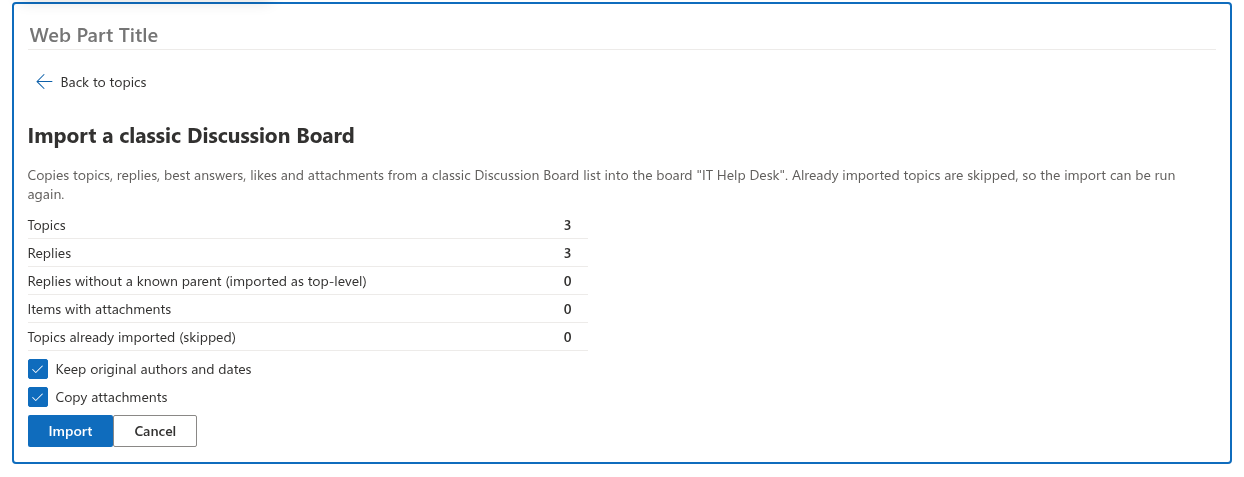
- The wizard Import a classic Discussion Board opens in place of the topic list. Its introduction names the target board: Copies topics, replies, best answers, likes and attachments from a classic Discussion Board list into the board "…". Already imported topics are skipped, so the import can be run again.

Step 2. Pick the site and the classic board
When the wizard opens, it looks for classic Discussion Boards on the current site and lists them in the Classic board drop-down, each with its item count in parentheses — for example Team discussions (1 284); the count covers topics and replies together. Since version 26.10.3 the list also contains the boards of community sites: the importer looks for lists with the classic Discussion Board template or the Discussion Board base type.
If the board is on another site of the tenant:
- Type the server-relative address of that site into Site (server-relative URL), for example
/sites/legacyor/teams/hr/archive. The hint under the field reminds you: Leave empty for the current site, or enter the site that hosts the classic board, for example /sites/legacy. - Click Load boards (or press Enter). The drop-down now lists the classic boards of that site.
- If the site has none, the drop-down shows No classic Discussion Boards found on this site.
Select the board and click Analyze.
Step 3. Review the dry run
Analyze reads the whole classic list — all topics and all replies — and checks the Discussions lists of the site for items imported from this board earlier. Nothing is written yet. The result is a short table:
| Row | Meaning |
|---|---|
| Topics | Classic discussions (the folders of the classic list) that the importer found. |
| Replies | Messages inside those folders. |
| Replies without a known parent (imported as top-level) | Replies whose classic Parent item points to an item that no longer exists. They are imported as direct replies to their topic. |
| Items with attachments | Topics and replies that have at least one attachment. |
| Topics already imported (skipped) | Topics that already exist in this site's Discussions lists with the legacy id of this board. They are left as they are. |
When the third row is greater than zero, the wizard also shows the warning Some replies lost their parent (a flattened board). They will be imported as top-level replies of their topic. This is typical for boards that were moved between environments with a migration tool; see KB10419 for the background.
Step 4. Choose the options
Two check boxes, both selected by default, decide how much of the original metadata is carried over:
- Keep original authors and dates — after each topic or reply is created, the importer writes the original Created by, Modified by, Created and Modified values into the new item. SharePoint allows this only to accounts that may set system fields; if it refuses, the item keeps you as author and the import time as date, and a warning is added to the report. Clear the box if you deliberately want all imported content to be dated with the import.
- Copy attachments — the files attached to classic topics and replies are downloaded from the source list and attached to the new items. Clear the box to import text only.
Import is available as soon as the plan contains at least one topic. Cancel returns to the source step.
Step 5. Run the import
Click Import. A progress bar shows the three phases, each with a counter done / total:
- Importing topics — the current topic title is shown next to the counter. Topics already imported earlier are skipped here.
- Importing replies — replies are created oldest first, so that every parent exists before its children; the hierarchy is restored from the classic Parent item references.
- Updating counters and answers — reply counts, last activity, like counts, best answers and the Answered status are written to the topics.
Keep the browser tab open until the phase label reads Done: the importer runs in your browser, and closing the tab stops it. Back to topics is disabled meanwhile. If a run is interrupted, open the wizard again and run it once more — everything created so far is recognized by its legacy id and skipped.
❗ Important
Imported topics and replies are created with the approval status Approved, even on a board that requires approval of new posts. They are visible to all readers of the board as soon as the import finishes. If the classic board contained content you do not want to publish, clean it up in the classic list before you import, or reject the topics afterwards in the Moderation queue — see KB10409. Moderating a Board: Approval Queue, Rejecting and Dismissing Reports.
Step 6. Read the report
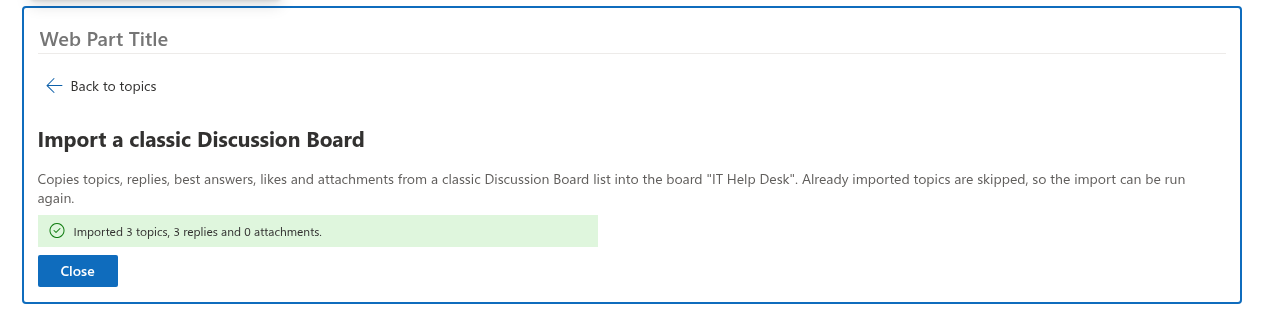
When the import finishes, a green message summarizes the result: Imported 212 topics, 1 072 replies and 38 attachments. The numbers count only what this run created; skipped topics are not included.
If anything could not be copied exactly, an expandable N warning(s) section lists it, one line per item:
- Topic title: Author — error text — a system field could not be restored for that item;
- Author and dates could not be restored — the whole system-field update was refused;
- Reply skipped: its topic was not imported: 418 — the reply with classic id 418 has no imported topic;
- Parent reply failed to import; the reply was placed at the top level: 419 — the parent of reply 419 could not be created, so the reply was imported at the top level of its topic instead of under its parent;
- file.pdf: error text — an attachment could not be copied;
- Topic title: error text — the topic or reply itself could not be created.
Warnings do not stop the import; the remaining items are processed. Each warning and its usual cause are explained in KB10421. Troubleshooting the Classic Board Import. Click Close to return to the topic list and publish the page.
After the import
- Open a few topics and compare them with the classic board: the reply tree, the best answer, the attachments, the authors and dates.
- Imported topics have no category; moderators can edit them and assign one — see KB10423. Organizing Topics with Categories.
- The classic list is untouched. Keep it as a read-only archive for a while, or delete it; the imported content does not depend on it.
- If people keep posting to the classic board for a while, run the wizard again later: new topics and new replies are picked up, existing items are skipped, and counters are recalculated.
💡 Tip
Several classic boards can be imported into one site — one classic board into one Discussions board, or several into the same board. The order of work and the planning table are in KB10420. Importing Several Classic Boards into One Site.