Discussions
Overview
The importer of Discussions is deliberately conservative: it reads the classic list, writes what it can, and reports everything it could not do exactly as a warning instead of stopping. Most problems therefore fall into three groups — the wizard cannot be started or finds nothing, the dry run or the run fails, or the run finishes with warnings. This article lists the symptoms in that order, each with its cause and fix. How the wizard works is described in KB10417. How to Import a Classic SharePoint Discussion Board into Discussions; what it copies is in KB10418. What the Importer Copies and How It Rebuilds Reply Threads.
Start here: what do you see?
| Symptom | Section |
|---|---|
| No Import classic board button in the command bar | The button is missing |
| No classic Discussion Boards found on this site | No boards found |
| An error after Load boards for another site | Another site cannot be loaded |
| Analyze runs for a long time or ends with an error | The dry run is slow or fails |
| Import is greyed out | Import is disabled |
| Author and dates could not be restored, or Title: Author — … | Authors and dates |
| Reply skipped: its topic was not imported: 418 | Replies skipped |
| Parent reply failed to import; the reply was placed at the top level: 419 | A reply was placed at the top level |
| file.pdf: … in the warnings | Attachments |
| All replies on one level, no nesting | Flat reply trees |
| Topics appear twice after a second import | Duplicates |
| The browser tab was closed during the import | Interrupted run |
| Imported posts are visible although the board requires approval | Approval |
| Users can like imported posts again | Likes |
The Import classic board button is missing
Cause. The button is shown only when both conditions hold: the page is in edit mode, and the signed-in user has the Manage Lists permission on the site (included in the Edit and Full Control permission levels). Members with Contribute see New topic but neither Moderation nor Import classic board. The button is also absent while the board is in the read-only state after the trial has expired — see KB10434. Discussions Licensing: Trial, Activation and Plans.
Fix. Click Edit on the page, or ask a site owner to run the import. Permissions are explained in KB10408. Permissions in Discussions: Who Can Read, Post and Moderate.
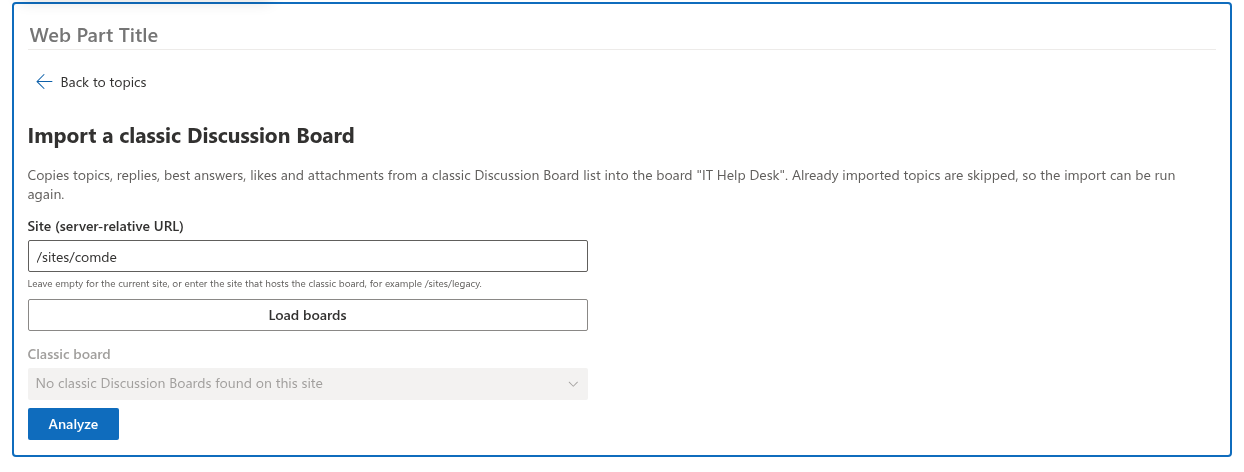
No classic Discussion Boards found on this site
Cause. The wizard lists only lists of the chosen site whose template is the classic Discussion Board (template 108) or whose base type is Discussion Board, which includes the discussion lists of community sites. Three cases produce an empty list:
- The board is on another site. The wizard starts with the current site. Enter the server-relative address of the site that hosts the board —
/sites/legacy, not the fullhttps://…address and not the address of the list — in Site (server-relative URL) and click Load boards. - The web part is older than 26.10.3. Before version 26.10.3 the wizard recognized only lists with template 108 and did not list the discussion list of a classic Community Site (template 925). Update the web part to version 26.10.3 or later; from that version on, such boards appear in the drop-down like any other.
- You have no permission on the source site. Lists that the signed-in user cannot read are not returned by SharePoint. Ask for at least Read on the classic board.
Another site cannot be loaded
Symptom. After Load boards, a red message appears, for example an Access denied or File Not Found error from SharePoint, and the drop-down stays empty.
Cause. The address is wrong, the site is in another tenant, or you have no access to it. The importer calls the SharePoint REST API of the entered site with your account; the message is SharePoint's answer.
Fix. Copy the address from the site's home page and keep only the part after the host name (/sites/legacy); make sure the site belongs to the same tenant as the page; open the site in a new tab to confirm you can read it.
The dry run is slow or fails
Cause. Analyze reads the whole classic list, 2,000 items per request, and then reads the legacy ids already present in the Discussions lists. A board with tens of thousands of items takes a while; a lost connection or a session that expired meanwhile ends it with an error.
Fix. Wait for the spinner next to Analyze to disappear; if an error appears, refresh the page, sign in again if asked, and click Analyze once more. Nothing is written during the dry run, so repeating it is harmless.
Import is disabled
Cause. The plan contains 0 topics: the classic list has no discussions. Replies cannot be imported on their own; each needs the discussion it belongs to.
Fix. Open the classic list in the browser and check that it contains discussions; if the board is empty, there is nothing to import.
Author and dates could not be restored
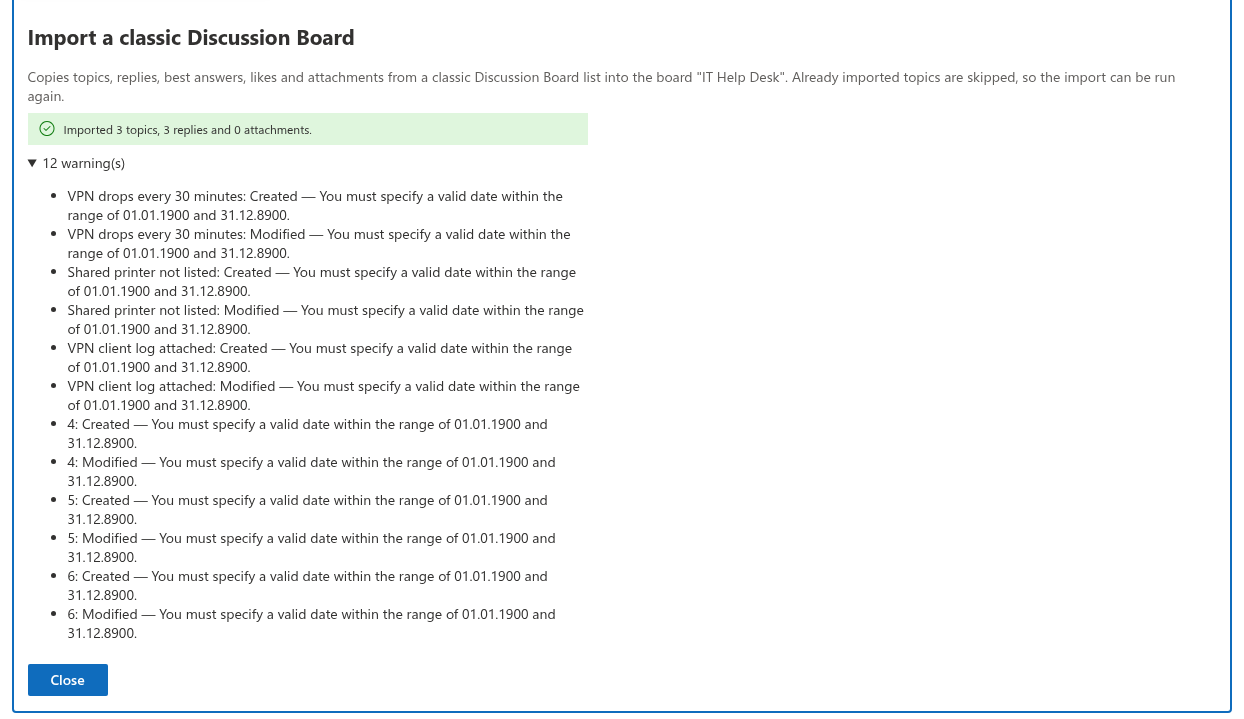
Symptom. The report contains Title: Author — error text, Title: Created — error text or Author and dates could not be restored; the imported items show your name and the import date.
Cause. With Keep original authors and dates selected, the importer writes Created by, Modified by, Created and Modified through SharePoint's form-validation call, which accepts system fields only from accounts that may set them — in practice site owners with Full Control. Even for a site owner, a single field is refused when the original author's login does not resolve to an account of the tenant: deleted users, external users who left, or on-premises accounts that were not mapped by the migration tool. The item is imported anyway.
Fix. Run the import as a site owner. Accounts that no longer exist cannot be restored; the items stay attributed to the importing user. Because already imported topics are skipped on a second run, the system fields are not corrected by simply running the wizard again: delete the affected items (filter Discussions Topics and Discussions Posts by Legacy id), then run the wizard again with the right account.
Reply skipped: its topic was not imported
Symptom. Lines Reply skipped: its topic was not imported: 418, where 418 is the classic id of the reply.
Cause. The reply's folder does not correspond to a topic the importer created or found. Usually the topic itself failed earlier — look for a warning with the topic title and SharePoint's message above the reply lines — or the reply sits in a folder that is not a classic discussion.
Fix. Resolve the topic's error (most often a permission or a title problem) and run the wizard again: the topic is created, and the replies of a topic that was not imported before are imported with it. Replies of topics that were deleted in the classic list cannot be imported.
Parent reply failed to import; the reply was placed at the top level
Symptom. Lines Parent reply failed to import; the reply was placed at the top level: 419, where 419 is the classic id of the reply. In the imported topic the reply stands at the first level instead of under the reply it answered in the classic board.
Cause. The reply's parent exists in the classic list, but the importer could not create it in this run — the report contains a warning for the parent itself, with its title and SharePoint's message, above the lines about its replies. The importer does not skip the children: it imports each of them at the top level of the topic and adds this warning. Replies nested under such a child are attached to it as usual.
Fix. Resolve the error reported for the parent. Replies that are already imported are skipped on a second run, so running the wizard again creates the missing parent but does not move the replies: delete the placed replies together with their nested replies (filter Discussions Posts by Legacy id of the form {classic list id}:{reply id}), then run the wizard again.
Attachments
Symptom. Lines file name: error text; the count of attachments in the final message is lower than Items with attachments in the plan suggested.
Cause. The file could not be downloaded from the source site or could not be added to the new item. Typical reasons: the file type is blocked in the tenant, the file is larger than what the upload allows, or the file name became invalid. The importer replaces characters that SharePoint does not allow in names and shortens names over 120 characters, but a file that already failed to upload for another reason is reported with SharePoint's message.
Fix. Attachments are copied only when the item is created; a second run does not retry them. Download the file from the classic list and attach it to the imported topic or reply by hand; see KB10402. Attaching Files to Topics and Replies.
📝 Note
Items with attachments in the dry run counts items; the final message counts files. A topic with three attachments is one item and three files, so the two numbers are not expected to match.
Flat reply trees
Symptom. All replies of a topic are on one level, in chronological order, although the classic board showed them nested; the dry run reported a large number in Replies without a known parent (imported as top-level).
Cause. The classic Parent item references were lost before the import — typically when the board was copied with a migration tool that does not carry them — or point to replies that were deleted. The importer rebuilds the tree only from references that exist; it does not guess parents from dates or subjects.
Fix. If the original board still exists, copy it again with a tool that preserves the references, delete the imported items and import once more; see KB10419. Migrating Discussion Boards from SharePoint Server to SharePoint Online with Discussions. If it does not, the flat import is the best available result.
Duplicates after a second import
Symptom. After running the wizard again, every topic exists twice.
Cause. The importer recognizes imported items by their Legacy id, which is {classic list id}:{item id}. A second run from the same list skips everything that is already there. Duplicates appear when the second run uses a different list — the board was migrated again into a new list, copied with a site template, or restored from a backup as a new list — because the new list has a new id.
Fix. Delete one set: open Discussions Topics and Discussions Posts, filter by Legacy id starting with the id of the unwanted list, and delete those items (the recycle bin keeps them for the usual period). Then always import from the same list.
❗ Important
Deleting a topic in the Discussions Topics list does not delete its replies in Discussions Posts automatically. When you remove an imported set by hand, delete the replies as well, or they remain as items pointing to a topic that no longer exists.
The import was interrupted
Symptom. The browser tab was closed or the connection dropped while the progress bar was running; the report never appeared.
Cause. The importer runs in the browser tab. When the tab goes, the run stops after the item it was writing.
Fix. Open the page in edit mode and run the wizard again for the same source. Topics and replies that were created are recognized by their legacy id and skipped; the rest is imported, and the finishing phase recalculates the counters of all topics in the plan. Authors, dates and attachments of items created in the interrupted run are already in place.
Imported posts are visible although the board requires approval
Cause. Imported topics and replies are created with the approval status Approved; the importer treats the classic content as already published.
Fix. Review the content in the classic list before the import, or reject what should not be shown in the Moderation queue afterwards — KB10409. Moderating a Board: Approval Queue, Rejecting and Dismissing Reports.
Users can like imported posts again
Cause. The importer copies the like count but not the list of users who liked the item (the Liked by column stays empty). A user who liked a post in the classic board can like it once more in Discussions, which increases the count by one.
Fix. This is expected behaviour; the classic board does not expose the data reliably enough to restore it. Counters are explained in KB10405. Likes, Views and Reply Counters in Discussions.