Discussions
Overview
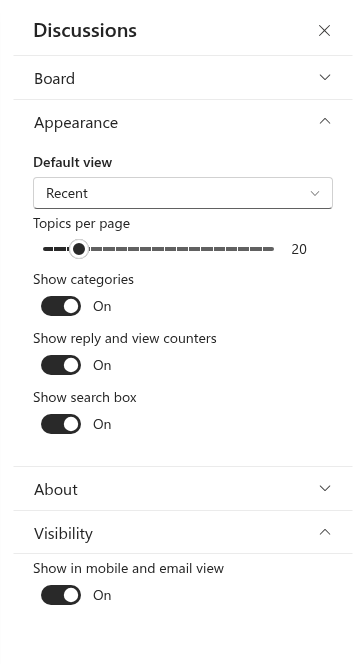
The topic list is the first thing a reader sees in the Discussions web part, and five settings decide how it looks: which view opens first, how many topics load at a time, whether the search box, the category filter and the reply and view counters are shown. All five live in the Appearance group of the property pane and apply to one web part instance, so two pages that show the same board can be tuned differently. This article explains each setting, what it changes on the page and which combinations suit the common scenarios.
The settings do not change the content of the board: every topic stays in the Discussions Topics list, and readers can always switch views or search on their own. The complete list of properties of both web parts is in KB10425. Discussions Web Part Settings Reference.
Where the settings are
- Edit the page and select the web part.
- Click the pencil (Edit web part) to open the property pane.
- Expand the Appearance group. It contains Default view, Topics per page, Show categories, Show reply and view counters and Show search box.
- Republish the page when you are done; the settings are stored with the page.
Views and the default view
The topic list has up to five views, shown as tabs above the list. A reader can switch between them at any time; Default view decides which tab is active when the page opens.
| View | What it shows |
|---|---|
| Recent | Every topic of the board, newest activity first |
| Unanswered | Questions without an accepted answer, including questions a moderator has locked without marking one |
| Answered | Questions with an accepted answer — marked by the author or a moderator — whether open or locked |
| Featured | Topics a moderator has marked as featured |
| My topics | Topics started by the current user, including those still waiting for approval |
In every view the topics are ordered by their last activity, newest first, and pinned topics are placed at the top. The Unanswered and Answered tabs exist only for boards in the Questions and answers only and Discussions and questions modes; a board in the Discussions only mode shows Recent, Featured and My topics. The default is Recent.
📝 Note
The Default view drop-down offers Unanswered and Answered only when the board selected in the Board group is not in the Discussions only mode; for a discussion-only board it lists Recent, Featured and My topics. If a saved default view is no longer available for the board — for example, because a moderator switched the mode to Discussions only in Board settings after the page was configured — the list opens on Recent.
A typical choice is Unanswered for a help-desk style Q&A board, so experts land on the questions that need them, and Recent everywhere else. The best-answer workflow behind the Unanswered and Answered views is described in KB10400. Marking the Best Answer in Q&A Topics.
Paging: Topics per page
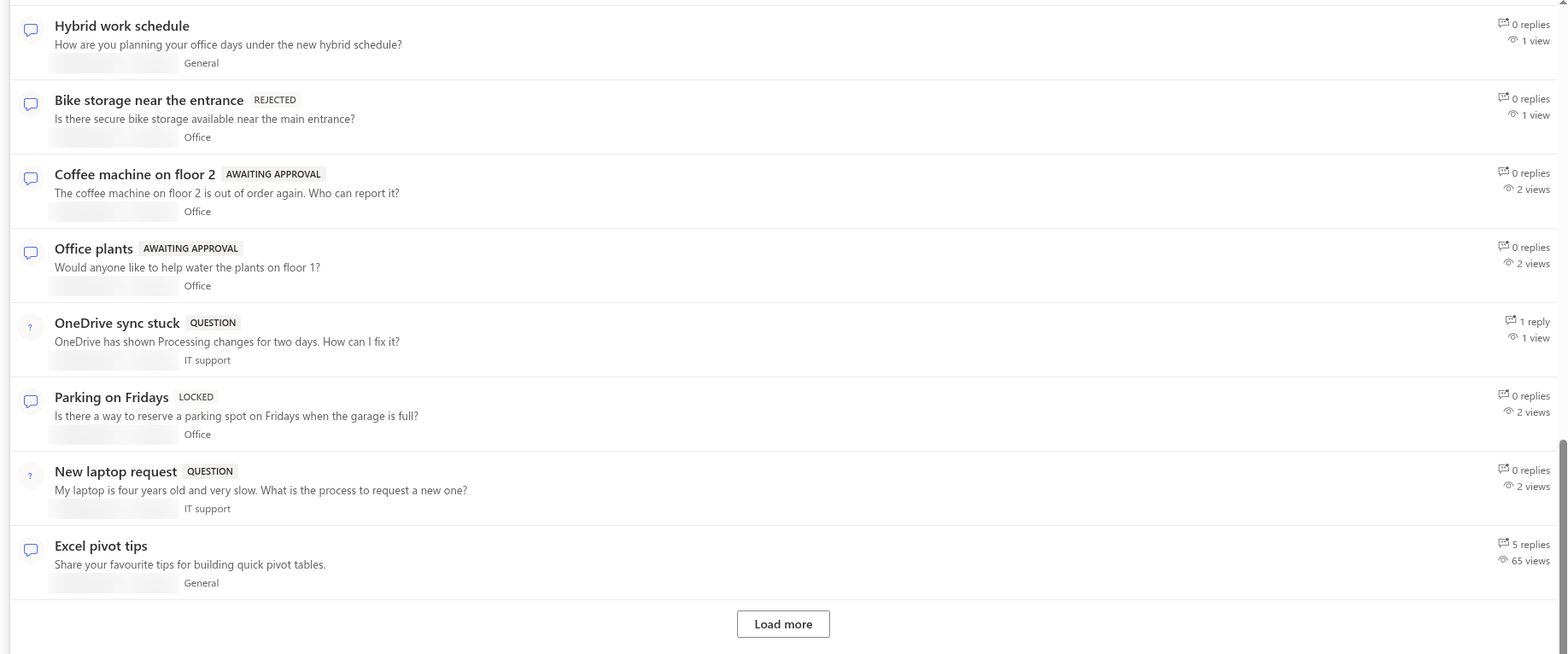
Topics per page is a slider from 5 to 100 in steps of 5; the default is 20. The web part asks SharePoint for exactly that many topics, and when the board has more, a Load more button appears under the list. Each click appends the next portion; the topics already shown stay on the page, so the reader never loses their place. The number applies to each view, category filter and search separately — every change of view or filter starts a fresh first page.
Paging is done on the server with indexed columns, so a large board does not load everything at once and does not hit the list view threshold when a reader opens the page. A smaller page size makes the first paint faster on slow connections and phones; a larger one suits boards that readers scan rather than search. For the limits behind this behaviour, see KB10427. Limits and Performance: Large Boards, Long Threads and the List View Threshold.
Search: Show search box
Show search box adds the Search topics box to the right of the view tabs. The reader types a word or phrase and presses Enter; the web part asks SharePoint for the topics of the board whose title contains the text, within the current view and category. Clearing the box restores the full list. When nothing matches, the list shows Nothing found.
Keep in mind what the search covers and what it does not:
- It searches topic titles only — not the body of the topic, not the replies, not attachments or author names.
- It is limited to the current board, view and category; switch to Recent and All categories to search the whole board.
- It is a substring match, not a word search: mail finds Mailbox quota and Email signature.
- It does not use the Microsoft Search index, so a new topic is found immediately.
For a board whose readers mostly look for existing answers, keep the box on and consider a Q&A-style default view; for a short announcements-style board with a dozen topics, hiding the box frees the toolbar. The enterprise search behaviour of the lists is described in KB10411. Where Discussions Stores Your Data: Lists, Columns and Privacy.
Categories: Show categories
Show categories controls two things at once: the category drop-down in the toolbar (All categories plus one entry per category of the board) and the category name in the metadata line of each topic row. The drop-down appears only when the board actually has categories. The topic itself still shows its category when opened, and the Category field in the new-topic form is not affected. How to define and maintain categories is covered in KB10423. Organizing Topics with Categories.
Counters: Show reply and view counters
Show reply and view counters shows or hides the column on the right of every row with N replies and N views. The reply counter counts approved replies of the topic; the view counter grows by one when somebody opens the topic — once per topic and browser session, so reopening the topic in the same session is not counted again. Both are stored in the topic item and updated by the web part when a reply is posted or a topic is opened — the counters are kept on a best-effort basis and can lag behind for a moment, as explained in KB10405. Likes, Views and Reply Counters in Discussions.
Hiding the counters affects the list only. The opened topic still shows its number of views in the header and the number of replies above the thread, and the Discussions Activity web part still shows the reply count of each recent topic.
📝 Note
Counters are a strong signal on a busy board and an awkward one on a new board where every topic reads 0 replies · 3 views. A common pattern is to launch a board with the counters off and switch them on after the first weeks.
The web part title
The heading above the list is the Web Part Title, edited inline on the web part itself in edit mode, not in the property pane. It is empty by default: with no title, the web part starts directly with the command bar and the topic list. A title is useful when the page shows several web parts or when the board name alone does not tell readers what to post there.
Recommended combinations
| Scenario | Default view | Topics per page | Categories | Counters | Search |
|---|---|---|---|---|---|
| Internal help desk or HR Q&A (board in Questions and answers only mode) | Unanswered | 20 | On, one per service area | On | On |
| Community of practice or class forum (Discussions and questions) | Recent | 20–30 | On, a few broad themes | On | On |
| Small team board, a few topics per week (Discussions only) | Recent | 10 | Off | Off | Off |
| Curated board where moderators feature the best threads | Featured | 10–20 | On | On | On |
💡 Tip
The same board can be placed on two pages with different settings — for example Unanswered with 10 topics on the team's working page and Recent with 50 topics on an archive page. Both web parts read and write the same lists; see KB10391. How to Add and Configure the Discussions Web Part.