Discussions
Overview
Categories are the way to keep a growing board readable without splitting it into several boards. Each board of Discussions has its own list of categories; a topic belongs to at most one of them, and readers narrow the topic list with a category drop-down. This article explains where the list of categories is defined, how to change it, how authors and readers use it and what to watch out for when you rename or remove a category.
How categories work
- The board holds the list of categories: the Categories column of the board item in the Discussions Boards list, one name per line.
- A topic stores the name of its category as text in the Category column of the Discussions Topics list. The column is indexed, so filtering by category stays fast on large boards.
- The web part shows the categories of the board in three places: the Category drop-down of the new-topic form, the same drop-down when a topic is edited, and the category filter above the topic list.
Because a topic stores the category name rather than a reference, the two lists are independent: changing the board's list does not rewrite existing topics. The consequences are described in Renaming and removing categories below.
Defining categories when creating a board
Categories are entered on the Not Configured screen of the web part when a site owner creates a board: the field Categories (one per line) takes one name per line. The field is optional — a board created without categories simply has no category drop-downs.
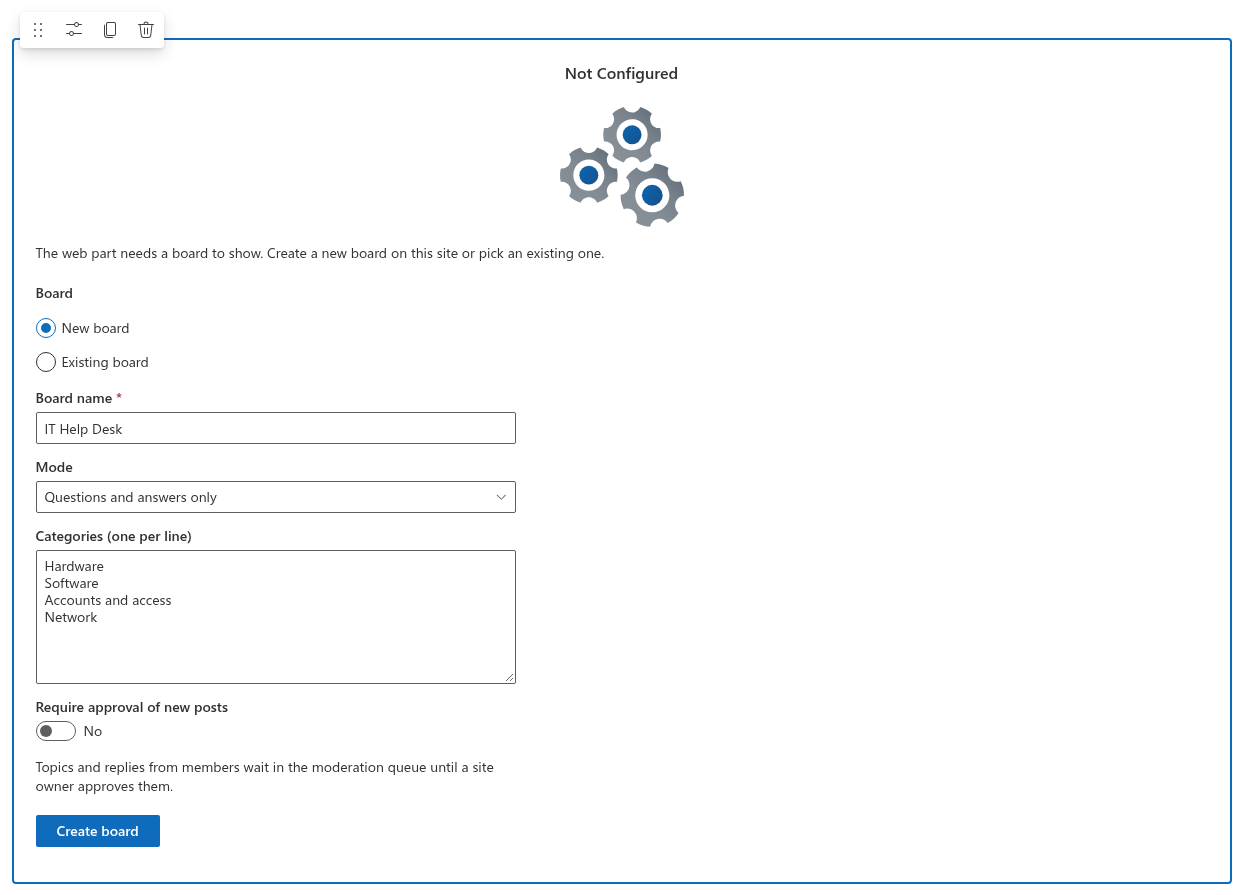
The web part cleans the list before saving it: leading and trailing spaces are removed, empty lines are dropped and a name that repeats an earlier one (ignoring case) is ignored. The order of the lines is the order of the drop-downs, so put the most used categories first. The rest of the first-run form is described in KB10392. Creating Your First Board: Modes, Categories and Approval.
Changing categories later
Moderators — users with the Manage Lists permission, typically the site owners — change the category list from the web part:
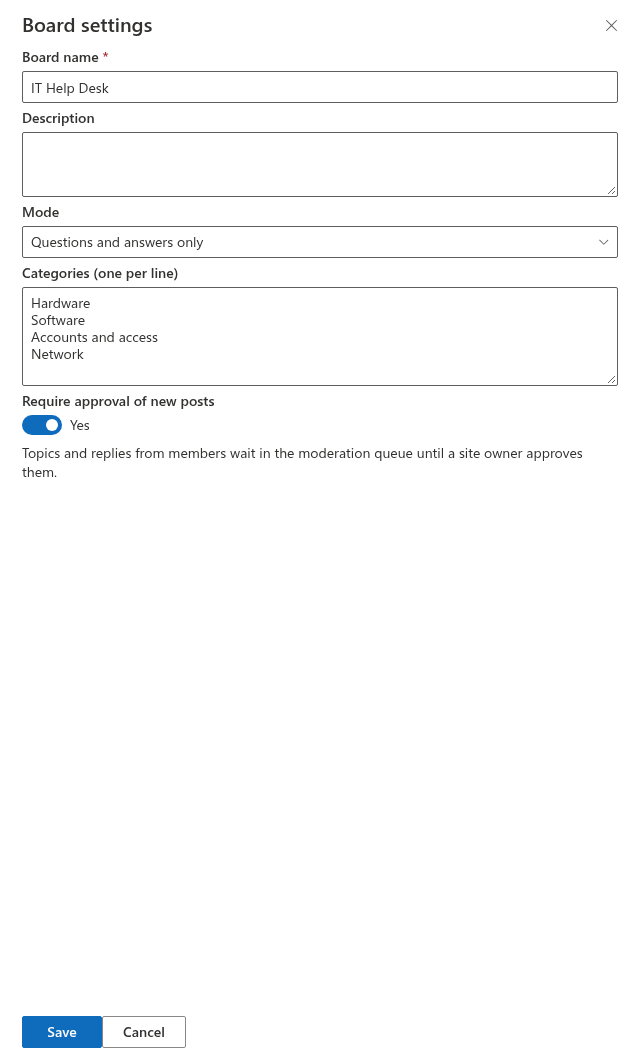
- Open the board and click Board settings in the command bar. The button is shown to moderators in read mode as well as in edit mode.
- In the panel, change Categories (one per line) — one name per line — and click Save. The list is cleaned in the same way as when the board is created.
- The board reloads with the new list; the filter and the new-topic form show it immediately. Other pages that show the same board pick it up when they are next loaded; nothing is cached.
The same panel changes the board name, the description, the mode and the approval setting — see KB10392. Creating Your First Board: Modes, Categories and Approval. The board remains an item of the Discussions Boards list, so the Categories column can also be edited there (Site contents, the Discussions Boards list, the item of your board, Edit). Editing the board item in the list requires the permission to edit items in that list, which the site owners and members with Contribute or Edit have by default. If you want only the owners to manage boards, set unique permissions on that list as described in KB10408. Permissions in Discussions: Who Can Read, Post and Moderate.
Renaming and removing categories
A topic keeps the category name it was posted with. Therefore:
- Renaming a category in the board (for example Accounts → Accounts and access) leaves the existing topics under the old name. They still show Accounts in the list row, but the filter no longer offers Accounts, so they can be reached only through Recent or search.
- Removing a category has the same effect: the topics stay, with a name that is no longer in the drop-down.
- Adding a category is always safe.
To move an existing topic to the new name, open it and click Edit — the author can do it while the topic is not locked, a moderator always — pick the new name in the Category drop-down and click Save. For many topics at once, the Discussions Topics list is faster: filter or sort by the Category column and edit the Category field of the affected items (several items selected at once in the list view). The web part shows the change on the next reload.
❗ Important
The Category drop-down of the topic editor offers only the current names of the board (and No category), so it cannot introduce a misspelt category; when the topic's current category is no longer in the list, the drop-down shows no selection until you pick one. When you correct the Category column in the Discussions Topics list instead, keep the value exactly equal to a name in the board's list, including capitalisation, so the filter finds it.
Choosing a category when starting a topic
When the board has categories, the new-topic form shows a Category drop-down under the title (and under the Type drop-down on boards that allow both discussions and questions). It opens on No category; the author picks one or leaves it empty. The category is shown in the topic header and in the metadata line of the list row, next to the author and the time of the last activity. It can be changed later: the author (while the topic is not locked) and moderators click Edit in the topic view and get the same Category drop-down next to the title and the body. Starting a topic is described step by step in KB10398. Starting a Topic: Discussions and Questions.
Filtering the list by category
Above the topic list, readers see the category drop-down with All categories and one entry per category of the board. Selecting a category filters the current view: Unanswered + Network shows only open network questions, My topics + Hardware only the reader's own hardware topics. The search box works inside the selected category, too. When the combination has no topics, the list shows Nothing found.; All categories restores the full view.
The filter is stateless: it resets to All categories when the page is reloaded, and it is not part of the link to a topic, so a deep link always opens the topic regardless of the filter.
Topics without a category
A topic posted with No category has an empty Category value. It appears in every view under All categories, but no entry of the drop-down selects it — there is no Uncategorized filter. If the board relies on categories, ask authors to pick one, or assign categories afterwards — with Edit in the topic view or in the Discussions Topics list, as described above. Topics imported from a classic Discussion Board arrive without a category, because the classic template has no equivalent column; see KB10418. What the Importer Copies and How It Rebuilds Reply Threads.
Hiding categories
The Show categories toggle in the Appearance group of the property pane hides the category drop-down and the category name in the list rows for that web part instance. The categories remain stored, the new-topic form still offers them and the opened topic still shows its category. The toggle is useful for a compact view of the board on a page with little room, such as a sidebar. The other display settings are described in KB10422. Views, Paging, Search and Counters: Display Settings of the Discussions Web Part.
Tips for a good category list
- Keep it short. Five to eight categories are enough for most boards; a drop-down of thirty entries is skipped, and the board ends up with everything under Other.
- Name by subject, not by audience or status. Network, Payroll, Module 3 work; Urgent or For managers do not, because the status of a topic changes and the audience is set by the site permissions.
- Decide the first list before the launch. Renaming later means editing topics one by one or in the list; adding is free.
- Prefer several boards to many categories when the audiences differ. Categories organise one board for one group of readers; a different group of readers, a different moderator or a different approval rule calls for a separate board on the site, and the Discussions Activity web part can still show the latest topics of all boards together.
💡 Tip
If your readers need an Unanswered list per category, combine the Default view setting with the filter: set the default view to Unanswered so experts land on the open questions, and let them pick their area in the category drop-down. The settings are explained in KB10422. Views, Paging, Search and Counters: Display Settings of the Discussions Web Part.