Discussions
Overview
Discussions keeps every board of a site in a handful of ordinary SharePoint lists, so the limits that apply are the limits of SharePoint Online lists plus a few fixed values built into the web part. This article lists those values as implemented in version 26.10.2, explains how the web part stays under the list view threshold, and gives recommendations for sites with very large boards or very long threads. The lists and columns themselves are described in KB10426. Discussions Lists and Columns Reference.
The limits at a glance
| Item | Value | Where it comes from |
|---|---|---|
| Topics loaded per page | Topics per page setting: 5–100 in steps of 5, default 20 | Property pane, Appearance group |
| Topics in a board, boards on a site | No limit in the web part | SharePoint list limits apply |
| Boards offered in drop-downs | First 500 boards of the site, sorted by title | Fixed value |
| Replies loaded for a topic | All replies, read from the server in batches of 500 | Fixed value |
| Nesting depth of replies | Unlimited | Data model (materialized path) |
| Topic title | 255 characters | SharePoint Title column |
| Inline image | 10 MB per file; image files only | Fixed value, The image is larger than 10 MB. |
| Attachments per topic or reply | No limit in the web part | SharePoint list item attachments |
| Attachment file name | Reserved characters replaced by _; longer than 120 characters truncated | Fixed rule |
| Items per section of the moderation queue | 200 most recent | Fixed value |
| Items in the Discussions Activity web part | Maximum items setting: 1–50, default 5 | Property pane, Appearance group |
| Subscriptions read per user and board | 500 | Fixed value |
| Classic items read by the importer | Batches of 2,000 until the source list is exhausted | Fixed value |
How the topic list stays fast
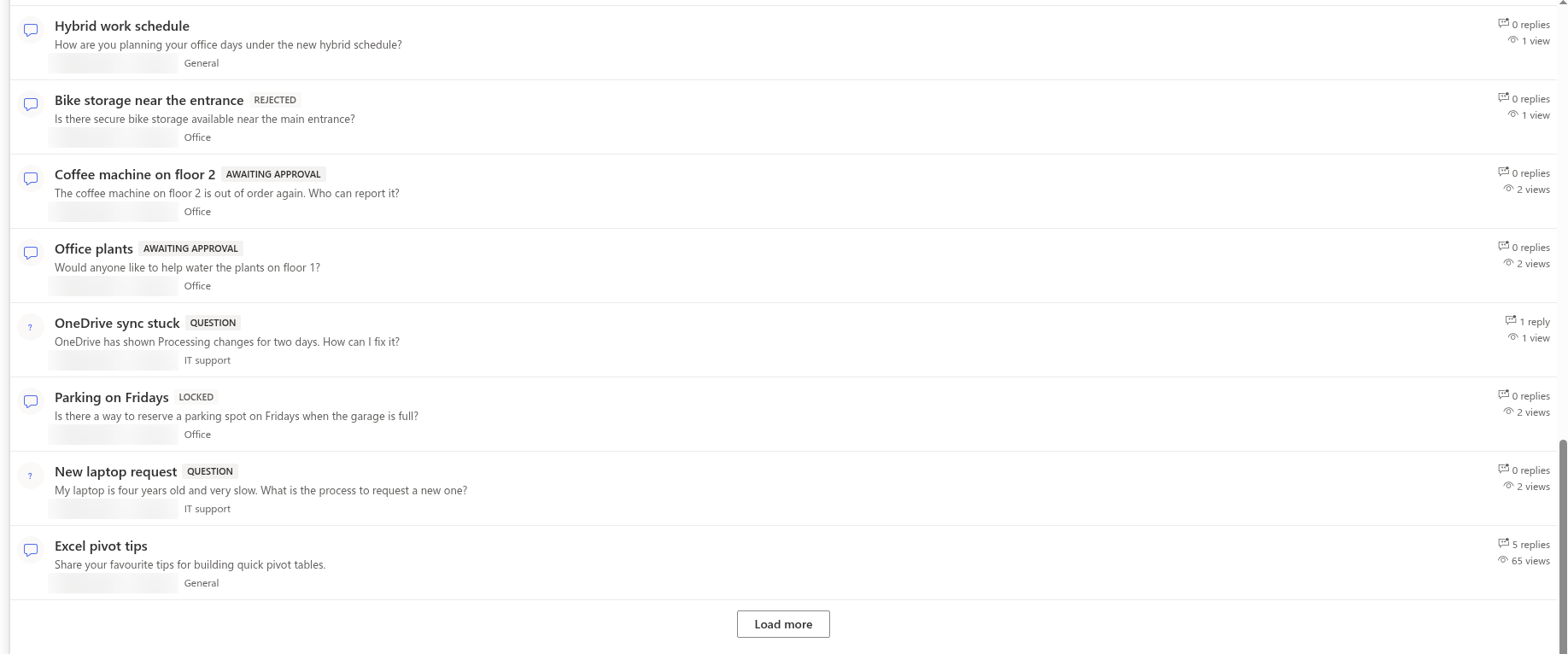
The topic list never asks SharePoint for the whole board. Every request is a server-side query against the Discussions Topics list that is limited to one page of Topics per page rows and sorted by the Pinned flag and then by Last activity, newest first. The Load more button requests the next page with the continuation link that SharePoint returned, so a board with tens of thousands of topics costs the same per page as a board with twenty.
Every filter the web part adds is backed by an indexed column, which is what keeps queries under the list view threshold of 5,000 items:
| Filter | Column | Used by |
|---|---|---|
| Board | VtxBoard (lookup, indexed) | Every query |
| Approval | VtxApprovalStatus (indexed) | Members: approved items and their own |
| View Unanswered | VtxTopicType and VtxStatus (indexed) | Questions with status Open |
| View Answered | VtxStatus (indexed) | Status Answered |
| View Featured | VtxIsFeatured (indexed) | Featured topics |
| View My topics | Created By | The current user's topics |
| Category drop-down | VtxCategory (indexed) | Selected category |
| Sort order | VtxIsSticky, VtxLastActivity (indexed) | Every query |
The search box is the exception: it adds a contains condition on the topic Title, which is not an indexed operation. SharePoint still applies the indexed board filter first, so the search is safe as long as a single board stays well below 5,000 topics. On a larger board, a search can be slow or refused by SharePoint with a list view threshold error; see the recommendations below.
📝 Note
The web part searches topic titles only. Reply text and topic bodies are not searched; to find them, use the SharePoint search of the site, which indexes the Discussions Topics and Discussions Posts lists like any other list.
Long threads
When a topic is opened, the web part loads all of its replies, not just the first page. Replies are read from the Discussions Posts list in batches of 500 through the indexed VtxTopic lookup, and the reply tree is then built in the browser from the parent and path columns. There is no limit on nesting depth and no "show more replies" step inside a thread.
The practical consequences:
- A thread with 2,000 replies needs four requests before it is shown; a thread with 10,000 replies needs twenty. The page becomes noticeably heavier long before SharePoint limits are reached, because every reply is rendered at once.
- Deeply nested replies are indented level by level. On narrow screens, very deep branches become hard to read; moderators can Lock a topic that has run its course and ask for a new one.
- The Replies counter in the list is a stored number on the topic, not a live count (see KB10432. Counters, Last Activity or Best Answer Look Wrong).
Images and attachments
Inline images pasted, dropped or inserted with the Insert image button are uploaded to the Discussions Assets document library. The web part creates a folder per calendar year (for example 2026) and stores every image there under a unique name, so no single folder grows without bound and the library stays comfortably below the view threshold for many years of use. Images larger than 10 MB are rejected before the upload starts; files that are not images are ignored by the editor.
Attachments added with Attach file are ordinary list item attachments on the topic or reply. The web part puts no limit on their number or size; the limits of SharePoint Online for list item attachments apply. File names are made safe for SharePoint before the upload: the characters \ / : * ? " < > | # % & { } ~ are replaced by an underscore and names longer than 120 characters are shortened.

Moderation queue, Activity web part and subscriptions
- The Moderation screen reads at most 200 items per section (topics waiting for approval, replies waiting for approval, reported topics, reported replies), newest first. Pending and reported replies are queried for the whole site and then narrowed to the current board, so on a site with several busy boards a very long backlog may be shown in portions: approve or reject the visible items and the next ones appear.
- The Discussions Activity web part reads only the number of topics set in Maximum items (1–50), filtered on the indexed approval column and sorted by last activity, so it is cheap to place on a home page.
- Subscriptions are read per user and per board, up to 500 rows, which is far beyond what one person follows in practice.
Counters and versioning
Reply counts, view counts, last activity and the like are stored on the topic item and updated by the browser of the user who replies or opens the topic. Each such update creates a new version of the topic item, because the lists are created with versioning enabled. On a very active board, the version history of a popular topic grows quickly; a site owner can lower the number of versions kept in List settings → Versioning settings of Discussions Topics without affecting the web part.
❗ Important
Do not remove the indexes from the Vtx columns and do not switch the lists to a different template. The web part creates its indexes on first use and relies on them for every query; a board that outgrows 5,000 topics without them will start failing with the list view threshold error.
Recommendations for very large boards
- Split by audience, not by year. Several boards on one site (IT Help Desk, HR, a board per course) share the same lists but are filtered by the indexed board column, so each board stays small for queries while the site keeps one place to search.
- Keep single boards below 5,000 topics if your users rely on the search box. Above that, keep searches to categories and views, or point users to the site search.
- Use categories rather than many near-identical boards; the category filter is indexed and costs nothing.
- Lock finished threads and start new ones instead of letting a single topic collect thousands of replies.
- Page size. The default of 20 topics per page is a good balance; raising it to 100 makes the first render heavier on slow connections without changing the server cost per page.
- Imports. The classic board importer reads the source in batches of 2,000 and writes items one by one; a classic board with tens of thousands of messages takes a long time but no special preparation. See KB10417. How to Import a Classic SharePoint Discussion Board into Discussions.
💡 Tip
If you plan a board for the whole organization, set a default view and a page size that fit the audience, as described in KB10422. Views, Paging, Search and Counters: Display Settings of the Discussions Web Part, and put the Discussions Activity web part on the home page so that people reach recent topics without scrolling the board.