Overview
Discussions handles two kinds of files. Inline images are pictures inside the text of a topic or reply; the editor uploads them to the Discussions Assets document library of the site and inserts a link. Attachments are files added with the Attach file button; they are stored as list item attachments on the topic or reply in the Discussions Topics or Discussions Posts list. Both need the user to have Add Items on the site and both can fail for a handful of well-defined reasons. This article lists them with the check and the fix for each; how the features are meant to be used is described in KB10401. Formatting Posts: The Rich Text Editor, Images and Code Blocks and KB10402. Attaching Files to Topics and Replies.
Start here
| What you see | Go to |
|---|---|
| A red message such as The image is larger than 10 MB. appears above the editor and no picture is inserted | The image is not inserted |
| Sorry, something went wrong... when inserting an image on a board that worked before the update | The Assets library is missing |
| Access denied. when inserting an image or attaching a file | Permissions |
| A technical error when clicking Attach file | Attachments are rejected |
| The author sees the picture, other readers see a broken image | Readers cannot see the image |
| Pictures pasted from an e-mail or a web page do not show for others | Pasted content |
| No Attach file button | The button is missing |
The image is not inserted
Symptom. You click Insert image, paste or drop a picture; the small spinner in the toolbar runs and stops, nothing is inserted into the text, and a red message bar above the editor states the reason. The bar can be closed with its x.
Causes and fixes.
- The file is larger than 10 MB. The editor refuses images above 10 MB before uploading them (the limit message is The image is larger than 10 MB.). Resize or compress the picture; screenshots and photos from a phone are usually well under the limit once exported as JPEG or PNG at screen size.
- The file is not an image. Only files whose type is an image (
image/png,image/jpeg,image/gif,image/webpand so on) are uploaded; a PDF or a document dropped into the editor is ignored. Add such files with Attach file instead. - Several files at once. Images are uploaded one after another; if one of them fails, the ones after it are not inserted, and the message bar shows the reason for the failed one. Insert the remaining pictures again.
📝 Note
Each uploaded image gets a unique generated name and is stored in a folder named after the current year inside Discussions Assets, for example Discussions Assets/2026/. The original file name is kept as the alternative text of the picture.
The Assets library is missing
Symptom. On a board created with version 26.10.1 whose page no moderator has opened since the update, inserting an image fails with Sorry, something went wrong. Please refresh the page and try again., and the Follow button is absent as well.
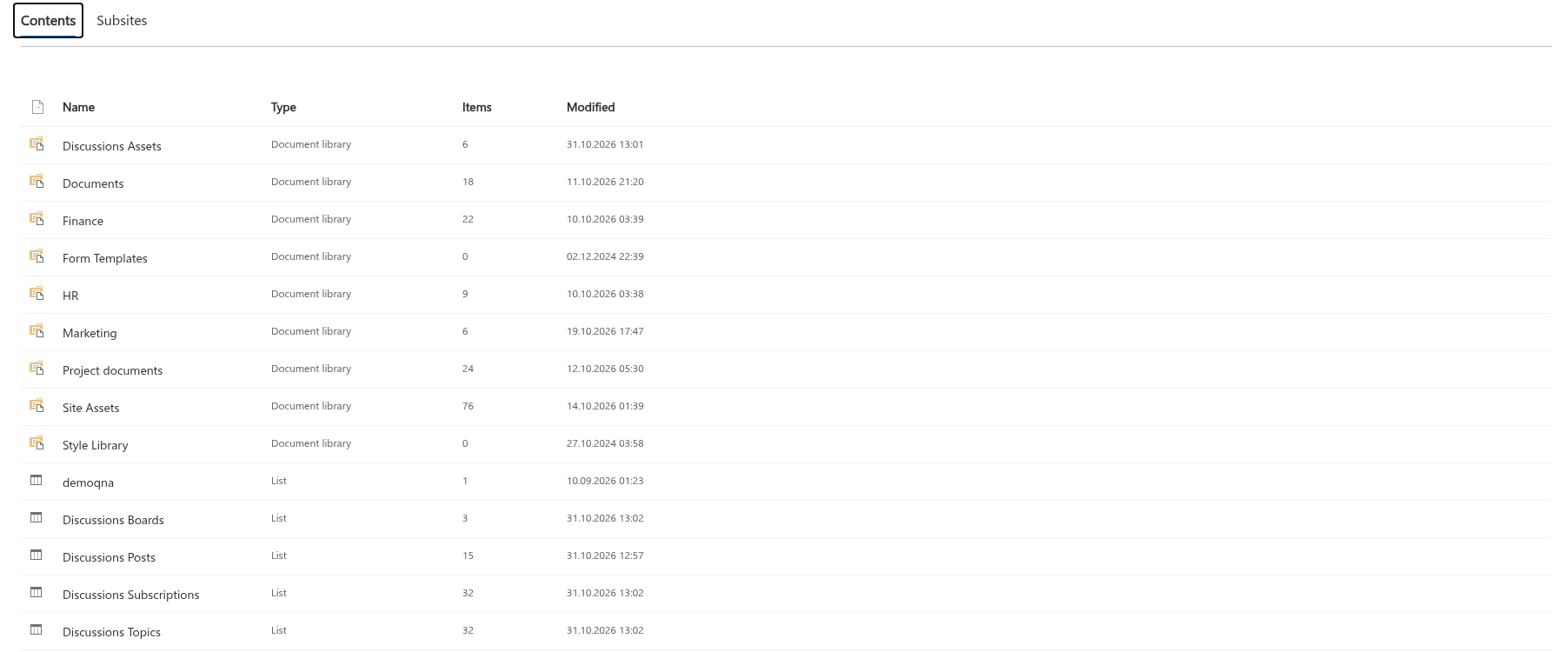
Cause. The first preview created three lists only. Version 26.10.2 added the Discussions Subscriptions list and the Discussions Assets library; a web part configured before the update does not have them until they are created. Since version 26.10.3 this happens automatically: the first time a user with Manage Lists (a site owner or moderator) opens the page, the web part creates the missing lists and columns. Until then, members who open the page only look the lists up and get the error. Without the library there is nowhere to upload images to.
Fix. A user with Manage Lists on the site (a site owner) simply opens the page with the board: the web part creates the missing list and library and adds any columns introduced by later versions. Alternatively, the site owner edits a page, adds a new Discussions web part, chooses Existing board, selects the board and clicks Use board; board setup always brings the lists up to date, and the extra web part can be removed again afterwards. Existing web parts on other pages find the new library automatically the next time they load. See KB10050. How to Update a Vitextra SPFx Solution in SharePoint Online for updating the package itself.
Permissions
Symptom. Access denied. appears when inserting an image or attaching a file, although the user can post topics and replies.
Cause. Posting needs Add Items on the Discussions Topics and Discussions Posts lists; uploading an image needs Add Items on the Discussions Assets library, and adding an attachment needs the right to edit the item it is attached to. All five lists inherit the site's permissions by default, so a member who can post can also upload. The error appears when a site owner gave the library or a list unique permissions and left the audience out, or when the item belongs to someone else and the user is not a moderator.
Check. Open Site contents, then Settings → Permissions for this list of Discussions Assets and of the two lists. Compare them with the site permissions.
Fix. Restore inheritance (Delete unique permissions) or grant the site Members group Contribute on the library. Attachments on other people's posts are by design available to moderators only. See KB10408. Permissions in Discussions: Who Can Read, Post and Moderate.
Attachments are rejected
Symptom. Clicking Attach file and choosing a file produces a red error bar with a message from SharePoint.
Causes and fixes.
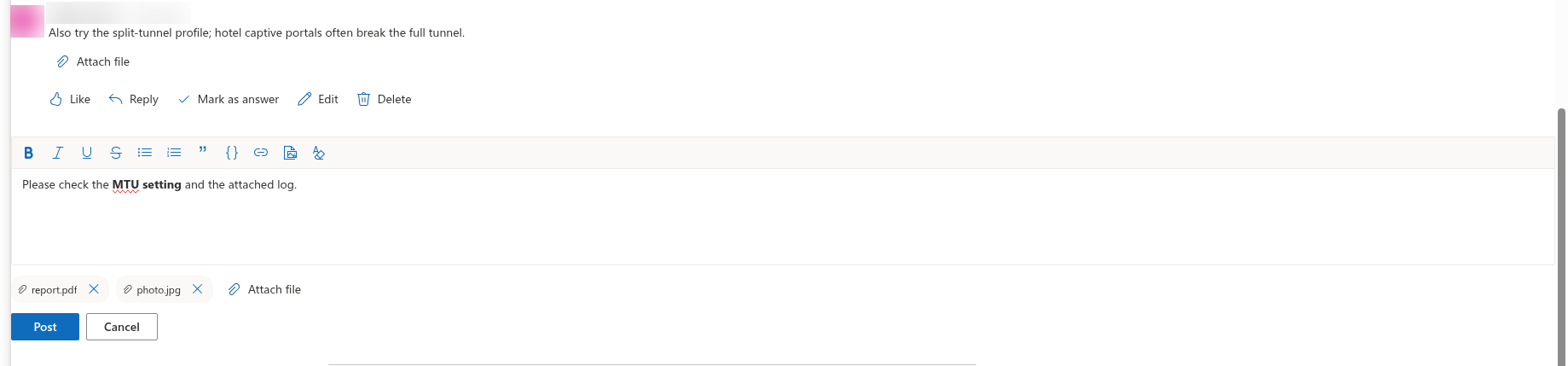
- Attachments were disabled on the list. The lists are created with attachments enabled; if a site owner switched List settings → Advanced settings → Attachments to Disabled, SharePoint rejects every upload. Enable attachments again on
Discussions TopicsandDiscussions Posts. - A file with the same name is already attached to this topic or reply. SharePoint allows one attachment per name on an item. Rename the file, or remove the old attachment with the x on its chip first.
- The name contained characters SharePoint does not accept. The web part replaces
\ / : * ? " < > | # % & { } ~with an underscore and shortens names longer than 120 characters before uploading, so this is rare; a name that consists only of such characters becomesfile. - The file is too large for a list item attachment. The web part sets no limit of its own; the limits of SharePoint Online apply. Very large files are better uploaded to a document library and linked from the post.
- The topic was posted but one of its files was not. When a new topic is created with several files, the topic is saved first and the files are uploaded one by one; a failing file shows an error but the topic and the other files remain. Open the topic and add the missing file with Attach file.
Readers cannot see the image
Symptom. The author sees the picture in the post; colleagues see a broken image or only its alternative text.
Cause. The picture is a file in Discussions Assets, and readers need Read on that library. If the library has unique permissions that exclude part of the audience, or if the page is shared with people who have no access to the site at all, the browser cannot load the file while the text of the post (stored in the list) is still shown.
Fix. Give readers at least Read on Discussions Assets, preferably by restoring the inherited permissions. Guests invited to the site see images like everybody else.
Pasted content
Symptom. Text pasted from Outlook, Word or a web page shows its pictures for the author but not for others, or shows no pictures at all.
Cause. When a picture is pasted as a file (for example a screenshot from the clipboard), the editor uploads it to the site. When the pasted content is HTML that links to pictures elsewhere, the editor keeps the links and the files are not copied: a picture on an intranet page or inside a mailbox is reachable for the author but not for other readers, and pictures with unsafe addresses are dropped by the editor's sanitizer.
Fix. Save the picture as a file and insert it with Insert image, or drag the file into the editor. Pictures in the post are then stored on the site like any other.
The Attach file button is missing
Symptom. There is no Attach file button under a topic or reply, although it appears under others.
Cause. Files can be added to an existing post by its author and by moderators only; other users see the attachments but not the button. In the reply editor and the new topic form the button is shown to everyone who can post. A topic that is locked has no reply editor, and a pending topic can be replied to by moderators only until it is approved.
❗ Important
Attachments and images are ordinary files on the site: retention labels, sensitivity labels, eDiscovery and the recycle bin apply to them in the same way as to other files, and deleting a topic or reply from the list deletes its attachments with it. When a topic or reply is deleted in the web part, the images it used are removed from Discussions Assets as well (deleting a topic also deletes its replies and their images); an item deleted directly in the list leaves its images in the library. See KB10412. Retention, eDiscovery and Sensitivity Labels for Discussions Content.
💡 Tip
For large or frequently updated documents, upload the file to a document library of the site and paste a link into the post with the Link button of the editor; readers always get the current version and the post stays small.