Discussions
General
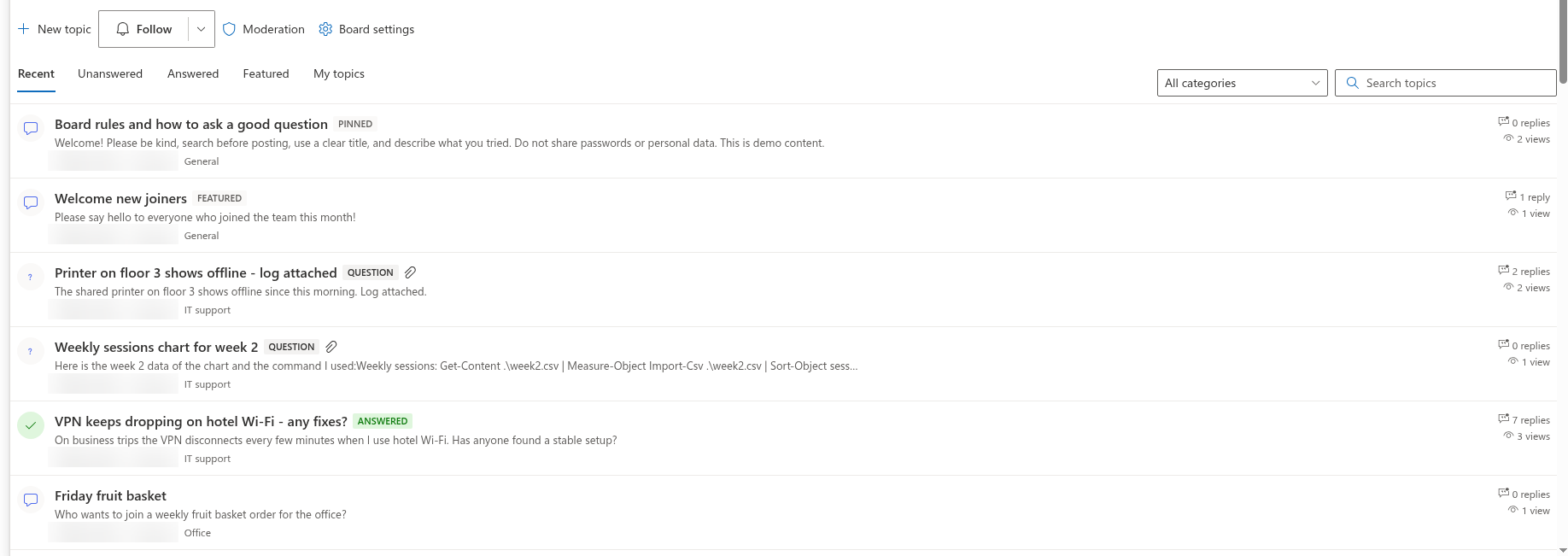
What is Discussions? Discussions is a discussion board and Q&A forum for modern SharePoint Online pages and Microsoft Teams. A board holds topics — discussions or questions — with threaded replies, a best answer, likes, categories and views, follow subscriptions and moderation. Everything is stored in lists on the site where the board is created. See KB10390. Discussions. Solution Overview.
Do I need Viva Engage or a Teams license to use it? No. Discussions is a SharePoint Framework solution that works on any modern SharePoint Online site; it does not use Viva Engage, Teams channels or any other service. It is a common choice precisely where Viva Engage is not enabled or not available. The comparison is in KB10394. Discussions vs. the Classic SharePoint Discussion Board vs. Viva Engage vs. Teams Channels: Which to Choose.
Which web parts are included? Two. Discussions shows a board: on a SharePoint page, as a full-page app, as a Teams channel tab and as a Teams personal app. Discussions Activity shows the latest topics of one board or of all boards of the site, with links to the board page; it works on SharePoint pages and as a Teams tab.
How is Discussions different from Vitextra Questions and Answers? Questions and Answers is a curated FAQ: editors publish answers that readers browse in an accordion. Discussions is a forum: members start topics, reply to each other in threads, mark the best answer and follow what interests them. Many intranets use both — see KB10217. Questions and Answers. Solution Overview.
Data and security
Where is the content stored? In five lists that the web part creates on the site on first use: Discussions Boards, Discussions Topics, Discussions Posts, Discussions Subscriptions and the Discussions Assets document library for inline images. Attachments are stored as list item attachments. Nothing is stored outside your tenant — not on Vitextra servers and not in the browser. See KB10411. Where Discussions Stores Your Data: Lists, Columns and Privacy and KB10363. Where Vitextra Products Store Your Data: Privacy, Data Residency and GDPR.
Can I rename the lists? Yes. The web part recognizes its lists by the fixed ids of their marker columns, not by their titles, so a list can be renamed without breaking the board. All custom columns start with Vtx; keep them in place.
Does the solution request Microsoft Graph permissions or admin consent? No. The package requests no API permissions: nothing appears on the API access page of the SharePoint admin center, and the procedure in KB10360. How to Approve Microsoft Graph API Permissions for Vitextra Solutions in the SharePoint Admin Center is not needed. Every call goes to the SharePoint REST API of the site in the context of the signed-in user. See KB10413. API Permissions and Admin Consent for Discussions.
Does the content fall under retention, eDiscovery and sensitivity labels? Yes, like any list on the site: retention labels for list items, eDiscovery of the lists and attachments, the audit log and the sensitivity label of the site. See KB10412. Retention, eDiscovery and Sensitivity Labels for Discussions Content.
Does removing the solution delete the boards? No. Removing the app from the site or the package from the App Catalog leaves the lists and their content on the site. See KB10362. How to Remove a Vitextra Solution from SharePoint Online and Microsoft Teams.
Permissions
Who can read, post and moderate? The board inherits the permissions of the site. Users who can read the site read the board. Users with Add items — the Contribute and Edit levels — start topics, reply, edit and delete their own topics and replies, like, follow and report. Users with Manage Lists — the site owners — are moderators: they approve and reject posts, pin, feature and lock topics, edit and delete other people's topics and replies, change the board settings and run the importer. See KB10408. Permissions in Discussions: Who Can Read, Post and Moderate.
Do guests work? Yes, by site permissions: a guest with read access reads the board, a guest with contribute access posts. No separate setting exists.
Who can create a board? Creating the first board also creates the site lists, which needs Manage Lists on the site. Once the lists exist, a page editor with Add items can pick an existing board or create another one without that permission. If the permission is missing, the web part reports it with You do not have permission to create lists on this site. Ask the site owner to set up the board.
📝 Note
Read-only visitors see the board, open topics and read replies, but the Like, Reply, Follow and Report buttons are disabled or hidden for them, and the view counter is not updated on their behalf.
Boards and topics
What are the board modes? Discussions only — every topic is a discussion, the Unanswered and Answered views are hidden. Questions and answers only — every topic is a question. Discussions and questions — members choose the type of each topic. See KB10392. Creating Your First Board: Modes, Categories and Approval.
How many boards can a site have? As many as you need; each board is an item of the Discussions Boards list, and each Discussions web part shows one board. The board pickers in the web parts list up to 500 boards of the site.
Can I change the mode, the categories or the approval setting after the board is created? Yes. A moderator opens the board and clicks Board settings in the command bar. The panel contains Board name, Description, Mode, Categories (one per line) and Require approval of new posts; Save writes the changes to the board item, and the web part applies them at once. The board item in the Discussions Boards list (Site contents) can still be edited directly; other web parts read the change on the next load.
How deep can replies be nested? Without a limit: any reply can be replied to, and the thread is shown as a tree. A reply that already has replies cannot be deleted — not even by a moderator or from the moderation queue: delete the nested replies first, or delete the whole topic, which removes all its replies.
Can I edit or delete a topic after it is posted? Yes. In the topic view the author (while the topic is not locked) and moderators see the Edit button on the topic: the title, the category (if the board has categories) and the body are edited in place in the rich text editor and kept with Save or discarded with Cancel. The author and moderators also see Delete: after the confirmation Delete this topic together with all its replies? This cannot be undone. the topic, all its replies and their inline images are removed. See KB10399. Replying in Threads: Reply, Edit and Delete.
Who can mark the best answer? The author of the question and any moderator, with the Mark as answer button under a top-level reply. A question has one accepted answer at a time; it is shown at the top of the thread and moves the question to the Answered view. The Mark as answer and Unmark answer buttons are hidden while the topic is locked; a locked question keeps its accepted answer, its Answered badge and its place in the Answered view. If the accepted reply is deleted, the question returns to the Unanswered view. See KB10400. Marking the Best Answer in Q&A Topics.
What does the search box search? The titles of the topics of the current board, combined with the selected view and category. Search in the body text is not part of the web part.
Why can't a colleague see my post? The board probably requires approval: posts by members wait in the moderation queue until a moderator approves them. The author sees their own post with the Awaiting approval badge; moderators see everything, including pending and rejected items; other members see only approved posts. A rejected reply stays visible to its author with the Rejected badge and to moderators. A direct link to a topic that is awaiting approval or rejected shows other users This topic is not available. It may be awaiting approval or may have been removed. instead of the topic. See KB10430. Why a Post Is Not Visible: Approval, Rejection and Visibility Rules.
Can a rejected topic or reply be approved later? Yes. The Moderation screen lists them in the Rejected topics and Rejected replies sections with the Approve and Delete buttons; approving a rejected reply records its author in Last reply by and counts it again. An approved topic or reply that has been reported can be rejected from the Reported topics and Reported replies sections. See KB10409. Moderating a Board: Approval Queue, Rejecting and Dismissing Reports.
Why do the reply or view counters look off? The counters are stored on the topic and updated by the web part when a reply is posted, approved, rejected or deleted and the first time a topic is opened in a browser session — opening it again in the same session does not count; the update is best-effort, and readers without write permission do not update views. See KB10432. Counters, Last Activity or Best Answer Look Wrong.
Notifications
How do notifications work? The web part records who follows which board or topic and with which frequency — Immediately, Daily digest or Weekly digest — in the Discussions Subscriptions list, and stores the people mentioned in a post in the Mentions column. The e-mails are sent by a Power Automate flow that a site owner sets up on those lists; the events, recipients and frequencies it should handle are described in KB10414. How Notifications Work in Discussions: Subscriptions, Mentions and Power Automate.
I followed a topic but get no e-mails. Why? Because the flow that sends them is not in place yet, or it is not running. The web part itself does not send mail and requests no mail permissions; following records the subscription only.
❗ Important
The Power Automate flow template for notifications is documented but not shipped with version 26.10.3. Plan the flow as part of the rollout if your users expect e-mails.
Migration
Can I import an existing classic Discussion Board? Yes. A site owner opens the page in edit mode, clicks Import classic board, picks a classic board (list template 108, including the discussion lists of community sites) on this or another site of the tenant, runs the analysis and imports. Topics, replies with their hierarchy, best answers, likes and attachments are copied; original authors and dates are kept when the account may set system fields. Imported items carry the id of the classic item, so a second run skips what is already there. See KB10417. How to Import a Classic SharePoint Discussion Board into Discussions and KB10418. What the Importer Copies and How It Rebuilds Reply Threads.
Our boards are on SharePoint Server. Can they be moved? Yes, in two steps: migrate the classic list to SharePoint Online with a standard migration tool, then import it into a board with the wizard, which rebuilds the reply hierarchy that migration tools tend to flatten. See KB10419. Migrating Discussion Boards from SharePoint Server to SharePoint Online with Discussions.
Teams, mobile and languages
Does Discussions work in Microsoft Teams? Yes. After the package is synchronized to Teams from the App Catalog, the board can be added as a channel tab and opened as a personal app; the tab is configured by picking a board, exactly like the web part. See KB10393. How to Add Discussions to Microsoft Teams.
Does it work on a phone? The web part has a responsive layout and is shown with the page in the SharePoint mobile app and in Teams mobile. What works on a phone and what is limited is described in KB10416. Discussions in the SharePoint Mobile App and Teams Mobile.
Which languages does the interface have? Version 26.10.3 ships English and Russian; the language follows the SharePoint site or Teams client, and any other language falls back to English. Dates are shown relatively ("2 hours ago") in the same language; hovering a date shows the full date and time.
Does it support SharePoint Server (on-premises)? No. Discussions is built for SharePoint Online and Microsoft Teams; see KB10428. Supported Environments: Clouds, Browsers and Hosts.
Limits
Are there size limits for images and attachments? An inline image may be up to 10 MB; a larger image is rejected, and the reason — The image is larger than 10 MB. — is shown above the editor. Attachments follow the limits of SharePoint list attachments and the file types blocked in your tenant. See KB10431. Images or Attachments Fail to Upload.
How large can a board grow? Topics are loaded page by page (5 to 100 per page) with indexed filters, and the replies of a topic are read in batches of 500, so the board works beyond the 5,000-item list view threshold. Inline images go into a folder per year of the assets library. Recommendations for very large boards are in KB10427. Limits and Performance: Large Boards, Long Threads and the List View Threshold.
Licensing and updates
Is there a trial, and how is it licensed? A free 30-day trial with full functionality starts when the web part is first used in the tenant. After the trial, both web parts — Discussions and Discussions Activity — show a license message instead of the board until a plan is activated; nothing is deleted — the lists and their content stay on the site. Discussions is licensed per Microsoft 365 tenant with a flat price in two plans, Standard and Plus, covering all sites, users and Teams. See KB10434. Discussions Licensing: Trial, Activation and Plans.
Where do I see the license status and the version? In the About group at the bottom of the property pane of either web part: the product name, Version, Status (Trial version, Active or Expired) and the Tenant id. The version scheme is explained in KB10319. Vitextra Product Versioning: How to Read Version Numbers.
How do I update to a new version? Upload the new package to the App Catalog; page editors see a There is a new version of this app notice in edit mode. Lists and columns that a new version adds are created automatically the next time a moderator opens a page with the web part or runs the board setup. See KB10050. How to Update a Vitextra SPFx Solution in SharePoint Online and the current changes in KB10436. Discussions 26.10.3 Release Notes.
Tenant App Catalog or site collection App Catalog? Both work. The tenant App Catalog makes the web parts available on every site and in Teams; a site collection App Catalog limits them to one site collection. See KB10361. Tenant App Catalog vs. Site Collection App Catalog: Where to Deploy Vitextra Apps.
💡 Tip
To deploy the solution, follow KB10035. How to Install a Vitextra Product in SharePoint Online; to put the first board on a page, follow KB10391. How to Add and Configure the Discussions Web Part.