Password Vault
Introduction
Employees collect sign-ins for many systems that are not covered by single sign-on: supplier portals, partner extranets, test environments, conference registrations, hardware consoles. Without a dedicated tool these credentials end up in spreadsheets, sticky notes or e-mail drafts.
Password Vault is a SharePoint Framework web part that gives every employee a personal password manager inside Microsoft 365. Each user keeps their own list of entries — name, user name, password, URL, notes, folder and tags — protected by a 4-digit PIN. The entries are stored encrypted in a file in the user's own OneDrive, not in SharePoint lists and not on Vitextra servers. The same web part can be placed on a SharePoint page or in Microsoft Teams, and every user always sees their own vault.
This article explains what the web part does and how it works. To place it on a page, see KB10438. How to Add the Password Vault Web Part to a Page and Create Your Vault.
Key capabilities
A personal vault for every user. The web part shows the vault of the person who opens the page. Placing it on a shared page or in a team channel does not share any passwords: each visitor sees only their own entries.
PIN protection. On first use, the user sets a 4-digit PIN. While the vault is locked, the web part shows no entries at all, only a prompt for the PIN; once the PIN is entered, all entries and actions are available. See KB10442. How to Set Up Your PIN in Password Vault.
Automatic lock. After the PIN is entered, the vault stays unlocked while the user works with it and locks again after 5 minutes without interaction: the list is hidden and open dialogs are closed. Reloading the page also locks it. See KB10451. Automatic Lock: When Password Vault Asks for the PIN Again.
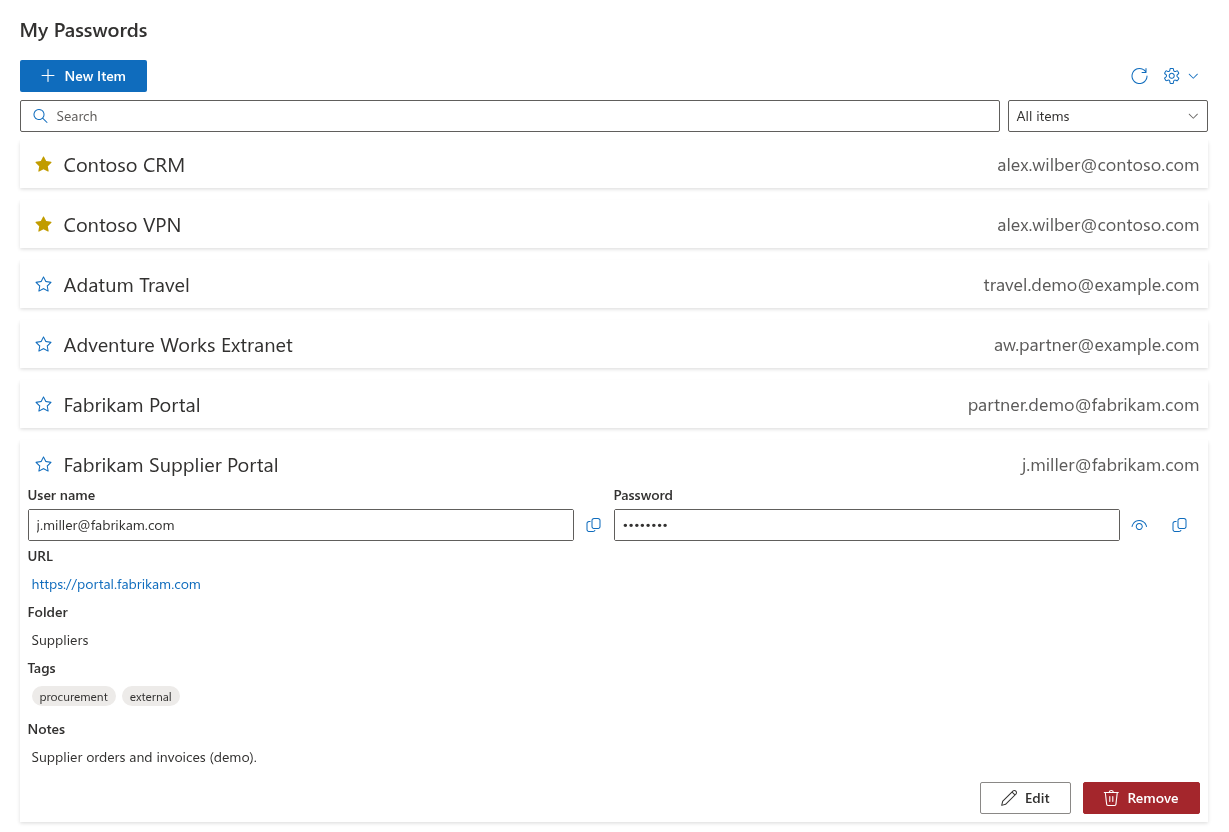
Entries with all the details. Each entry has a Name, User name, Password, an optional URL that opens in a new tab, a Folder, Tags and Notes. See KB10443. How to Add, Edit and Delete Entries in Password Vault.
One-click copy. The user name and the password are copied to the clipboard with the Copy to Clipboard buttons, so passwords do not need to be shown on the screen. See KB10444. How to View and Copy a Password or User Name in Password Vault.
Password generator. The built-in generator creates random passwords of 8 to 64 characters from the character sets the user selects, using the browser's cryptographic random number generator. See KB10445. How to Generate a Strong Password with the Password Vault Generator.
Strength meter. While a password is typed, a five-step bar shows its estimated strength, from Very weak to Very strong. See KB10446. Password Strength Meter in Password Vault: What the Levels Mean.
Folders, tags and favorites. Entries can be grouped in folders, labeled with any number of tags and marked as favorites, which are always listed at the top. See KB10447. Organizing Entries with Folders and Tags in Password Vault and KB10448. Favorites in Password Vault: Keeping Frequently Used Entries at the Top.
Search and filter. The Search box finds entries by name, user name, URL, folder, notes and tags; the filter drop-down narrows the list to favorites, a folder or a tag. See KB10449. Searching and Filtering Entries in Password Vault.
SharePoint and Microsoft Teams. The web part works on modern SharePoint Online pages, as a Teams channel tab and as the Teams personal app Passwords. It is the same vault everywhere. See KB10457. How to Add Password Vault to Microsoft Teams.
Theme and language. The web part follows the site theme, including section backgrounds, and the site font. Its interface is translated into the SharePoint languages and follows the language of SharePoint or Teams. In a narrow column (less than 500 pixels wide) the list switches to a compact layout.
How it works
Where the entries are stored
Each user's vault is a single file, vitextra-password-vault.json, in the app folder of that user's own OneDrive. The web part reads and writes the file through Microsoft Graph on behalf of the signed-in user. Nothing is stored in SharePoint lists, in the web part properties or on Vitextra servers.
Because the vault lives in the user's OneDrive and not on the page, the same vault appears on every page, site and Teams tab where the web part is placed. If the web part finds no vault file for the user, it creates an empty one and asks the user to set up a PIN. Details: KB10453. Where Password Vault Stores Your Passwords: The OneDrive App Folder.
Encryption and the PIN
The name, user name, password, URL, notes, folder and tags of every entry are encrypted with AES in the user's browser before the file is saved. The encryption key is derived from the PIN with PBKDF2-SHA256 (a random salt per vault, 600,000 iterations); it is not stored anywhere and exists only in the memory of the open page while the vault is unlocked, so the vault file alone is not enough to read the entries. The file travels only between the browser and the user's OneDrive, and access to it is governed by Microsoft 365 and OneDrive permissions, like any other file in the user's OneDrive.
The PIN opens the vault. While the vault is locked, the web part shows no entries — not even their names — but only the Enter PIN prompt with four masked digit boxes. Keep in mind that a PIN has only 4 digits (10,000 combinations): PBKDF2 makes every guess deliberately slow, but someone who obtains a copy of the file could still try all PINs offline, because the limit of 5 attempts applies only inside the web part. Access control to OneDrive therefore remains the first line of protection. For the full description, see KB10452. How Password Vault Protects Your Data: Encryption, PIN and Storage and KB10456. Who Can See Your Passwords in Password Vault.
❗ Important
A forgotten PIN cannot be recovered or reset — not by the user, not by an administrator and not by Vitextra. After 5 incorrect PINs in a row the vault is blocked, and the only way to use it again is Reset, which erases all entries. Keep your PIN in a safe place and keep important credentials also in another place approved by your organization. See KB10455. Incorrect PIN Attempts in Password Vault: What Happens After Five Failed Tries and KB10460. I Forgot My PIN in Password Vault: What Are My Options?.
📝 Note
Vaults created with an earlier version of the web part are migrated to the new encryption automatically the first time the user enters the correct PIN; the entries and their modification dates are kept. Older versions of the web part cannot open a migrated vault, so administrators should update Password Vault in every app catalog of the tenant. See KB10050. How to Update a Vitextra SPFx Solution in SharePoint Online and KB10361. Tenant App Catalog vs. Site Collection App Catalog: Where to Deploy Vitextra Apps.
Working on several devices
Each save is checked against the version of the vault file it was built from. If the vault was saved elsewhere in the meantime — on another device or in another browser tab — the web part loads the latest file and applies the change to it, so changes made elsewhere are not overwritten. A change saved on one device appears on another after Refresh, after the next save or after unlocking there. If the PIN was changed on another device, the open page locks itself as soon as it notices and asks for the new PIN.
What Password Vault is designed for
Password Vault is a lightweight personal vault. It deliberately keeps a narrow scope:
- Entries cannot be shared with colleagues; there are no team or shared vaults.
- There is no browser extension and no automatic filling of sign-in forms; credentials are copied from the web part.
- Administrators have no console to manage, view or recover users' vaults.
- There is no export or import of entries.
For a comparison with other kinds of password managers, see KB10440. Password Vault vs. Browser Password Managers and Enterprise Password Managers: Which to Choose.
📝 Note
Password Vault is intended for personal credentials. For highly privileged administrative accounts and credentials that a team must share, follow your organization's security policy.
Requirements
- Microsoft 365 with SharePoint Online; modern pages. The web part is not available for SharePoint Server.
- Every user must have a OneDrive in the tenant, because the vault is stored there.
- The package is deployed from the App Catalog like any Vitextra product; tenant-wide deployment is supported. See KB10035. How to Install a Vitextra Product in SharePoint Online.
- An administrator must approve the Microsoft Graph delegated permission
Files.ReadWrite.AppFolder, which lets the web part read and write only in its own app folder of the user's OneDrive. See KB10454. Microsoft Graph Permission Files.ReadWrite.AppFolder: Why Password Vault Needs It and How to Approve It and KB10360. How to Approve Microsoft Graph API Permissions for Vitextra Solutions in the SharePoint Admin Center. - No SharePoint list permissions are needed: any user who can open the page can use their own vault.
- Licensing is per tenant. When the license expires, the web part shows We hope you enjoyed your free trial. Buy it now to keep it working. instead of the vault until the license is renewed; the vault files in OneDrive are not changed. See KB10206. Vitextra Licensing and Account: How to Buy and Activate a License and KB10364. What Happens When Your Vitextra Trial or Subscription Expires.
💡 Tip
New users can start with KB10441. Password Vault: A Quick Guide for End Users. Answers to common questions are collected in KB10439. Password Vault: Frequently Asked Questions.
Learn more about the product: https://vitextra.com/en/products/password-vault