Password Vault
Overview
This article explains how to place the Password Vault web part on a modern SharePoint Online page and create your personal vault the first time you open it. The web part has no display settings to configure: once it is on the page, every user who opens the page works with their own vault, stored in their own OneDrive.
For an introduction to the product, see KB10437. Password Vault. Solution Overview.
Prerequisites
Before the web part can be used, an administrator must complete two one-time tasks for the tenant:
- Deploy the package to the App Catalog and, if you use a site collection App Catalog or did not deploy tenant-wide, add the app to the site. See KB10035. How to Install a Vitextra Product in SharePoint Online and KB10361. Tenant App Catalog vs. Site Collection App Catalog: Where to Deploy Vitextra Apps.
- Approve the Microsoft Graph permission
Files.ReadWrite.AppFolderin the SharePoint admin center (API access). The web part uses it to read and write the vault file in its own app folder of each user's OneDrive; it gives no access to the user's other files. See KB10454. Microsoft Graph Permission Files.ReadWrite.AppFolder: Why Password Vault Needs It and How to Approve It and KB10360. How to Approve Microsoft Graph API Permissions for Vitextra Solutions in the SharePoint Admin Center.
In addition:
- To add the web part, you need permission to edit pages on the site.
- No SharePoint list permissions are needed. The web part creates no lists on the site, and any user who can open the page can use it.
- Every user needs a OneDrive in the tenant, because the vault is stored there.
❗ Important
Until the Files.ReadWrite.AppFolder permission is approved, the web part cannot read or create the vault and shows Sorry, something went wrong. Please refresh the page and try again. See KB10459. Why Password Vault Does Not Load: "Something Went Wrong" and Permission Errors.
Adding the web part to a page
- Open the page where you want the vault and click Edit in the top-right corner.
- Hover over the area where the web part should go and click the round + (Add a new web part) button.
- In the toolbox, start typing Password Vault and select the Password Vault web part. Without a search, it is listed in the Other group.
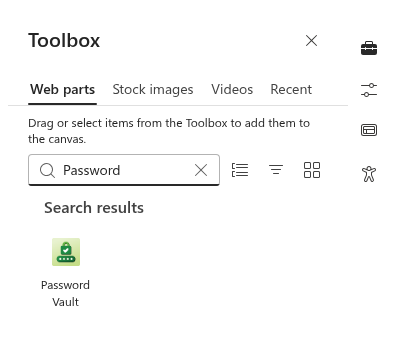
The web part is added to the page and immediately loads your vault. If you have never used Password Vault before, it creates an empty vault in your OneDrive and shows the Set up PIN screen (see below).
📝 Note
Password Vault can also run in Microsoft Teams. See KB10457. How to Add Password Vault to Microsoft Teams.
Editing the web part title
The web part has an editable title above the vault. While the page is in edit mode, click the Web Part Title area and type a heading, for example My Passwords or Personal Credentials. Leave it empty if you do not want a title.
When you are done, Publish (or Republish) the page.
📝 Note
Placing the web part on a shared page — a team site home page, for example — does not share any passwords. Every person who opens the page sees only their own vault, the same one they see on any other page or in Teams.
First open: create your vault
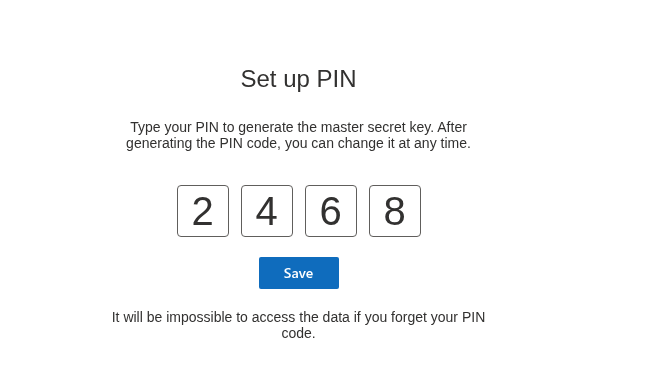
The first time a user opens a page with the web part, the vault is created and the Set up PIN screen appears with the text Type your PIN to generate the master secret key. After generating the PIN code, you can change it at any time.
- Type a 4-digit PIN in the four boxes. The digits remain visible while you type, so make sure nobody is watching your screen.
- Click Save. The button becomes available after the fourth digit.
The vault is created and unlocked, and the list shows There are no items in this list. You can now add your first entry with New Item. If the PIN cannot be saved, the red error bar Sorry, something went wrong. Please refresh the page and try again. appears on the Set up PIN screen.
❗ Important
As the screen warns, It will be impossible to access the data if you forget your PIN code. The PIN cannot be recovered by you, by your administrator or by Vitextra. Keep it in a safe place. Details: KB10442. How to Set Up Your PIN in Password Vault.
As the page editor, you create only your own vault. Every other user goes through the same Set up PIN step the first time they open a page with the web part.
The property pane: About
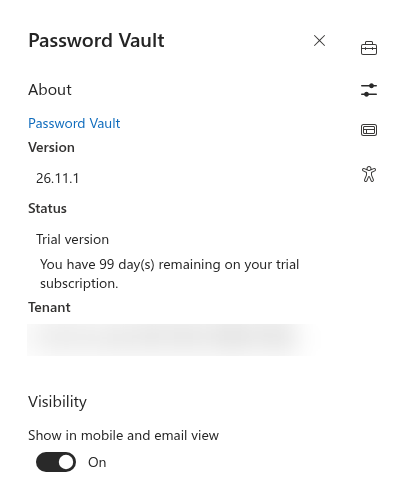
Select the web part and click the pencil (Edit web part) icon to open the property pane. It contains a single group, About, with the license information:
- Status — the license status for your tenant;
- Version — the version of the installed web part (see KB10319. Vitextra Product Versioning: How to Read Version Numbers);
- Tenant — your Microsoft 365 tenant ID (see KB10034. How to Find Your Microsoft 365 Tenant ID for Vitextra Licensing);
- Start Date — the start date of the license.
There are no display or behavior settings: the vault looks and works the same on every page.
When a newer version of the product is available, the web part shows There is a new version of this app. Get it now. while the page is in edit mode. To update the package, see KB10050. How to Update a Vitextra SPFx Solution in SharePoint Online. Update Password Vault in every app catalog of the tenant where it is deployed (see KB10361. Tenant App Catalog vs. Site Collection App Catalog: Where to Deploy Vitextra Apps): vaults saved by an earlier version of the web part are converted to the current file format and encryption automatically the first time each user enters the correct PIN, and older versions of the web part cannot open a converted vault. Pages that were open before the update should be reloaded.
📝 Note
When the license has expired, the web part shows We hope you enjoyed your free trial. Buy it now to keep it working. instead of the vault. Users cannot open their entries until the license is renewed; their vault files in OneDrive are not changed. See KB10206. Vitextra Licensing and Account: How to Buy and Activate a License and KB10365. Why Does a Vitextra Web Part Show "We Hope You Enjoyed Your Free Trial"? License Messages and Fixes.
💡 Tip
Share KB10441. Password Vault: A Quick Guide for End Users with your colleagues when you publish the page — it walks them through the whole interface.
Learn more about the product: https://vitextra.com/en/products/password-vault