Password Vault
Overview
Organizations that want employees to stop keeping passwords in spreadsheets and notes usually look at three kinds of tools:
- Browser password managers — the password storage built into web browsers, which saves credentials as the user signs in to websites.
- Enterprise password managers — dedicated products, usually with their own service, client apps and browser extensions, designed for organization-wide credential management.
- Password Vault — a Vitextra SharePoint Framework web part that gives every employee a lightweight personal vault inside Microsoft 365 (SharePoint Online and Microsoft Teams).
These tools solve different problems. This article describes the general characteristics of each category so that you can decide which one fits a given need. Individual products within a category differ, so check the specifics of any product you consider against your own requirements.
Password Vault in short
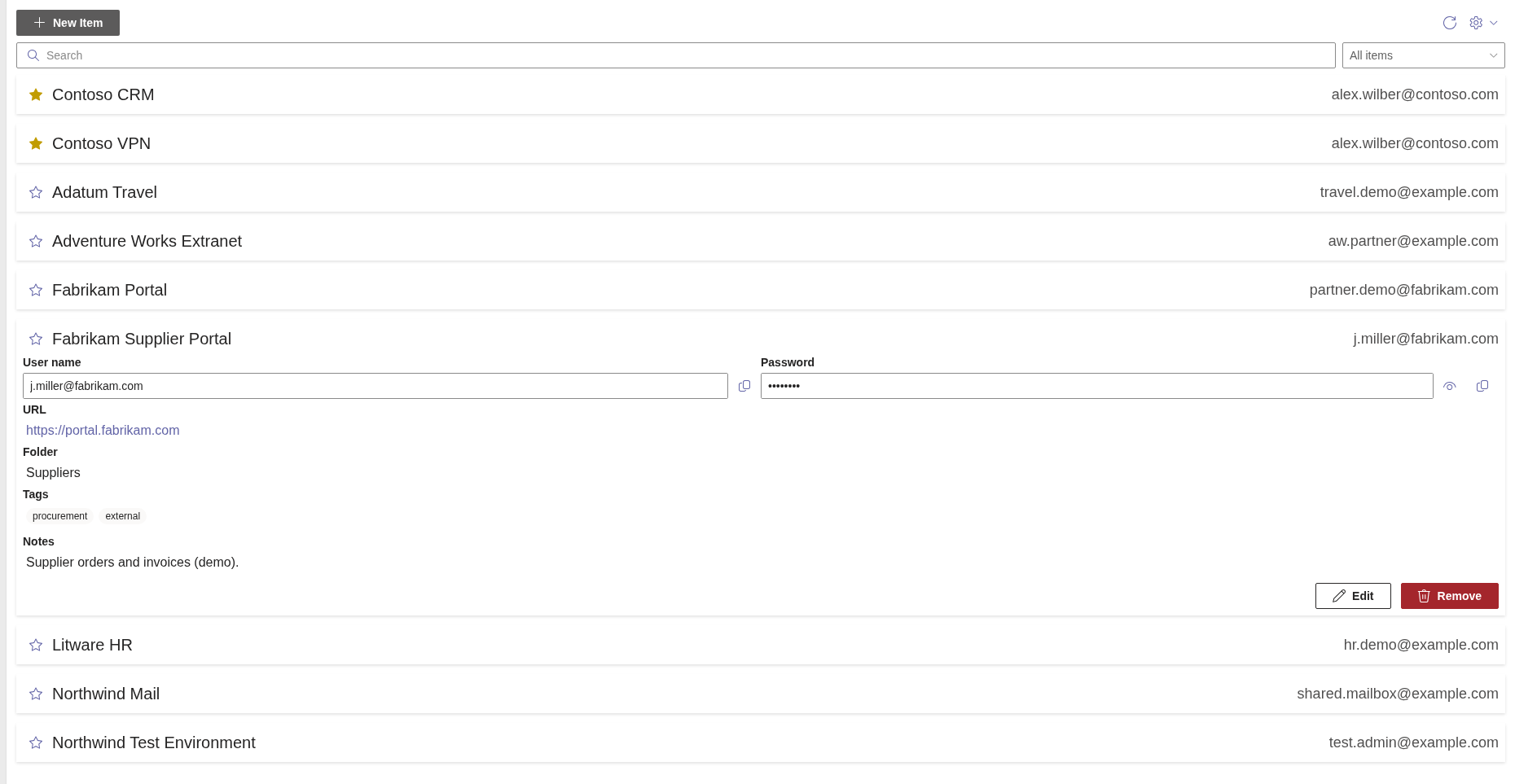
Password Vault stores each user's entries encrypted in a file in that user's own OneDrive and shows them in a web part on a SharePoint page or in Teams. Access inside the web part is protected by a 4-digit PIN, from which the encryption key is derived; while the vault is locked, no entries are shown, and it locks automatically after 5 minutes without interaction. Because a PIN has only 4 digits, access control to OneDrive remains the first line of protection for the file. It includes a password generator, a strength meter, folders, tags, favorites and search. For details, see KB10437. Password Vault. Solution Overview.
Equally important is what it does not do:
- no automatic filling of sign-in forms and no browser extension — credentials are copied with Copy to Clipboard;
- no sharing of entries and no team vaults;
- no administration console and no recovery of a forgotten PIN — after 5 incorrect PINs the only option is to reset the vault, which erases all entries;
- no export or import.
Comparison at a glance
The Password Vault column describes the product; the other two columns describe what is typical for the category.
| Aspect | Password Vault | Browser password managers (typical) | Enterprise password managers (typical) |
|---|---|---|---|
| Purpose | Personal credentials of an employee, inside Microsoft 365 | Personal convenience while browsing | Organization-wide credential management |
| Where the data is kept | Encrypted file in the user's own OneDrive | In the browser profile, often synchronized through the browser vendor's account | In the product's own service or an infrastructure the organization operates |
| Access | SharePoint page or Microsoft Teams, with the work account and a 4-digit PIN | The browser where the profile is signed in | Client apps, browser extensions and web access of the product |
| Autofill of sign-in forms | No | Yes | Usually yes |
| Sharing with colleagues | No | Limited or none in a work context | Usually yes, with shared folders or vaults |
| Administration, policies, audit | No; deployment and the Graph permission only | Depends on the browser's management options | Usually extensive |
| Recovery of lost access | None; reset erases the vault | Depends on the browser account | Usually offers recovery options for administrators or users |
| Deployment | One SPFx package and one Graph permission; no extra client software | Already present in the browser | A separate product to roll out, configure and license per user |
| Typical cost model | Per tenant license | Included with the browser | Usually per user subscription |
When Password Vault is a good fit
- Employees need a place for their own work-related credentials — supplier portals, partner extranets, test systems, device consoles — and the organization wants that place to be inside Microsoft 365 rather than in personal tools or files.
- The organization prefers that the data stay in its own tenant (each user's OneDrive) and not with an additional third-party service.
- A simple tool that works on a SharePoint page and in Teams without installing extensions or client software is more important than autofill.
- The credentials are not shared and losing them, if a PIN is forgotten, is acceptable because they can be restored from their source (for example, through the service's own "forgot password" process).
When a browser password manager is a good fit
- The main need is convenience: saving and automatically filling passwords for websites while browsing.
- Users work mainly in one browser and the organization's policy allows storing work credentials in it.
Keep in mind that a browser password manager stores credentials in the browser profile, so what is available depends on the browser and the account the user is signed in with, and on how the organization manages browsers.
When an enterprise password manager is a good fit
- Credentials must be shared within teams, for example service accounts or shared mailboxes.
- The organization needs central policies, audit trails, access reviews and recovery procedures.
- Highly privileged administrative accounts must be managed — often in combination with privileged access management.
- Autofill across browsers, desktop and mobile apps is required.
These capabilities come with a separate product to deploy, configure, train users on and license, usually per user.
❗ Important
Password Vault is designed for personal credentials. It is not a replacement for a solution that manages shared or highly privileged accounts. For such accounts, follow your organization's security policy.
Using the tools side by side
The categories are not mutually exclusive. An organization may run an enterprise password manager for IT and shared accounts and offer Password Vault to all employees as an easy personal place for the remaining work credentials — or allow browser storage for low-risk websites. What matters is a clear policy that says which kind of credential belongs where.
📝 Note
Password Vault has no import or export, so moving entries into or out of it means adding them one by one. Plan the choice before employees start building up their vaults.
Questions to ask before you decide
- Do credentials have to be shared, or are they strictly personal?
- Is automatic filling of sign-in forms required?
- Where may the encrypted data be stored — in your Microsoft 365 tenant, in a browser vendor's account or in a third-party service?
- Do you need administrative recovery, policies and audit?
- What can you deploy: an SPFx web part, or client software and extensions on every device?
- What happens to the credentials if a user loses access — can they be restored from the source system?
💡 Tip
To see how Password Vault protects data and who can access it, read KB10452. How Password Vault Protects Your Data: Encryption, PIN and Storage and KB10456. Who Can See Your Passwords in Password Vault. To try it, see KB10438. How to Add the Password Vault Web Part to a Page and Create Your Vault.
Learn more about the product: https://vitextra.com/en/products/password-vault