Password Vault
Overview
Password Vault is your personal password manager in Microsoft 365. You find it on a SharePoint page or in Microsoft Teams — as a channel tab or as the personal app Passwords. Wherever you open it, you see your own vault: your entries are stored encrypted in your own OneDrive, and colleagues who open the same page see only their own entries.
This guide walks through the everyday tasks. Each section links to a detailed article.
Step 1. Set up your PIN
The first time you open Password Vault, the Set up PIN screen appears.
- Type a 4-digit PIN in the four boxes.
- Click Save.
Your vault is ready, and the list shows There are no items in this list.
❗ Important
It will be impossible to access the data if you forget your PIN code. Nobody — not your administrator and not Vitextra — can recover or reset it. Choose a PIN you will remember and keep it in a safe place. Details: KB10442. How to Set Up Your PIN in Password Vault.
The main screen
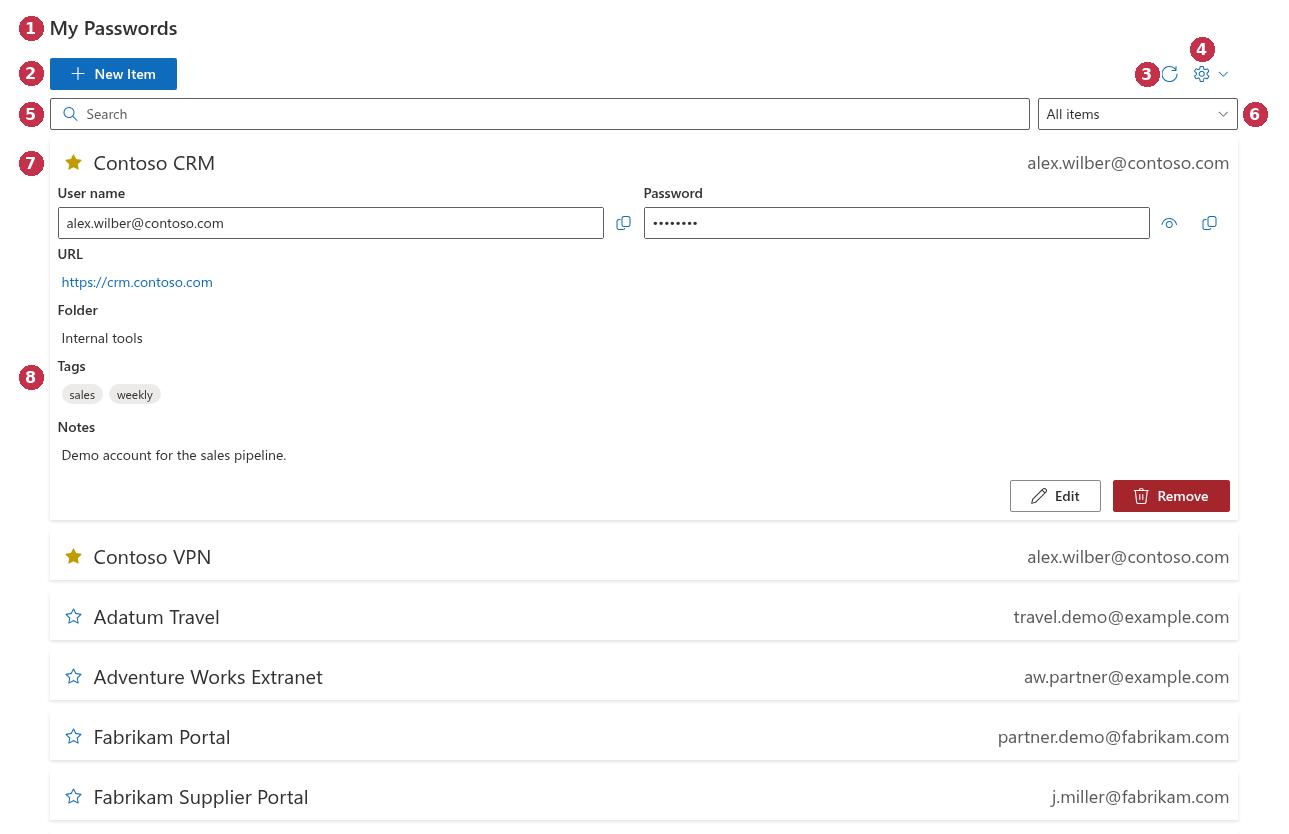
- New Item — adds an entry. Shown after you unlock the vault.
- Refresh (circular arrow) — reloads your vault from OneDrive. The only button shown while the vault is locked.
- Configure (gear) — opens the menu with Change PIN. Shown after you unlock the vault.
- Search and the filter drop-down — appear as soon as the vault has at least one entry.
- The list — one row per entry with a star, the name and the user name. Click a row to expand it.
Unlocking the vault
When you open the page, the vault is locked: instead of your entries, the web part shows the Enter PIN prompt with Enter your PIN to proceed and four boxes. Type the 4 digits — they are masked, and the PIN is checked as soon as you type the fourth one — and your list appears. A wrong PIN shows The PIN is incorrect and Attempts left.
You enter the PIN once, to open the vault. While it is unlocked, you can show and copy passwords, create, edit and delete entries, mark favorites and change the PIN without being asked for the PIN again.
The vault stays unlocked while you work with it and locks again after 5 minutes without a click or key press inside the web part, or when you reload the page. When it locks, the list is hidden, and an open dialog is closed without saving. See KB10451. Automatic Lock: When Password Vault Asks for the PIN Again.
Adding an entry
- Click New Item.
- Fill in Name, User name and Password — these three are required.
- Optionally fill in URL, choose or type a Folder, add Tags separated by commas and write Notes.
- Click Save. The message New item has been created. confirms it.
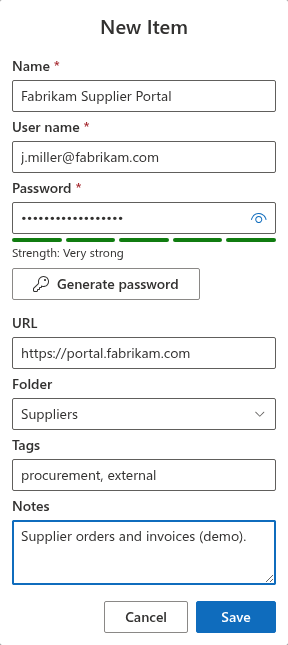
Details: KB10443. How to Add, Edit and Delete Entries in Password Vault.
Creating a strong password
In the New Item or Edit Properties dialog, click Generate password. A random password is put into the Password field at once, and a panel opens where you can set the Length (8 to 64 characters, 16 by default), choose Uppercase letters (A-Z), Lowercase letters (a-z), Digits (0-9) and Symbols (!@#$), and turn on Exclude similar characters (I, l, 1, O, 0). Every change creates a new password; Generate again creates another one with the same options. See KB10445. How to Generate a Strong Password with the Password Vault Generator.
Under the password, the Strength meter shows an estimate from Very weak to Very strong. It is a guide only and does not prevent saving a weak password. See KB10446. Password Strength Meter in Password Vault: What the Levels Mean.
📝 Note
Generating a password in Password Vault does not change the password in the system it belongs to. Change it there first (or at the same time), then save the same password in the entry.
Signing in with an entry
- Click the entry to expand it.
- Click the URL to open the website in a new tab.
- Use Copy to Clipboard next to User name and paste it into the sign-in form.
- Use Copy to Clipboard next to Password and paste it. Copied appears briefly to confirm.
To see the password on the screen instead, click the eye button next to it. See KB10444. How to View and Copy a Password or User Name in Password Vault.
💡 Tip
Copying is safer than showing the password: nobody nearby can read it from your screen.
Editing and deleting an entry
- Edit opens the Edit Properties dialog; change the fields and click Save. The message is Save successful.
- Remove asks Are you sure you want to delete this item?; click Remove to confirm. Deletion is permanent — there is no recycle bin in the web part.
Organizing entries
- Folders — give an entry a Folder by picking an existing one or typing a new name. Each entry is in one folder at most. Folder names are not case-sensitive: Finance and finance are the same folder. See KB10447. Organizing Entries with Folders and Tags in Password Vault.
- Tags — add any number of tags, separated by commas; they appear as chips on the entry.
- Favorites — click the star on an entry to keep it at the top of the list. See KB10448. Favorites in Password Vault: Keeping Frequently Used Entries at the Top.
Finding an entry
Type in the Search box to find entries by name, user name, URL, folder, notes or tags (passwords are not searched). Use the filter drop-down to show All items, Favorites, a folder (or No folder) or a tag. Search and filter work together; if nothing matches, the list shows Nothing found. See KB10449. Searching and Filtering Entries in Password Vault.
Changing your PIN
Click the Configure gear, select Change PIN, type the new 4-digit PIN and click Change PIN. The message The PIN has been changed. confirms it. See KB10450. How to Change Your PIN in Password Vault.
Using the vault in several places
Your vault is the same on every page and in Teams. If you changed it in another browser tab or on another device, click Refresh to see the changes; they also appear after your next save or when you unlock the vault. Your saves do not overwrite changes made elsewhere. If you changed your PIN on another device, the vault locks itself and asks for the new PIN.
If you enter a wrong PIN
A wrong PIN shows The PIN is incorrect and the number of attempts left. The count continues across devices and sessions until you enter the correct PIN. After 5 incorrect PINs in a row, the vault is blocked with You've entered an incorrect PIN too many times., and the only option is Reset. After you confirm Are you sure you want to reset your vault? This action will delete all your passwords stored in the vault., all entries are erased and you start again with a new PIN. See KB10461. Why Password Vault Is Blocked: "You've Entered an Incorrect PIN Too Many Times" and KB10460. I Forgot My PIN in Password Vault: What Are My Options?.
Good practices
- Choose a PIN that is hard to guess (not 1234 or a year), because a PIN has only 4 digits; protecting your work account and OneDrive matters just as much.
- Lock your computer when you leave it, even for a short time.
- Keep important credentials also in another place approved by your organization, in case you forget your PIN.
- Use Password Vault for your personal credentials; for shared or highly privileged accounts, follow your organization's policy.
💡 Tip
More answers are in KB10439. Password Vault: Frequently Asked Questions. To learn how your data is protected, see KB10452. How Password Vault Protects Your Data: Encryption, PIN and Storage.
Learn more about the product: https://vitextra.com/en/products/password-vault