Password Vault
Before you start
Password Vault is a personal password manager for SharePoint Online and Microsoft Teams. Every user has their own vault, stored as an encrypted file in the app folder of their own OneDrive. Before you can save the first entry, you protect the vault with a PIN — a code of exactly four digits that you enter to open (unlock) the vault. Once the vault is unlocked, you can see and copy passwords, add, edit and delete entries and change the PIN without entering it again.
You set the PIN once. The same vault, and therefore the same PIN, is used on every SharePoint page, site and Microsoft Teams tab or personal app where the Password Vault web part is placed.
To get to the PIN setup, you need:
- a page or a Teams tab with the Password Vault web part (see KB10438. How to Add the Password Vault Web Part to a Page and Create Your Vault);
- a OneDrive in your Microsoft 365 tenant — the vault file is created there;
- the Microsoft Graph permission Files.ReadWrite.AppFolder approved by an administrator (see KB10454. Microsoft Graph Permission Files.ReadWrite.AppFolder: Why Password Vault Needs It and How to Approve It and KB10360. How to Approve Microsoft Graph API Permissions for Vitextra Solutions in the SharePoint Admin Center).
If the web part shows Sorry, something went wrong. Please refresh the page and try again. instead of the setup screen, see KB10459. Why Password Vault Does Not Load: "Something Went Wrong" and Permission Errors.
When the Set up PIN screen appears
The web part shows the Set up PIN screen in two situations:
- The first time you open Password Vault. The web part does not find a vault file in your OneDrive, creates an empty one automatically and asks you for a PIN.
- After the vault has been reset. When a wrong PIN is entered five times in a row, the vault is blocked and can only be reset; the reset erases all entries and the PIN, and you start again from this screen (see KB10455. Incorrect PIN Attempts in Password Vault: What Happens After Five Failed Tries).
The screen contains:
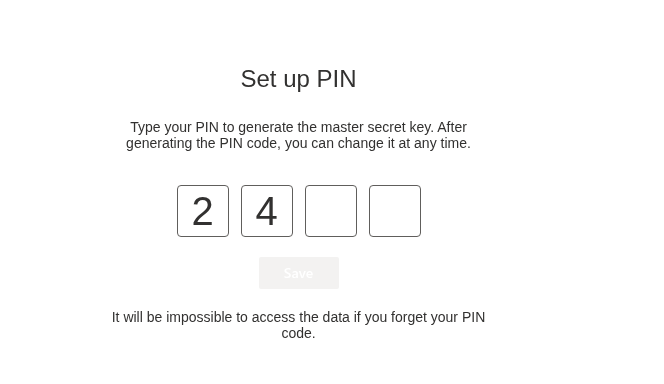
- the header Set up PIN and the text Type your PIN to generate the master secret key. After generating the PIN code, you can change it at any time.;
- four boxes, one for each digit;
- the Save button;
- the footnote It will be impossible to access the data if you forget your PIN code.
Choosing a PIN
The PIN consists of exactly four digits (0–9); letters and other characters cannot be typed in the boxes. Because it is short, choose it with care:
- Avoid obvious combinations such as
1234,0000,1111,2580or a year of birth — they are the first ones anyone would try. - Do not reuse a PIN you use elsewhere, for example for a bank card or a phone.
- Pick something you will remember. There is no "Forgot PIN" function (see below).
- Mind who is watching. The digits are shown in the boxes while you type them; they are not masked.
📝 Note
The PIN controls access to your entries inside the web part, and the five-attempt limit protects it against guessing. The vault file itself stays in your OneDrive and is protected by Microsoft 365 access control like any other file there. How the PIN, the encryption and the storage work together is explained in KB10452. How Password Vault Protects Your Data: Encryption, PIN and Storage.
Setting the PIN
- Open the page or the Teams tab with the Password Vault web part. The Set up PIN screen appears and the cursor is already in the first box.
- Type four digits. The cursor moves to the next box automatically.
- Check the digits and click Save. The button becomes available only after all four boxes are filled.
When you click Save, the web part derives the encryption key from your PIN in the browser. The key is not stored anywhere: it exists only in the memory of the open page while the vault is unlocked. Neither the PIN nor a hash of it is saved; the vault file keeps only a random salt and a check value that is used to verify the PIN later.
If the PIN cannot be saved, the Set up PIN screen stays open and shows the red error bar Sorry, something went wrong. Please refresh the page and try again.
What happens next
After the PIN has been saved:
- the vault is ready and unlocked: you can add entries right away without entering the PIN again;
- the list shows There are no items in this list. until you create the first entry with New Item (see KB10443. How to Add, Edit and Delete Entries in Password Vault);
- the vault locks again after 5 minutes without any click or key press in the web part, and whenever the page is reloaded. The list of entries is then hidden, and the web part shows the Enter PIN prompt in its place; you enter the PIN once to open the vault again (see KB10451. Automatic Lock: When Password Vault Asks for the PIN Again);
- a wrong PIN shows The PIN is incorrect and the number of attempts left. After five wrong PINs in a row the vault is blocked and can only be reset, which deletes all entries.

You can change the PIN at any time with the gear button Configure → Change PIN; your entries are kept. The steps are in KB10450. How to Change Your PIN in Password Vault.
If you forget your PIN
❗ Important
A forgotten PIN cannot be recovered or reset — not by you, not by your administrator and not by Vitextra, which stores no data from your vault. The only way to use Password Vault again is to reset the vault, and the reset deletes all your entries. Keep the PIN somewhere safe, and keep important credentials also in another place approved by your organization.
The options you have are described in KB10460. I Forgot My PIN in Password Vault: What Are My Options?.
💡 Tip
New to Password Vault? KB10441. Password Vault: A Quick Guide for End Users walks you through everyday use, and KB10455. Incorrect PIN Attempts in Password Vault: What Happens After Five Failed Tries explains how the attempt counter works across devices.