Password Vault
Before you start
Each entry in Password Vault holds one set of credentials: a name, a user name, a password and, optionally, a web address, a folder, tags and notes. Entries are saved to your personal, encrypted vault file in your OneDrive, so they appear on every page and Teams tab where the Password Vault web part is placed — and only for you. Nothing is stored in SharePoint lists or on Vitextra servers (see KB10453. Where Password Vault Stores Your Passwords: The OneDrive App Folder and KB10363. Where Vitextra Products Store Your Data: Privacy, Data Residency and GDPR).
Creating, editing and deleting entries require an unlocked vault. While the vault is locked, the web part shows the Enter PIN prompt instead of the list, and the New Item button is not displayed; type your four digits once, and all actions are available without asking for the PIN again. If you have not created a PIN yet, see KB10442. How to Set Up Your PIN in Password Vault.
Adding an entry
- Click New Item at the top of the web part.
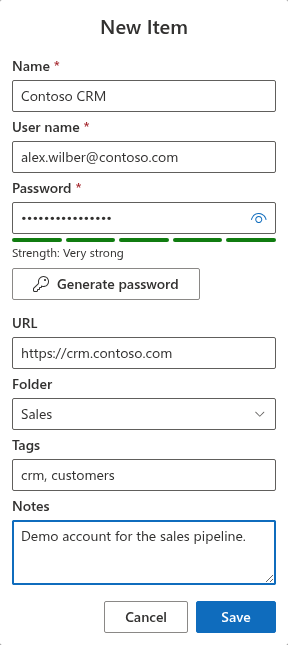
- In the New Item dialog, fill in Name, User name and Password — these three fields are required.
- Optionally fill in URL, Folder, Tags and Notes (see the field reference below).
- Click Save.
The dialog closes, the message New item has been created. appears and the entry is added to the list. The list is sorted by name; entries marked as favorites are always shown first.
If you click Save while a required field is empty, the dialog stays open and shows A name must be specified under Name or This field is required under User name or Password. Leading and trailing spaces in Name and User name are removed when the entry is saved, and a value of spaces only counts as empty. The password is saved exactly as typed. Cancel closes the dialog without saving anything. The dialog can be moved on the page by dragging it.
Field reference
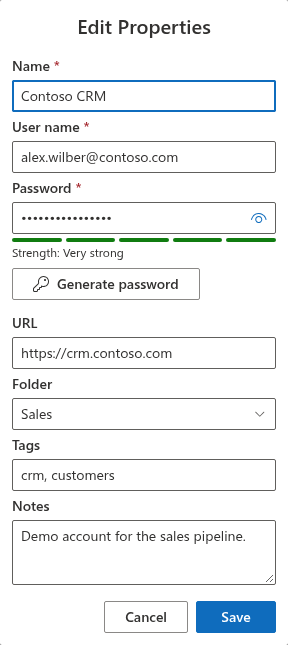
The New Item and Edit Properties dialogs contain the same fields, in this order:
| Field | Required | Maximum length | What to enter |
|---|---|---|---|
| Name | Yes | 200 characters | A name you will recognize the entry by, for example Contoso CRM. The placeholder reads Input title here.... The list is sorted by this field and it is searched. |
| User name | Yes | 200 characters | The login for the account — a user name or an e-mail address (placeholder someone@example.com). |
| Password | Yes | 100 characters | The password. It is masked while you type; the eye button at the end of the field shows it. |
| Strength | — | — | Not a field: a five-segment meter with the label Strength: … that appears under the password as soon as it is not empty. See KB10446. Password Strength Meter in Password Vault: What the Levels Mean. |
| Generate password | — | — | A button that opens the password generator and puts a random password into the Password field. See KB10445. How to Generate a Strong Password with the Password Vault Generator. |
| URL | No | 500 characters | The address of the site or service (placeholder https://). In the expanded entry it is shown as a link that opens in a new tab. |
| Folder | No | — | Select an existing folder from the list or type the name of a new one (Select or type a folder name). Folder names are not case-sensitive: if you type the name of an existing folder in a different letter case, the entry is saved in the existing folder. One folder per entry. |
| Tags | No | 200 characters | Any number of keywords, separated by commas or semicolons (Separate tags with commas). Spaces around tags are trimmed, empty tags and duplicates (regardless of letter case) are removed. |
| Notes | No | 500 characters | Free text on several lines; line breaks are kept when the entry is shown. |
The fields do not accept more characters than the maximum length. Folders and tags are covered in detail in KB10447. Organizing Entries with Folders and Tags in Password Vault.
❗ Important
While the vault is locked, the web part shows no entries at all. Once it is unlocked, Name, User name, URL, Folder, Tags and Notes are shown in the list or in the expanded entry to anyone who can see your screen; only the password stays masked until you show it. Do not put secrets such as recovery codes, security answers or a second password in Notes.
Editing an entry
- Click the entry in the list to expand it.
- Click Edit at the bottom of the expanded entry.
- The Edit Properties dialog opens with the current values of all fields, including the password. Change what you need.
- Click Save.
The dialog closes and the message Save successful. appears. The entry keeps its favorite mark and its creation date; its modification date is updated.
📝 Note
The vault locks automatically after 5 minutes without a click or a key press in the web part. If this happens while the New Item or Edit Properties dialog or the Confirmation dialog for removing an entry is open, the dialog closes without saving: changes you have not saved are lost and can no longer be saved after the lock. See KB10451. Automatic Lock: When Password Vault Asks for the PIN Again.
When you change a password in the vault, remember to change it on the site or service as well — Password Vault only stores credentials, it does not change them anywhere else.
Deleting an entry
- Click the entry in the list to expand it.
- Click Remove.
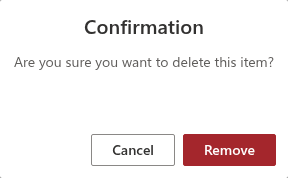
- In the Confirmation dialog — Are you sure you want to delete this item? — click Remove to delete the entry, or Cancel to keep it.
The entry disappears from the list and the message The item has been deleted. appears.
❗ Important
Deletion is permanent. Password Vault has no recycle bin and no undo: once you confirm, the entry is removed from your vault file. If you may still need the credentials, copy them somewhere safe first.
Status messages
After each change, a message bar appears under the buttons at the top of the web part. It disappears after 3 seconds; you can also close it with its close button.
| Message | Meaning |
|---|---|
| New item has been created. | The new entry has been saved to your vault. |
| Save successful. | The changes to the entry have been saved. |
| The item has been deleted. | The entry has been removed from your vault. |
| Sorry, something went wrong. Please refresh the page and try again. (red) | The vault file could not be saved in your OneDrive. When creating or editing, the dialog stays open with your values; click Save again or reload the page. If the error persists, see KB10459. Why Password Vault Does Not Load: "Something Went Wrong" and Permission Errors. |
Using the vault on more than one device
Each save is sent together with the version of the vault file it is based on. If your vault is open in two places at once — for example on a SharePoint page in your laptop browser and in the Teams app on another computer — and the vault has been saved in the other place in the meantime, the web part loads the latest file and applies your change to it. Changes made on the other device are therefore kept, not overwritten. They are not shown in the open page right away, though: they appear after your next save or unlock, when you click Refresh (the circular arrow button at the top right of the web part) or when you reload the page.
📝 Note
If your PIN has been changed, or the vault has been reset, on another device, the open page locks itself as soon as it notices this (when you click Refresh, save or unlock) and asks for the new PIN. The old PIN no longer works there.

💡 Tip
To find entries quickly as your vault grows, mark the ones you use often as favorites and use search and the filter — see KB10448. Favorites in Password Vault: Keeping Frequently Used Entries at the Top and KB10449. Searching and Filtering Entries in Password Vault. To use a stored password, see KB10444. How to View and Copy a Password or User Name in Password Vault.