Password Vault
Introduction
The everyday use of Password Vault is simple: find the entry, copy the user name, copy the password, paste them into the sign-in form of the site or service. This article explains each step, and when you need your PIN.
The list is shown only while the vault is unlocked. Each row in the list shows the star button for favorites, the entry name and, below it, the user name. To find an entry in a long list, use the Search box and the filter above the list (see KB10449. Searching and Filtering Entries in Password Vault).
Expanding an entry
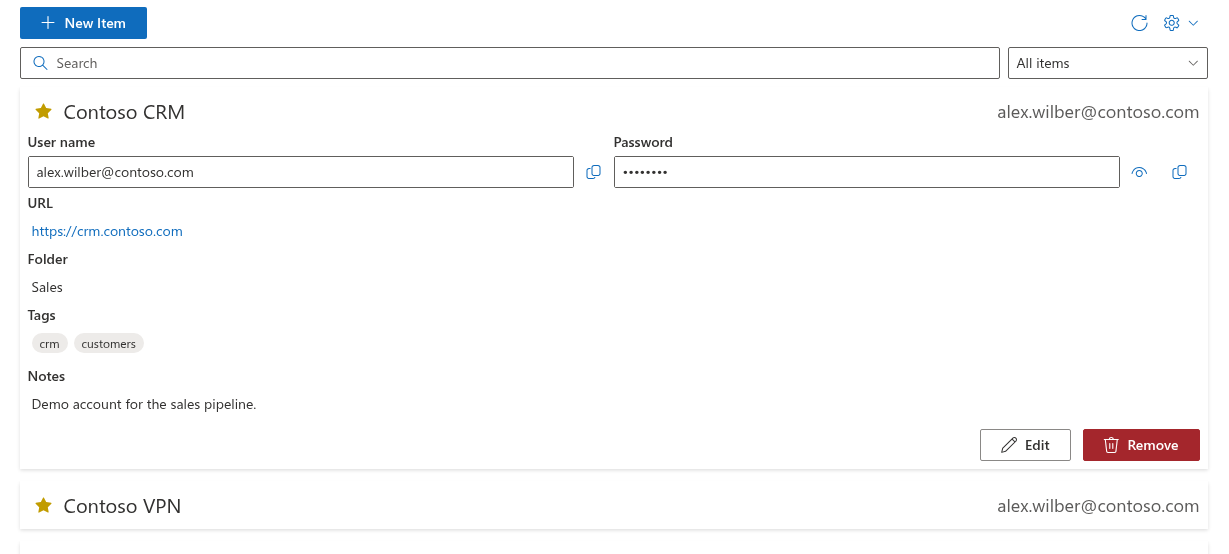
Click the name of an entry to expand it, or move to it with the Tab key and press Enter or Space. Click it again to collapse it. Several entries can be expanded at the same time.
The expanded entry shows:
- User name — a read-only field with the Copy to Clipboard button;
- Password — a read-only field with the password masked as
••••••••, the eye button and the Copy to Clipboard button; - URL — a link to the site or service, if the entry has one;
- Folder, Tags (as chips) and Notes — each one only when it is filled in;
- the Edit and Remove buttons (see KB10443. How to Add, Edit and Delete Entries in Password Vault).
The mask always has eight dots, whatever the length of the real password.
What needs the PIN
| Action | While the vault is locked | After unlocking |
|---|---|---|
| Seeing the list, expanding an entry and reading its name, user name, URL, folder, tags and notes | No | Yes |
| Copying the user name | No | Yes |
| Opening the URL link | No | Yes |
| Showing the password (eye button) | No | Yes |
| Copying the password | No | Yes |
| Editing or removing the entry | No | Yes |
The PIN is needed only once, to open the vault. While the vault is locked — after the page has loaded, after the automatic lock or after a reload — the web part shows no entries at all, not even their names. In place of the list it shows the Enter PIN prompt with the text Enter your PIN to proceed and four boxes; only the Refresh button is shown above it. The digits are masked while you type them. The PIN is checked as soon as the fourth digit is entered, and after a correct PIN the list appears together with the New Item and Configure buttons. From then on, every action in the table above works directly, without asking for the PIN again.
A wrong PIN shows The PIN is incorrect and the number of attempts left (Attempts left). This line is shown on the prompt whenever earlier wrong attempts exist, also after a reload or on another device. After five wrong PINs in a row the vault is blocked and can only be reset, which deletes all entries — see KB10455. Incorrect PIN Attempts in Password Vault: What Happens After Five Failed Tries.
Once you have entered the PIN, the vault stays unlocked while you work; when it locks, the list is hidden again and the Enter PIN prompt is shown. It locks again after 5 minutes without a click or a key press in the web part, and when the page is reloaded (see KB10451. Automatic Lock: When Password Vault Asks for the PIN Again).
Showing the password
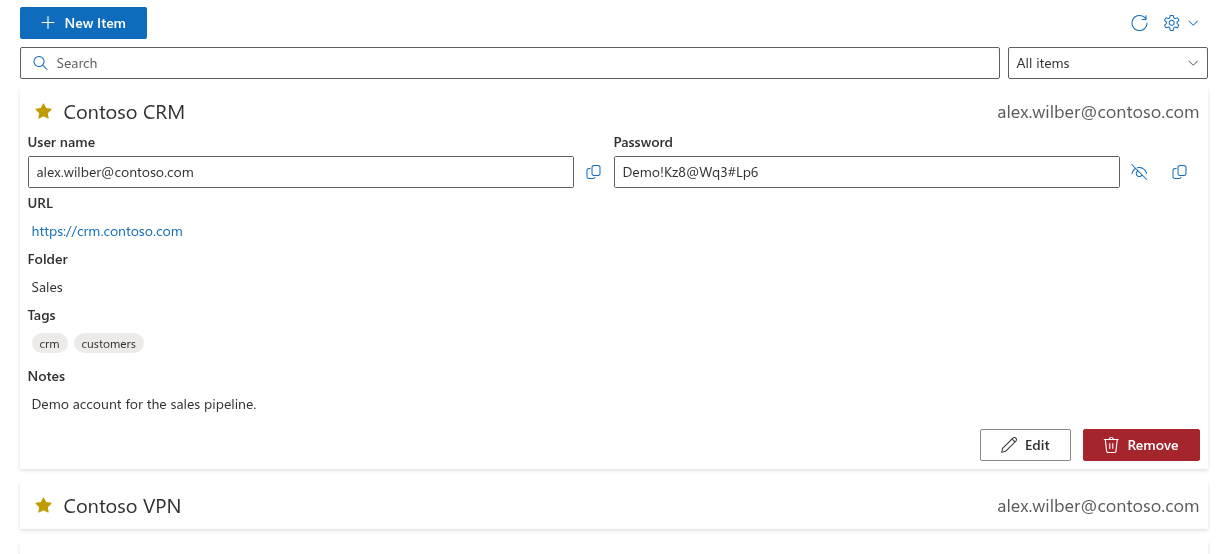
- Expand the entry.
- Click the eye button next to the Password field.
- The password is displayed as plain text and the eye button changes to a crossed-out eye.
Click the button again to hide the password. A shown password is also hidden automatically when the vault locks.
Copying the user name or the password
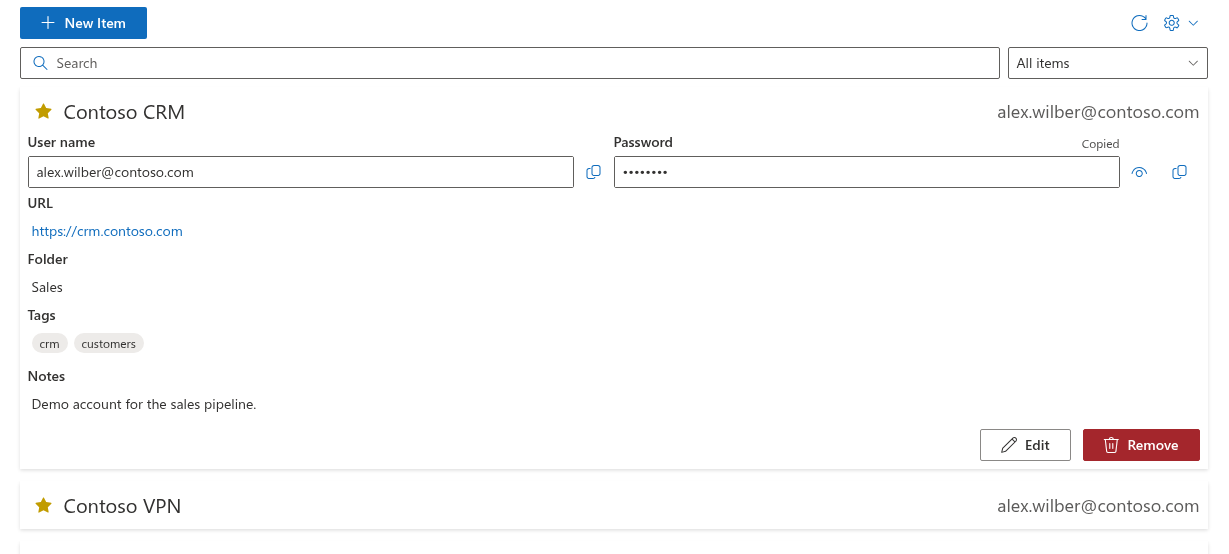
- User name: click Copy to Clipboard next to the User name field.
- Password: click Copy to Clipboard next to the Password field. You do not need to show the password first.
After copying, the label Copied appears next to the field name for 2 seconds. Then paste the value into the sign-in form as usual (Ctrl+V on Windows, Cmd+V on macOS).
❗ Important
Password Vault does not clear the clipboard after copying: the password stays there until you copy something else. On a shared or public computer, copy some other text after signing in. If clipboard history is turned on in Windows (Windows + V), the copied password is also kept in that history.
Opening the URL
If the entry has a URL, it is shown as a link in the expanded entry. Clicking it opens the address in a new browser tab, so the vault stays open in the original tab and you can come back to copy the password.
- An address without a scheme, such as
crm.contoso.com, is opened ashttps://crm.contoso.com. The link text shows the value as you entered it. - Only web addresses (
http://,https://) and e-mail links (mailto:) are shown as links. A value with any other scheme is kept in the entry and can be seen in the Edit Properties dialog, but it is not displayed in the expanded entry.
💡 Tip
A practical routine: expand the entry, click the URL link, copy the user name and paste it into the sign-in page, then come back and copy the password. If you sign in to the same accounts every day, mark them as favorites so they stay at the top of the list — see KB10448. Favorites in Password Vault: Keeping Frequently Used Entries at the Top.
📝 Note
While the vault is unlocked, the name, user name, URL, folder, tags and notes of your entries are visible to anyone who can see your screen; when it locks, the list is hidden. Lock your computer screen when you leave it, and do not keep secrets in Notes. Who can see what is explained in KB10456. Who Can See Your Passwords in Password Vault.