Password Vault
Overview
Password Vault asks for your PIN once, to open the vault. While the vault is locked, the web part shows none of your entries — only a PIN prompt. Once you have entered the PIN, the list is shown and every action works directly; the vault stays unlocked while you work and locks again automatically after five minutes without activity. This article explains what the PIN is needed for, when the vault locks and what happens at that moment.
Locked and unlocked
The web part is always in one of two states:
- Locked — the state after every page load. The web part shows no entries, not even their names: instead of the list it shows the Enter PIN prompt. In the toolbar, only the Refresh button is available.
- Unlocked — the state after a correct PIN. The list, the Search box and the filter, New Item and the Configure gear are shown, and every action runs immediately, without asking for the PIN again.
The lock state belongs to the open page: unlocking the vault in one browser tab, on one device or in Microsoft Teams does not unlock it anywhere else.
The Enter PIN prompt
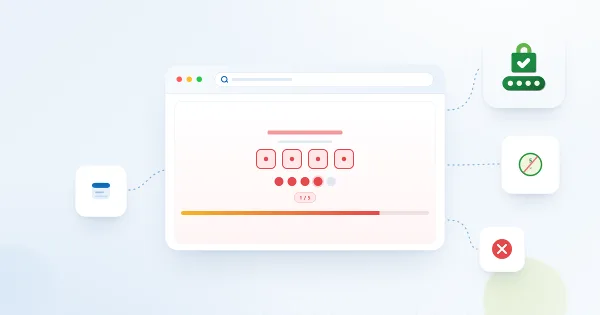
While the vault is locked, the web part shows the Enter PIN prompt in place of the list, with the text Enter your PIN to proceed and four digit boxes.
- Type your 4-digit PIN. The digits are masked as you type. The PIN is checked automatically as soon as the fourth digit is typed — there is no OK button.
- If the PIN is correct, the prompt disappears and your entries are shown.
- If the PIN is wrong, the prompt shows The PIN is incorrect and Attempts left: N, and you can try again. The Attempts left line is also shown whenever earlier incorrect PINs have been counted — for example after a reload or on another device.

❗ Important
Incorrect PINs are counted in your vault file, so the count is shared by all your pages, devices and Teams tabs, and it does not reset with time — only a correct PIN resets it. After five incorrect PINs in a row, the vault is blocked and can only be reset, which deletes all entries. See KB10455. Incorrect PIN Attempts in Password Vault: What Happens After Five Failed Tries.
What the PIN is needed for
| Action | Locked | Unlocked |
|---|---|---|
| Viewing the list: names and user names | Hidden — the Enter PIN prompt is shown instead | Shown |
| Expanding an entry to see User name, URL, Folder, Tags and Notes | Not available | Available |
| Showing a password (eye button), Copy to Clipboard next to User name or Password | Not available | Available directly |
| Marking or unmarking a favorite (star), Search and the filter drop-down | Not available | Available |
| New Item, Edit, Remove | Not available | Available directly |
| Configure → Change PIN | Not available (the gear is hidden) | Available directly |
| Refresh | Available | Available |
In short: the PIN is needed once, to open the vault. After that, no action asks for it again until the vault locks.
📝 Note
While the vault is unlocked, names and user names are shown in the list, and URL, folder, tags and notes in plain text as soon as an entry is expanded. Anyone who can see your screen at that time can read them. Do not put secrets such as security answers or recovery codes in Notes. How each field is protected is explained in KB10452. How Password Vault Protects Your Data: Encryption, PIN and Storage.
When the vault locks again
The vault locks again in these cases:
- Five minutes without activity. Activity means a mouse click (or tap) or a key press inside the web part, including its dialogs and the Change PIN screen. Every click or key press inside the web part restarts the five-minute period. Moving the mouse, scrolling the page, or working elsewhere on the page or in another application does not count.
- Reloading the page. The unlocked state is kept only in the open page; after a reload, or when you open the page again later, the vault starts locked.
- Closing the page, the browser tab or the Teams tab.
The Refresh button does not lock the vault: it reloads your entries from OneDrive and keeps the current state — unless your PIN was changed or the vault was reset on another device in the meantime; then the page locks and asks for the new PIN.
There is no lock button. To lock the vault immediately, reload the page or close it.
What happens when the vault locks
When the five minutes have passed, the web part:
- hides the list, the Search box and the filter and shows the Enter PIN prompt instead;
- hides every password that was shown;
- removes the encryption key from the memory of the page;
- closes every open dialog — New Item, Edit Properties and the Remove confirmation — without saving; a change can no longer be saved after the lock;
- closes the Change PIN screen; the PIN stays unchanged.
After you enter the PIN again, the list returns with the search text and the filter you used; expanded entries are collapsed.
❗ Important
A password you copied stays in the clipboard after the vault locks — Password Vault does not clear the clipboard. Paste it where you need it and then copy something else, especially on a shared computer.
Tips for working safely
- Lock your computer (for example, Windows logo key + L) whenever you leave it. The automatic lock hides the vault only after five minutes; until then, everything that is shown stays visible on an open page.
- Close or reload the page when you have finished, instead of waiting for the automatic lock.
- Save an edit before you step away. A New Item or Edit Properties dialog left open for five minutes without activity is closed and its changes are lost.
- Type the PIN carefully. The digits are masked on the Enter PIN prompt, and each mistake counts towards the limit of five.
- Keep your PIN somewhere safe. A forgotten PIN cannot be recovered; see KB10460. I Forgot My PIN in Password Vault: What Are My Options?.
💡 Tip
To change your PIN, see KB10450. How to Change Your PIN in Password Vault. Showing and copying passwords is described step by step in KB10444. How to View and Copy a Password or User Name in Password Vault.