Password Vault
Symptom
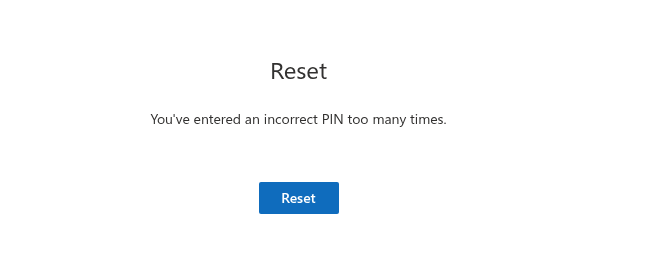
Instead of your entries, Password Vault shows the Reset screen with the text You've entered an incorrect PIN too many times. and a single Reset button. There is nothing else on the screen: the list of entries, New Item, Refresh and Configure are not available. Reloading the page, opening another page with the web part or opening the Passwords app in Microsoft Teams shows the same screen.
Cause
The wrong PIN was entered five times in a row. Password Vault counts wrong PINs and blocks the vault when the fifth one is entered. The block protects the entries against someone trying PINs one after another.
What you need to know about the counter:
- It is stored in the vault file in your OneDrive, not in the browser. Wrong PINs entered on different pages, sites, computers and in Microsoft Teams all add up, and the block applies everywhere, because all of them use the same vault.
- It does not expire. Waiting, signing out, clearing the browser cache or reloading the page does not unblock the vault.
- Only a correct PIN resets it to zero — and only while the vault is not yet blocked. Before the block, the Enter PIN prompt shows The PIN is incorrect after a wrong PIN and Attempts left whenever earlier wrong PINs have been entered.
- It is shared reliably. Every wrong PIN is added to the latest counter in the vault file, so attempts made at the same time on different devices are not lost.
Details of the mechanism: KB10455. Incorrect PIN Attempts in Password Vault: What Happens After Five Failed Tries.
📝 Note
A page that was already open on another device before the vault was blocked does not show the Reset screen until it reloads the vault — with Refresh or by reloading the page. The block itself is stored in the vault file and applies as soon as the vault is loaded again.
What the Reset button does
Reset empties your vault file: it deletes all entries and the PIN. Before that, Password Vault asks you to confirm in the Confirmation dialog: Are you sure you want to reset your vault? This action will delete all your passwords stored in the vault. After you confirm, the Set up PIN screen appears and you start with an empty vault. The empty vault is the same one on every page and in Microsoft Teams.
If in the meantime the vault has been unlocked with the correct PIN on another device, the block is lifted: the reset is not carried out, and the vault is shown locked with the Enter PIN prompt as usual.
❗ Important
A reset cannot be undone in Password Vault, and nobody can unblock the vault without it — not your administrator and not Vitextra, which stores nothing from your vault. There is no other way out of the Reset screen. If you need the stored credentials, recover each account through its own password reset function after the reset.
How to reset the vault and start again
- On the Reset screen, click Reset.
- In the Confirmation dialog, click Reset to delete all entries, or Cancel to go back to the Reset screen without changing anything. The button is unavailable for a moment while the vault file is saved.
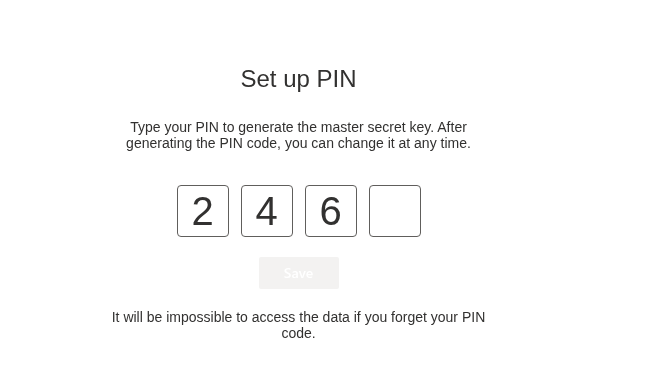
- The Set up PIN screen appears with the text Type your PIN to generate the master secret key. After generating the PIN code, you can change it at any time.
- Type a new 4-digit PIN in the four boxes. Choose a PIN that you will remember.
- Click Save. The vault is created and unlocked, and the list shows There are no items in this list.
- Add your entries again with New Item. For accounts whose passwords you no longer know, use the password reset of the service first and store the new password; the built-in generator helps you create a strong one, see KB10445. How to Generate a Strong Password with the Password Vault Generator.
If the vault file cannot be saved — usually because of a network interruption — the Reset screen stays open and shows the red message Sorry, something went wrong. Please refresh the page and try again. Check the connection and click Reset again. If the error persists, see KB10459. Why Password Vault Does Not Load: "Something Went Wrong" and Permission Errors.
💡 Tip
More about creating the PIN: KB10442. How to Set Up Your PIN in Password Vault. If you are not yet blocked but cannot remember your PIN, read KB10460. I Forgot My PIN in Password Vault: What Are My Options? before you use up the remaining attempts — it explains what you can do before the reset.
How to avoid being blocked again
- Watch Attempts left. After a wrong PIN, stop and think before you type the next one. The PIN is checked as soon as the fourth digit is typed; you can leave the Enter PIN prompt at any time before that without using up an attempt.
- Enter the correct PIN as soon as you remember it. A correct PIN resets the counter to zero, so occasional typos do not accumulate.
- Remember that all places count together. Wrong PINs typed in Microsoft Teams, or on another computer are added to the same counter.
- Don't let others try your PIN. Lock your computer when you leave it, so nobody can use up the attempts in your open session.
- Note your PIN in a safe place that your organization allows, and keep important credentials in another approved place as well.
- Change the PIN if it is hard to remember — Configure → Change PIN, see KB10450. How to Change Your PIN in Password Vault.