Employee Directory
Introduction
The Vitextra Employee Directory does not store any employee data of its own. Every name, title, phone number and photo it shows is read at run time from Microsoft 365 — from Microsoft Entra ID through Microsoft Graph, or from the SharePoint user profiles through SharePoint search. The directory is therefore exactly as complete and accurate as these profiles: an empty department cannot be filtered, a missing manager leaves My team empty, and a missing last name keeps a person out of the A–Z navigation.
This article is a reference for the people who maintain the directory data — Microsoft 365 administrators, identity administrators and HR teams. It lists which attribute drives which feature, where each attribute is edited, how long changes take to reach the directory, and what to check before the directory goes live.
💡 Tip
If you have not yet decided which directory web part to use, start with KB10310. Employee Directory vs. Employee Directory (Entra ID): Which Web Part to Choose. The data source you choose determines which of the two stores described below you need to prepare.
Where each web part reads its data
| Web part and data source | Where the data comes from | When changes become visible |
|---|---|---|
| Employee Directory (Entra ID) | Microsoft Entra ID, through Microsoft Graph. The whole user list is loaded and kept in the browser. | On the next data refresh: the saved copy is renewed in the background once it is older than 24 hours, or at once with Refresh. |
| Employee Directory with the Entra ID (Azure AD) data source | Microsoft Entra ID, through Microsoft Graph, page by page for every search. | Immediately after the change is saved in Entra ID. |
| Employee Directory with the User profiles data source | The SharePoint user profiles, through SharePoint people search. | After the profile is updated in SharePoint and re-crawled by search. |
| New Employees | Microsoft Entra ID, through Microsoft Graph. | Immediately after the change is saved in Entra ID. |
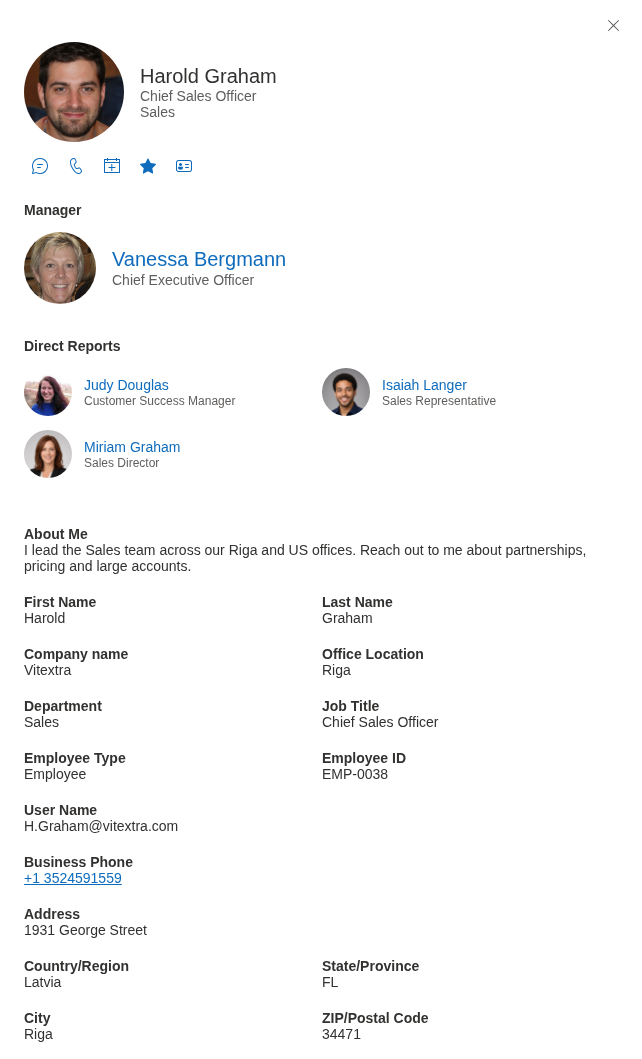
Some features use Microsoft Graph in every web part, whatever the data source: the photo, the presence status, the Manager and Direct Reports sections of the details pane, the My team quick filter and the Availability section with local time and working hours. With the User profiles source, the web part connects a search result to the Entra ID account through the AADObjectID managed property, the Entra ID object ID stored in the profile.
Attribute reference
The table lists the Microsoft Entra ID user properties that Employee Directory reads and what each of them drives. The column names are those shown in the Columns configuration of the web part.
| Entra ID property | Column | What it drives |
|---|---|---|
displayName | Full Name | The card header and the name in the details pane; the default sort order. |
givenName, surname | First Name, Last Name | The A–Z navigation and the Last name (first letter) grouping use the last name. With the Entra ID (Azure AD) source of the Employee Directory web part, the search box matches the beginning of the first or last name, not of the display name. |
jobTitle | Job Title | The second line of the card; a searchable column; the Exclude Employees with blank Job Title option. |
department | Department | The My department quick filter, refiners, Group by, the Exclude Employees with blank Department and Show only users with non-empty department options, search. |
companyName | Company name | A column and a field of the details pane. |
officeLocation | Office Location | A column and a field of the details pane. |
streetAddress, city, state, postalCode, country | Address, City, State/Province, ZIP/Postal Code, Country/Region | Columns and fields of the details pane. City, state and country are also matched by the search of the Entra ID (Azure AD) source. |
businessPhones, mobilePhone | Business Phone, Cell phone | Phone numbers with click-to-call links. |
mail | The email action and link. A person without an email address has no Availability section, local time or working hours. | |
userPrincipalName | User Name | The sign-in name; also the Teams address for chat and calls when imAddresses is empty. |
imAddresses | — | The first value is the Teams address used by the chat and call actions. |
employeeId | Employee ID | A column; matched by the search of the Entra ID (Azure AD) source. |
employeeType | Employee Type | A column and a field of the details pane. |
manager | Manager | The My team quick filter, the Manager and Direct Reports sections of the details pane and the Manager column. |
| Profile photo | Image | The photo on the list, cards and details pane. |
aboutMe, skills, interests, responsibilities | About Me, Skills, Interests, Responsibilities | The About Me, Skills and Interests sections of the details pane; skills search. |
assignedLicenses | — | The Exclude Unlicensed Employees option. |
accountEnabled | — | The Exclude blocked users option and the automatic exclusion of blocked accounts described below. |
userType | — | Guests (Guest) are always excluded from the directory. |
createdDateTime | — | The New Employees web part. |
onPremisesExtensionAttributes, directory extensions | Custom Columns | Custom columns — see Custom attributes. |
📝 Note
Microsoft Graph returns aboutMe, skills, interests and responsibilities only for a single user, not in lists. With the Entra ID–based sources, the details pane therefore loads them when it opens, while the Skills, Interests, Responsibilities and About Me columns in the list stay empty (except for the skills of people found by skills search). The Manager column is filled only in the Employee Directory (Entra ID) web part. The Entra ID properties pastProjects, schools, otherMails and the hire date are not shown by Employee Directory.
The User profiles data source
With the User profiles source, the Employee Directory web part reads SharePoint search managed properties instead of Entra ID properties:
| Column | Managed property | Remarks |
|---|---|---|
| Full Name | Title | PreferredName is used when Title is empty. |
| First Name, Last Name | FirstName, LastName | |
| Job Title, Department | JobTitle, Department | Refiners need a refinable managed property. |
| Company name | OrgNames | |
| Location | OfficeNumber | The Location column is filled only by this data source. |
| Office Location | BaseOfficeLocation | |
| Business Phone, Cell phone, Home Phone | WorkPhone, MobilePhone, HomePhone | Home Phone is available only with this data source. |
| Email, User Name | WorkEmail, UserName | |
| About Me | Description | |
| Skills, Interests, Responsibilities | Skills, Interests, Responsibilities | Multi-value properties, separated by semicolons. |
| Image | PictureUrl | Used only when the photo cannot be loaded from Microsoft Graph. |
| — | AADObjectID | Connects the profile to the Entra ID account (photo, presence, manager, direct reports, favorites). |
The address fields, Employee ID, Employee Type and Manager have no managed property in this data source and stay empty. To show such data, add the profile property as a custom column, as described in KB10049. How to Add Custom User Profile Attributes to the Employee Directory Web Part.
Names and the A–Z navigation
Display name is what people see first, so it should follow one convention across the tenant — for example First Last — without job titles, department codes or "(External)" suffixes in the name itself.
First name and last name matter more than they may seem:
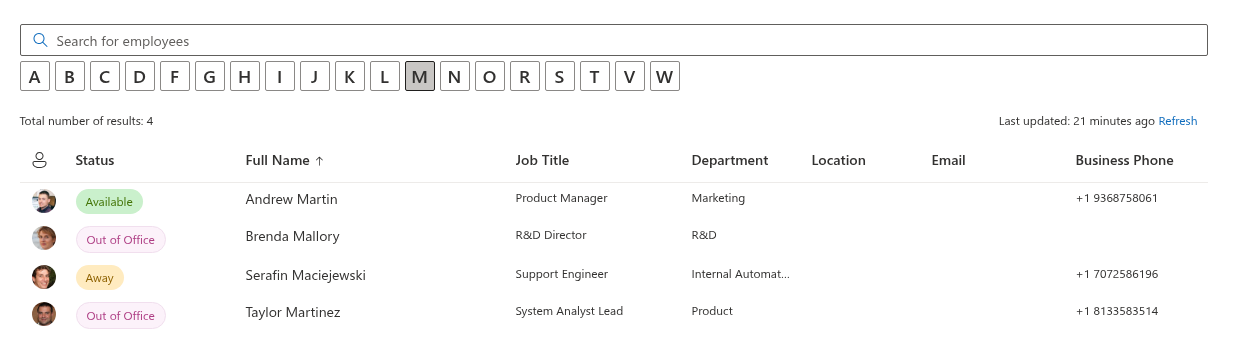
- The A–Z navigation of the Employee Directory (Entra ID) web part is built from the first letter of the last name. A person without a last name is not listed under any letter, and disappears from the list as soon as a letter is selected.
- The Last name (first letter) option of Group by uses the last name too; when it is empty, the first letter of the display name is used instead.
- With the Entra ID (Azure AD) source of the Employee Directory web part, the search box matches the beginning of the first name, last name, email, job title, department, employee ID, city, state or country. An account that has only a display name cannot be found by typing the name.
Job title, department and company
Job title and department are the most visible fields after the name: they are the second and third lines of the cards and the details pane, and they are searchable by default.
Department drives several features at once, so its values must be consistent. Filters and refiners compare values as text: Sales, Sales Department and sales EMEA are three different departments.
- My department shows the people whose department has the same value as the department in the signed-in user's own Entra ID profile (letter case is ignored). If the user's own department is empty, the tab is not shown at all. With the User profiles source, the user's department still comes from Entra ID, while colleagues are matched by the
Departmentproperty of their SharePoint profiles — the two must be in sync. - Refiners list the distinct department values. Misspelled values appear as separate entries. See KB10313. How to Set Up the Refinement Panel in Employee Directory.
- Exclude Employees with blank Department (Employee Directory (Entra ID)) and Show only users with non-empty department (Employee Directory, Entra ID (Azure AD) source, on by default) hide accounts without a department. This is a simple way to keep shared mailboxes, rooms and service accounts out of the directory — provided every real employee has a department.
Company name is useful in tenants that contain several legal entities or subsidiaries; it is shown as a column, in the details pane and can be used for Group by.
Manager and the reporting line
The manager attribute is read from Microsoft Entra ID in every web part and drives:
- the My team quick filter — the signed-in user's manager, the people who report to the same manager and the user's own direct reports (blocked accounts are left out). Without a manager and without direct reports, the tab is hidden;
- the Manager and Direct Reports sections of the details pane. Direct reports with a blocked account are always omitted; when Exclude Unlicensed Employees or the department exclusion is on, they are applied to this list too;
- the Manager column and grouping by manager in the Employee Directory (Entra ID) web part. The web part loads the managers only when the Manager column is shown in the list or on the cards.
Every employee except the head of the organization should have a manager. For quick filters in detail, see KB10214. Employee Directory Quick Filters: My Department, My Team, People I Work With, Favorites.
Contact details, location and photo
- Phones. The business phone and the mobile phone come from
businessPhonesandmobilePhone; all business phones are shown, separated by commas. The Home Phone column is filled only with the User profiles source. - Email. For licensed Exchange Online users,
mailis set automatically from the primary SMTP address. It is required for the email action and for the Availability section. - Teams chat and calls. The actions use the first
imAddressesvalue; if it is empty, the user principal name, and then the email address. - Location. Fill in Office location and, for organizations with several sites, City and Country/Region: they are columns, card fields, refiners and Group by values. Note that the Location column has a value only with the User profiles source (managed property
OfficeNumber); with the Entra ID–based sources, use the Office Location column. - Photo. Photos are loaded from Microsoft Graph for every data source. Users can upload their own photo in their Microsoft 365 profile or in Teams, administrators can change it in the Microsoft 365 admin center. If Graph returns no photo, the web part falls back to the SharePoint profile picture.
About me, skills and interests
About Me, Skills and Interests are shown as sections of the details pane; each can be turned on or off in the Panel group of the web part settings. Skills also powers skills search ("who knows Power BI?"). These fields are stored in the SharePoint user profile (for example, skills in the SPS-Skills property) and are exposed by Microsoft Graph as aboutMe, skills, interests and responsibilities.
They are usually filled in by the employees themselves:
- on their SharePoint profile page, if the organization allows users to edit their profile;
- with the Employee Details web part, which lets users edit their own About Me, interests, responsibilities, past projects and schools — see KB10283. Employee Details: Filling In About Me, Interests, Responsibilities, Past Projects and Schools.
Administrators can edit these properties in the SharePoint admin center (More features › User profiles › Manage User Profiles) or in bulk with PnP PowerShell. For skills in detail, see KB10316. How to Search Employees by Skills in Employee Directory.
Account status, licenses and guests
Employee Directory decides who counts as an employee from three Entra ID attributes:
| Rule | Attribute | Where it applies |
|---|---|---|
| Guests are never shown | userType is Guest | Always, in all web parts. With the User profiles source, guest profiles are excluded by search. |
| Blocked accounts are hidden | accountEnabled is false | Employee Directory (Entra ID): the Exclude blocked users option, on by default. Employee Directory with the Entra ID (Azure AD) source: always. My team and Direct Reports: always. New Employees: not automatically — use the Account Status field in the filter editor. |
| Unlicensed accounts are hidden | assignedLicenses is empty | Employee Directory (Entra ID): the Exclude Unlicensed Employees option, off by default. |
The simplest convention for accounts that are not people — shared mailboxes, meeting rooms, service and test accounts — is to leave them without a license and without a department: the exclusions then hide them without any filter. The exclusions are described in KB10311. How to Configure the Employee Directory (Entra ID) Web Part: Filters, Exclusions and A–Z Navigation.
❗ Important
The User profiles source has no license or account-status options. Blocked users keep their SharePoint profile and are still found by people search until the profile is removed. Hide such profiles from address lists (see Hidden users) or exclude them with the Predefined Query.
New employees: the creation date
The New Employees web part lists the member accounts whose createdDateTime falls within the period set in Show users created for last months. This is the date when the account was created in Microsoft Entra ID — for accounts synchronized from on-premises Active Directory, the date when synchronization created them in the cloud — not the hire date. Create accounts close to the start date, and do not re-create existing accounts, or the web part will present long-standing colleagues as new hires. See KB10207. How to Showcase New Hires with the New Employees Web Part.
Local time and working hours
The Local time and Working hours rows of the details pane do not come from an Entra ID attribute. They are read from the person's mailbox together with the free/busy schedule: the time zone and working hours each user sets in Outlook (Settings › Calendar › Work hours and location in Outlook on the web). A person needs an Exchange Online mailbox and an email address; without working hours or a time zone, the two rows are hidden. Ask employees to check these settings, especially in distributed teams — see KB10317. Employee Directory: Local Time, Working Hours and Availability.
Custom attributes
When the standard attributes are not enough — a cost center, a badge number, a building — Employee Directory can show additional attributes as Custom Columns:
- With the Entra ID–based sources:
extensionAttribute1–extensionAttribute15(read fromonPremisesExtensionAttributes), directory extensions and other Entra ID user properties. See KB10060. How to Display Custom Entra ID Attributes in the Employee Directory Web Part. - With the User profiles source: any user profile property that is indexed and mapped to a retrievable managed property. See KB10049. How to Add Custom User Profile Attributes to the Employee Directory Web Part.
Where to edit the data
Where an attribute is edited depends on where the identity is mastered:
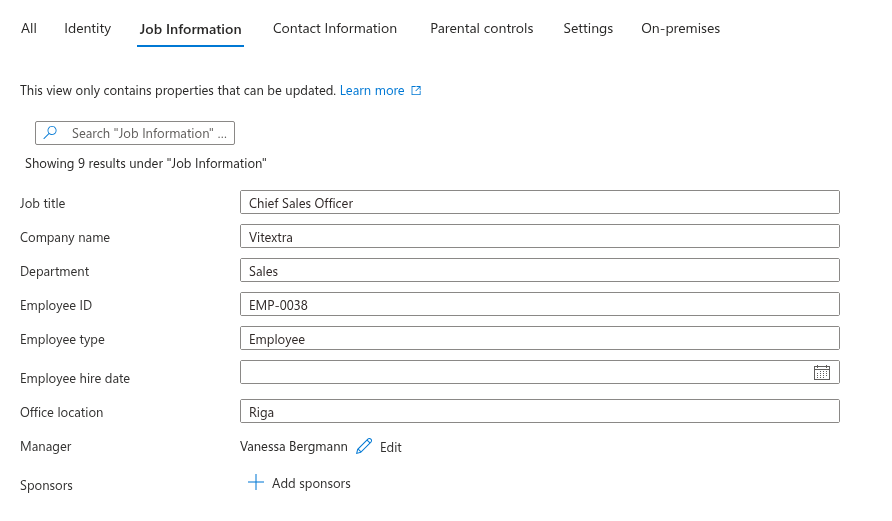
- Cloud-only accounts. In the Microsoft Entra admin center, open Users › All users, select the user and click Edit properties: the Identity, Job information (job title, company name, department, employee ID, employee type, office location, manager) and Contact information sections hold the attributes above. The Microsoft 365 admin center offers the same fields under Users › Active users › the user (Manage contact information, Manage manager), along with photos and licenses.
- Accounts synchronized from on-premises Active Directory. With Microsoft Entra Connect or Cloud Sync, the on-premises directory is the source of truth and the synchronized attributes cannot be changed in the cloud. Edit them in Active Directory (for example, the Organization tab of Active Directory Users and Computers holds the job title, department, company and manager); the changes reach Entra ID with the next synchronization cycle — every 30 minutes by default.
- HR-driven provisioning. If users are provisioned from an HR system, maintain the data there and map the HR fields to the Entra ID attributes in the provisioning configuration.
- Employees themselves. Users normally cannot change their Entra ID job information. They maintain their photo, the profile fields described in About me, skills and interests and their Outlook working hours.
How long changes take to appear
- Entra ID–based sources. Microsoft Graph returns a change as soon as it is saved in Entra ID (after the next synchronization cycle for synchronized accounts). The Employee Directory (Entra ID) web part keeps a copy of the data in the browser and refreshes it in the background once it is older than 24 hours; select Refresh next to Last updated above the results to load the current data at once.
- User profiles source. A change takes two more steps. First, Microsoft 365 synchronizes the Entra ID attributes into the SharePoint user profiles; this runs automatically and usually takes from several hours to a day, longer in large tenants. Then SharePoint search must re-crawl the profile before the change becomes searchable. Changes made directly in the user profile (skills, about me) need only the crawl. Plan a day or more between a bulk update and the moment the directory reflects it.
📝 Note
Because of these delays, the Employee Directory web part with the User profiles source and the details pane, which reads some data from Microsoft Graph, can briefly show different values for the same person. This resolves itself once the profiles are synchronized and re-crawled.
Hidden users
With the User profiles source, the Employee Directory web part does not show profiles that are hidden from address lists — the SPS-HideFromAddressLists user profile property, which reflects the Hide from global address list setting of the mailbox in Exchange. Turn on Show hidden users in the Data Source group to include them. Service accounts (such as app@sharepoint, Sync_DC_* or nt service* accounts) are always excluded.
Hiding a mailbox from the address list is therefore the way to remove an account from this data source without deleting it. The Entra ID–based sources do not use this setting: there, hide such accounts with the exclusion options or the filter editor.
Checklist before go-live
- Choose the data source and know which store you prepare: Entra ID, the SharePoint user profiles, or both.
- Names. Every employee has a display name, first name and last name that follow one convention.
- Job title and department are filled in for every employee, and department names are spelled identically everywhere.
- Manager is set for everyone except the head of the organization.
- Contact details. Email, business phone, mobile phone and office location are filled in; city and country for multi-site organizations.
- Photos are uploaded for as many employees as possible.
- Non-person accounts (shared mailboxes, rooms, service and test accounts) have no license and no department, or are hidden from address lists for the User profiles source.
- Blocked accounts of former employees are disabled in Entra ID; check the Exclude blocked users setting.
- Profile fields. Employees are invited to fill in About Me, Skills and Interests and to check their Outlook working hours and time zone.
- Custom attributes are synchronized and, for the User profiles source, mapped to managed properties.
- Wait for synchronization and crawl after bulk updates, then open the directory, select Refresh, and spot-check a few employees, the A–Z navigation, the refiners and the My department and My team quick filters.