Short URL Online
Introduction
The Short URL command in the command bar of a document library creates a short link to the selected document or folder. It takes a few seconds: you select an item, open the dialog, copy the link and, if you want, give it a more meaningful name.
This article explains how to use the command. For an overview of the whole product, see KB10470. Short URL Online. Solution Overview.
Before you begin
- Short URL Online must be deployed in your tenant and the Vitextra Short URL app must be added to the site. If the Short URL command is not visible, ask your administrator to follow KB10057. How to Deploy and Set Up Short URL Online.
- The command is available in document libraries.
Create a short link
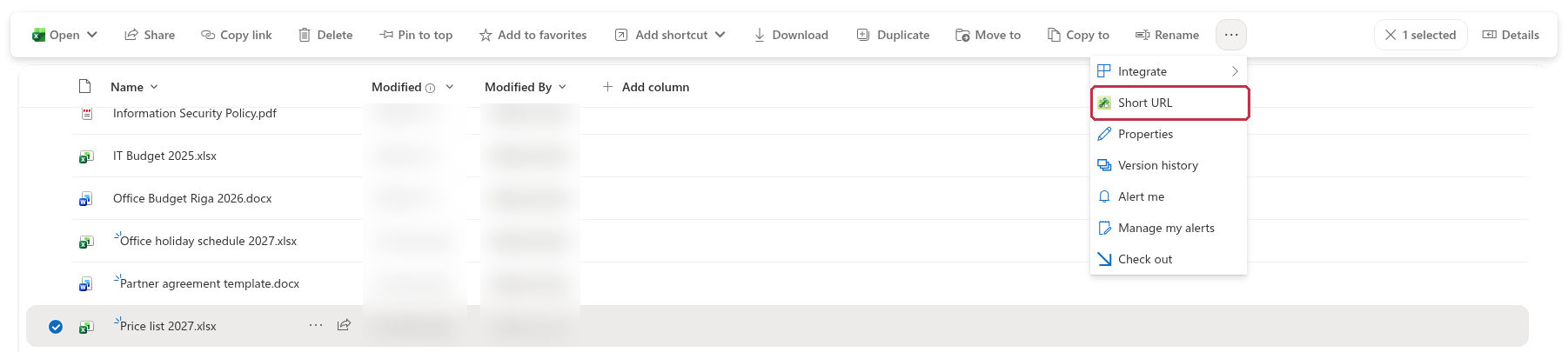
- Open the document library and select the document or folder that you want to share. Select one item only.
- On the command bar, click Short URL.
- The Short URL dialog opens and shows a spinner while the link is loaded. If the item has no short link yet, one is created for it automatically.
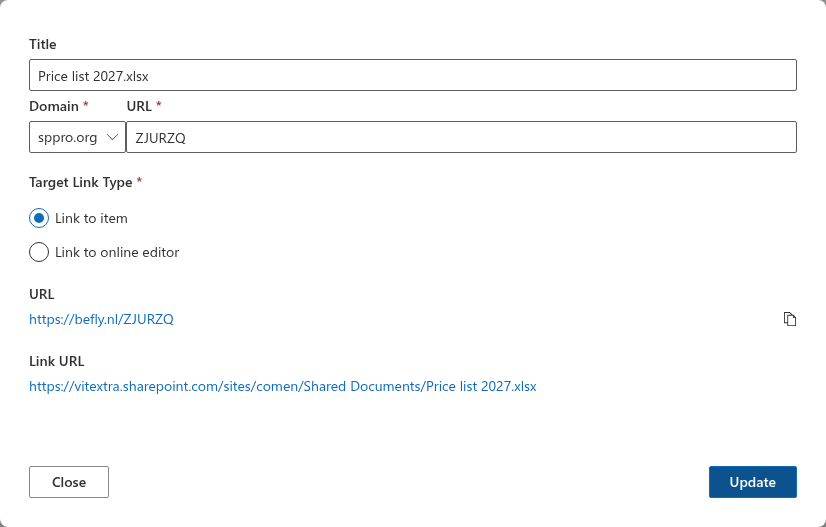
- Click the copy icon next to the short link. The word Copied appears briefly to confirm that the link is in the clipboard.
- Click Close, then paste the link into an email, a chat or a document.
📝 Note
The Short URL command is visible only when exactly one item is selected. If you select several items, or none, the command is hidden.
📝 Note
If you open the command for an item that already has a short link, the dialog shows that link instead of creating a new one.
Review the link properties
The dialog contains the following fields.
| Field | Description |
|---|---|
| Title | A name that helps you recognize the link in the Short URL Management web part. By default it is the title or the file name of the item. Up to 300 characters. |
| Domain | The domain of the short link. See KB10473. How to Choose a Domain and Customize the Short Name of a Link in Short URL Online. |
| URL | The short name that follows the domain. It is generated automatically and you can replace it. Required, up to 200 characters. |
| Target Link Type | Link to item or Link to online editor. See KB10472. Link to Item vs. Link to Online Editor: Choosing the Target Link Type in Short URL Online. |
| URL | The resulting short link, with a copy button. It opens in a new browser tab when you click it. |
| Link URL | The full address of the item that the short link leads to. |
Change the short link
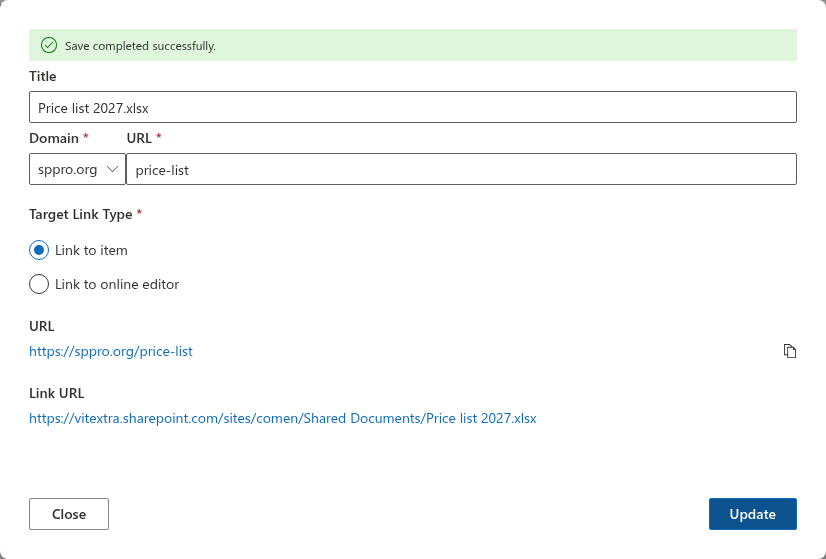
- In the URL field, type a new short name, for example
price-list. - If needed, change the Title, the Domain or the Target Link Type.
- Click Update. The message Save completed successfully. appears and the URL field shows the new link.
❗ Important
The short name must be unique. If the name is already taken, the URL field shows the message This name already exists. You must specify a unique name. Choose a different name and click Update again. If you leave the URL field empty, it shows This field is required.
❗ Important
The short link consists of the domain and the short name, so changing either of them changes the link itself. Anyone who already received the previous link should be sent the new one.
What if the dialog shows an error
If the short link cannot be loaded or created, the dialog shows an error message that begins with The following error occurred: and only the Close button. Close the dialog and try again. If the problem persists, see KB10365. Why Does a Vitextra Web Part Show "We Hope You Enjoyed Your Free Trial"? License Messages and Fixes to rule out a license issue.
💡 Tip
To see all the short links that you and your colleagues have created, and to delete the ones you no longer need, use the Short URL Management web part. See KB10474. How to Add and Configure the Short URL Management Web Part.