Short URL Online
Introduction
The Short URL Management web part lists all the short links created in your Microsoft 365 tenant and lets you search, create, edit and delete them. This article explains how to add it to a page and what to check after the first load.
Before you begin
- The vitextra.short-url-online.webparts.sppkg package is deployed to the App Catalog. See KB10057. How to Deploy and Set Up Short URL Online.
- You have permission to edit the page.
- A tenant administrator has approved the Microsoft Graph permissions requested by the package (see below).
Add the web part to a page
- Open the SharePoint page and click Edit.
- Hover over the place where you want the web part and click + (Add a new web part).
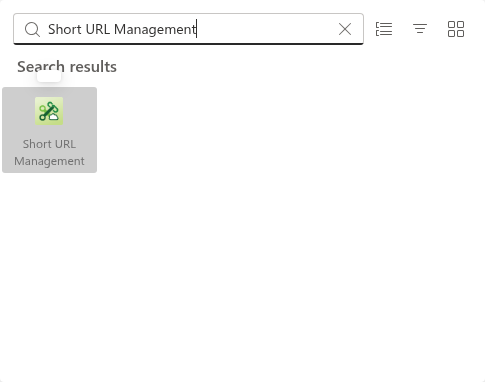
- Type Short URL Management in the search box and select the web part.
- Click into the Web Part Title area above the list and type a title, for example Short links.
- Click Publish (or Republish) to make the page available to others.
📝 Note
The web part can be placed in a regular section of a page and also on a full-width app page (a page in the Single-Part App Page layout). It does not support the classic SharePoint pages.
What the web part shows
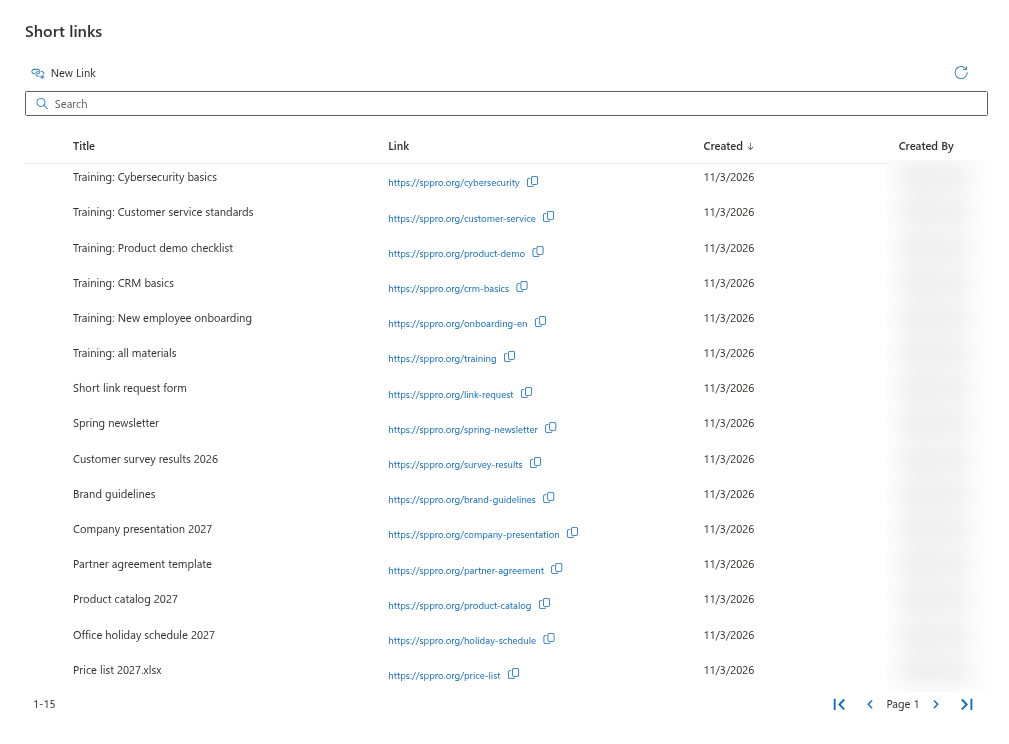
- Command bar - New Link when no row is selected; Edit when one row is selected; Delete when one or more rows are selected (with the number of rows in brackets for several). At the right end, the Refresh icon reloads the list.
- Search box - searches by title or link.
- List - the columns Title, Link, Created and Created By. The Link column shows the full short link with an icon to copy it.
- Pagination - 15 links per page, with buttons to go to the first, previous, next and last page.
The web part shows the links of the whole tenant, not only those of the current site.
For searching and sorting, see KB10476. How to Find, Sort and Page Through Short Links in Short URL Management.
Microsoft Graph permissions
The Created By column shows the name of the person who created each link. To resolve the names, the solution uses Microsoft Graph and requests two permissions: Directory.Read.All and User.Read.All. A tenant administrator must approve them once in the SharePoint admin center. For the procedure, see KB10360. How to Approve Microsoft Graph API Permissions for Vitextra Solutions in the SharePoint Admin Center.
❗ Important
Until the permissions are approved, the list of short links can still be used, but the Created By column may not show the names of the authors.
License
Short URL Online is licensed per tenant. When the trial or the subscription expires, the web part asks you to buy the product. See KB10364. What Happens When Your Vitextra Trial or Subscription Expires.
💡 Tip
Place the web part on a page in a site that is accessible only to the people who manage short links, for example an intranet administration site.