Short URL Online
Introduction
The Short URL Management web part shows the short links of your whole Microsoft 365 tenant, not only those of the current site. When there are many of them, you can search the list, sort it and move between pages. This article describes each of these tools. To add the web part to a page, see KB10474. How to Add and Configure the Short URL Management Web Part.
The list
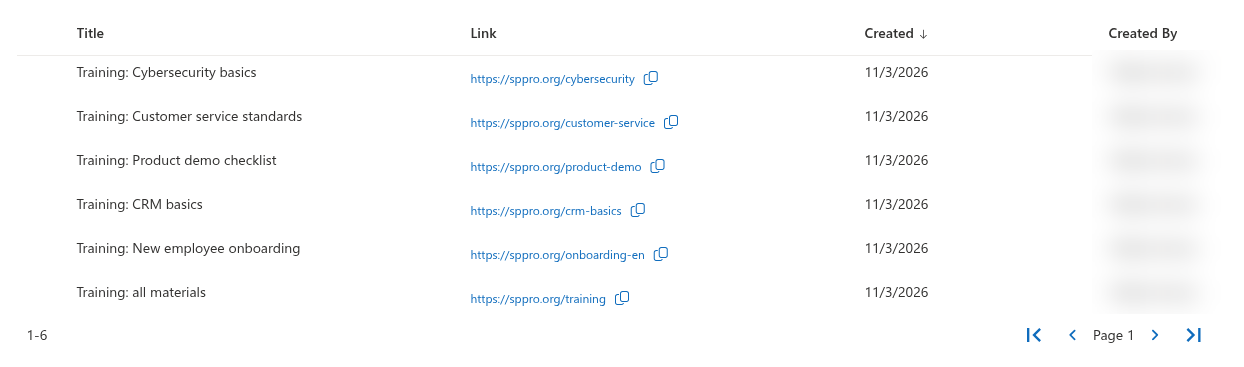
| Column | What it shows |
|---|---|
| Title | The title of the link. A link without a title is shown as Untitled in italics. |
| Link | The full short link (domain and short name). Click it to open the link in a new browser tab. The icon next to it copies the link to the clipboard. |
| Created | The date when the link was created, in the date format of your browser. |
| Created By | The name of the person who created the link. |
While the list is loading, gray placeholder rows are displayed.
Search
Type text into the search box above the list. The box shows the hint Search.
- The list is updated automatically a moment after you stop typing.
- Press Enter to search immediately.
- Click the × button in the box to clear the search and show all links again.
If nothing matches, the list is empty.
📝 Note
Every new search starts from the first page of the results.
Sort
You can sort the list by Title or by Created. Click the column header:
- The first click on a column sorts it in ascending order (A to Z, oldest to newest).
- The next click on the same column reverses the order.
- An arrow in the header shows the current column and direction.
When the web part opens, the list is sorted by Created, newest first.
📝 Note
The Link and Created By columns cannot be used for sorting.
Page through the list
The list shows 15 links per page. The bar below the list contains:
- the range of rows on the current page, for example 1-15;
- the current page number (Page 1);
- four buttons: First page, Previous page, Next page and Last page. A button is dimmed when it cannot be used, for example the first two on the first page.

When you change the sort order or the search text, the list returns to page 1. If the last link on a page is deleted, the web part moves to the last page that still exists.
Refresh the list
Click the Refresh icon at the right end of the command bar to reload the list, for example to see the links that your colleagues have just created.
Why Created By can be empty
The Created By column gets the name of each author from Microsoft Graph. If the permissions have not been approved, or the person has since been deleted from your directory, the cell stays empty; the rest of the row is not affected. To approve the permissions, see KB10360. How to Approve Microsoft Graph API Permissions for Vitextra Solutions in the SharePoint Admin Center.
💡 Tip
Give links meaningful titles when you create them. Searching by title is the fastest way to find a link later. To change a title, see KB10477. How to Edit and Delete a Short Link in Short URL Management.