Short URL Online
What you can do
Short URL Online turns long SharePoint addresses into short links that are easy to read, type and share. This guide gives you the shortest route to each everyday task. Every step links to a detailed article.
Shorten a document or folder
- Open a document library and select one document or folder.
- Click Short URL on the command bar.
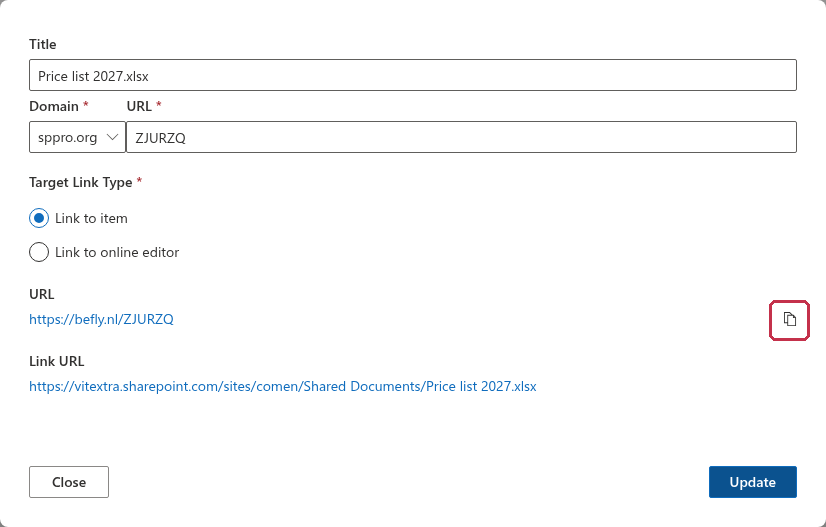
- Optionally change the Title, Domain and the short name in the URL field, then click Update.
- Click the copy icon next to the URL and paste the link where you need it.
More: KB10471. How to Create a Short Link for a Document or Folder in SharePoint Online.
Shorten any web address
- Open the page that contains the Short URL web part.
- Enter the Origin URL and a short name in URL, choose a Domain and click Create.
- Click the copy icon next to the Shortened URL.
More: KB10475. How to Add the Short URL Web Part to a Page.
Find a link
- Open the page that contains the Short URL Management web part.
- Type part of the title or of the link into the search box.
- Click the Title or Created header to sort the list, and use the buttons at the bottom to change pages.
More: KB10476. How to Find, Sort and Page Through Short Links in Short URL Management.
Copy or open a link
In the Link column, click the link to open it in a new tab, or click the copy icon next to it to copy it.
More: KB10478. How to Copy and Open a Short Link in Short URL Online.
Change or delete a link
- To change a link, select it, click Edit, change the fields and click Update.
- To delete one or more links, select them, click Delete and confirm.
More: KB10477. How to Edit and Delete a Short Link in Short URL Management.
❗ Important
A short name must be unique. If you see This name already exists. You must specify a unique name., choose another name. A deleted link stops working, so delete only the links that nobody needs any more.
💡 Tip
If you do not see the Short URL command in a library, or the web parts on a page, ask your administrator to deploy Short URL Online; see KB10470. Short URL Online. Solution Overview.