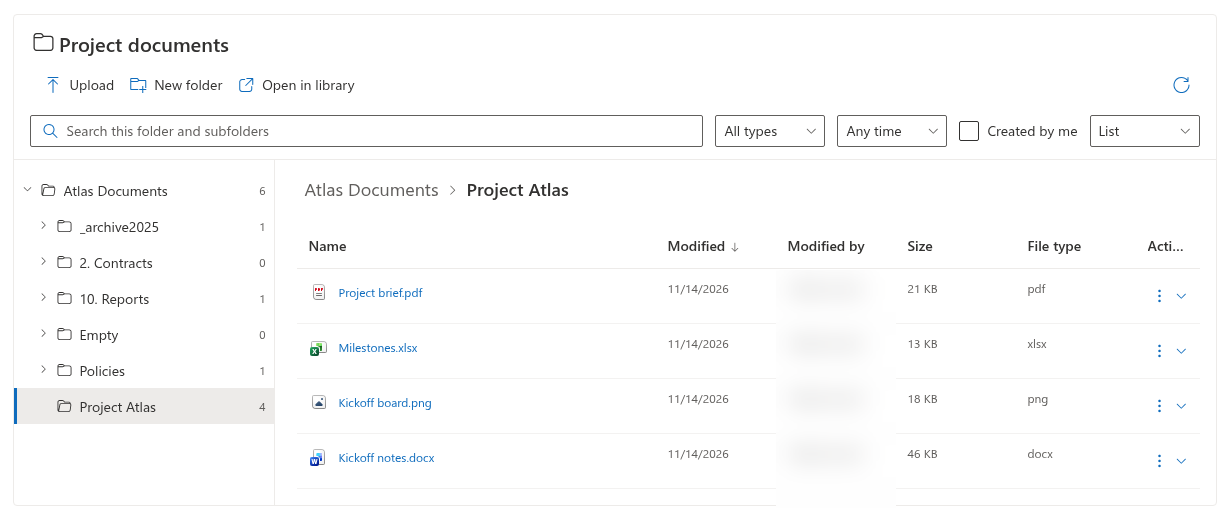
Folder Tree
Before you begin
Folder Tree displays the folders and documents of one SharePoint library. The web part must already be available on your site. You need permission to edit the page and read the source library. Visitors need their own access to that library.
Connect a library
- Open the SharePoint page in edit mode and add Folder Tree.
- Open the web part property pane using Settings.
- Expand Source. Leave Site URL (empty = current site) empty to use the current site.
- Select Document library and wait for its contents to load.
- Leave Starting folder (server-relative path) empty to start at the library root, or enter an existing folder's server-relative path.
- In Files, select Default view. Start with List if you want a table of documents.
- Save or republish the SharePoint page using the page controls.
Check the result
Select a folder name to show its contents. Use the arrow beside a folder to expand its child folders. Breadcrumbs show the current location. If more items are available, select Load more. Use Refresh after changes made elsewhere.
📝 Note
Folder Tree does not grant access to documents. Test the published page with a representative visitor account, especially when the library is on another site.