Folder Tree
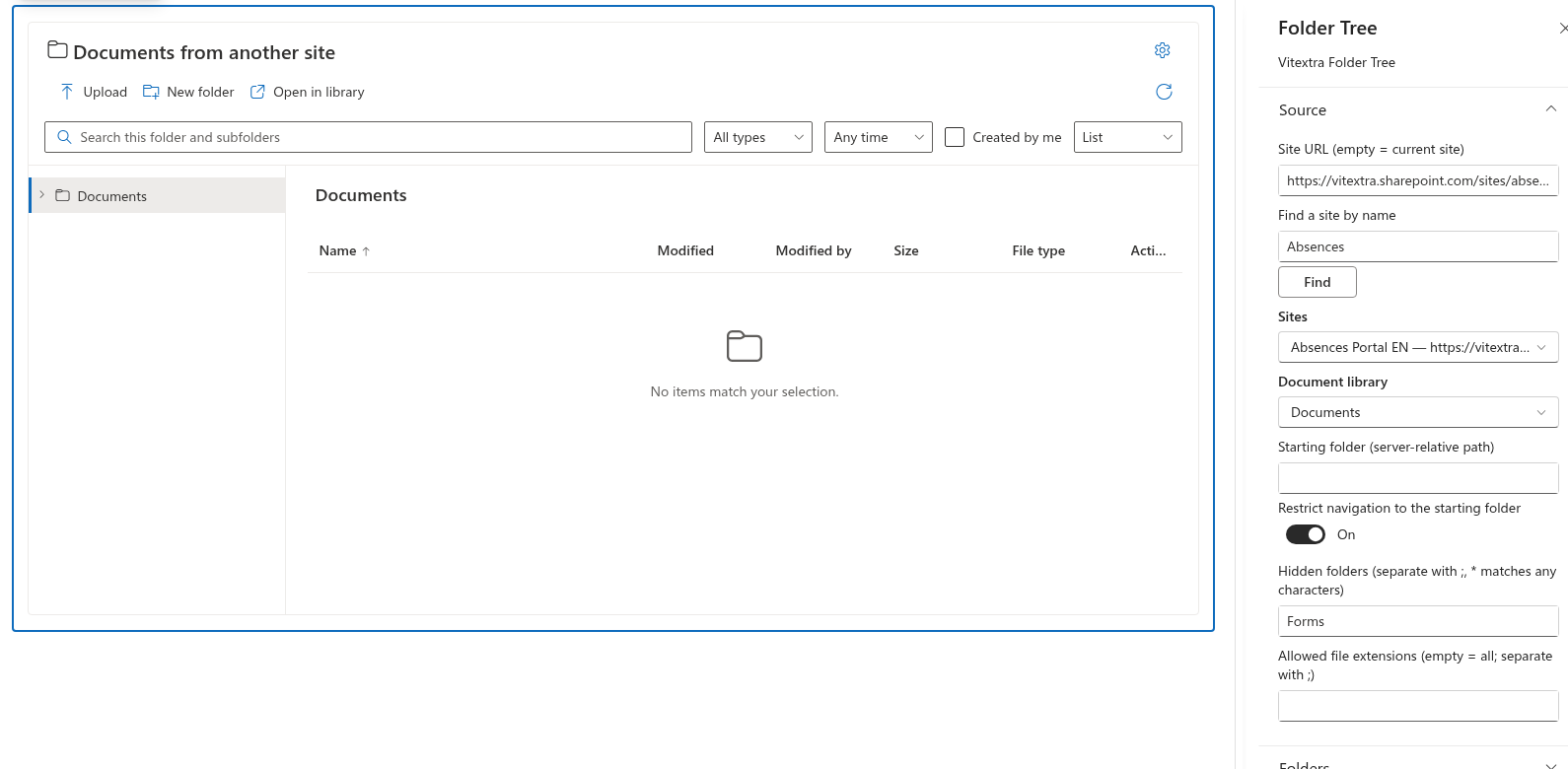
Choose the source site
You can display a library from another site on the same SharePoint hostname. Editing the page does not automatically give you access to that site's documents.
- Edit the page, open Settings, and expand Source.
- Enter the site's address in Site URL (empty = current site), for example
https://contoso.sharepoint.com/sites/hr. Use the site address, not a document link or a library view URL. - Alternatively, enter a site name in Find a site by name, select Find, and choose a result in Sites.
- Select Document library from the refreshed list.
- If needed, enter Starting folder (server-relative path) within that library. Save or republish the page.
If the site is not found
Site-name lookup uses SharePoint Search. If no suitable result appears, enter the site URL directly. Open the source site and library separately to verify access. A URL on a different hostname, including a different multi-geo hostname, is not accepted by the current implementation.
❗ Important
Changing the source site clears the selected library and starting folder. Changing the library also resets the selected columns and the default sort field. Review these settings after switching sources.
Verify visitor access
Publish the page and check it with a user who should read the documents. If the page opens but the library does not, review permissions on the source site, library and relevant folders. Folder Tree uses the current user's SharePoint access.