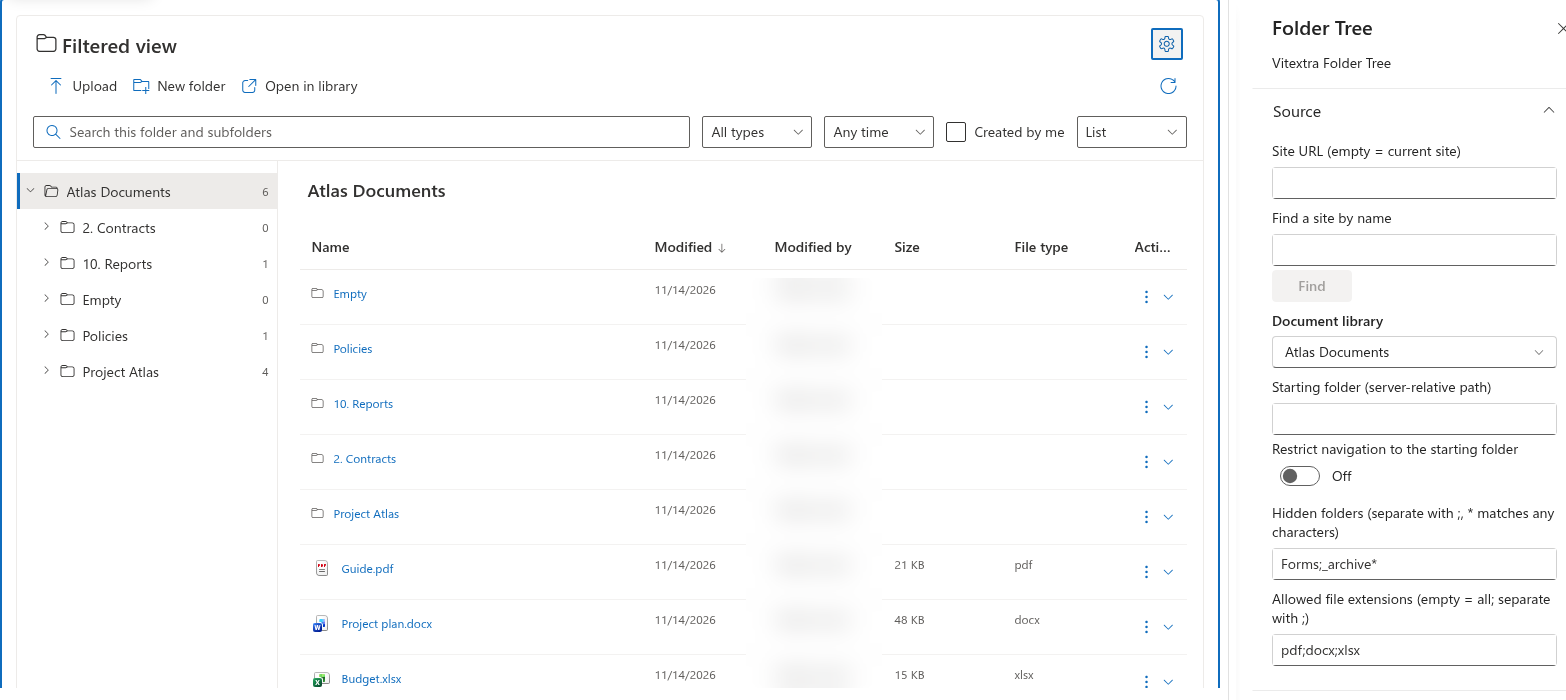
Folder Tree
Hide folders by name
- Edit the page and open Settings → Source.
- In Hidden folders (separate with ;, * matches any characters), enter names or masks separated by semicolons, for example
Forms;_archive*. - Save or republish the page and check the tree and folder contents.
Matching is case-insensitive and applies to the complete folder name. Forms matches that name, not Forms2. The * character matches any sequence of characters, so _archive* also matches _archive2026. A hidden branch is also excluded from displayed search results. Forms is hidden by default.
Limit displayed file types
Enter extensions in Allowed file extensions (empty = all; separate with ;), for example pdf;docx;xlsx. Leave the setting empty to allow all extensions. The configured list also supplies the choices in the user's File type filter. Folder navigation remains available even when files are filtered out.
❗ Important
These settings filter the presentation. They do not change SharePoint permissions, delete content or prevent uploading a file with a different extension. A successfully uploaded file can therefore be absent from the filtered view.
Check apparently empty results
Review both the editor's extension list and the user's quick filters. If Load more is available, there are further results to request even if the current page contains no visible items. Hidden-folder rules do not replace a deliberately selected starting root with a different folder.