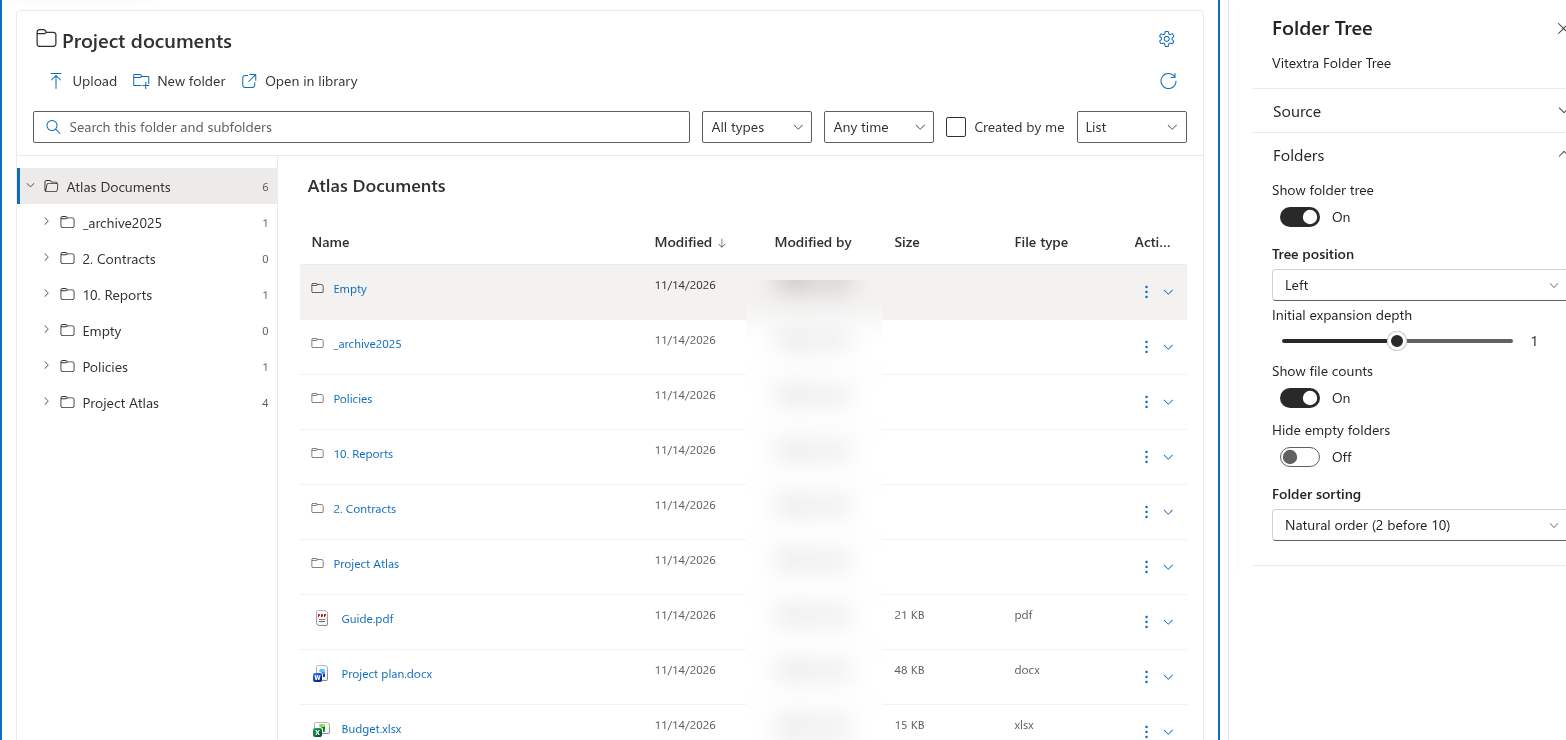
Folder Tree
Open the folder settings
Edit the page, open Settings, and expand Folders. Enable Show folder tree to display the navigation pane. Disabling it leaves the content area available; it does not create a tree-only view.
Set expansion and counters
- Initial expansion depth accepts 0, 1 or 2. With 0, users expand the root themselves. Higher values expand the corresponding levels when the tree initializes.
- Show file counts displays the file count supplied by SharePoint for a folder when that metadata is available. It is not a count of search matches or of all files in descendant folders.
- Hide empty folders hides child folders whose SharePoint item count is zero. A folder containing subfolders is not necessarily empty.
Choose folder sorting
Use Folder sorting to choose Name, Natural order (2 before 10), or Library order (item ID). Natural sorting places a folder such as 2. Contracts before 10. Reports. Library order uses the item ID; it is not a drag-and-drop ordering editor.
📝 Note
Child folders load when a branch is expanded, in pages of up to 200. Sorting applies to the loaded nodes. Select Load more within a branch when another page is available; the web part does not load the entire library tree in advance.
Verify the tree
Save or republish the page. Expand a branch with several folders and confirm the ordering and counters. Select a folder name to show its contents; expanding the arrow and selecting the folder are separate actions.