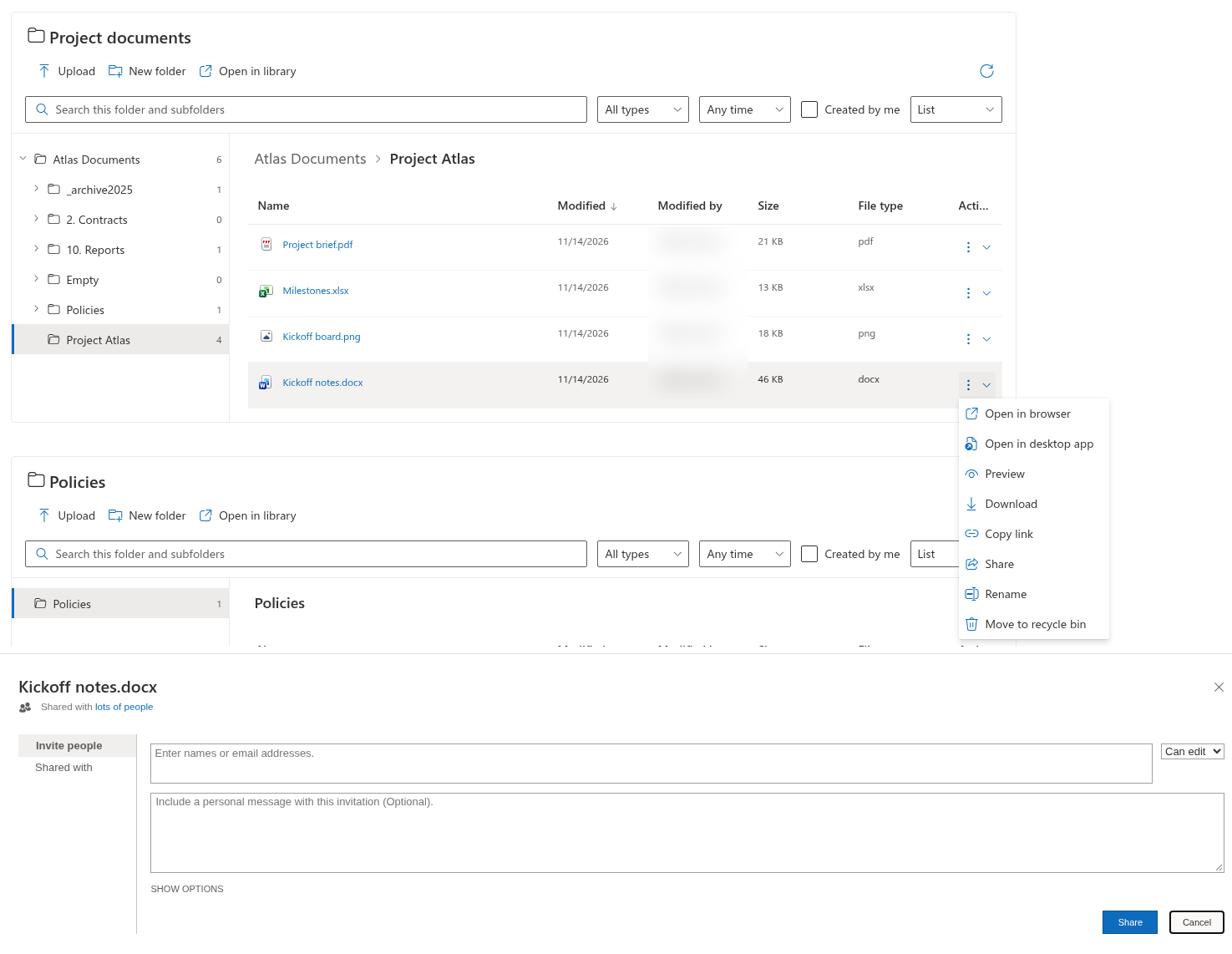
Folder Tree
Copy a file link
- Locate the document and open its three-dot Actions menu.
- Select Copy link.
- Wait for the confirmation message and paste the link into your message or document.
For a file, the copied URL points directly to that SharePoint file. The command does not create an anonymous link or change access. If clipboard access is blocked by the browser, the web part reports an error rather than confirming a successful copy.
Share through SharePoint
Open the item's menu and select Share. Folder Tree opens SharePoint's native sharing page inside a side panel. Complete the sharing steps offered by SharePoint for your account and organization. The command can be unavailable while item permissions are loading.
❗ Important
Copying a URL does not give the recipient permission to open it. Sharing choices and any changes to access are governed by SharePoint and tenant policies, not by a separate Folder Tree permission model.
Copy a folder link
For a folder row, Copy link copies a link to the current page with that folder encoded in a web-part-specific parameter. It is not a direct library-folder URL. Recipients need access to both the page and the source folder. The configured starting-root restriction and hidden-folder rules still apply.
If sharing is unavailable
Ask the page editor whether Share is enabled. If the embedded SharePoint sharing page cannot be used in your environment, select Open in library, when available, and use the library's sharing interface.