Folder Tree
Rename an item
- Navigate to the parent folder containing the file or folder.
- Open the item's three-dot Actions menu and wait for its permissions to load.
- Select Rename.
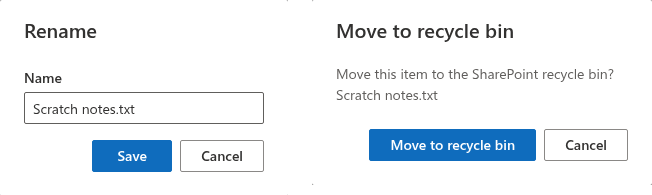
- Edit Name and select Save. For a file, preserve its extension unless you intentionally need to change it.
- Check the refreshed list. If SharePoint rejects the new name, correct the error and try again.
The name must not have reserved characters, leading or trailing spaces, or a trailing dot. A conflicting name can also be rejected by SharePoint. Cancel leaves the item unchanged.
Move an item to the recycle bin
Open the item's Actions menu and select Move to recycle bin. Review the confirmation, including the item name, before selecting Move to recycle bin again. Use Cancel if the item is not the one you intended to remove.
❗ Important
The delete action calls SharePoint's recycle operation, not permanent deletion. Folder Tree has no restore command; use the SharePoint recycle bin if an item needs to be restored.
Why a command is disabled
The editor can disable rename and deletion separately. Rename requires edit permission on the item; deletion requires delete permission. Buttons can also be disabled while an operation is running or permissions are being checked. Permissions on a file or subfolder can differ from those of its parent library.